

How to View My Laptop Camera Remotely on Android [3 Options]
Want to turn your laptop into a mobile monitor? Learn 3 simple ways to view your laptop camera remotely from an Android phone using AnyViewer and other tools. High-quality, real-time, and 100% free!

By Ellie / Updated on March 27, 2026


Have you ever wondered if you could monitor your home with a laptop webcam from Android? Whether you want to check on your pets, improve home security, or use your computer as a baby monitor, learning how to view my laptop camera remotely from Android is easier than you think. You might ask, "Can I access my laptop camera from my phone?" The answer is a definitive yes.
In this guide, we will explore the best free apps to view my laptop camera remotely on Android and provide step-by-step instructions to get you connected in minutes.
Quick Comparison: Which Tool Should You Choose?
Before we dive into the steps, here is a quick look at the top three remote access tools to help you decide which one fits your needs.
| Feature | AnyViewer (Recommended) | TeamViewer | Chrome Remote Desktop |
| Price | Free & Professional | Free (Personal only) | Completely Free |
| Setup Difficulty | Very Easy (One-click) | Moderate | Complex (Plugin required) |
| Connection Speed | High Speed / Low Latency | Moderate | Variable |
| Security | ECC End-to-End Encryption | AES 256-bit | Google Account Security |
| Best For | Stable, high-quality monitoring | Occasional tech support | Users already in the Google ecosystem |
Important Pre-check: Windows Privacy Settings
Before using any software, you must ensure your laptop allows camera access.
Step 1. Go to Settings > Privacy > Camera.
Step 2. Ensure "Allow apps to access your camera" is turned ON.
Step 3. Also, go to Power & Sleep settings and set your PC to "Never Sleep" when plugged in; otherwise, the connection will drop once the laptop enters sleep mode.

Top 3 Apps to View My Laptop Camera Remotely on Android
You can view laptop camera from phone devices using AnyViewer (best for high-quality streaming), TeamViewer (intuitive interface), or Chrome Remote Desktop (browser-based).
Option 1: View Laptop Camera via AnyViewer (Best Choice)

AnyViewer excels in providing high-definition video streaming with minimal latency to see your laptop camera on your phone. Unlike other tools, it offers a "One-click" connection that doesn't require complex IDs or passwords every time you log in. It uses Elliptic Curve Cryptography (ECC) encryption to ensure your private feed stays private.
Key features of AnyViewer:
- Fast file transfer: Securely send and receive files between your Android phone and remote laptop with high-speed transmission, perfect for accessing documents on the go.
- Comprehensive mouse and keyboard control: AnyViewer enables full operation of your laptop's mouse and keyboard directly from your Android device.
- Power management options: With just one click, you can easily shut down, restart, log off, or put your laptop to sleep.
- Remote application access: Effortlessly launch and switch between applications, including a handy show desktop feature for improved navigation.
- Privacy protection mode: Activate a privacy mode that darkens your laptop screen and disables the remote input from the physical keyboard and mouse to safeguard your privacy during remote connections.
- Customizable keyboard shortcuts: Select and display keyboard shortcuts tailored to your needs for quick access to essential functions.
Here are the detailed steps to view laptop camera from phone:
Step 1. Download, install, and launch AnyViewer on your laptop. Click "Log in" and then choose "Sign up" to create an account. Make sure to stay logged in.

Step 2. Install the AnyViewer app on your Android device and sign in using the account you set up on your laptop.
Step 3. Go to the "My devices" section, select your laptop, and tap "One-click control" to establish an immediate connection.
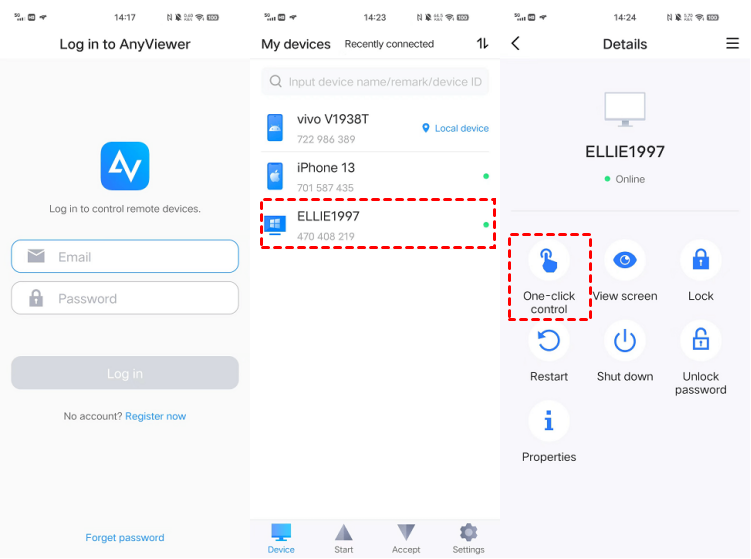
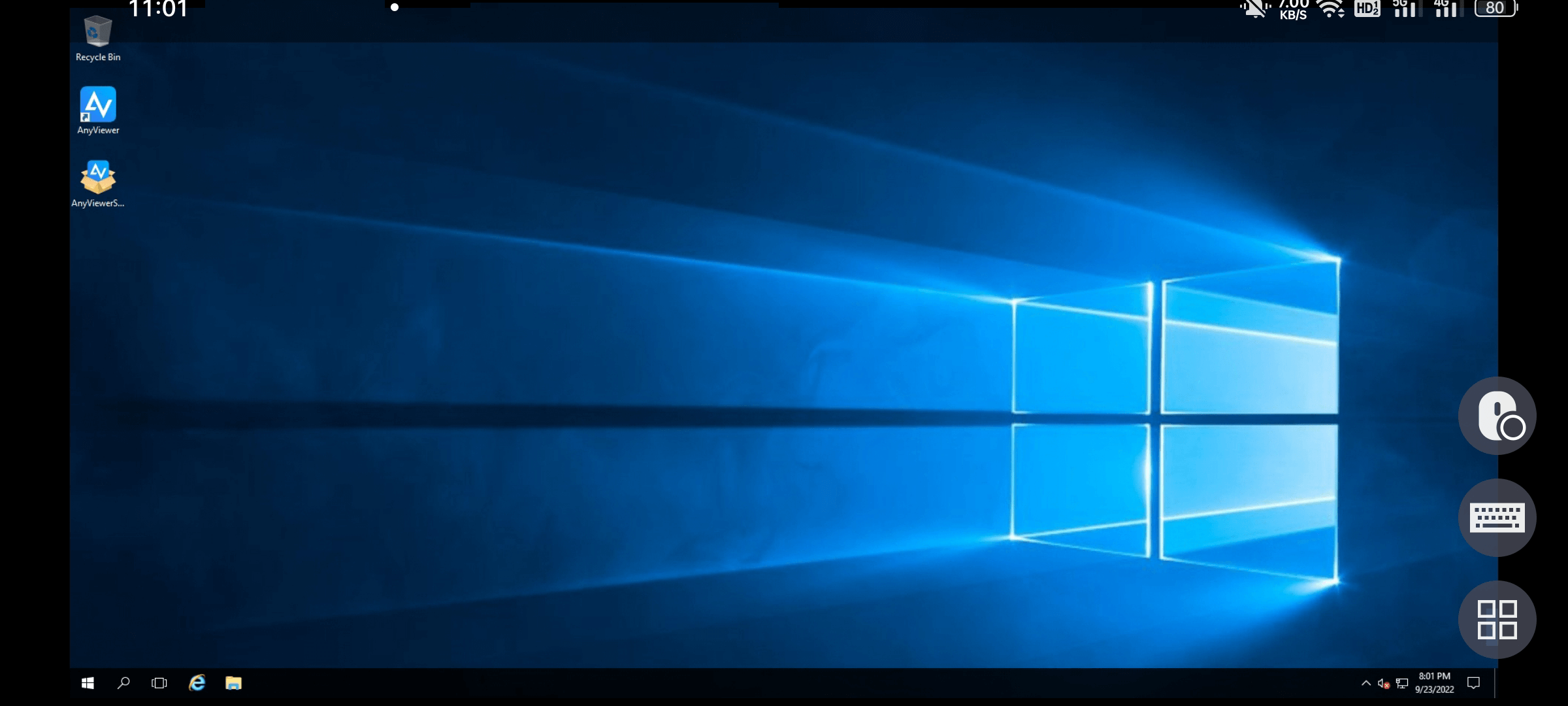
Step 4. Once connected, open the Camera app on your PC to view my laptop camera remotely from Android.
AnyViewer offers affordable plans for advanced needs, supporting multi-device unattended access, privacy mode, and superior image quality.
Option 2: Use TeamViewer for Remote Monitoring
TeamViewer is renowned for its user-friendly interface and extensive remote control capabilities. The app allows you to access not just the webcam but also control applications and files on your laptop. Its cross-platform support means you can connect from Android to Windows, macOS, or Linux, making it a versatile tool for remote collaboration and support.
Step 1. Download and install the full version of TeamViewer on your computer.
Step 2. Take note of the unique nine-digit ID and the accompanying four-digit password shown on the screen.
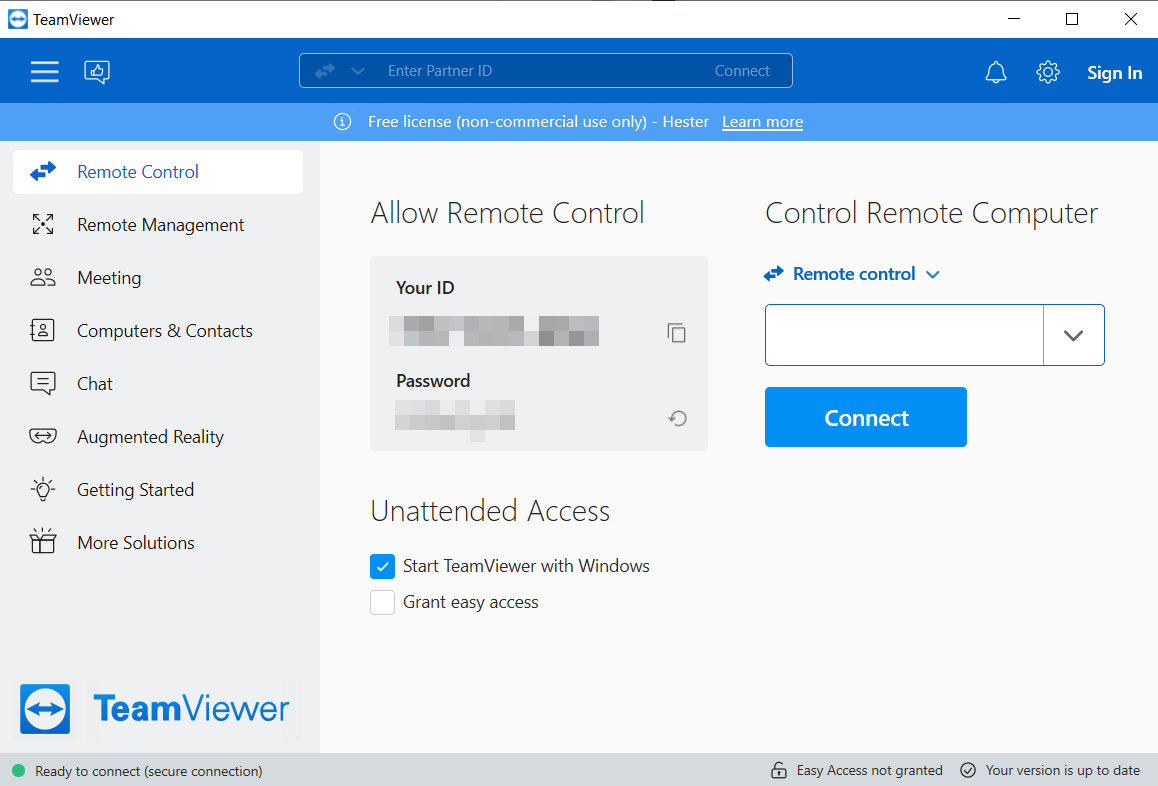
Step 3. On your mobile device, install and launch the TeamViewer app.
Step 4. Input the ID and password in the respective fields within the app.
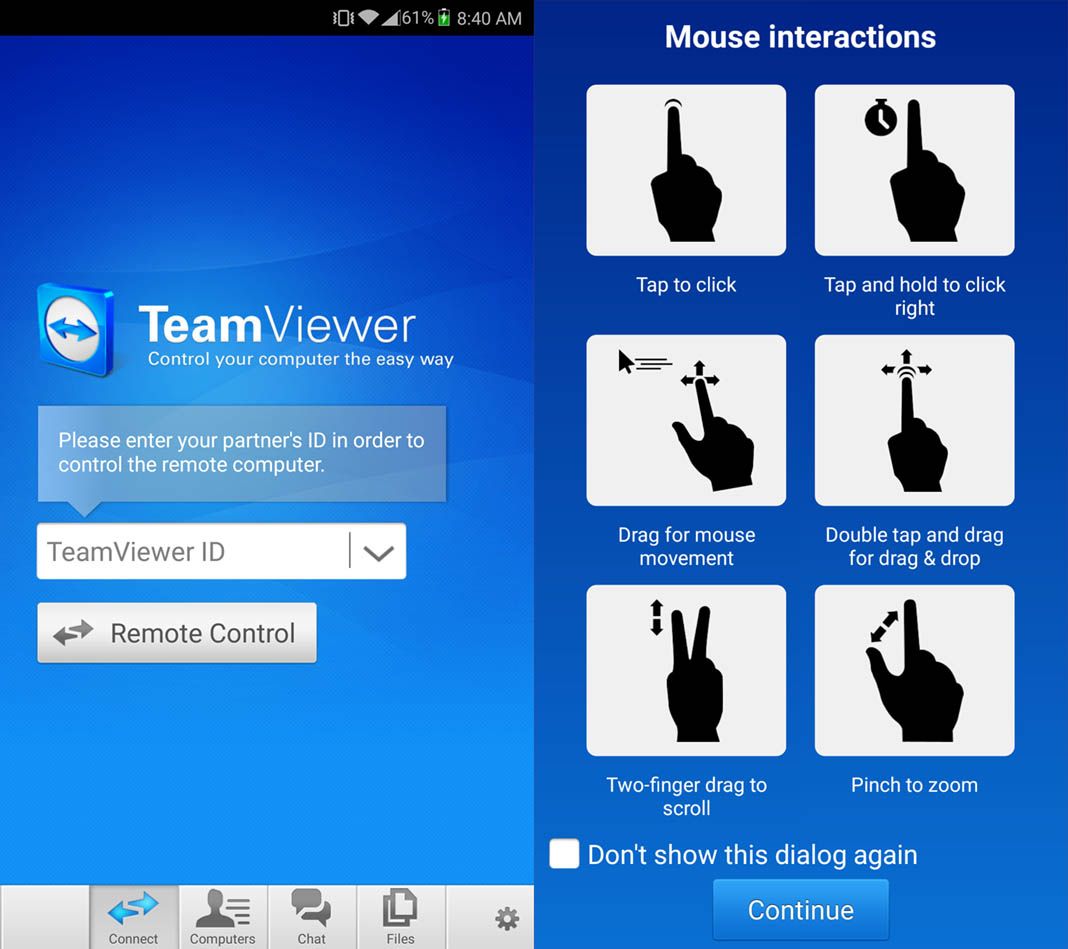
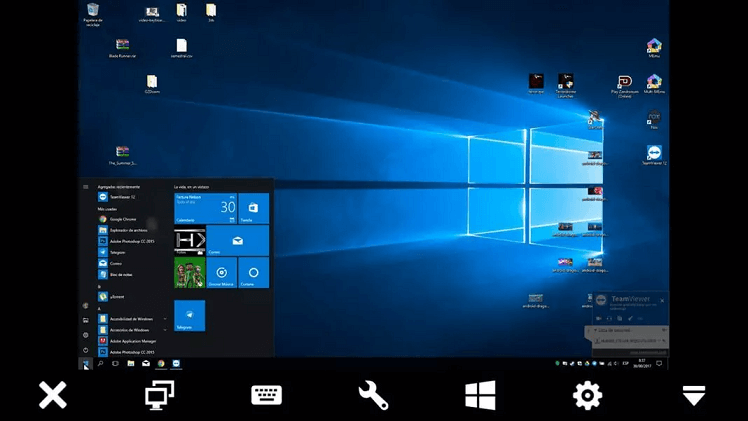
Step 5. You can now control your computer's desktop remotely using the touchscreen of your smartphone or tablet.
Option 3: Chrome Remote Desktop (Web-Based)
Chrome Remote Desktop stands out for its simplicity and accessibility, allowing users to control their laptop via the Chrome browser without needing additional software. The setup is quick and straightforward, requiring only a few steps to get started. It offers reliable performance for webcam access and is particularly useful for users who prefer a lightweight solution. Additionally, it's free to use, making it an excellent option for budget-conscious users who still want effective remote access.
Step 1. Start by downloading the Chrome Remote Desktop extension for your browser. Navigate to the Chrome Remote Desktop homepage, select "Remote Access" from the left menu, then click the "Download" icon and choose "Add to Chrome" to install the extension.
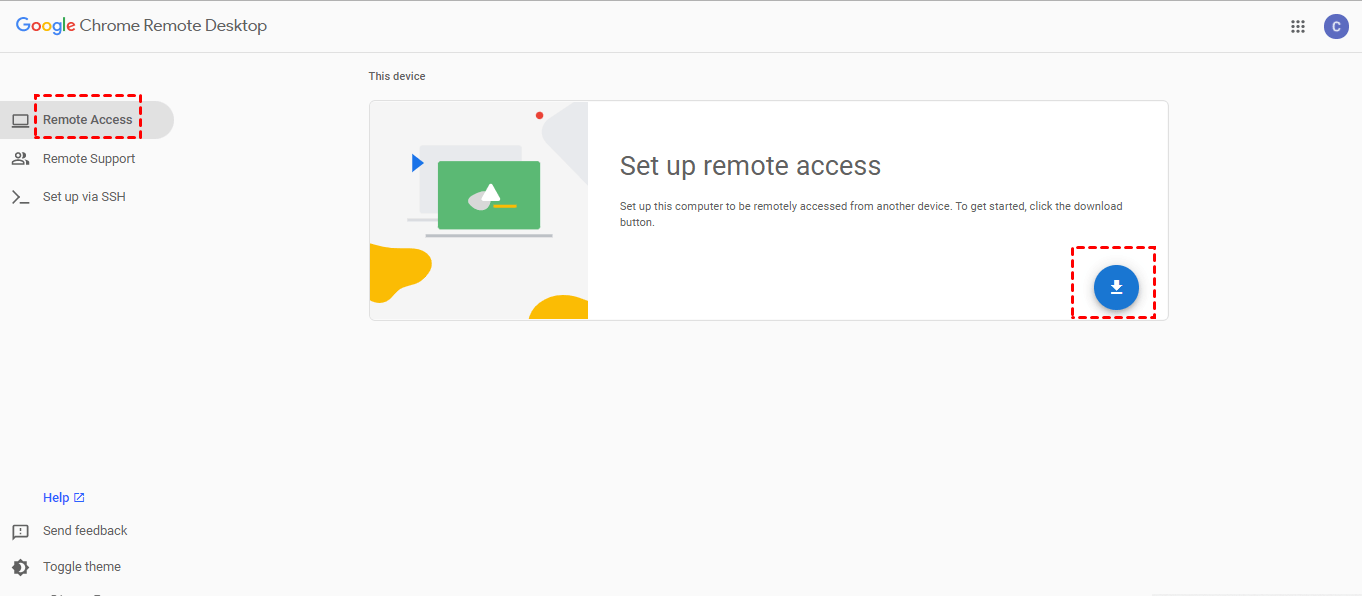
Step 2. Once the extension is installed, click "Accept & Install" and follow the setup prompts. Assign a name to your PC, then click "Next." Create and confirm your PIN before clicking "Start."

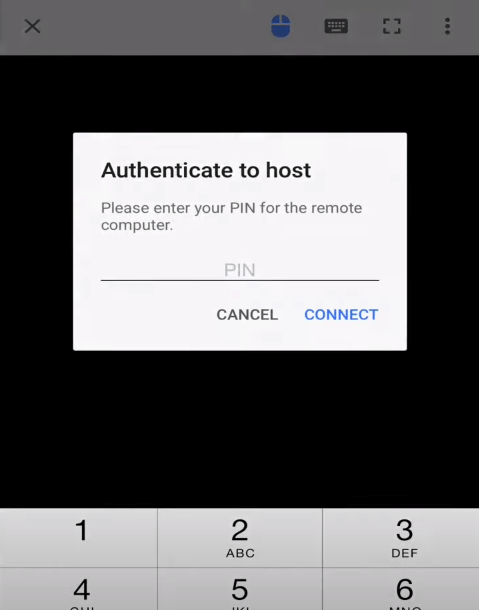
Step 3. Launch the Chrome Remote Desktop app on your mobile device, log in with your account details, and select your PC under "Remote Devices." Enter your PIN to connect and access your laptop camera remotely.
Privacy & Security Advice For You
Remote access to a camera is a powerful tool, but it carries privacy risks.
- Encryption: AnyViewer uses ECC encryption to prevent data leakage.
- Physical Safety: Always close your physical webcam cover or disconnect the session when you are finished.
- Consent: If you are using this to see a laptop camera on a phone without someone knowing, ensure you are complying with local privacy laws and only monitoring your own property.
Conclusion
In conclusion, learning how to view my laptop camera remotely from Android is a simple way to enhance home security or monitor pets. Whether you choose AnyViewer for its one-click HD streaming, TeamViewer for versatility, or Chrome Remote Desktop for simplicity, you now have the tools to stay connected.
For the best balance of speed and security, AnyViewer remains the top remote access solution. Follow our setup steps and privacy tips to turn your laptop into a reliable remote monitor in minutes.
FAQs
Can I view my laptop's camera on Android while the laptop is asleep?
Is it safe to leave my laptop camera accessible for remote viewing?
Why is the video feed lagging or freezing on my Android phone?
- In AnyViewer, go to the "Image" settings and select "High Speed" or "Balanced".
- Temporarily lower the laptop's screen resolution to reduce data usage.
- Ensure both devices are connected to stable Wi-Fi rather than 4G/5G if possible.
Can I use my laptop as a security camera without someone knowing?
Q4: Can I use my laptop as a security camera without someone knowing? A: While technical tools allow for "unattended access," you must ensure you are complying with local privacy laws. This setup is typically used for legal monitoring, such as home security, pet watching, or baby monitoring on your own property. Unauthorized surveillance of others is illegal and a violation of most software's Terms of Service.
Why does my phone show a black screen when I open the camera app?
- Windows Privacy: Go to Settings > Privacy > Camera and ensure "Allow desktop apps to access your camera" is enabled.
- Software Conflict: Ensure no other app (like Zoom or Skype) is currently using the camera on the laptop, as Windows usually only allows one app to access the webcam at a time.



 as a preferred
source on Google
as a preferred
source on Google