

[Fixed] Sorry Office Can't Be Activated Remote Desktop
This article discusses the "sorry, Office can't be activated" error on remote desktops. It covers shared computer activation settings and how sign-in difficulties are typically resolved.

By Irene / Updated on February 4, 2026


🌟 Quick summary:
If you are encountering the error "Sorry, Office can't be activated because it doesn't meet the requirements for running on Remote Desktop Services," the immediate fix involves enabling Shared Computer Activation (SCA) in your Office 365 settings or Registry. This error occurs because standard Office 365 licenses lock to a single user's hardware, while Remote Desktop environments require a specific "roaming" license token.
However, if you want to bypass these complex licensing restrictions entirely, the most effective alternative is to switch from the standard, restrictive RDP protocol to a modern remote access solution like AnyViewer. Unlike traditional RDP which triggers strict Microsoft volume licensing checks, AnyViewer allows you to access your office PC's desktop session directly—just as if you were sitting in front of it without triggering "Shared Computer" activation errors.
User case: encounter Sorry, Office Can't Be Activated error
You might have an employee with an Office 365 E3 license who has been working without issues for over two years, only to unexpectedly face an activation error when launching Word or Outlook via Remote Desktop. The message reads, "Sorry, Office can't be activated because it doesn't meet the requirements for running on Remote Desktop Services." While this problem might initially seem restricted to a single user, you may soon notice that newly created accounts are plagued by the same restriction, even though dozens of other existing users continue to work normally. Like this:
Sorry, office can’t be activated because it doesn’t meet the requirements for running on Remote Desktop Services Hello, We have a user that has started to receive the error "Sorry, office can’t be activated because it doesn’t meet the requirements for running on Remote Desktop Services" when they try to launch Word, Outlook or Excel when logged into our server using RDP. They have an E3 license and this issue started 2 weeks ago, where it was working fine for them for 2+ years before that.
We have dozens of other users at this company that are not experiencing the issue, but we do notice now when we make new users in Active Directory and make them a Microsoft account and sign them into Remote Desktop, they also get the error when launching Word, etc. Any ideas on what would have caused this would be greatly appreciated.
- Question from learn.microsoft.com

This frustrating scenario occurs because standard Office licenses are typically designed for single-user hardware. When you access them through a Remote Desktop Protocol (RDP), the system expects a specific "Shared Computer Activation" setting to handle the roaming connection. If this isn't configured correctly, Microsoft's volume licensing checks block access.
How to fix unable to sign into Office 365 on Remote Desktop Service
If you are unable to sign into Office 365 on a Remote Desktop Services server and the issue only affects one specific user, the cause is often related to licensing and shared activation settings. Even after reinstalling Office 365 correctly and recreating the user profile, the problem can persist unless the proper Group Policy setting is enabled.
Step 1. Confirm that Office 365 is installed using the correct method for RDS or terminal servers and make sure all users are fully signed out of Office applications.
Step 2. Install the Office ADMX Administrative Templates if they are not already available, so Office licensing policies can be managed through Group Policy.
Step 3. Create a new Group Policy Object (GPO) in Group Policy Management and edit it.
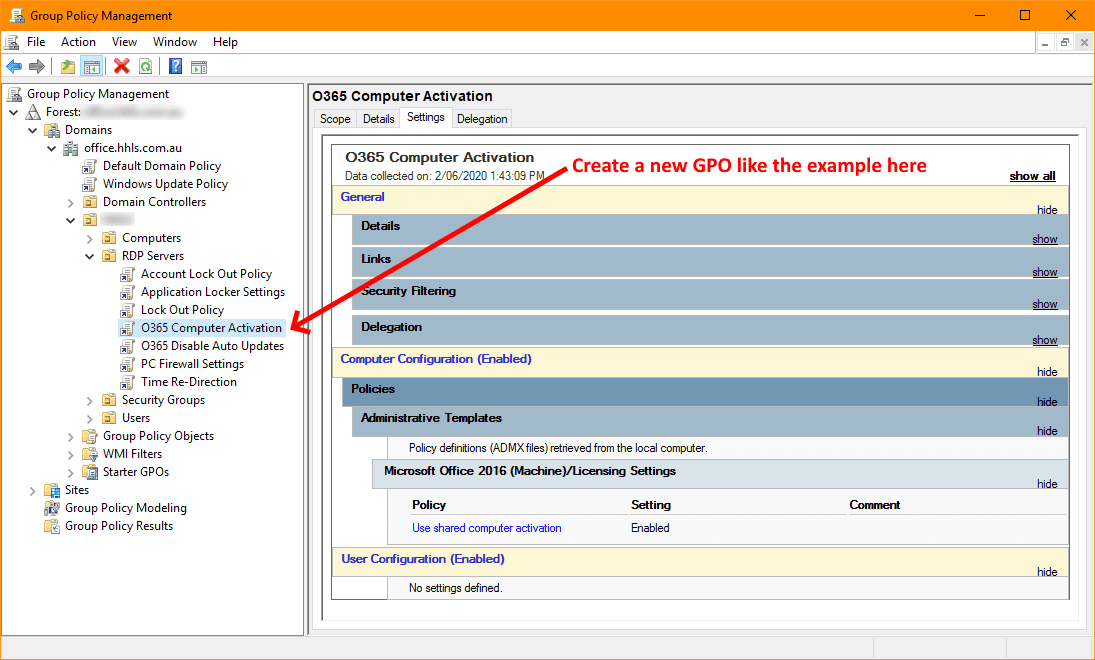
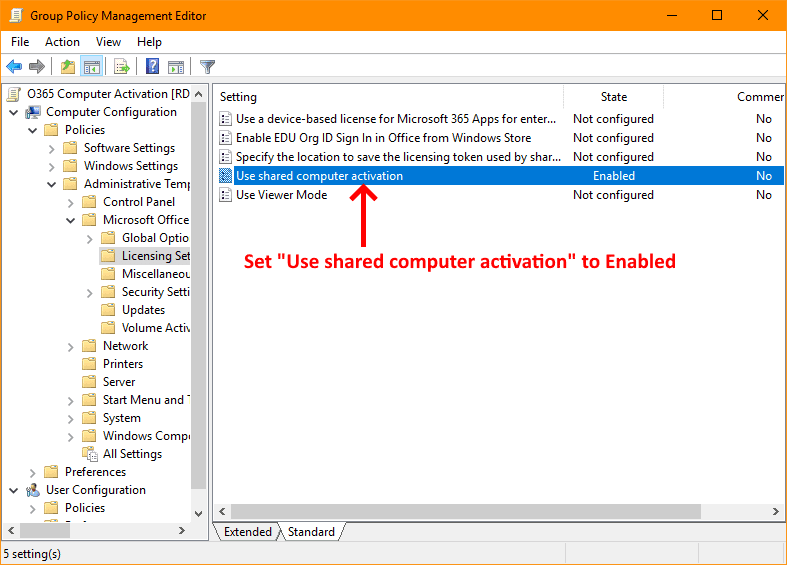
Step 4. Navigate to Computer Configuration, then Policies, Administrative Templates, Microsoft Office 2016 Machine, and open Licensing Settings.
Step 5. Enable the policy called Use shared computer activation and save the changes.
Step 6. Link the new GPO to the Organizational Unit that contains your Remote Desktop Session Host servers.
Step 7. Log in to each RDS server, open Command Prompt as administrator, and run gpupdate /force to apply the policy.
Step 8. Restart each RDS server, then have the affected user sign back into Office 365 to confirm the issue is resolved.
If Office 365 sign-in problems on Remote Desktop Services continue to cause disruptions or require complex policy management, using a remote access solution like AnyViewer can be a practical alternative. AnyViewer avoids shared activation issues altogether by allowing direct remote access to individual PCs, making it easier to work with Office apps without dealing with RDS-specific licensing complications.
🔥An easier solution: use AnyViewer to avoid the issue
If you are unable to sign into Office 365 on a remote desktop, an easier solution is to use AnyViewer to avoid issues where Office cannot be activated in shared computer environments. Instead of relying on Remote Desktop Services and complex Office activation settings, AnyViewer lets you remotely access your own work computer directly. Since Office runs on the original device, you do not need shared computer activation, and sign-in problems are avoided.
AnyViewer allows you to control your computer from anywhere. You can use multiple monitors, open Office apps normally, and access all your files without changing system policies or reinstalling software. The connection is secure and stable, so your work stays protected.
With its simple setup and easy-to-use interface, AnyViewer is a practical choice for remote workers, teams and enterprises, and freelancers who want smooth Office access without dealing with RDS licensing limits or activation errors.
Step 1. Install and run AnyViewer on both of your computers. Navigate to Log in and then Sign up on the Controller computer (if you have already registered on the official website, you can log in directly).

Step 2. Confirm successful login and device association.

Step 3. Select the remote computer from the Devices section. Then click the One-click control to establish the connection effortlessly. Then you can try to

- ✔️Tips: The maximum size of a single file that can be transferred for the free account is 100 MB, and the maximum number of files that can be transferred per time is 100. You can also upgrade your account to a professional or enterprise plan. What can a professional or enterprise plan brings to you:
- Faster transfer speed. Transfer speed for a free account is 500 KB/s, and for a paid account is up to 10 MB/s.
- Increasing number of files transferred in bulk.
- Larger size of a single file that can be transferred.
- More devices can be assigned to the same account for unattended remote access.
- More Currently connected devices are displayed for management.
- Connect in privacy mode to protect privacy.
Conclusion
In conclusion, the Office activation error on Remote Desktop Services is mainly caused by licensing limits and missing shared activation settings. While enabling Shared Computer Activation through Group Policy can solve the problem, the process is often time-consuming and difficult to manage. For users who want a simpler and more reliable experience, using AnyViewer is a smart alternative. It lets you access your own office computer directly, run Office normally, and work remotely without dealing with RDS licensing rules or repeated activation errors.
FAQs
🗨️ Can you still activate Office 2013 in 2023?
No. Microsoft ended activation support for Office 2013 in April 2023, so new activations are no longer possible.
🗨️ How to fix the error remote desktop license issue?
Make sure Shared Computer Activation is enabled for Office on the RDS server, or avoid RDS licensing limits by using a remote access tool like AnyViewer to access your own PC directly.
🗨️ How do I force Microsoft Office to activate?
Sign in with the correct Microsoft account, check your license status, and ensure the system date, time, and internet connection are correct.
🗨️ How to activate Microsoft activation failed?
Retry activation after fixing network or sign-in issues, then run Office activation troubleshooter or re-enter a valid product key.
🗨️ How do I reactivate my Microsoft Office?
Open any Office app, go to Account, and sign in again with the account linked to your Office license.
🗨️ Why is Microsoft Office saying I need to activate?
This usually happens because the license is missing, expired, used on another device, or blocked by Remote Desktop licensing restrictions.



 as a preferred
source on Google
as a preferred
source on Google