

Prevent Computer from Locking Without Admin Rights
Learn how to prevent computer from locking without admin rights using easy methods like AnyViewer, portable tools, AutoHotkey scripts, system tweaks, or a USB mouse jiggler to keep your PC awake and productive.

By Ellie / Updated on September 22, 2025


How to prevent PC from sleeping without changing settings?
Have you ever been in the middle of a long download, watching a video, or working remotely when suddenly your PC locks itself because you don’t have permission to change system policies? Frustrating, right? For many office workers, students, and even remote professionals, not having admin rights makes it tricky to adjust power settings. Luckily, there are several clever ways to prevent computer from locking without admin rights, and most of them don’t require complex setups.

This guide will walk you through step-by-step solutions, from simple GUI tweaks to lightweight utilities, scripts, and even hardware options.
Why do computers lock automatically?
Automatic screen locking is a security and power-saving feature built into Windows. On company-managed devices, IT admins often enforce strict lock policies to protect data. While this is important for security, it can sometimes get in the way of productivity, especially if you’re running a task that doesn’t require constant interaction.
If you don’t have admin rights, you’ll notice that many options are grayed out in Settings or Control Panel. But don’t worry; you can still try alternative solutions.
How to prevent computer from locking without admin rights [4 methods]
Let’s explore four practical methods you can use to stop your computer from locking—even if you don’t have administrative privileges.
Method 1. Use AnyViewer to prevent sleep
If you frequently rely on remote desktop software, AnyViewer provides a convenient built-in feature to prevent your computer from automatically locking or going to sleep. This feature is particularly useful for users who need to keep their PC awake during remote sessions, long-running tasks, or continuous monitoring.
Here’s how to set it up:
Step 1. Launch AnyViewer on your device.
Step 2. Navigate to the settings and enable “Prevent this device from automatically sleeping.”
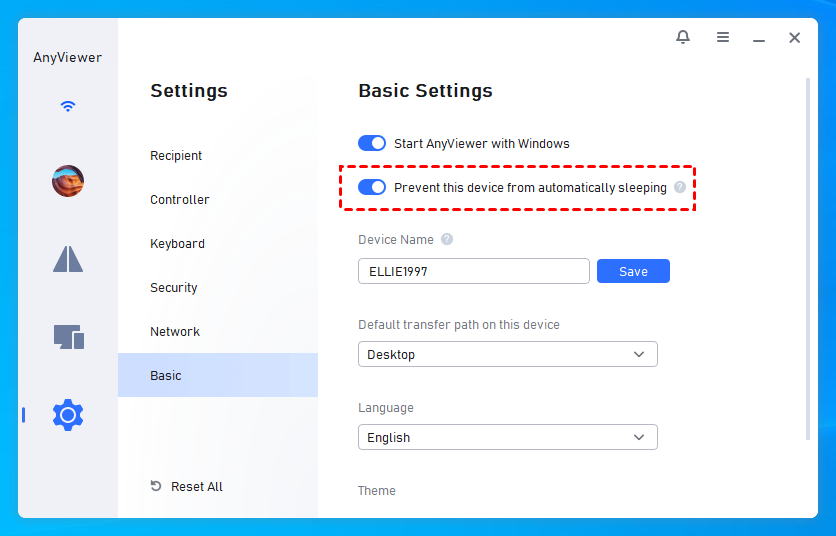
Step 3. Once enabled, as long as AnyViewer is running, your PC will remain awake and won’t enter sleep or lock states.
Unlike basic tools like mouse jigglers, AnyViewer not only keeps your system active but also provides full remote access capabilities. You can control your computer from anywhere, transfer files, or manage multiple devices seamlessly. Additionally, AnyViewer offers cross-platform support, meaning you can use it across Windows, macOS, and even mobile devices, making it a versatile solution for professionals, remote workers, and anyone needing uninterrupted access.
By combining sleep prevention with remote management features, AnyViewer adds an extra layer of productivity and convenience that simple “keep-awake” tools can’t match.
Method 2.Quick GUI checks (If allowed)
Even without admin rights, some settings may still be available:
Windows Settings:
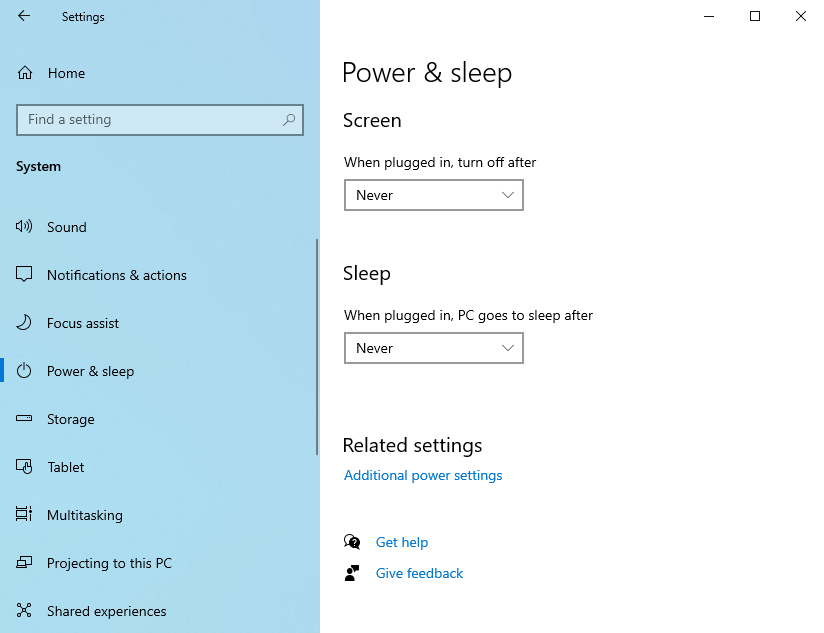
Step 1. Go to Settings > System > Power & sleep.
Step 2. Increase the timeout for both Screen and Sleep.
Control Panel Settings:
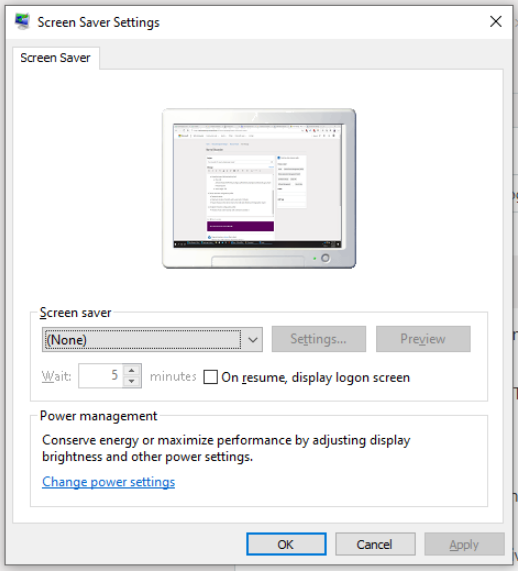
Step 1. Open Control Panel > Appearance and Personalization > Change screen saver.
Step 2. Set the screensaver to None and uncheck “On resume, display logon screen”.
Note: On managed corporate laptops, these may be disabled or locked by your IT department.
Method 3. Use a Small Utility (No Admin required)
Portable tools are a lifesaver when you can’t change system policies. Here are two popular options:
- Caffeine (Portable): Simulates a keypress every 59 seconds, keeping your system awake.
- Mouse Jiggler (Portable): Creates tiny, barely noticeable mouse movements so your PC thinks you’re still active.
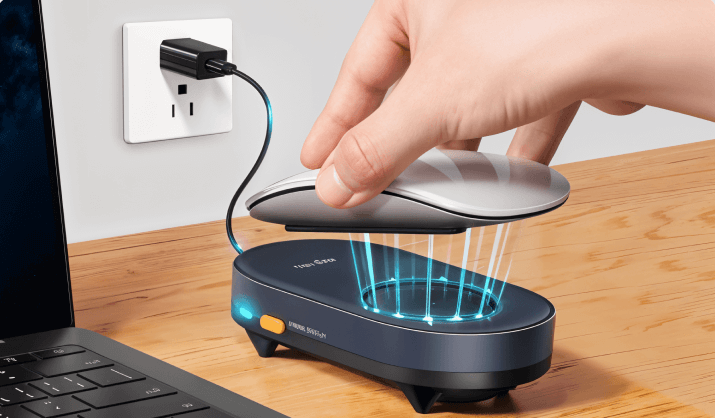
Both are lightweight, easy to use, and don’t require installation; just download, run, and you’re good to go.
Method 4. AutoHotkey script (Portable & customizable)
If you prefer a DIY approach, AutoHotkey(portable version) is an excellent option. You can write a simple script that mimics a harmless keystroke at intervals.
Here’s a sample script:
|
#NoTrayIcon SetTimer, SendShift, 60000 ; every 60 seconds Return
SendShift: SendInput {Shift} Return |
Note:
- Save this as keepawake.ahk.
- Run it with the AutoHotkey portable executable.
- Adjust the `60000` (milliseconds) to your preferred interval.
This method is flexible and works without administrator privileges.
Final Thoughts
Preventing your PC from locking without admin rights might seem impossible, but as you’ve seen, there are plenty of creative solutions. From tweaking available settings to using portable utilities, AutoHotkey scripts, or even hardware gadgets, you can keep your computer awake without admin permissions.
If you want a multifunctional solution that also supports remote access, AnyViewer is your best bet. Not only does it prevent your device from sleeping, but it also allows you to manage your computer from anywhere.



 as a preferred
source on Google
as a preferred
source on Google