

How to Safely Handle Multiple Logins from Same IP Address
Sharing premium accounts often triggers blocks due to multiple logins from same IP address. This article outlines the risks of multi-user IP address detection and shows how using AnyViewer keeps your accounts safe by routing your team through a single host PC.

By Ellie / Updated on May 26, 2026


You need to share a premium software account with your team, but you are worried about multiple logins from same IP address triggering a security alarm. You are not alone. Many subscription-based platforms enforce strict account-sharing policies.
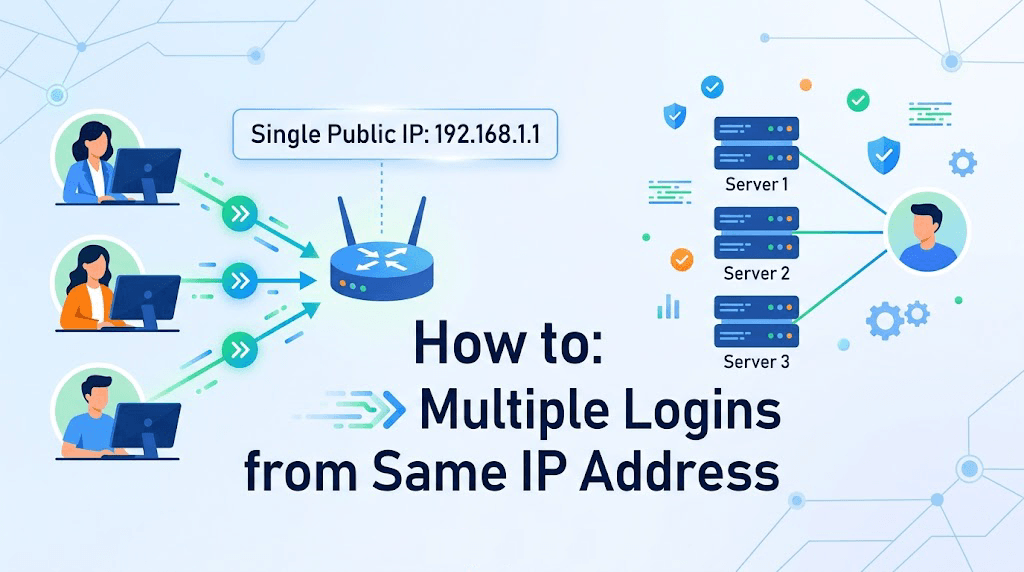
When a system detects multi-user IP address detection patterns or multiple people constantly logging in and out from different devices, it flags the account as suspicious. In worst-case scenarios, too many concurrent sessions or multiple failed logins from a single IP will lead to permanent account suspension.
This article explains why this happens and provides a foolproof, practical workaround to share premium accounts safely while drastically cutting your software expenses.
What Does "Multiple Logins from Same IP Address" Mean?
When multiple users or devices attempt to log into a single account using the same external IP address, it is known as multiple logins from the same IP.
In a typical office setting, this happens naturally. Your entire team shares a single localized internet connection, meaning external websites see all of your traffic coming from one IP address.
Is It Safe or Suspicious?
To most platforms, multiple sessions from a single IP are generally safe because it mimics a standard office environment. However, the problem arises when users constantly log in, log out, or access the account simultaneously from varying sub-networks or different geographical locations.
If your team is remote or hybrid, they won't share the same IP. Triggering multi-user ip address detection algorithms across different locations will quickly get your expensive corporate accounts blacklisted.
The Advantages and Disadvantages of Sharing One IP for Multiple Logins
Understanding how platforms view your network footprint helps you avoid compliance traps.
The Pros
- Cost Efficiency: Sharing a single premium account (like expensive SEO tools, design software, or developer environments) across a team saves thousands of dollars annually.
- Centralized Data: Everyone works within the same workspace, keeping projects, history, and dashboards unified.
The Cons & Risks
- Account Banning: Most SaaS platforms forbid account sharing. Concurrent logins from different locations will trigger automated bans.
- Security Lockouts: If one team member enters the wrong password repeatedly, the platform registers multiple failed logins from a single IP and locks everyone out.
- The Log-In/Log-Out Nightmare: Constantly kicking your colleagues out of a session destroys productivity.
How to Safely Manage Multiple Logins Without Getting Banned
If you want to share a premium account without triggering security protocols, traditional methods like sharing passwords or using sketchy proxy networks fail.
The most reliable, compliant, and cost-effective solution is remote desktop architecture. Instead of logging into the premium website from five different computers, you log into the account on one designated computer. Then, your team remotes into that specific PC.
Step-by-Step Guide: Using AnyViewer to Safely Share Accounts
AnyViewer is a secure, high-speed remote desktop software. By dedicating one physical or virtual PC to your premium accounts, team members can use AnyViewer to access that PC from their own laptops.
To the SaaS platform, only one computer from one IP address ever accesses the account. This completely bypasses multi-user detection algorithms.
Here is exactly how to set it up:
Step 1: Set Up the Host Computer
- Choose a reliable computer in your office or a cloud PC to act as the "Account Server."
- Log in to your premium software/SaaS accounts on this computer. Keep the sessions active.
- Download and install AnyViewer on this host computer.
- Create an AnyViewer account, log in, and assign this device to your account for one-click control.
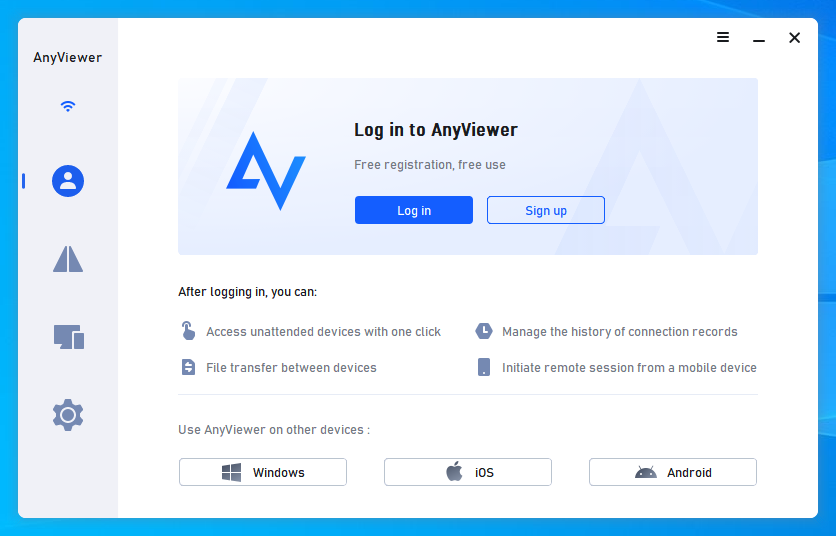
Step 2: Install AnyViewer on Team Devices
- Have your team members download AnyViewer on their local laptops or desktops (supports Windows, macOS, iOS, and Android).
- Share the login credentials of the AnyViewer account (or use security codes for managed access).
Step 3: Remote In and Work
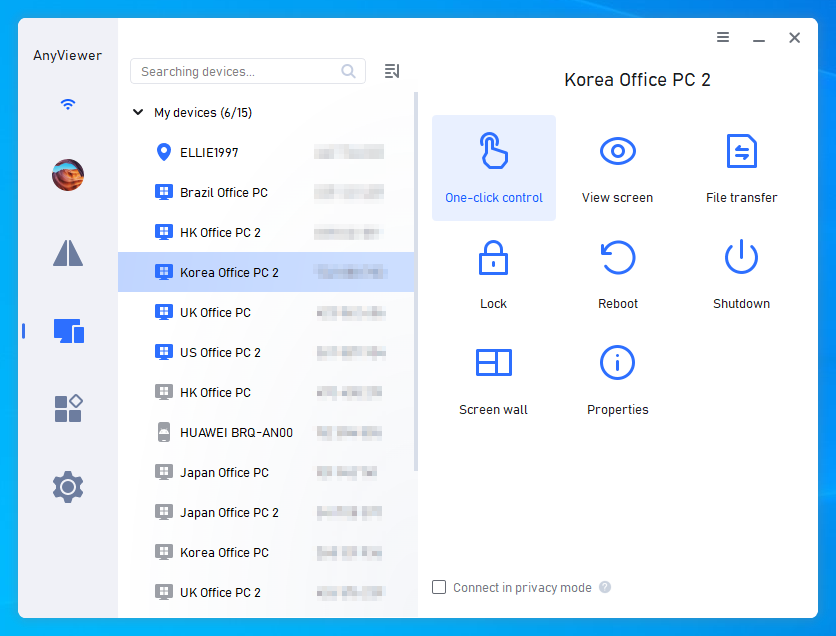
- When a team member needs to use the premium tool, they open AnyViewer, choose the host computer, and connect to it by clicking "One-click control".
- They control the host computer in real-time, perform their tasks, and disconnect when finished.
- The next team member can log in immediately without ever needing to enter a password or trigger a login alert on the target website.
Why AnyViewer is the Ultimate Budget Saver for Teams
Using AnyViewer as your account-sharing gateway provides massive strategic benefits:
- Zero Risk of Location Bans: The premium platform only sees the host PC's IP address. It never detects that your remote team is spread across different cities.
- No More Login Leaks: Your team doesn't need to know the actual passwords to your expensive tools. They only need access to the AnyViewer host.
- Prevents Multi-Failed Logins: Since the credentials remain saved on the host PC, you eliminate the risk of multiple failed logins from a single IP caused by typos.
- Massive ROI: Instead of buying 10 licenses of a $200/month tool ($24,000/year), you buy one premium license and an affordable AnyViewer plan, saving your business thousands of dollars.
Conclusion
Sharing premium software often triggers security blocks due to multiple logins from same IP address or multi-user IP address detection. This article covers the risks of traditional account sharing. It explains how using AnyViewer remote desktop lets your team access accounts safely from a single host PC, saving thousands in software costs without compromising security.



 as a preferred
source on Google
as a preferred
source on Google