

How to Transfer Files from Android to Mac: 4 Proven Methods
This guide explains how to transfer files from android to mac quickly and securely. We compare AnyViewer for remote wireless sharing, the official USB method, SD cards, and cloud storage to help you choose the best tool.

By Ellie / Updated on January 19, 2026


How do I transfer files from Android to MacBook?
In an era where work happens everywhere, from coffee shops to home offices, the ability to move data across different operating systems is crucial. While the Apple ecosystem is famous for its "walled garden," learning how to transfer files from Android to Mac has become seamless thanks to advanced remote technology.
If you need to access your Mac's data from your Android phone while on the go, or simply want a fast way to sync devices, this 2026 guide covers the most reliable methods.
How to transfer files from Android to Mac [4 ways]
Here are the four best methods to get the job done in 2026.
Way 1. The ultimate remote solution: Fast wireless transfers via AnyViewer
If you are looking for how to transfer files from Android to Mac wirelessly, the remote file transfer approach is arguably the superior alternative to traditional cables. Unlike standard tools that require both devices to be on the same Wi-Fi, AnyViewer bridges the gap over the internet. It functions like a "Global AirDrop," allowing you to move data whether your Mac is across the desk or across the city.
Key Features Focused on Remote File Transfer:
- Global Remote Access: Transfer files between Android and Mac across different networks (e.g., using 4G/5G cellular data to access your home Mac).
- Bi-directional File Exchange: Seamlessly send files from your Android to your Mac, or browse and download files from your Mac's hard drive to your phone.
- High-Speed & Lossless: Optimized for rapid transfers of large 4K videos or bulk photo albums without any quality compression.
- Bank-Level Security: Uses Elliptic Curve Cryptography (ECC) encryption to ensure your private data remains safe during remote transmission.
- Remote Management: Beyond simple transfers, you can manage your Mac's file system or even mirror your Android screen for remote troubleshooting.
Step-by-Step Guide: How to Transfer Files Remotely
Step 1. Download and install AnyViewer on both your Mac and your Android device. Sign up for a free account and log in using the same credentials on both devices to link them securely.
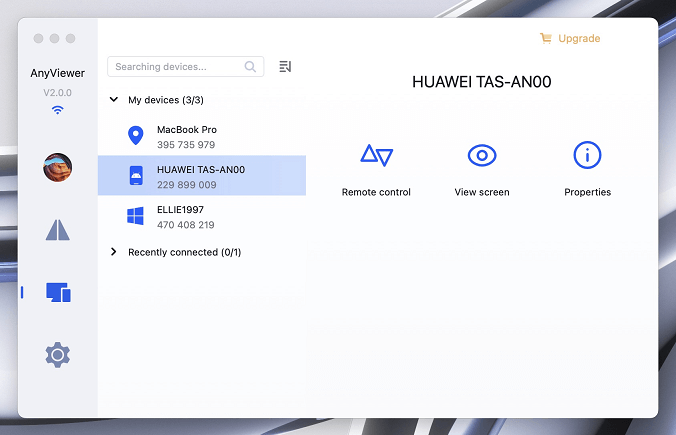
Step 2. On your Android app, navigate to the device menu. You will see your Mac listed there. Tap on your Mac's name to initiate a connection. For file-specific tasks, select the "File Transfer" option.
Step 3. Once the remote window opens, you can browse both your Android's local storage and your Mac's folders.
- To send to Mac: Tap the document/plus icon, select your files, and initiate the upload.
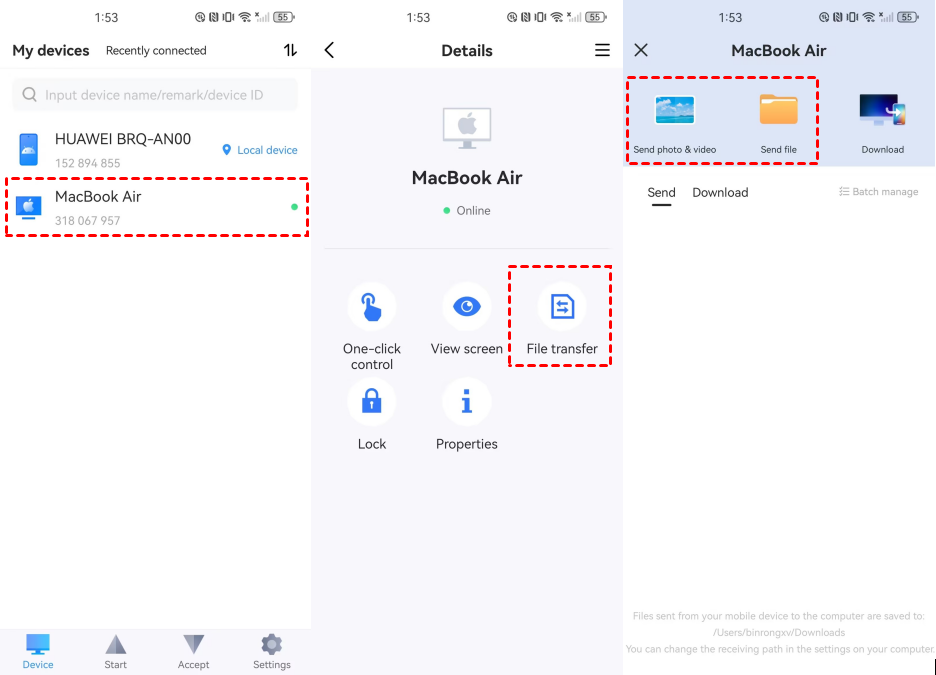
- To fetch from Mac: Simply navigate to the Mac's folder, select the target file, and download it directly to your Android device.

Why AnyViewer Beats Other Methods
While USB cables are limited by physical distance and cloud storage services are limited by upload quotas, AnyViewer provides a direct remote pipeline. This makes it the ideal choice for professionals who need to grab a forgotten document from their office Mac using their Android phone while commuting.
Way 2. Using Android File Transfer (Official USB method)
For users wondering how to transfer files from Android to Mac via USB, the most traditional way is through a physical cable. This operates strictly with local storage and does not require internet access.
Note: The macOS Android File Transfer app requires macOS 10.5 or higher.
Step-by-Step Guide:
Step 1. Install the App: Download and open 'AndroidFileTransfer.dmg'. Drag the app into your Applications folder. If a security warning appears, click "Open" anyway.
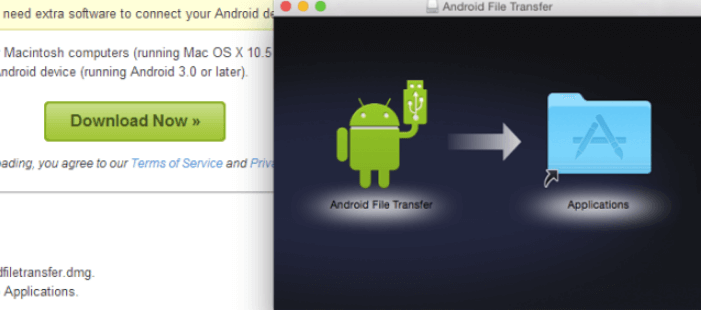
Step 2. Connect Hardware: Connect your Android device to your Mac using a compatible USB cable. The app should open automatically.
Step 3. Enable MTP Mode: On your Android device, pull down the notification shade and set the USB mode to "File Transfer" or "MTP mode."
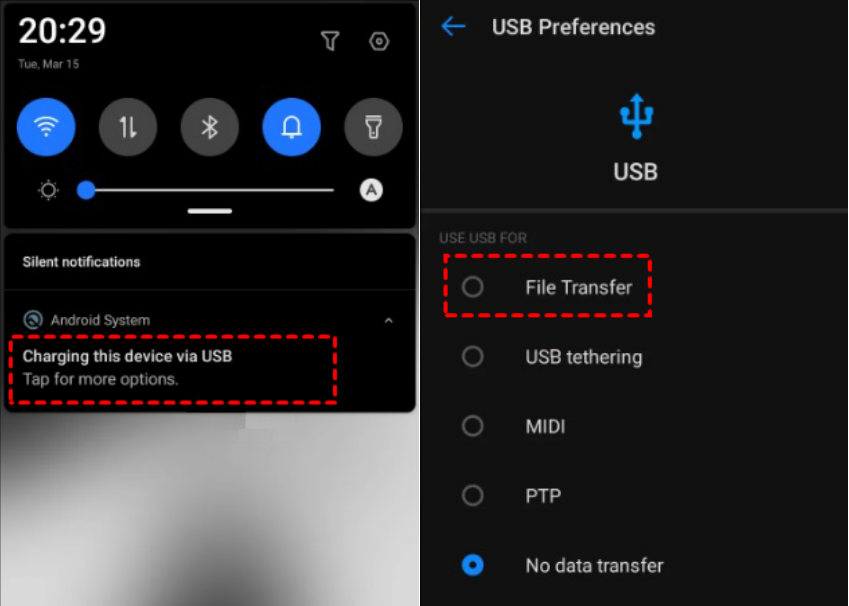
Step 4. Drag and Drop: Browse your Android files within the Mac app and simply drag the desired files onto your Mac desktop.
Way 3. Using an SD card (Physical alternative)
If your Android device includes an SD card slot, you can use it as a physical bridge. This method is reliable and doesn't require additional software installation on your Mac.
Step-by-Step Guide:
Step 1. Move Files Internally: Use your Android's native file manager to move files from the internal storage to the SD card. You can use the app File by Google to move the files you want to transfer to your Android SD card.
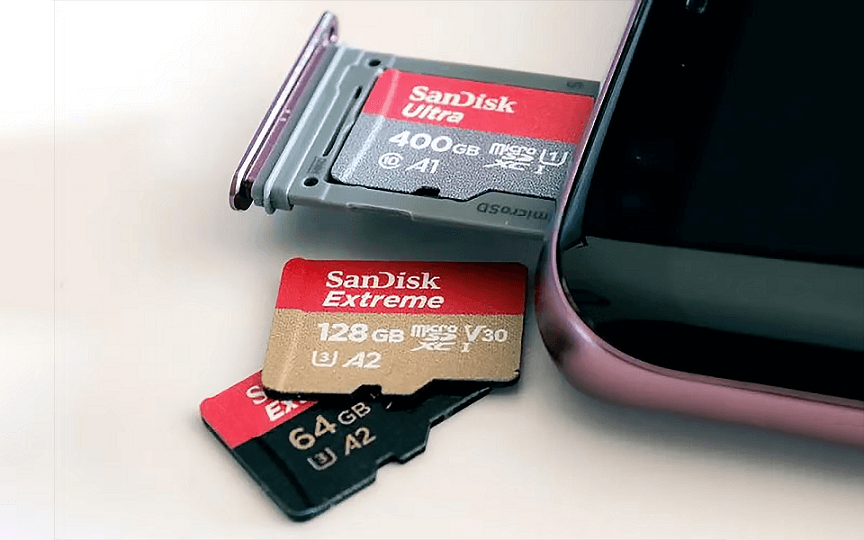
Step 2. Eject and Insert: Remove the SD card and insert it into an SD card reader connected to your Mac.
Step 3. Copy Data: The Mac will detect the card as a storage device. Open it in Finder and drag your files to your local folders.
Way 4. Using cloud storage services
Cloud storage relies on external servers to store your data, making it accessible from any device with an internet connection. Popular services include Google Drive, Microsoft OneDrive, and Dropbox.
How it works:
Step 1. Upload files from your Android app.
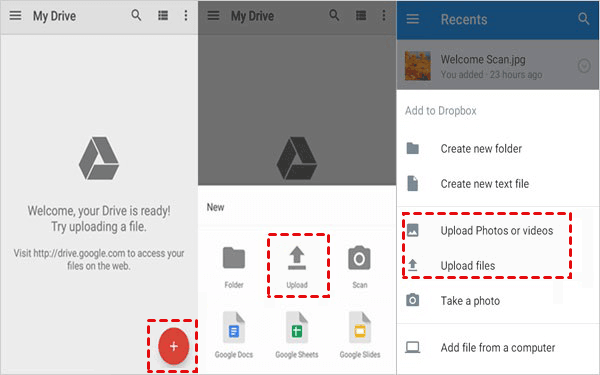
Step 2. Log in to the same service on your Mac via a web browser (like Safari) to download them.
The Setback: Most providers charge a monthly fee for expanded storage. Free users often hit their storage quota quickly, especially when transferring high-resolution videos or large backups.
Conclusion
In 2026, the best way to move files depends on your location and data size. While learning how to transfer files from android to mac via usb is helpful for local backups, it isn't practical for remote work. For most users, AnyViewer is the ideal solution, offering a "Global AirDrop" experience that removes distance limitations. Whether you are at home or on the go, it provides the fastest way to understand how to transfer files from android to mac without the hassle of cables or storage limits.
FAQs
What is the easiest way to transfer files from Android to Apple?
The easiest way is using a wireless remote transfer tool like AnyViewer. It eliminates the need for cables and works across different networks. Once set up, you can move files with just a few taps, making it significantly more user-friendly than the often-buggy official USB utilities.
Can I AirDrop from Android to Mac?
Technically, no. AirDrop is a proprietary Apple technology that only works between Apple devices. However, you can achieve an "AirDrop-like" experience using AnyViewer. It allows for seamless wireless file sharing between Android and Mac, even over long distances where AirDrop would normally fail.
How do I transfer stuff from my phone to my MacBook?
There are four primary ways to do this:
- Remote Software: Use AnyViewer for high-speed wireless transfer.
- USB Cable: Use the "Android File Transfer" app for a direct wired connection.
- SD Card: Transfer files via a physical memory card if your phone and Mac have the necessary slots/readers.
- Cloud Storage: Upload to Google Drive or Dropbox and download them on your Mac.
What is the Android file transfer app for Mac?
The official app provided by Google is called Android File Transfer. While it is a free tool for USB connections, many users in 2026 prefer AnyViewer because it supports wireless remote transfers, screen mirroring, and does not require a physical cable to function.
Can I AirDrop from Android to iPhone?
No, AirDrop does not support Android devices. To share files between an Android and an iPhone, you should use cross-platform cloud services (like Google Photos), messaging apps, or specialized third-party file-sharing applications.



 as a preferred
source on Google
as a preferred
source on Google