

6 Proven Ways to Stream Phone to PC [2026 Guide]
This post explains how to stream phone to PC. It features six methods, with AnyViewer recommended for its excellent performance. Stream your phone to your PC effortlessly!

By Ellie / Updated on January 30, 2026


Can I stream my phone screen to my PC?
Need to display your mobile games on a larger monitor or share a presentation directly from your device? Learning how to stream phone to PC shouldn't be a technical headache. Whether you are using Android or iOS, there are several ways to achieve a high-definition, low-latency connection without expensive hardware.
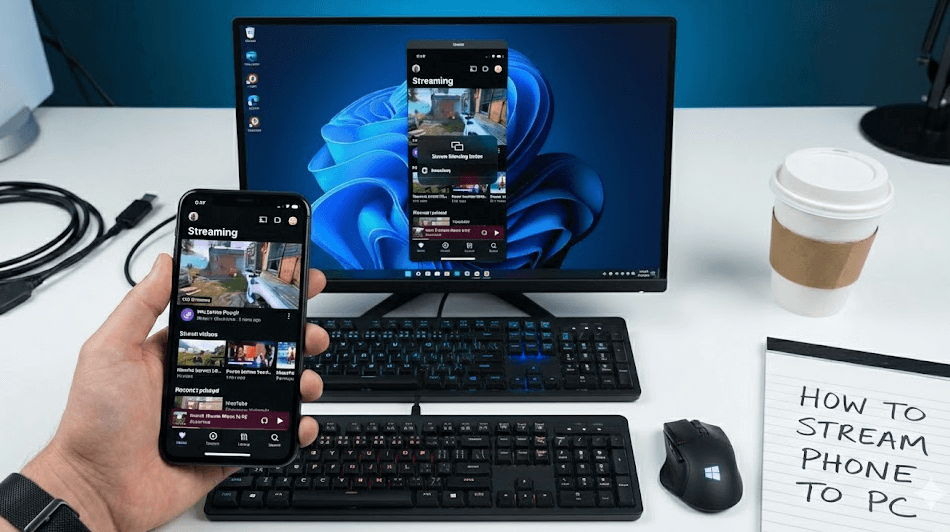
In our 2026 performance review, we tested over 15 mirroring tools to find the most stable solutions. From built-in Windows features to professional-grade software like AnyViewer, here are the 6 best methods to mirror your phone screen to a PC via Wi-Fi or USB, ranked by speed and ease of use.
How to stream phone to PC [6 methods]
Short on time? Before diving into the detailed step-by-step guides, check out this quick comparison of the top 6 methods to find the one that best fits your needs.
| Method | Best For | Connection | Audio Support | Price |
| AnyViewer | Gaming/Remote Control | Wi-Fi/Remote | Yes | Free/Pro |
| AirDroid | File Management | Wi-Fi/Web | Partial | Free/Pro |
| LetsView | General Free Use | Wi-Fi | Yes | Free |
| ApowerMirror | Business/Presentation | USB/Wi-Fi | Yes | Paid/Watermark |
| Vysor | Developers | USB | Yes (Pro) | Free/Pro |
| Windows Cast | Casual Android Users | Wi-Fi | Yes | Free (Built-in) |
Method 1: AnyViewer - Best for low-latency gaming & remote control
If you are looking for a professional-grade mobile screen mirroring experience, AnyViewer is the top-tier choice. Unlike standard screen mirroring apps that often suffer from frustrating delays, AnyViewer is engineered with a proprietary high-speed protocol that ensures a lag-free, 60 FPS experience.
Whether you are a gamer wanting to play Genshin Impact or PUBG Mobile on a big screen, or a professional needing to remote-control your device, AnyViewer delivers unmatched stability and visual fidelity.
- Zero-Lag Performance: Features a lightning-fast response time (under 10ms), perfect for fast-paced gaming and real-time interaction.
- Crystal Clear 4K/UHD: Supports high-bitrate streaming to ensure your phone’s screen looks crisp and vibrant on your PC monitor.
- Intuitive Remote Control: It’s more than just a mirror—you can use your PC’s mouse and keyboard to type messages or play games on your Android device.
- Synchronized Audio: Experience seamless sound casting, allowing you to hear your mobile games or videos through your PC speakers.
[Step-by-Step] How to Stream Your Phone via AnyViewer
Step 1. Download and launch AnyViewer on your Windows computer.
Step 2. Click "Log in" and select "Sign up." Having an account ensures a secure, encrypted tunnel for your data, keeping your stream private.

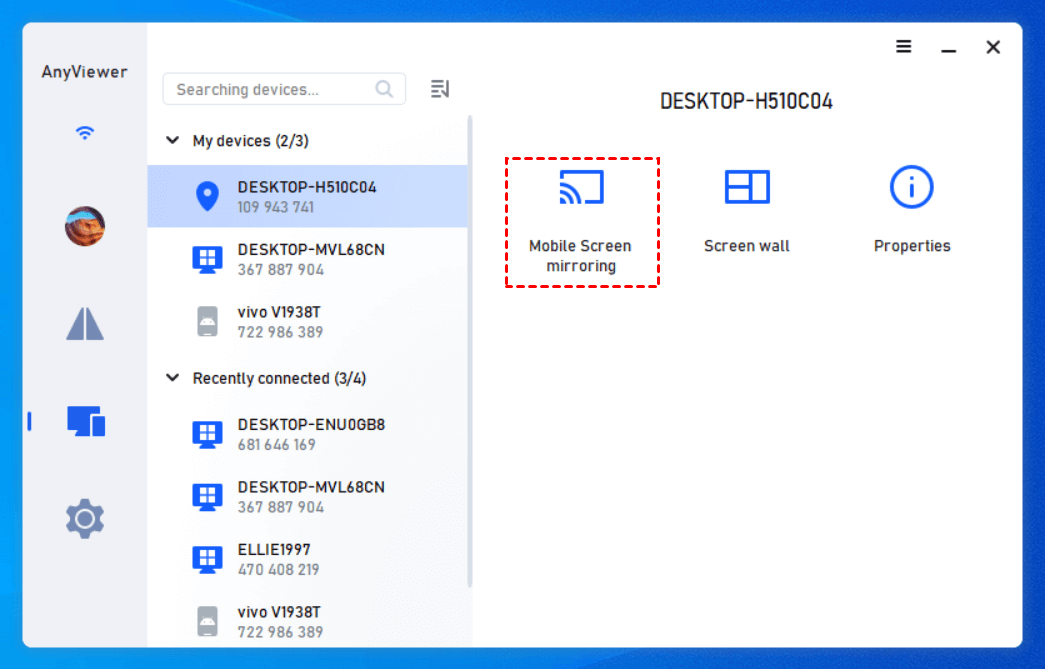
Step 3. Navigate to the "Device" tab and click on "Mobile screen mirroring." A unique QR code will be generated instantly.
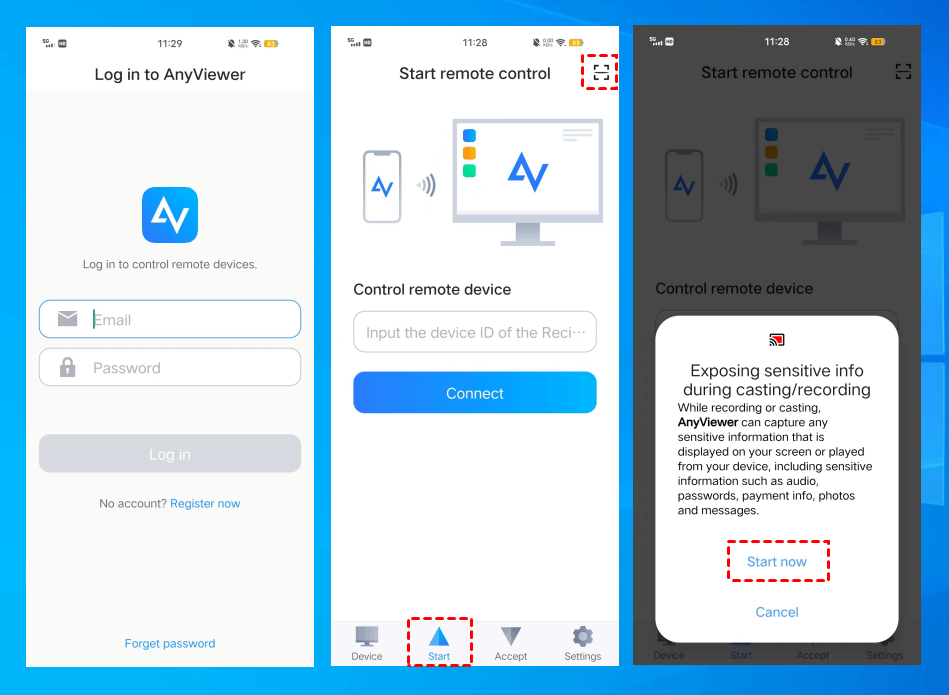
Step 4. Open the AnyViewer app on your Android or iPhone. Log in, tap "Start," and simply scan the QR code displayed on your PC. Tap "Start Now" to authorize the connection.
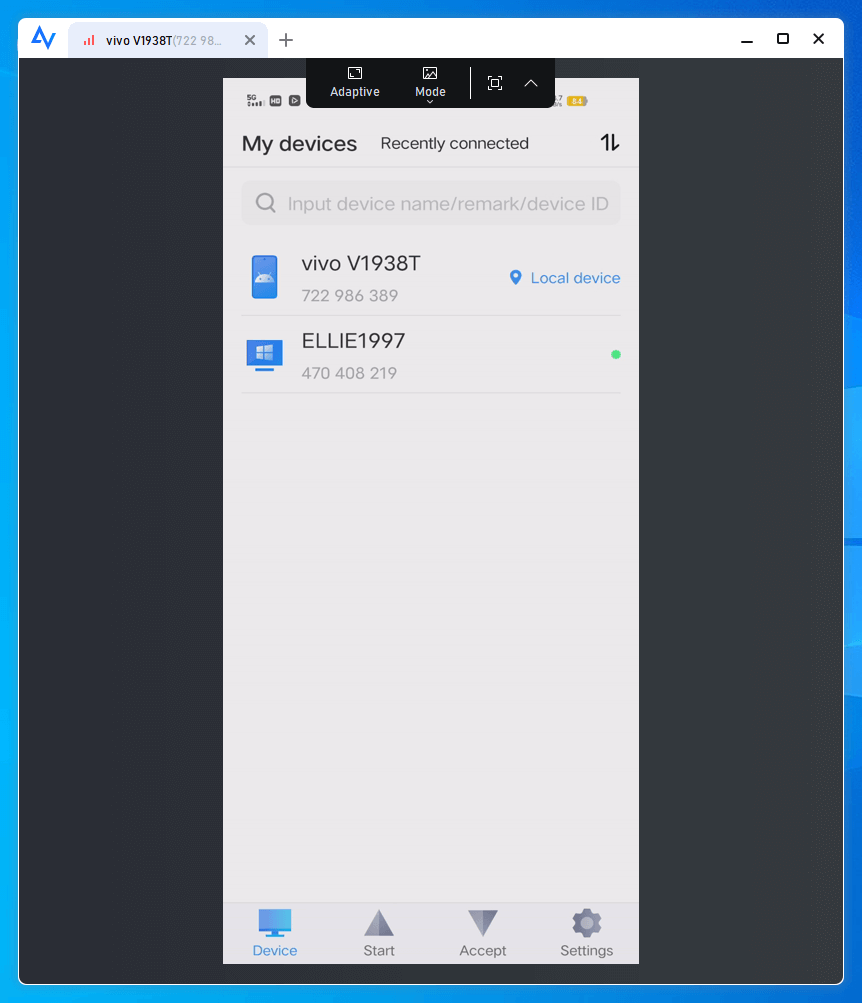
Step 5. Your mobile screen is now instantly projected onto your PC. You can now toggle full-screen mode or adjust the image quality based on your network speed.
Method 2: AirDroid - Best for Wireless file management & browser streaming
AirDroid is a free app that lets you easily access your phone's files, music, contacts, call logs, and messages from any computer's web browser. It makes transferring files, replying to messages, and managing your phone's data simple and convenient, all without needing extra cables or software.
✅ Pros:
- No Client Required: Stream directly through a web browser without installing desktop software.
- All-in-One Utility: Manage SMS, files, and notifications alongside your screen stream.
❌ Cons:
- Noticeable Lag: Browser-based streaming is sensitive to Wi-Fi fluctuations—not recommended for video.
- Data Quotas: Remote connection mode (non-LAN) has strict monthly data limits for free users.
Here's how to use AirDroid to stream your Android screen to your PC:
Step 1. Download and open AirDroid on your phone.
Step 2. Go to the Transfer tab, select "Android Web," and note the IP address (it will be unique to your device).
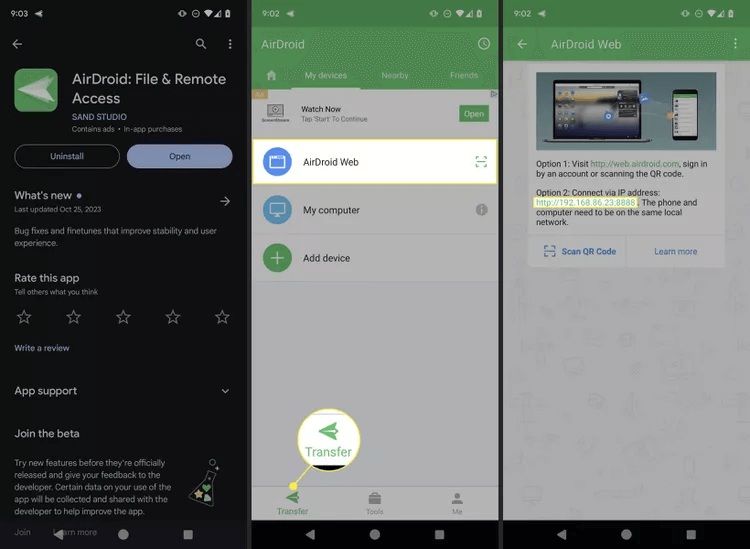
Step 3. On the AirDroid app, find the "Transfer" button, "AirDroid Web," and the highlighted IP address.
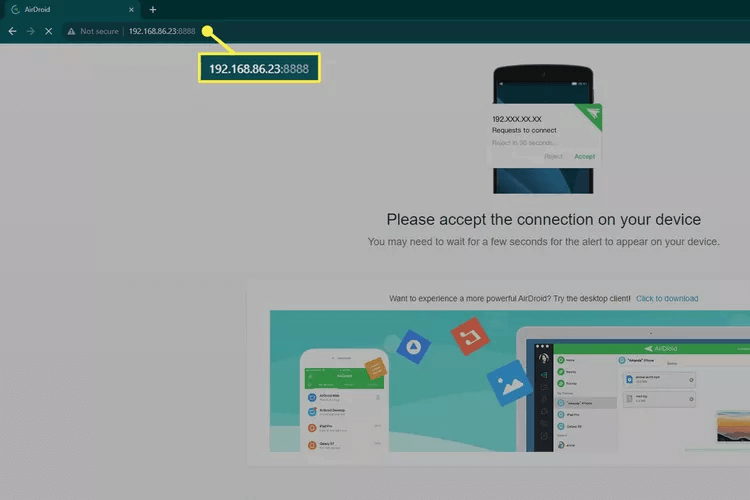
Step 4. In your Chrome browser on Windows 11, enter the AirDroid IP address.
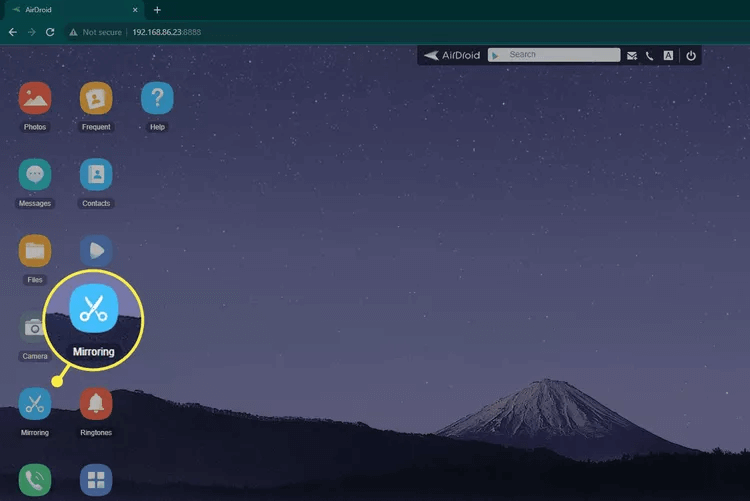
Step 5. On the new AirDroid page that opens on your computer, select "Mirroring."
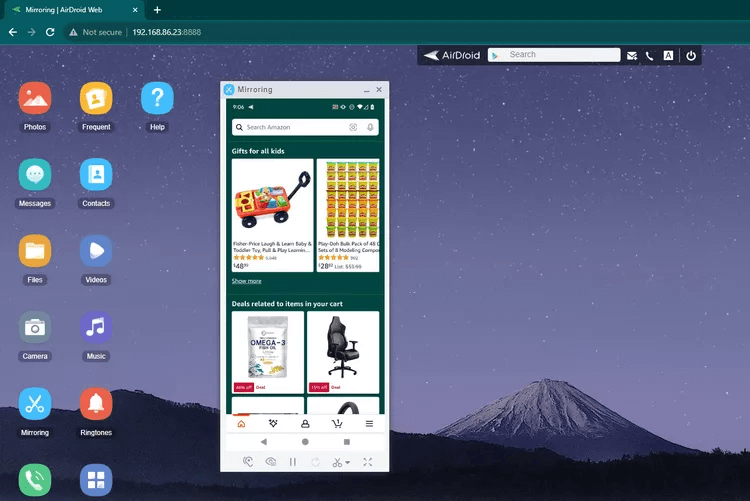
Step 6. Confirm the request on your phone by selecting "Start now." Your Android screen will now be streamed to your PC!
Method 3: LetsView - Top free wireless mirroring for iOS & Android
LetsView is an excellent free app that works seamlessly with both iOS and Android devices. Just download the app on your computer and iPhone, ensuring both are connected to the same Wi-Fi network. This simple setup allows you to easily start streaming your phone's screen to your computer.
✅ Pros:
- 100% Free: No hidden costs, no subscriptions, and no watermarks on your stream.
- Instant Discovery: Fast device recognition as long as both devices share the same Wi-Fi.
❌ Cons:
- Basic Features: Lacks advanced tools like reverse control or professional annotation.
- Stability: Can occasionally disconnect in crowded public Wi-Fi environments.
Here's a quick step-by-step guide for streaming your iPhone screen to a PC:
Step 1. Download and install LetsView from the App Store on your iPhone.
Step 2. Ensure that both your iPhone/iPad and computer are connected to the same Wi-Fi network.
Step 3. Launch LetsView on both your iOS device and computer.
Step 4. On your iPhone, tap "Screen Mirroring" and select your computer running LetsView.
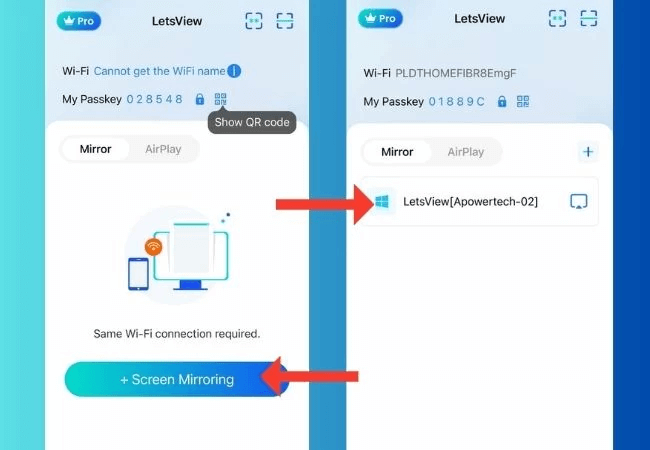
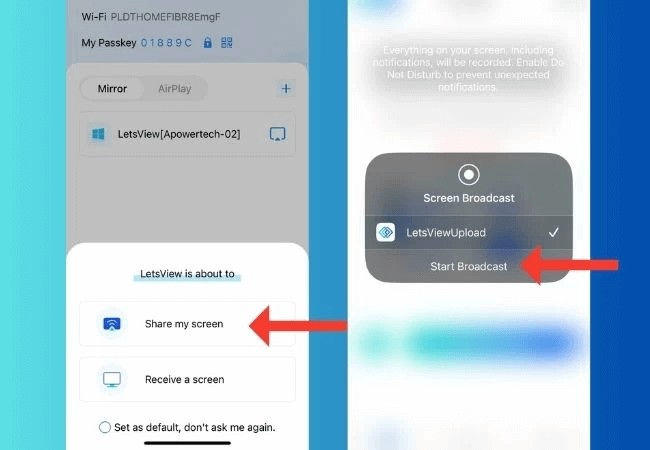
Step 5. Tap "Share my screen" and click "Start Broadcast" to begin streaming.
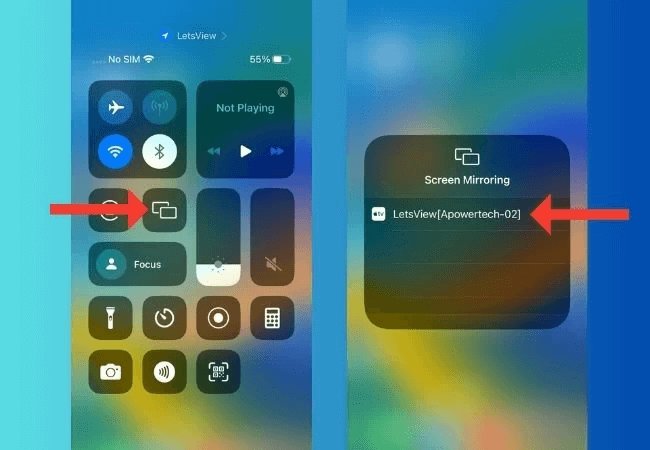
Step 6. Open the Control Center on your iPhone, select "Screen Mirroring," choose your PC from the list, and your iPhone screen will be streamed to your PC.
Method 4: ApowerMirror - High-quality streaming via USB or Wi-Fi
ApowerMirror provides an efficient solution for streaming your iPhone screen to your computer. With advanced mirroring technology, it guarantees a high-quality streaming experience. What sets ApowerMirror apart is its support for both wired and wireless connections, offering users greater flexibility and versatility in the screen streaming process.
✅ Pros:
- Dual Connection: Support for USB cable connections eliminates Wi-Fi stuttering entirely.
- Presentation Tools: Built-in whiteboard, screen recording, and screenshot features for business use.
❌ Cons:
- Watermarks: The free version places a visible logo on your mirrored screen.
- Resource Intensive: Uses more PC RAM compared to lighter alternatives.
Here's a step-by-step guide for streaming your iPhone screen to a PC:
Step 1. Download and install ApowerMirror on your computer and iPhone.
Step 2. Ensure both devices are connected to the same Wi-Fi network.
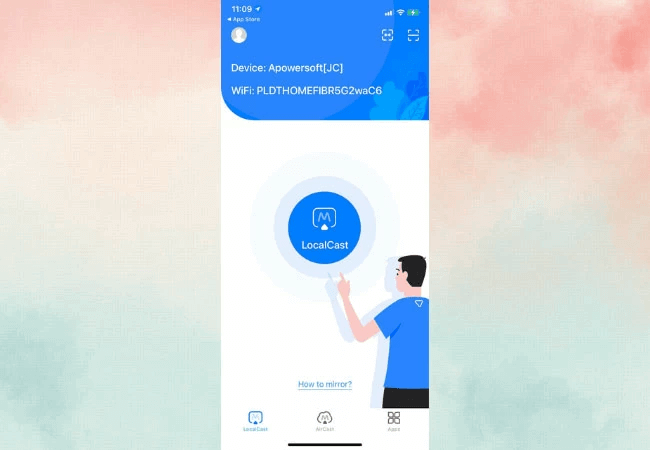
Step 3. Open ApowerMirror on your iPhone, select "LocalCast," find your computer, and tap "Mirror Phone to PC."
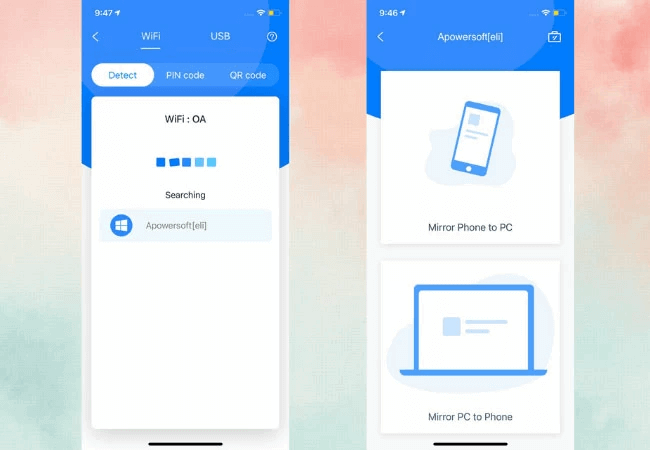
Step 4. Access the Control Center on your iPhone, tap "AirPlay Mirroring" or "Screen Mirroring," and choose your computer from the list.
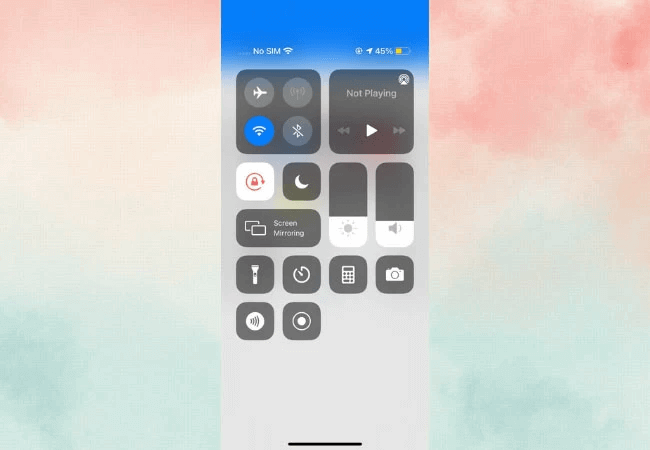
Step 5. Your iPhone screen will now be streamed to your PC, giving you a smooth and enjoyable streaming experience!
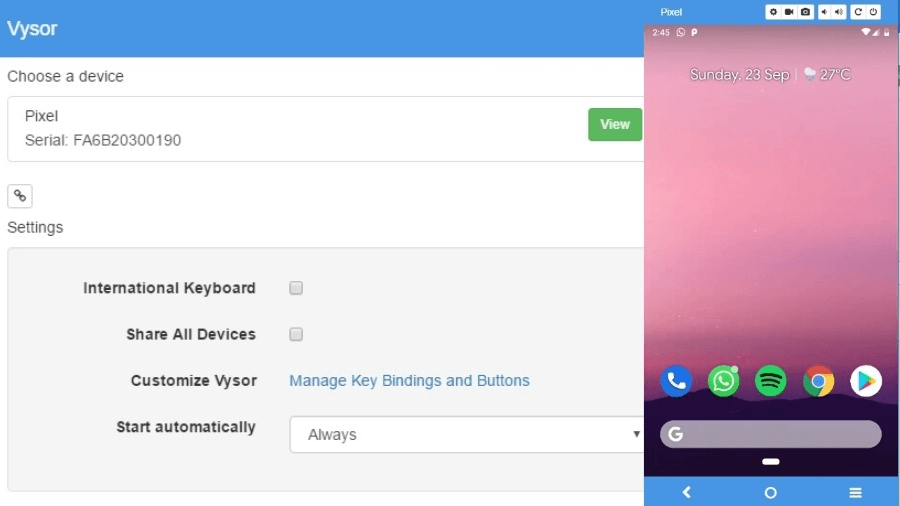
Method 5: Vysor - Reliable USB mirroring for developers & power users
Vysor is a popular tool for streaming your phone screen to a computer. This easy-to-use software allows you to display your Android and iPhone devices' content on your computer via a USB connection.
✅ Pros:
- Native Control: Incredible precision when using a mouse to navigate Android menus.
- Lightweight: Offers a Chrome extension version that consumes minimal system resources.
❌ Cons:
- Complex Setup: Requires enabling "USB Debugging" in Android Developer Options.
- Paywalled Quality: High-definition streaming and wireless modes usually require a Pro subscription.
Here's how to stream your Android phone screen to your computer using Vysor:
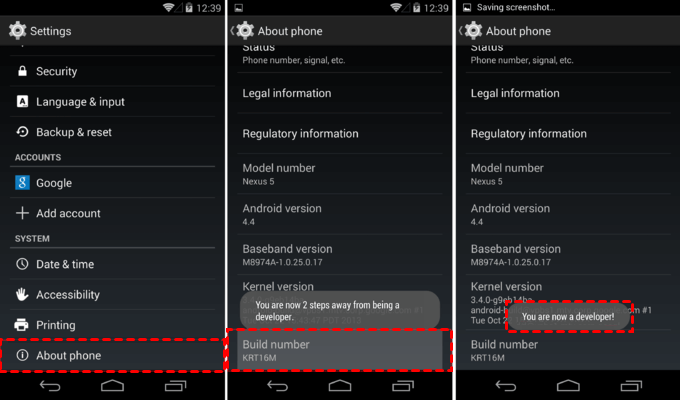
Step 1. Go to Settings on your Android device, select "About phone," and tap "Build number" seven times to enable Developer Options.
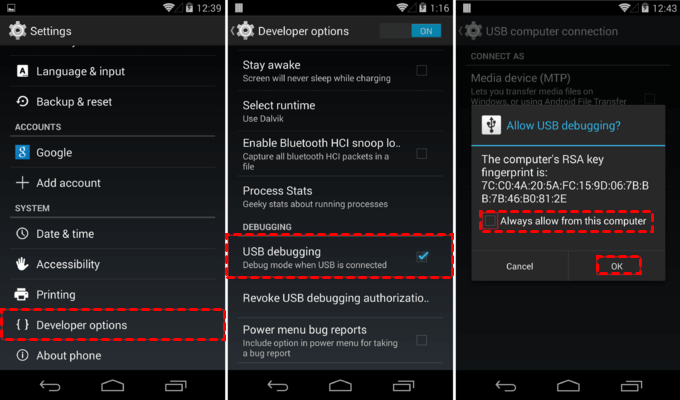
Step 2. In Developer Options, turn on "USB debugging" on your Android device.
Step 3. Open the Vysor app on your computer, click "Find Device," locate your Android phone, and click "Select."
Step 4. You can now see your entire Android screen on your computer and use your mouse and keyboard to control your phone from the computer.
Method 6: Windows 11 Wireless Display - No third-party app required
Windows 11 offers a range of exciting features, one of which is the Screen Cast functionality. This feature allows you to stream your Android screen directly to your Windows device. It's ideal for enjoying mobile games and media on a larger display, presenting slideshows, or managing tasks more effectively by enabling you to view and interact with both devices at the same time.
✅ Pros:
- Native Integration: No installation required; it's a secure, built-in part of the OS.
- Clean UI: Integrates perfectly with Windows window management and snap layouts.
❌ Cons:
- Limited Compatibility: Only supports Android devices with Miracast; does not support iPhone.
- Minimalist: Offers zero extra features like recording or reverse control.
How to stream your Android screen to a computer on Windows 11:
Phase 1. Configuring Windows 11:
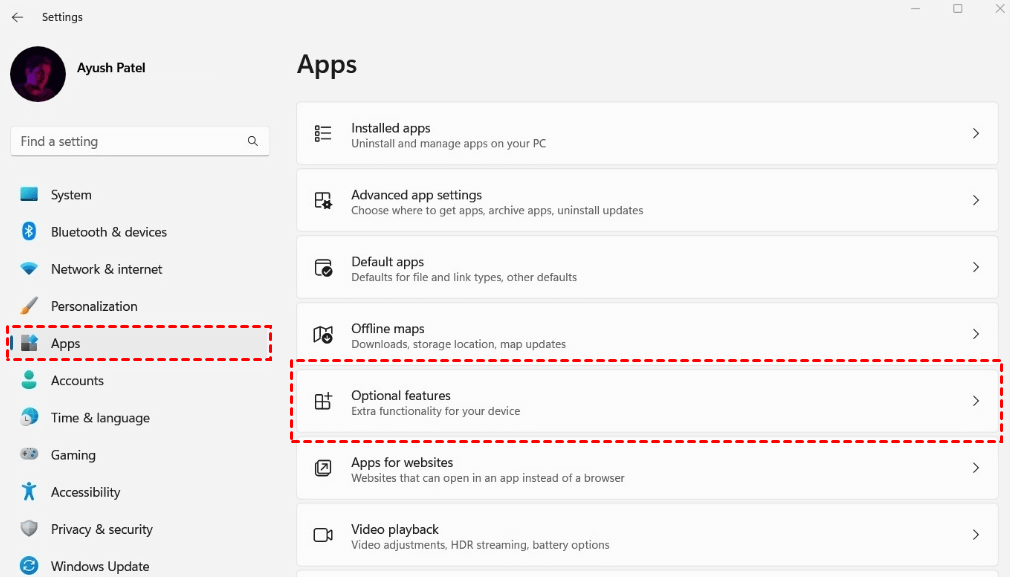
Step 1. Open "Settings" and go to "Apps." Click on "Optional features."
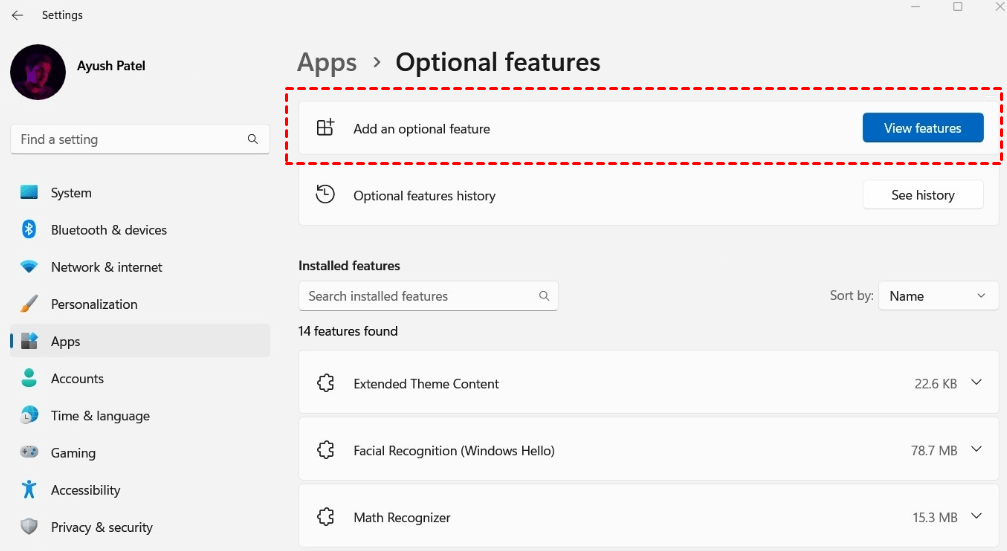
Step 2. In the "Add an optional feature" section, click "View features" to start the installation.
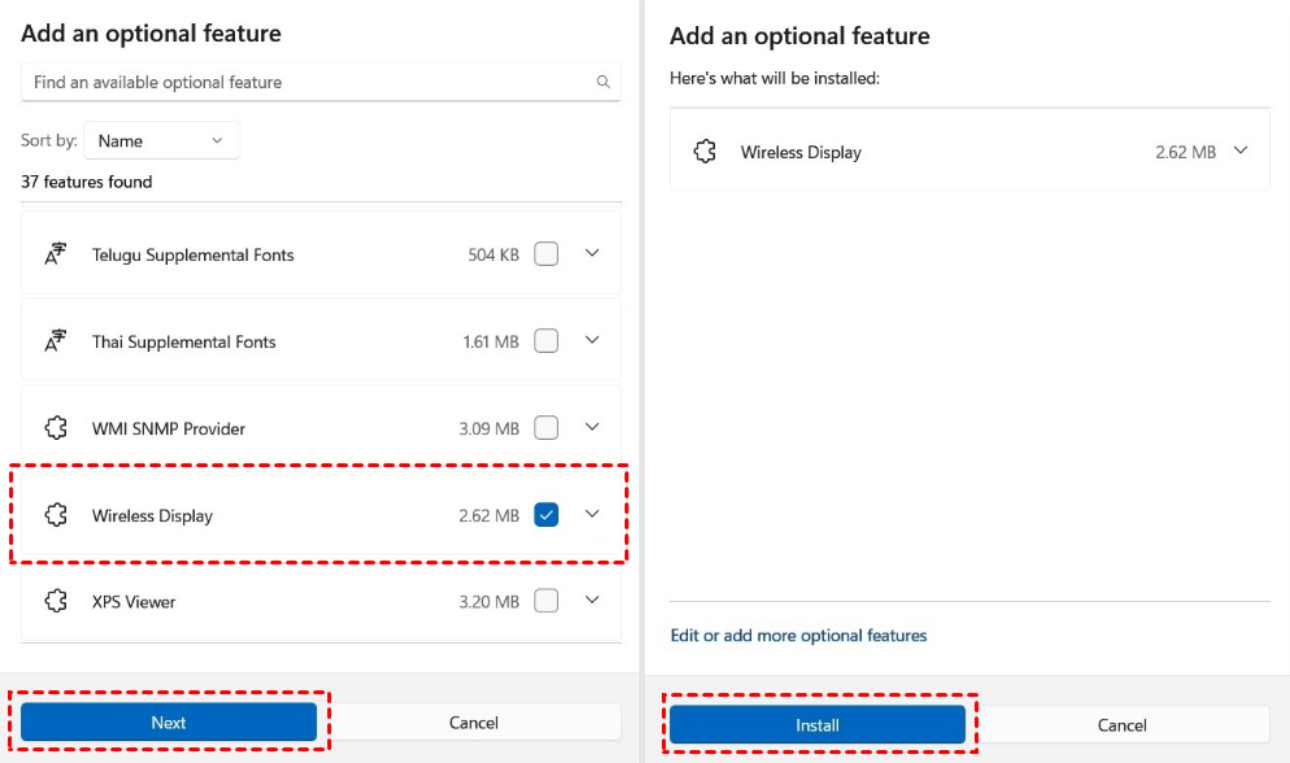
Step 3. Find "Wireless Display" in the list, check the box next to it, and click "Next."
Step 4. Click "Install" to begin the installation process.
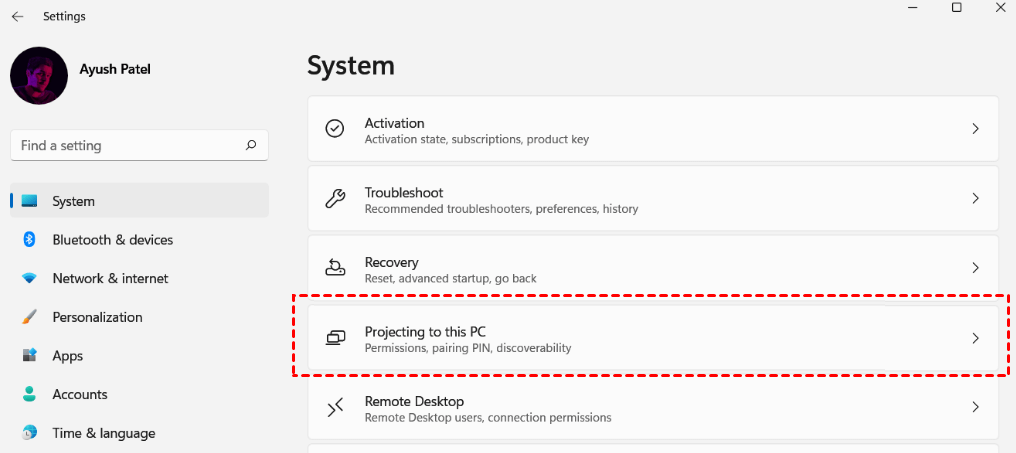
Step 5. Go to "Settings" and select "System". Look for "Projecting to this PC" and click on it.
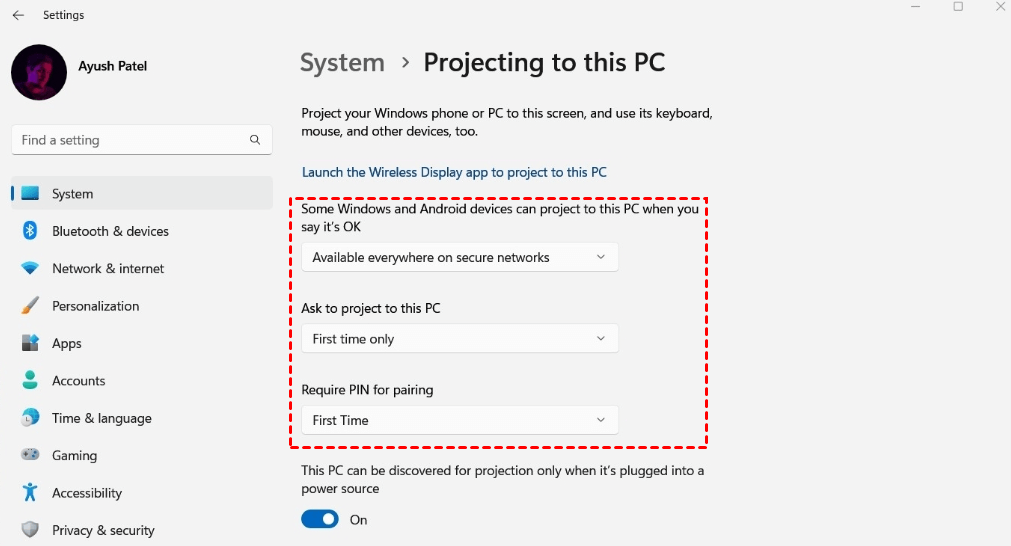
Step 6. On the next page, configure the options in the three dropdown menus as follows:
- In the first dropdown, select "Available everywhere on secure networks".
- In the second dropdown, choose "First time only".
- In the third dropdown, select "First time".
Phase 2. Configuring your Android device:
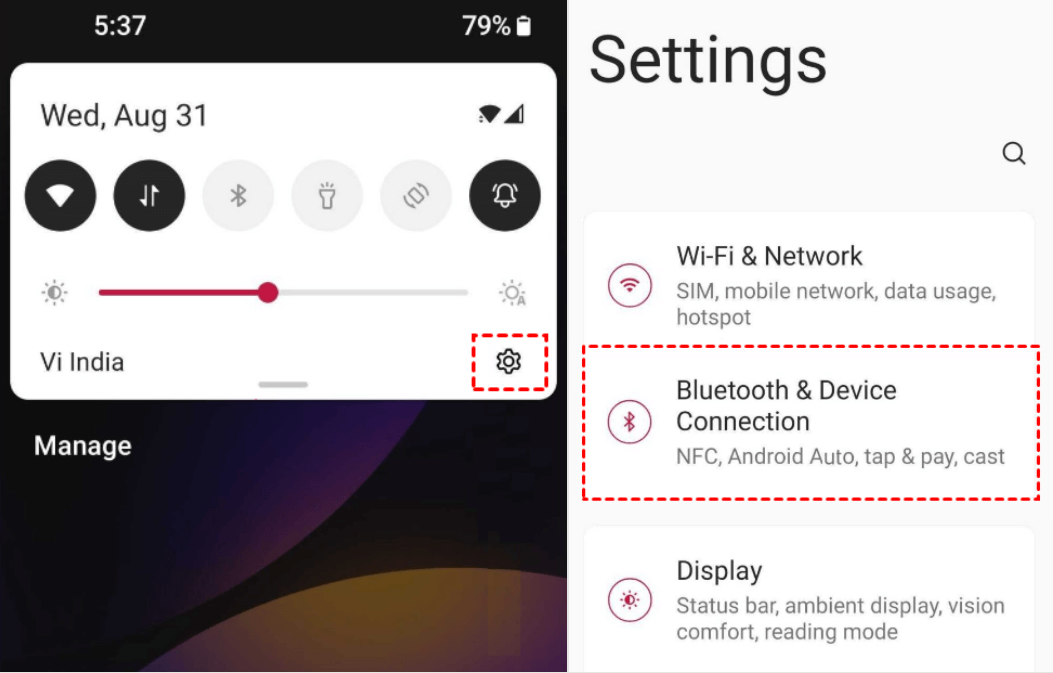
Step 1. Open "Settings" on your Android device.
Step 2. Select "Bluetooth & Device Connection".
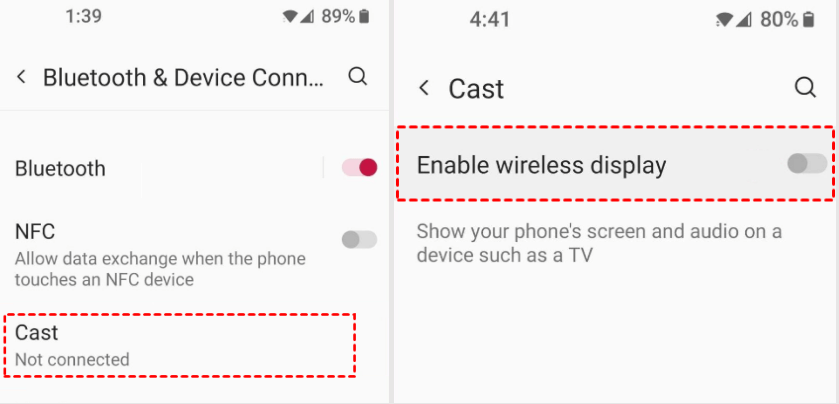
Step 3. Tap on "Cast".
Step 4. Toggle the switch for "Enable wireless display" to activate it.
Phase 3. Connecting Windows 11 to your Android device:
Step 1. On your Android device, find your Windows device in the "Nearby Devices" list and tap to select it.

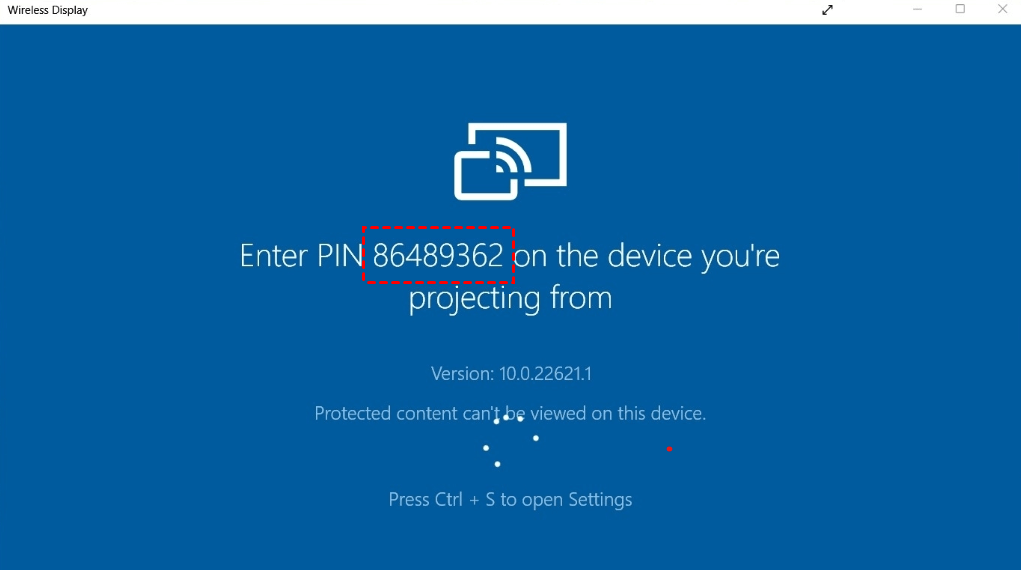
Step 2. After selecting your device, the Wireless Display application will open on your Windows device, showing a PIN (e.g., 86489362).
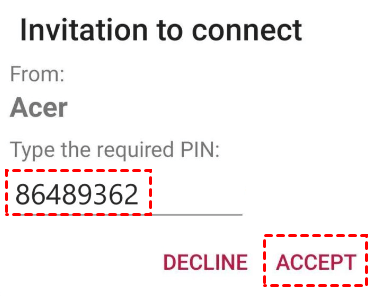
Step 3. A prompt will appear on your Android device. Enter the PIN displayed on your Windows device in the field labeled "Type the required PIN", then tap "Accept".
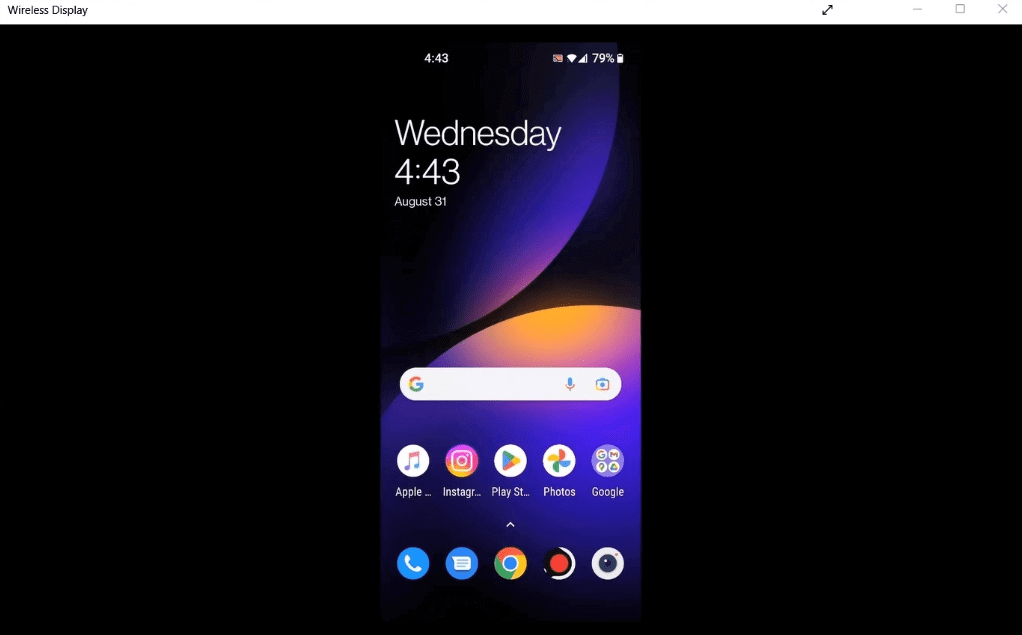
Step 4. Once accepted, your Android screen will be streamed to your Windows device, allowing you to see everything happening on your mobile device right on your computer screen.
Conclusion
In conclusion, knowing how to stream phone to PC can significantly enhance your experience, whether for gaming, presentations, viewing phone videos, or simply sharing content. Among the various options available, AnyViewer stands out as the best choice due to its seamless functionality and superior features. With ultra HD quality, zero lag, and the ability to control your Android device directly from your PC, AnyViewer makes the process simple and efficient. By following the straightforward steps outlined in this guide, you can effortlessly connect your devices and enjoy all the benefits of screen mirroring with AnyViewer.



 as a preferred
source on Google
as a preferred
source on Google