

How to Share iPad Screen Remotely (PC/Mac/Android/TV)
Learn how to share your iPad screen with others using various tools and platforms. This guide explains how to use AnyViewer for sharing across different platforms, FaceTime for quick connections between iOS and Apple devices, and AirPlay for streaming to smart TVs.

By Ellie / Updated on February 28, 2026


How do I share my iPad screen with someone else?
These days, more people are looking to remotely access their iPads. Whether you're collaborating with colleagues, providing tech support, or simply wanting to share a video with a friend, screen sharing allows you to connect and interact in once impossible ways.
But how exactly can you share your iPad screen remotely, and what tools do you need to make it happen? Don’t worry, follow the full guide to share your iPad screen remotely with Windows PC, Android devices, other Apple products, and TVs.
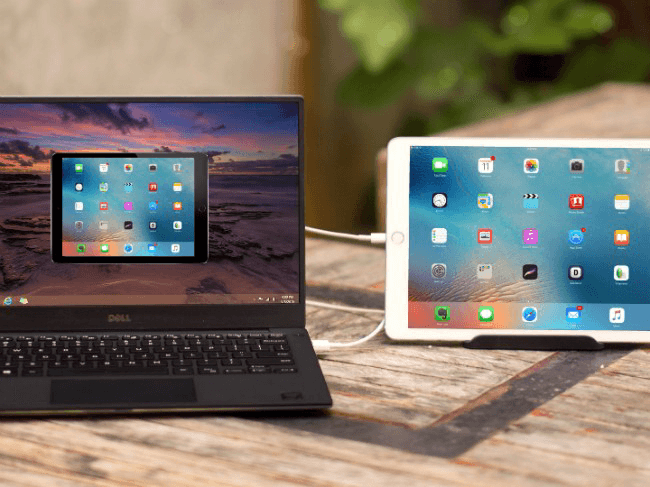
How to share iPad screen remotely
Sharing your iPad screen remotely is an essential skill for modern collaboration, remote technical support, or simply showing photos to family across the country. Whether you need to mirror your screen to a Windows PC, a smartphone, or a Smart TV, this guide covers the most effective methods available today.
Quick Comparison: Which Method Should You Choose?
| Feature | AnyViewer (Recommended) | FaceTime | AirPlay |
| Best For | Cross-platform & Remote Support | Casual Apple-to-Apple calls | Home Entertainment / TV |
| Compatibility | Windows, macOS, iOS, Android | iOS, iPadOS, macOS | Apple TV, AirPlay 2 TVs |
| Remote Access | Yes (Across different networks) | Yes (Via Video Call) | No (Same Wi-Fi only) |
| Setup Difficulty | Low (Account-based) | Low (In-app) | Instant |
Method 1. Best for Cross-Platform: Share iPad Screen to Windows/Android/iOS via AnyViewer
If you need to share your iPad screen with non-Apple devices (like Windows PCs) or perform cross-network remote support, AnyViewer is the most versatile screen mirroring solution. Unlike built-in tools that often lock you into a single ecosystem, AnyViewer bridges the gap between Windows, macOS, iOS, and Android, providing a seamless mirroring experience regardless of the hardware you use.
Why Choose AnyViewer for Remote Sharing?
- True Cross-Platform Support: Effortlessly mirror iPad to Windows PC, MacBook, iMac, Android devices, or another iPhone/iPad.
- Remote & Local Connectivity: Whether you are in the same room or on the other side of the world, AnyViewer’s high-performance servers ensure low latency.
- Beyond Mirroring: It's not just for viewing; AnyViewer also supports remote desktop control (controlling PC from iPad), file transfer, and multi-monitor support.
- Security Guaranteed: Protected by End-to-End Encryption (ECC), ensuring your screen broadcast remains private and secure.
Step-by-Step Guide:
Step 1. Install AnyViewer from the App Store on your iPad and create an account.
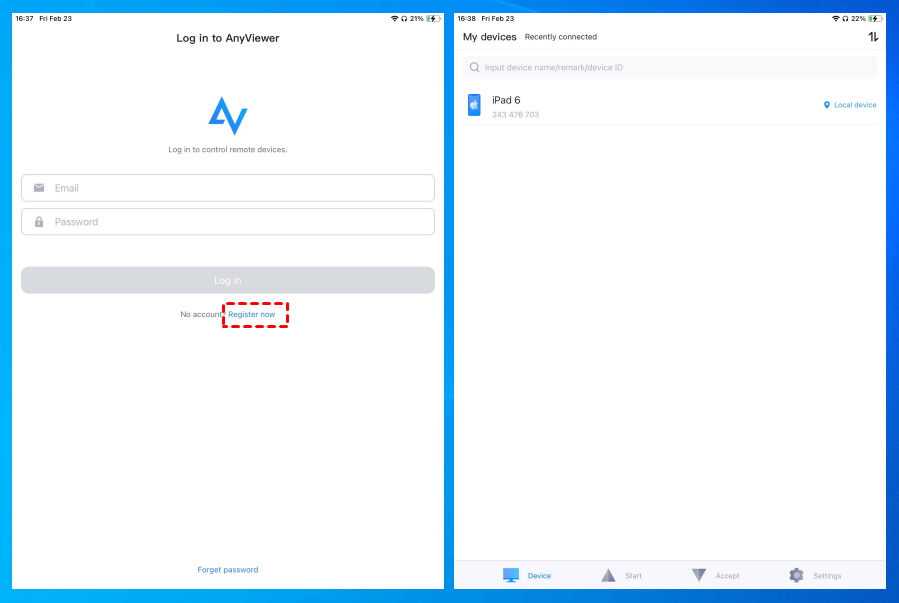
Step 2. Download and set up the Windows version of AnyViewer on your PC, logging in with the same account.
Step3. In the "Device" section, select your iPad and click "View screen."
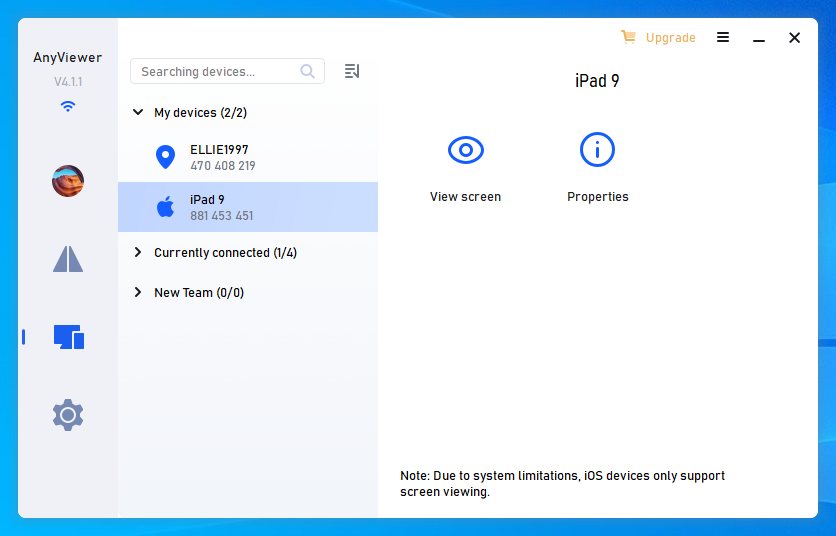
Step 4. On your iPad, grant access by tapping "Allow," then tap "Start Broadcast."
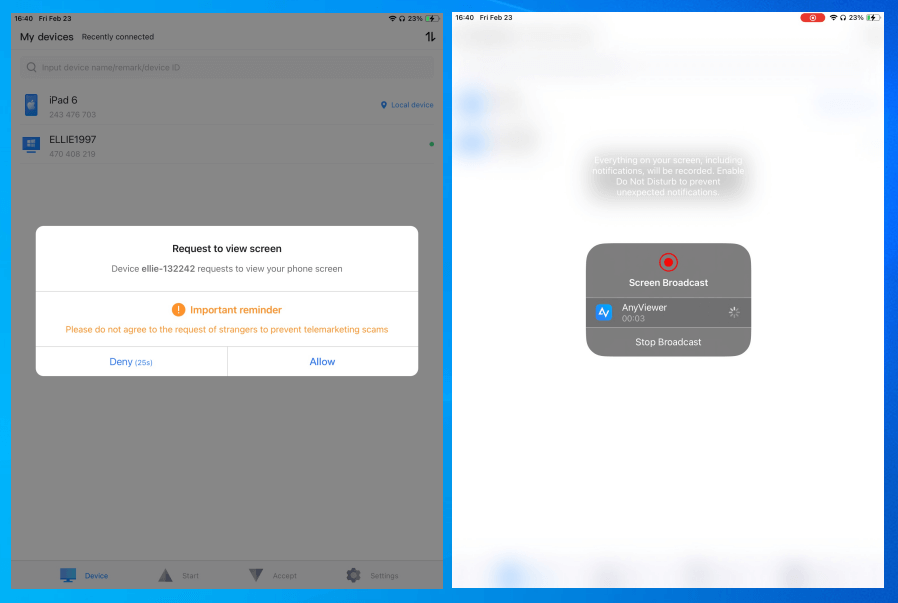
Step 5. Your iPad screen is now successfully shared with your PC.
Method 2. Best for Quick Collaboration: Share iPad Screen via FaceTime
For Apple users, FaceTime offers a built-in way to share your screen during a video call. This is perfect for "Show and Tell" moments with friends or colleagues who also use an iPhone, iPad, or Mac.
Best Scenario: Quick troubleshooting or walking someone through an app interface during a live conversation.
Step-by-Step Guide:
Step 1. Begin a FaceTime call on your iPad.
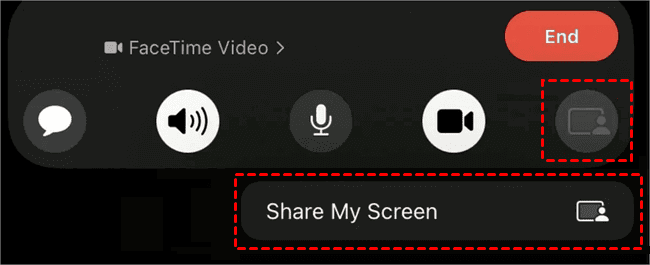
Step 2. While on the call, tap the screen to reveal FaceTime controls, if they're not already visible, and then select the Share Content button.
Step 3. To share your entire screen, tap "Share My Screen."
Method 3. Best for Home Entertainment: Share iPad Screen to TV via AirPlay
If you want to share your iPad screen on a larger display like a Smart TV, AirPlay is the most seamless method. Note that this requires both devices to be on the same Wi-Fi network.
Best Scenario: Presenting a slideshow, watching movies, or playing mobile games on a big screen at home.
Step-by-Step Guide:
Step 1. Ensure your iPad and AirPlay-compatible smart TV are connected to the same Wi-Fi network.
Step 2. Open Control Center by swiping down from the upper-right corner of your iPad screen.
Step 3. Tap the "Screen Mirroring" button.
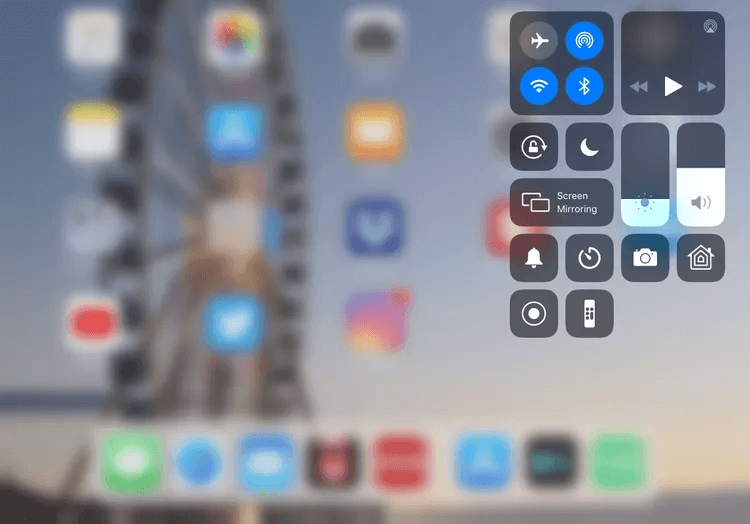
Step 4. Select the TV you wish to share your iPad screen with.
The bottom line
In conclusion, sharing your iPad screen remotely can significantly enhance collaboration and connectivity, whether you're working with colleagues, assisting someone, or just sharing content with friends. By utilizing tools like AnyViewer, FaceTime, or AirPlay, you can seamlessly connect with Windows PCs, Android devices, other Apple products, or even a TV. With the right steps, you can delve into effortless screen sharing and ensure that your interactions are as productive and enjoyable as possible.
FAQs
How do I remote share my iPad screen?
Can you remotely view an iPad?
How can I share my screen remotely?
- Cross-Platform (iPad to PC/Mac/Android): Use AnyViewer for a stable, high-definition remote connection.
- Apple to Apple: Use FaceTime's built-in screen-sharing tool.
- Local Sharing (Same Wi-Fi): Use AirPlay to mirror your screen to a Smart TV or Apple TV



 as a preferred
source on Google
as a preferred
source on Google