

How to Run Mac Apps on Windows 11/10 [3 Proven Ways]
Learn how to run Mac apps on Windows! This guide covers simple methods like using AnyViewer for remote access, virtual machines for macOS emulation, or cloud services like MacinCloud. Unlock the best of both platforms effortlessly.

By Ellie / Updated on April 10, 2026


Want to use iMessage, edit in Final Cut Pro, or develop in Xcode directly from your Windows PC? Because of the fundamental differences between macOS and Windows architectures, Apple apps don't run natively on a PC.
While you could spend hours wrestling with a sluggish virtual machine, there are many more efficient ways to bridge the gap. In this guide, we'll explore how to unlock the Apple ecosystem on your Windows device using professional remote desktop software, virtualization, and cloud solutions.
Comparison at a Glance
Check the table below to find the best method for your specific needs:
| Feature | AnyViewer (Remote/Mirror) | Virtual Machine (Emulation) | MacinCloud (Cloud) |
| Speed | Extremely Fast | Slow/Laggy | Average |
| Graphics | 4:4:4 True Color | Poor | Standard |
| Setup | 2 Minutes | 1 Hour+ | 10 Minutes |
| Ideal For | Creative Work / iMessage | Testing / Learning | Temporary Development |
How to Run Mac Apps on Windows 11/10
Many users install macOS applications on their Windows PCs for various reasons, and doing so comes without any penalties or repercussions. If this is something you're interested in, here are some methods you can explore.
Way 1. AnyViewer: The Fastest & Most Professional Solution (No Emulation Required)

If you have access to a Mac—at the office, in a studio, or at home—AnyViewer is the easiest remote desktop solution to run macOS apps on Windows.
Unlike Virtual Machines (Way 2) that drain your PC's RAM, AnyViewer lets you remotely control or mirror your Mac screen to a Windows laptop. This allows you to leverage 100% of the Mac’s native performance (including the power of M1/M2/M3 chips) directly on your Windows desktop.
Why AnyViewer is the Top Choice:
- Native Performance: Since you are connecting to real hardware, video editing and coding render in real-time.
- High-End Visuals (True Color): Supports 4:4:4 True Color mode, ensuring no color loss—critical for designers using Photoshop or Sketch.
- Unattended Access: You can remote control your Mac from Windows even if no one is sitting in front of the Mac, making it perfect for working from home.
- Privacy & Security: Features like Privacy Mode allow you to black out the remote Mac's screen and lock its keyboard.
How to run Mac apps on Windows with AnyViewer (Free):
Step 1. Get AnyViewer for free on both your Windows PC and your Mac.
Step 2. Create a free AnyViewer account and log in on both devices. Your Mac will automatically appear in the "My Devices" list on your Windows app.
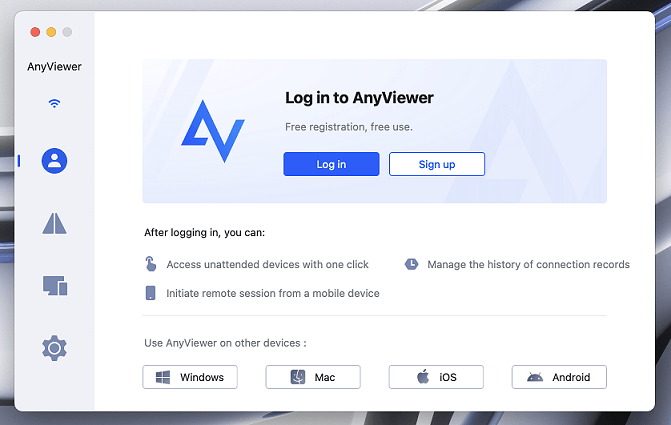
Step 3. On your Windows PC, go to the Device tab, select your Mac, and click "One-click control".

Step 4. You are in! A window will open displaying your Mac's desktop. You can now open iMessage, compile code in Xcode, or browse Safari exactly as if you were sitting in front of the Mac.
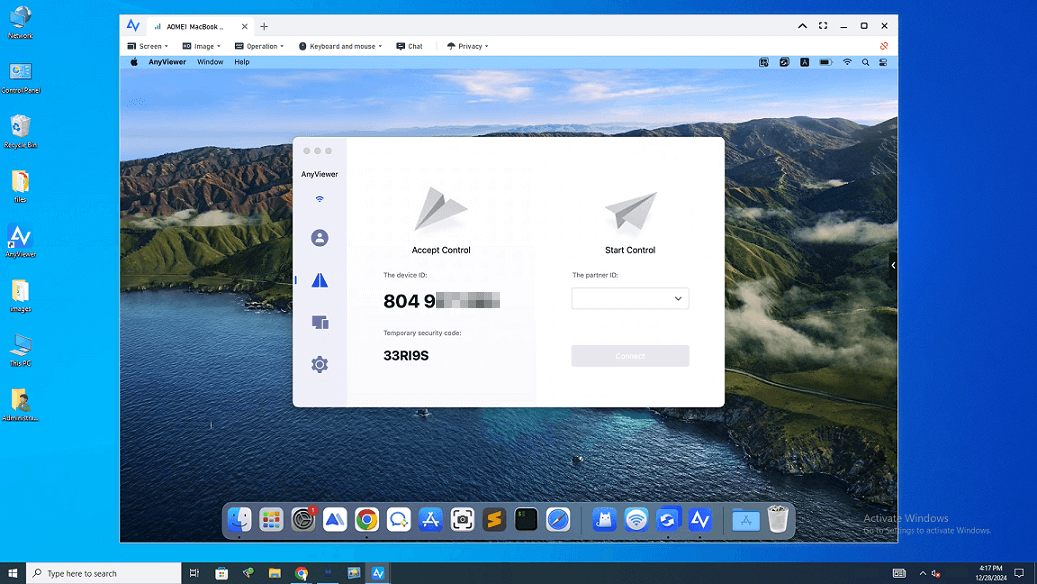
For users with heavier workflows, upgrading your account offers significant advantages:
- High-Speed File Transfer: Transfer large project files up to 10MB/s—perfect for video editors and designers.
- True Color Display: Enable 4:4:4 color chroma mode to ensure precise color accuracy, indispensable for creative professionals using apps like Photoshop, Sketch, or Final Cut Pro.
- Unlimited Concurrent Sessions: Manage and control multiple Macs simultaneously from one Windows PC.
Way 2. Run Mac Apps via Virtual Machine (For Advanced Users)
If you don't have a Mac to remote into (as shown in Way 1), you can try emulating macOS on Windows using VirtualBox.
This method is resource-intensive. You need a powerful PC (at least 16GB RAM and an SSD) to avoid severe lag. Unlike AnyViewer, virtual machines cannot support GPU acceleration, so video editing or graphic design apps may crash.
If you still want to proceed, here is the streamlined process:
Prerequisites:
- Oracle VirtualBox (Latest version + Extension Pack).
- A macOS ISO file (Monterey or Big Sur recommended).
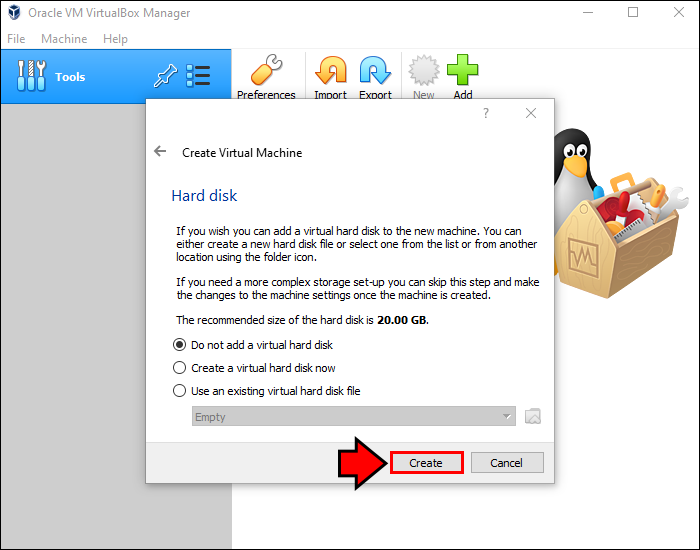
Step 1: Create the Virtual Machine
- Open VirtualBox and click New.
- Name it, select Type and Version.
- Memory (RAM): Allocate at least 4GB (8GB recommended).
- Hard Disk: Create a dynamic virtual disk of at least 35GB.
Step 2: Adjust System Settings
- Before starting, go to Settings for your new VM:
- System: Uncheck "Floppy". Under Processor, assign 2 CPUs.
- Display: Slide Video Memory to 128MB (Max).
- Storage: Click the "Empty" CD icon and select your downloaded macOS ISO file.
- USB: Set to USB 3.0.

Step 3: Run Configuration Commands (Crucial)
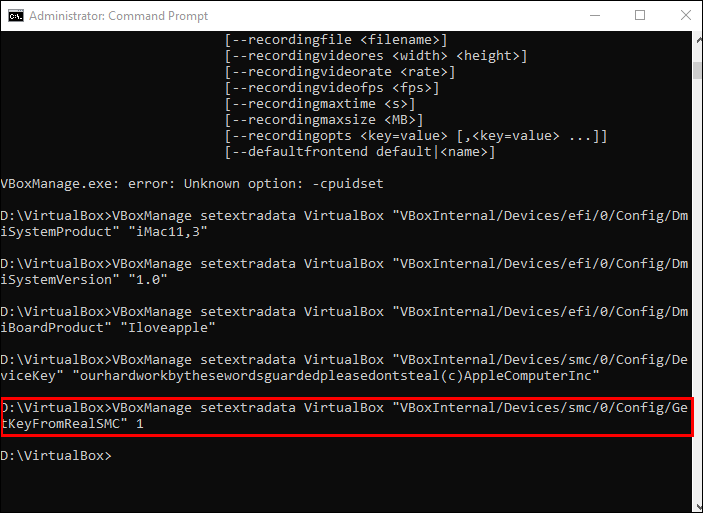
You must patch VirtualBox to recognize macOS. Close VirtualBox completely, open Command Prompt (CMD) as Administrator, and run the following commands one by one (replace "YourVMName" with the exact name you created in Step 1):
- cd "C:\Program Files\Oracle\VirtualBox\"
- VBoxManage.exe modifyvm "YourVMName" --cpuidset 00000001 000106e5 00100800 0098e3fd bfebfbff
- VBoxManage setextradata "YourVMName" "VBoxInternal/Devices/efi/0/Config/DmiSystemProduct" "iMac11,3"
- VBoxManage setextradata "YourVMName" "VBoxInternal/Devices/efi/0/Config/DmiSystemVersion" "1.0"
- VBoxManage setextradata "virtual machine name" "VBoxInternal/Devices/efi/0/Config/DmiBoardProduct" "Iloveapple"
- VBoxManage setextradata "YourVMName" "VBoxInternal/Devices/smc/0/Config/DeviceKey" "ourhardworkbythesewordsguardedpleasedontsteal(c)AppleComputerInc"
- VBoxManage setextradata "YourVMName" "VBoxInternal/Devices/smc/0/Config/GetKeyFromRealSMC" 1
Step 4: Install macOS
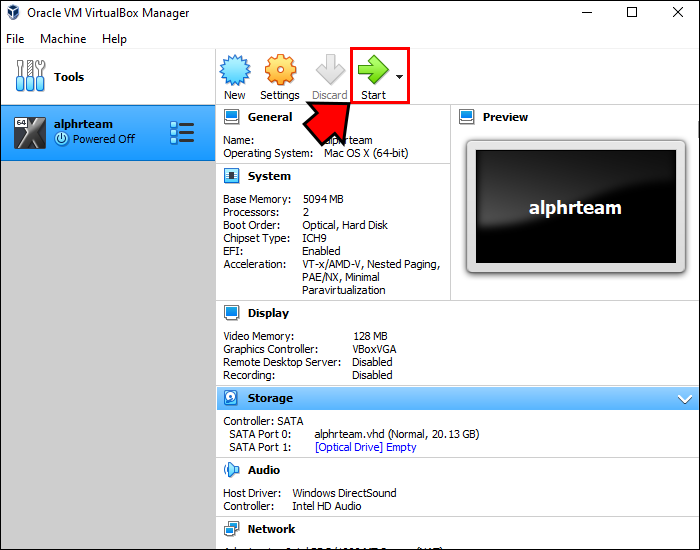
- Re-open VirtualBox and click Start. You will see the Apple logo and the installation lines.
- Follow the on-screen prompts to format the disk (use Disk Utility) and install the OS. This process usually takes 30-60 minutes, depending on your PC speed.
Way 3. MacinCloud: The Subscription-Based Cloud Approach
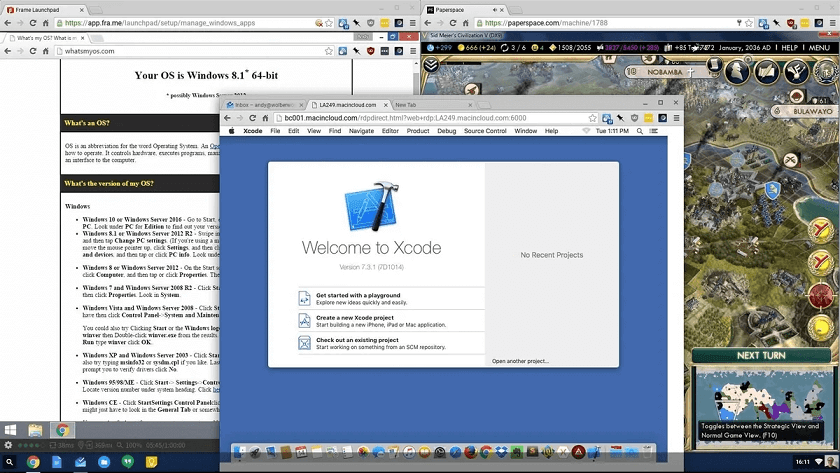
If you don't own a Mac hardware and your PC is too weak to run a Virtual Machine, your last resort is renting a Mac in the cloud. Services like MacinCloud allow you to access a remote Mac server via the internet.
While this allows you to run apps like Xcode or Safari on Windows, be aware that it operates on a subscription model (often starting at $25/month or $1/hour). Since the Mac is located in a data center, you may experience input lag or "latency" depending on your internet speed.
How to use MacinCloud on Windows:
Step 1. Visit the MacinCloud website. For most users, the "Managed Server Plan" is the most common choice.
Step 2. After paying, you will receive a welcome email containing a Server Address, Username, Password, and a pre-configured .rdp file.
Step 3. You don't need to install special software on Windows. Download the .rdp file from your email to your desktop. Right-click the file and select Open. This launches the built-in Windows Remote Desktop Connection. When prompted, enter the Username and Password provided in the email.
Step 4. When you are done, do NOT just close the window. You must click the Apple Menu (top-left) > Log Out.
Warning: If you close the window, your session remains active, and you may be charged for extra hours or block your next login attempt.
Is the lag annoying? Cloud services often struggle with delays. Moving your mouse or typing code might feel "floaty" or slow because the signal has to travel to a server miles away. If you have access to a Mac (even an old one at a friend's house or office), use AnyViewer (Way 1). It’s free, has no hourly billing limits, and offers a smoother experience for daily tasks.
Bonus: Can I Run Windows Apps on Mac?
Often, users need the reverse—running Windows programs on a Mac. If you find yourself in this situation, you have three main options:
- AnyViewer (Recommended): Just like controlling a Mac from Windows, you can use AnyViewer to remotely control your Windows PC from your Mac with zero lag.
- Boot Camp: (Intel Macs only) Allows you to install Windows on a separate partition.
- Parallels Desktop: A powerful VM that lets you run Windows and Mac apps side-by-side.
Conclusion
In conclusion, exploring how to run Mac apps on Windows can be useful. Whether you choose AnyViewer for seamless remote access, a virtual machine for full macOS emulation, or a cloud-based service like MacinCloud, each method offers distinct advantages depending on your needs. AnyViewer stands out for its ease of use and robust performance, making it the best choice for most users. With these solutions, you can enjoy the best of both worlds, bringing macOS functionality to your Windows device effortlessly.



 as a preferred
source on Google
as a preferred
source on Google