

How to Run 3D Software Through Remote Desktop
Learning how to run 3D software through remote desktop starts with a capable host computer. Install your 3D application on that workstation, connect from another device, and control it remotely while the host handles the processing. This guide helps designers, students, and remote professionals prepare their hardware, connect with AnyViewer, and troubleshoot common problems.

By Ellie / Updated on September 10, 2026


Can You Run 3D Software Through Remote Desktop?
Yes. Remote desktop software allows you to operate demanding 3D applications on a powerful remote workstation while displaying and controlling the workspace on a lightweight laptop or mobile client. The host computer handles all the CPU, GPU, memory, and rendering workloads; your client device simply receives the visual stream and sends mouse and keyboard inputs.
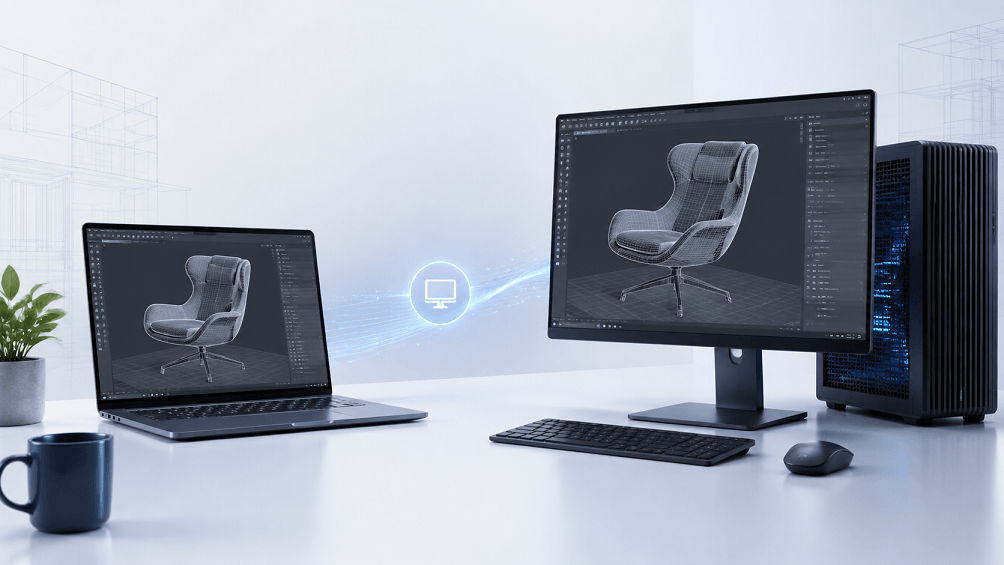
However, traditional remote access tools often lag, freeze, or drop frames when handling complex 3D viewports. That is where AnyViewer comes in. Designed for high-performance visual workflows, AnyViewer delivers low-latency frame streaming and high-definition color retention, turning any remote device into a responsive 3D workstation.
Depending on your daily tasks, remote performance needs vary:
- Interactive Modeling & Sculpting: Orbiting 3D scenes, sculpting, and tweaking animations require extremely low latency and high frame rates for precision control.
- Render & Job Management: Launching renders, checking job progress, and saving outputs require high stability and reliable session continuity.
- Design Reviews: Sharing 3D geometry with clients or teammates requires clear image quality and true-to-life visual clarity.
Why AnyViewer is Built for Remote 3D Workflows
Unlike standard remote desktop software that struggles with heavy graphics, AnyViewer offers specialized features tailored for 3D artists, CAD engineers, and animators:
- Low Latency & High FPS Streaming: Optimized image encoding algorithms ensure that rotating, panning, and zooming in 3D viewports (Blender, Maya, 3ds Max, SolidWorks) remain smooth and responsive.
- Secure Unattended Access: Easily connect to your office or home workstation at any time without requiring someone to manually accept the connection. Perfect for checking late-night GPU rendering progress.
- Ultra-Fast File Transfer: Seamlessly move multi-gigabyte project files, 8K texture maps, and rendered videos directly between devices with enterprise-grade encryption.
- Multi-Monitor & Mobile Support: Effortlessly navigate dual or triple workstation displays, or use your phone/tablet to quickly check on a render while on the go.
What You Need Before Connecting
To ensure an optimal remote modeling experience, make sure your host workstation is properly prepared:
|
Component |
What to check |
Why it matters |
|
Host workstation |
Application-compatible GPU, sufficient RAM and VRAM, available storage |
The host performs the actual 3D work |
|
Graphics configuration |
Supported drivers and the intended rendering device |
A working desktop does not prove GPU rendering is active |
|
Network |
Stable host upload, client download, and low delay |
Screen updates must reach the client consistently |
|
Client device |
Reliable connection, readable display, keyboard and mouse |
Precise selection is harder with limited input controls |
|
Project files |
Textures, references, plugins, and output folders available on the host |
Missing dependencies can break an otherwise healthy session |
Always keep your host workstation powered on and disable automatic sleep modes before leaving your office.
How to Set Up Remote 3D Access with AnyViewer (Step-by-Step)
Setting up AnyViewer for 3D modeling and rendering is quick and straightforward.
Step 1: Prepare Your Workstation & AnyViewer Connection
- Download and install AnyViewer on both your high-spec host workstation and your remote client device.
- Create a free AnyViewer account, then log in with the same credentials on both computers.
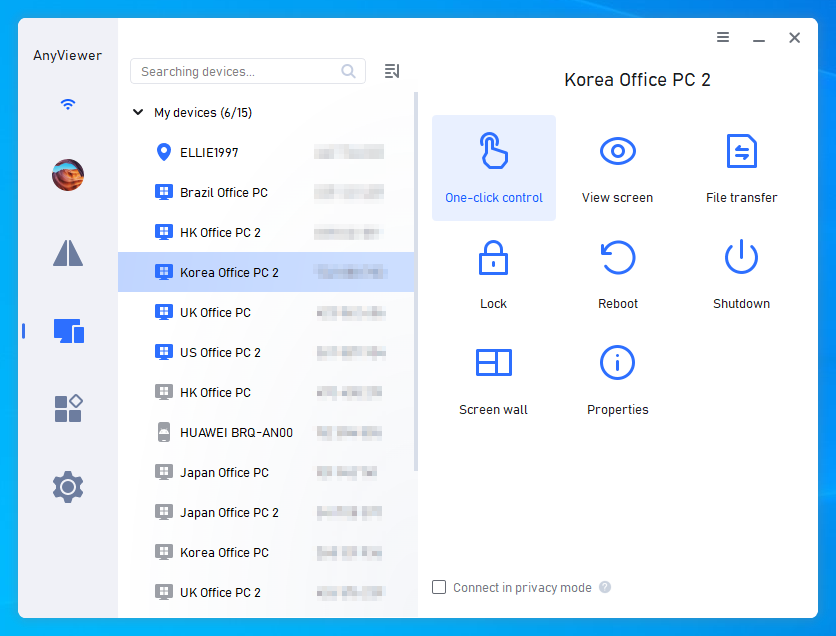
- On your client device, go to Device, locate your host workstation under My devices, and click One-click control for instant, unattended access.
Step 2: Test & Optimize Your 3D Project Viewport
Once connected, open your 3D application on the remote desktop and perform this quick viewport check:
- Orbit, Pan & Zoom: Test viewport responsiveness in solid and shaded modes.
- Shortcut & Mouse Test: Verify middle-mouse button navigation, tablet input (if applicable), and custom hotkeys.
- Test Render Run: Launch a quick test render and verify that the file output saves to the designated local or host directory.
While the free plan works for basic access, professional 3D rendering and complex modeling benefit from AnyViewer’s paid plans (Solo, Professional, Team, or Enterprise), offering High-FPS streaming, true color mode, and unlimited high-speed file transfers. Explore AnyViewer Paid Plans and upgrade to boost your 3D workflow.
Can Windows Remote Desktop Handle 3D Applications
Windows Remote Desktop is another option, particularly on an organization-managed network. For a Windows 11 Pro host, enable Settings > System > Remote Desktop, note the PC name, and connect from your Windows client using Remote Desktop Connection. Microsoft documents the process in its Remote Desktop setup guide.
Off-site access also needs an approved network route, such as your organization's VPN or gateway. Ask IT to provide that connection rather than exposing a workstation directly to the internet.
GPU acceleration is not universally unavailable over RDP. Microsoft confirms that Remote Desktop Services supports GPU acceleration, but results depend on the application, drivers, operating system, and session configuration.
Before choosing this route, check:
- Whether your application vendor supports the intended remote session.
- Whether the application detects the expected graphics device after connecting.
- Whether IT needs to configure graphics acceleration policies.
AnyViewer vs. Windows Remote Desktop (RDP) for 3D Work
While Windows Remote Desktop (RDP) is built into Windows Pro, it is primarily designed for administrative and office tasks, not real-time 3D graphics.
| Feature | AnyViewer | Windows Remote Desktop (RDP) |
| 3D Viewport Performance | Highly optimized for dynamic 3D scenes & high FPS | Prone to frame drops and lag during 3D rotation |
| Ease of Cross-Network Access | Instant connection across different Wi-Fi networks/internet without VPN | Requires complex VPN setups, port forwarding, or IT approval |
| OS Compatibility | Supports Windows Home/Pro, macOS, iOS, Android | Requires Windows Pro/Enterprise on the host machine |
| Unattended Access | Simple 1-click unattended access out of the box | Requires administrative network configuration |
How to Maximize Performance for Remote 3D Modeling
If you want the smoothest possible remote sculpting and editing experience, follow these optimization tips:
- Use Ethernet over Wi-Fi: A wired connection significantly reduces latency and frame jitter during viewport manipulation.
- Optimize Streaming Resolution: Match your client resolution to the host. If bandwidth is limited, slightly reduce stream resolution to prioritize frame rate and low delay.
- Simplify Viewport Display: Switch to Wireframe or Solid Shading mode while modeling, and enable GPU Raytracing or Render Preview only when inspecting materials or lighting.
- Keep Working Files on the Host: Always store working assets locally on the host's fast NVMe SSD. Use AnyViewer’s built-in File Transfer to upload assets or download final renders.
Start Remote 3D Modeling with AnyViewer Today
Don't let location restrict your creative workflow. With AnyViewer, you can tap into the full GPU power of your desktop workstation from any laptop, anywhere. Download AnyViewer free and experience smooth, low-latency remote 3D access today!



 as a preferred
source on Google
as a preferred
source on Google