

How to Control PC from iPhone Without Lag
Learning how to control PC from iPhone without lag starts with a stable connection, sensible display settings, and a remote desktop app designed for mobile control. This guide explains how to connect with AnyViewer, identify common performance problems, and adjust your setup for checking documents, running Windows applications, or helping someone with their computer.

By Ellie / Updated on September 8, 2026


What makes remote PC control feel responsive
The quickest route to smoother remote control is to connect your PC by Ethernet, use strong Wi-Fi on your iPhone, and start with moderate picture quality. Then increase visual detail only if the connection stays responsive.
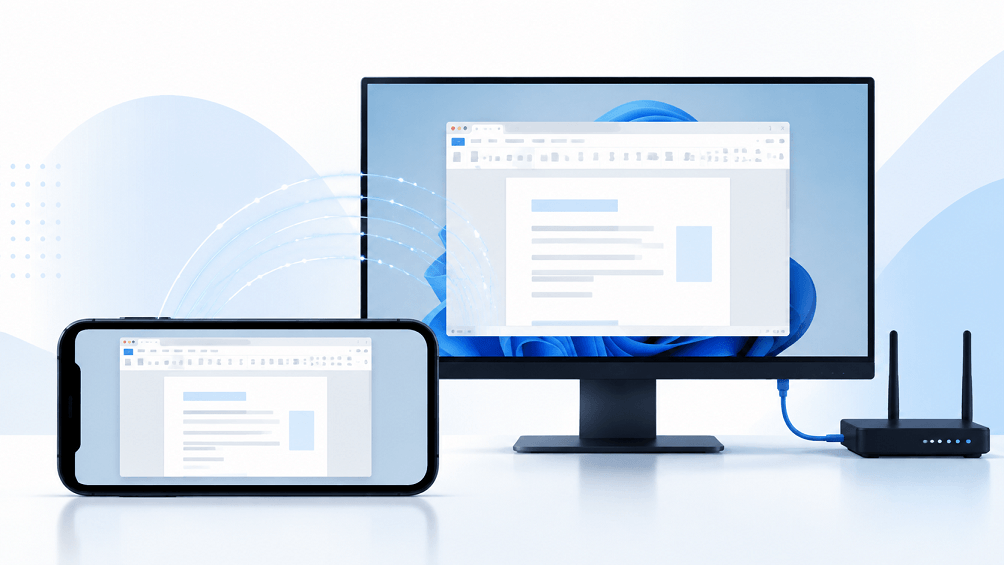
For everyday Windows access, AnyViewer is a practical option because it supports iPhone-to-PC control and previously authorized unattended connections. The software handles the connection workflow; your network and devices still determine how quickly actions appear on screen.
Remote desktop software sends your taps to the computer and streams the updated screen back. Delay can enter at several points:
|
Cause |
What you notice |
First adjustment |
|
Network latency |
Clicks respond late |
Compare another network |
|
Unstable Wi-Fi |
Periodic freezes or stuttering |
Move closer to the router |
|
Limited available bandwidth |
Motion becomes blurry or uneven |
Lower picture quality |
|
Busy host computer |
Apps respond slowly even locally |
Check PC resource usage |
|
Awkward touch controls |
Repeated taps miss small buttons |
Try mouse mode and zoom |
Bandwidth is capacity; latency is travel time. A fast internet plan does not guarantee immediate responses, particularly when the computer is far away or the connection fluctuates.
How to control PC from iPhone without lag using AnyViewer
Set up the connection while you are near the PC. That gives you a chance to resolve account, power, or permission issues before depending on remote access elsewhere.
Prepare your computer and phone
Use this short checklist before installation:
- Keep the PC powered on, connected to the internet, and awake during the access period.
- Update the remote access software on both devices.
- Connect the PC to the router with an Ethernet cable when practical.
- Use reliable Wi-Fi on the iPhone for the initial test.
- Confirm you have permission to install remote access software on a work computer.
A screen that turns off is different from a computer entering sleep. Check the relevant Windows power settings so the host remains available. Closing a laptop lid may also put it to sleep.
Connect your iPhone to your Windows PC
The official mobile workflow uses the same account on both devices:
- Install AnyViewer on the Windows PC, launch it, and create an account or sign in.
- Install the iPhone app from the App Store and sign in with that same account.
- Open Device on the iPhone and select your PC from the device list.
- Tap One-click control to start the authorized remote session.
- Open a simple desktop application and test clicking, typing, and scrolling.
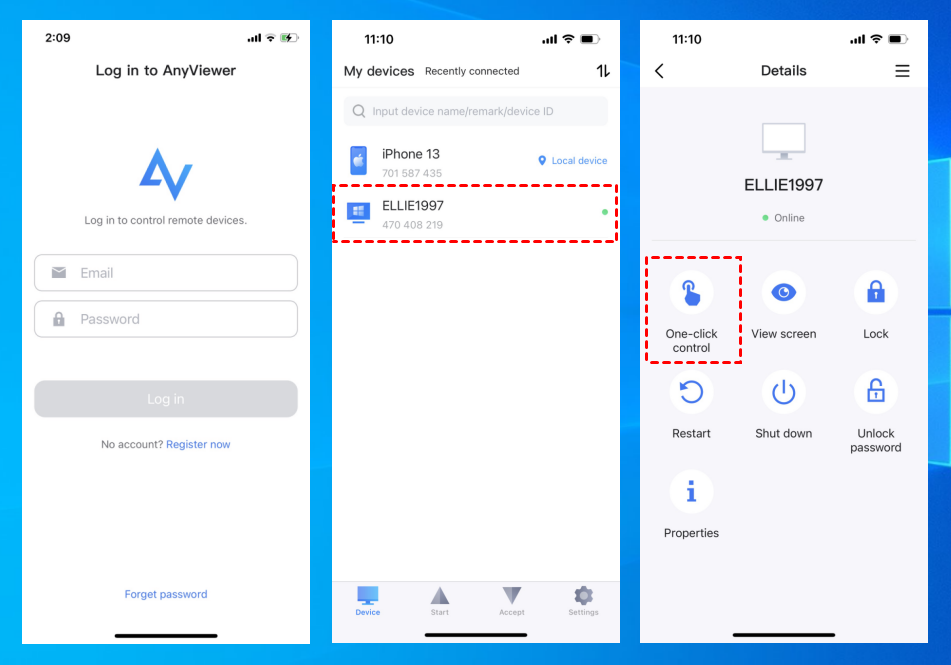
For a first connection, follow the AnyViewer mobile access setup. Interface labels can change between versions, so use the prompts in your installed app if they differ slightly.
Make the desktop easier to operate
Rotate the iPhone horizontally to give the remote desktop more room. Try mouse mode for small buttons and touch mode for direct interaction. Zoom into the area you are editing instead of repeatedly tapping a tiny control.
These adjustments improve accuracy rather than network speed. That distinction matters: missed taps can feel like lag even when the connection is responding normally.
Why AnyViewer fits everyday mobile remote access
If you need to open a Windows-only application, check a document, or manage your own computer while away, AnyViewer remote access offers a straightforward connection path. Its relevant benefits include:
- Mobile Remote Access for operating a computer from an iPhone.
- Unattended Remote Access to a previously authorized computer.
- Mouse and touch controls that accommodate different desktop tasks.
This makes it worth considering for short work sessions and occasional access away from your desk. Set it up on your own devices and test a typical task before relying on it during travel.
For fast competitive gaming or precise creative work, assess the complete experience first. Network delay and the small phone screen remain constraints regardless of the app you choose. Check current platform and plan requirements before relying on a specific advanced feature.
Six ways to reduce remote desktop lag
1. Wire the PC to the router
Ethernet removes one wireless connection from the path. This can help when both the PC and iPhone otherwise compete for wireless airtime. If wiring is impractical, improve the PC's Wi-Fi signal and test closer to the access point.
2. Choose stable Wi-Fi on the iPhone
Near a compatible router, try 5 GHz Wi-Fi. It can be a better fit for interactive streaming than a congested 2.4 GHz connection, but walls and distance affect the result. Compare actual responsiveness instead of assuming the higher-frequency band always wins.
3. Reduce visual demands gradually
If the app exposes image-quality or resolution controls, start lower and adjust upward. A detailed desktop with frequent motion needs more data than a mostly static document. Stop background video playback and hide unnecessary visual effects. Keep text readable; excessively blurry text defeats the purpose.
4. Leave room for the host's upload traffic
When connecting over the internet, the PC must upload its screen to your phone. Pause optional cloud backups and large transfers, then repeat your test. A strong download result at home does not tell you whether the host has enough spare upload capacity.
5. Check whether the PC itself is slow
Open Task Manager and look for sustained CPU, memory, or GPU pressure. If an application is sluggish when used directly on the computer, remote access cannot make it fast. Close unnecessary workloads or let a demanding export finish before testing again.
6. Compare another connection
Try the same task over a different trusted Wi-Fi network or a stable cellular connection. If performance changes substantially, investigate the original network. Keep organization-required security tools enabled; ask IT to review connection problems rather than bypassing company controls.
These adjustments reflect the same network and streaming constraints discussed in the Moonlight project FAQ, though available controls vary between remote access apps.
Test your setup before leaving home
Use a repeatable check instead of judging performance from one cursor movement:
- Open a text document and type a short sentence.
- Scroll a webpage, then drag a small window across the desktop.
- Repeat after changing one setting or pausing a background transfer.
- Switch the iPhone from home Wi-Fi to cellular and repeat, if available.
This is a troubleshooting procedure, not a measured benchmark. If typing works well but scrolling stutters, reduce visual demands first. If every action arrives late, compare networks. If both local and remote use are slow, investigate the PC.
Testing on home Wi-Fi provides a useful baseline, but it does not prove that a hotel connection will perform equally well. Also verify that the PC remains reachable after sitting idle.
Only access devices, accounts, and files that you own or are explicitly authorized to use. Protect the remote access account with a strong, unique password and disconnect when finished.
Get your mobile connection ready
For everyday access, start with a stable network, a reachable computer, and controls that suit your phone. Set up AnyViewer for iPhone, connect to your authorized PC, and run the short test above. Keep the settings that make your actual work comfortable, then verify the connection again from outside your home network.



 as a preferred
source on Google
as a preferred
source on Google