

How to Execute Command On Remote Server Without SSH?
This article shares how to execute commands on remote servers without requiring SSH. It examines various secure alternatives, facilitating remote server access and management from any location.

By Irene / Updated on February 5, 2026


🌟Quick Summary:
This article explains how to execute commands on a remote server without relying on SSH, a situation that commonly occurs in Windows environments, restricted networks, or teams with limited command-line experience. Instead of terminal-based access, it highlights remote desktop solutions that provide full graphical control, allowing users to open Command Prompt, PowerShell, or a Linux terminal directly on the remote machine and run commands as if they were physically present. The article also compares other non-SSH options, including web-based management panels, RMM tools, and task schedulers, noting their different use cases and limitations.
Among these methods, remote desktop tools are presented as the most practical choice for direct, interactive control, especially for troubleshooting and one-off tasks. AnyViewer is emphasized as a user-friendly solution that works without port forwarding, supports secure connections through firewalls, and integrates file transfer, making it suitable for both personal and business use. Overall, the article concludes that executing commands without SSH is often necessary in real-world scenarios, and choosing the right alternative depends on system type, security constraints, and required level of control.
How to Execute Command On Remote Server Without SSH?
Remote Desktop enables command execution by giving you full graphical access to a remote machine, rather than a direct shell connection like SSH. Instead of sending commands over a terminal protocol, you interact with the remote operating system exactly as if you were physically present, using its desktop, menus, and tools.
Step 1. Initiate a remote desktop session using RDP, VNC, or a third-party remote access tool. The software authenticates your credentials, establishes an encrypted connection, and mirrors the remote screen on your local device.
Step 2. Once the desktop is visible, open the system’s command interface manually. On Windows, this is typically Command Prompt or PowerShell via the Start menu or the Run dialog (Win + R). On Linux, you open a terminal window from the desktop environment.
Step 3. Type and execute the required commands directly in the shell window. The commands run under the permissions of the logged-in user account, inheriting administrative rights if the session was opened with elevated credentials.
Step 4. Observe command output and system changes in real time on the remote screen. You can visually confirm results, such as files being created, services starting, or configuration windows updating, without relying on text-only feedback.
This visual, interactive approach works well when shell-only access is unavailable. Next, we’ll look at how some remote desktop tools enable direct or background command execution without opening a full interactive desktop session.
What Are the Common Ways to Execute Remote Commands Without SSH?
SSH is not always an option. This often happens on Windows systems or in environments with strict access rules. When SSH cannot be used, administrators turn to other methods to run commands on remote computers. These options range from full desktop access to automated background execution, depending on how much control is needed. Here is a table about some common ways for running commands on remote servers without SSH.
| Method | Typical Tools | Best Use Case | Main Limitation |
|---|---|---|---|
| Remote Desktop & GUI Tools | RDP, VNC, AnyViewer | Full control of the remote system with a visual interface | Higher bandwidth usage; must be secured properly |
| Web-Based Management Panels | Cockpit, Webmin, cPanel, Plesk | Managing servers through a web browser | Needs installation and regular security updates |
| RMM Tools | Commercial RMM platforms | Running scripts on many devices at once | Expensive and complex for small environments |
| Task Schedulers & Remote Scripting | Task Scheduler, Cron, PsExec | Automating routine or scheduled tasks | Hard to monitor and troubleshoot failures |
If you need direct access and want to run commands as if you were sitting in front of the computer, remote desktop tools are the most practical choice. For example, AnyViewer allows you to connect to a Windows machine securely and open Command Prompt or PowerShell just like a local user, without configuring SSH.
Web-based panels focus on ease of use, while RMM tools are designed for large-scale management. Task schedulers and scripts work best for repeated jobs but offer limited visibility. Choosing the right method depends on your system, security needs, and how much control you require.
The Best Method to Execute Command on Remote Server Without SSH?
Executing commands on a remote server without using SSH can seem tricky, but tools like AnyViewer offer a practical alternative, especially for users who prefer a graphical interface over command-line complexity. While SSH is the standard for secure remote access, it requires network configuration and technical knowledge that not everyone possesses. AnyViewer simplifies this process by allowing you to access the remote desktop directly, bypassing the need for terminal-based commands entirely.
- ★The primary advantage of using AnyViewer lies in its ease of use and accessibility:
- Visual Interface: You can see the remote screen as if you were sitting right in front of it, making it easy to open the Command Prompt or PowerShell manually.
- No Port Forwarding: Unlike SSH, which often demands specific port configurations on the router, AnyViewer works through firewalls without complex setup.
- File Transfer Integration: The file transfer feature of AnyViewer streamlines the workflow.
By logging into the remote machine via AnyViewer's interface, you simply navigate to the terminal application of your choice and type your commands directly. This method is particularly useful for troubleshooting or one-off tasks where setting up a secure SSH connection might be overkill or technically unfeasible.
Step 1. Download AnyViewer on your devices. Open it on the remote computer and create a new account to log in.

Step 2. Open AnyViewer on the local computer and sign in to the same account. Then the computer will be automatically assigned to the account.

Step 3. Go to the Device section. Select the computer you wish to connect to and select the One-click control option to establish a connection.

Step 4. Repeat the same step to control other remote computers by clicking One-click control. You can switch between the computers easily from the session tabs when performing multiple sessions.
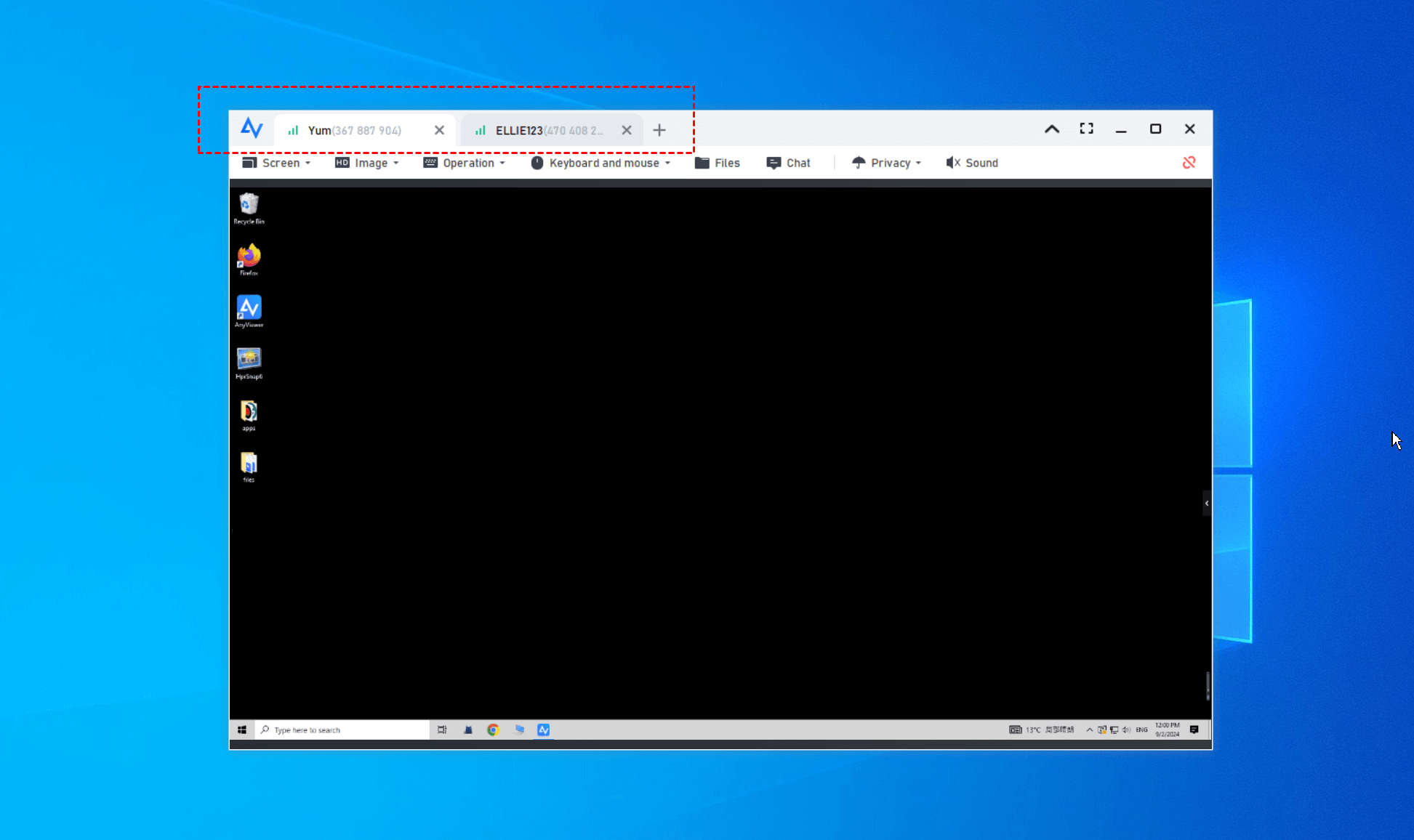
AnyViewer caters to a wide range of needs by offering a free version for personal use that includes essential features like remote gaming for free and unattended access. For more demanding environments, paid plans such as Professional and Enterprise provide advanced capabilities like high-speed file transfers, mass deployment, and support for concurrent sessions.
Why Execute Commands on a Remote Server Without SSH?
SSH is widely used to run commands on remote servers, but in real working environments, it is not always available or practical. Network limits, system differences, and user needs often make SSH unsuitable, which is why other methods are sometimes required.
❗Network restrictions: Many companies block SSH traffic to reduce security risks. Port 22 may be closed by firewalls or only accessible through a VPN, which prevents direct remote access.
❗Windows-based servers: Although Windows supports SSH, it is often disabled or not allowed in enterprise systems. These environments usually rely on graphical tools or PowerShell instead of terminal-based management.
❗Limited technical experience: Not everyone who needs server access is comfortable with command-line tools. Support staff or junior team members may only need to perform simple tasks, and using SSH can slow work or cause errors.
Even when SSH is available, it still has drawbacks. It requires careful security setup, regular maintenance, and proper key management. As teams grow, this adds extra overhead. SSH is also text-only, which makes it unsuitable for tasks that require visual interfaces or legacy software.
From a business point of view, the need to execute commands without SSH often appears during emergency troubleshooting, remote support, or client environments with strict network controls. In these cases, having reliable alternatives helps teams stay productive and secure.
Conclusion
Executing commands on a remote server without SSH is not only possible but often necessary in real-world environments. Remote desktop tools, web-based panels, schedulers, and management platforms all provide practical alternatives when SSH is unavailable or inconvenient. Among these options, remote desktop solutions like AnyViewer stand out for their ease of use, visual control, and minimal configuration requirements. By choosing the right method based on your system, security constraints, and skill level, you can run remote commands efficiently while maintaining flexibility and reliability.



 as a preferred
source on Google
as a preferred
source on Google