

Fixed: Chrome Remote Desktop Keeps Disconnecting
Chrome Remote Desktop may disconnect due to unstable internet, sleep settings, outdated software, or interfering apps. This guide shows simple steps to fix these problems and keep your remote sessions stable.

By Ellie / Updated on December 15, 2025


Why Chrome Remote Desktop keeps disconnecting
Chrome Remote Desktop keeps disconnectingat the worst moment, during a meeting, while assisting a client, or when accessing important files, can be incredibly frustrating. When Chrome Remote Desktop keeps disconnecting, it’s usually not caused by just one issue. Most problems stem from a mix of network instability, system settings, or browser-related conflicts. Below are the most common causes:
- Bad or Unstable Internet: Weak Wi-Fi, sudden drops, or interference can easily break the remote connection. Even a very short interruption can cause the session to disconnect.
- Network or Firewall Blocks: School networks, company networks, public Wi-Fi, firewalls, and antivirus tools may block Chrome Remote Desktop and cause frequent drop-offs.
- Sleep or Power Settings: If your computer goes to sleep, turns off the screen, or shuts down the network adapter to save power, the remote session will immediately disconnect.
- Chrome or App Issues: Old Chrome versions, corrupted cache, buggy extensions, or too many Chrome processes can cause the Remote Desktop app to freeze or crash.
- Outdated System or Drivers: Old Windows/macOS versions or outdated network/display drivers can create compatibility problems that lead to disconnects.
- Other Programs Interfering: VPNs, proxies, monitoring tools, screen recorders, heavy apps, or other remote desktop tools may interrupt the connection.
How to fix Chrome Remote Desktop disconnecting issues
Now that you know the causes, let’s dive into the solutions. The following fixes are organized from simple to advanced so you can troubleshoot step-by-step. For the quickest solution, it is recommended to choose the best Chrome Remote Desktop alternative.
Solution 1. Check and improve internet stability
A stable internet connection is essential, speed alone isn’t enough. You need low latency, minimal packet loss, and consistent bandwidth.
Test Connection Speed
Use tools like:
- Speedtest.net
- Fast.com
- Google Speed Test
Check these values:
- Ping: Under 30 ms
- Download: 15 Mbps minimum
- Upload: 10 Mbps minimum
High ping or unstable upload speeds usually cause the most issues.
Switch to Ethernet or Boost Wi-Fi
If possible:
- Use a wired Ethernet connection
- Move closer to your router
- Disconnect unused Wi-Fi devices
- Avoid using 2.4 GHz; switch to 5 GHz or Wi-Fi 6
- Restart your router
Small changes often make a huge difference.
Adjust Firewall and Antivirus Settings
Your firewall or antivirus might be blocking key Chrome Remote Desktop functions. Add exceptions for:
- Chrome.exe
- remoting_host.exe
- Chrome Remote Desktop extension
If you're using enterprise-grade security, ask your administrator whether remote access ports are restricted.
Solution 2. Change power andsleepsettings
If your device goes to sleep or reduces power to hardware components, GoogleRemote Desktop keeps disconnecting. Adjust these settings to keep your computer awake and stable during the session.
On Windows:
Step 1. Open Control Panel > Power Options
Step 2. Choose High Performance
Step 3. Set Put the computer to sleep to Never
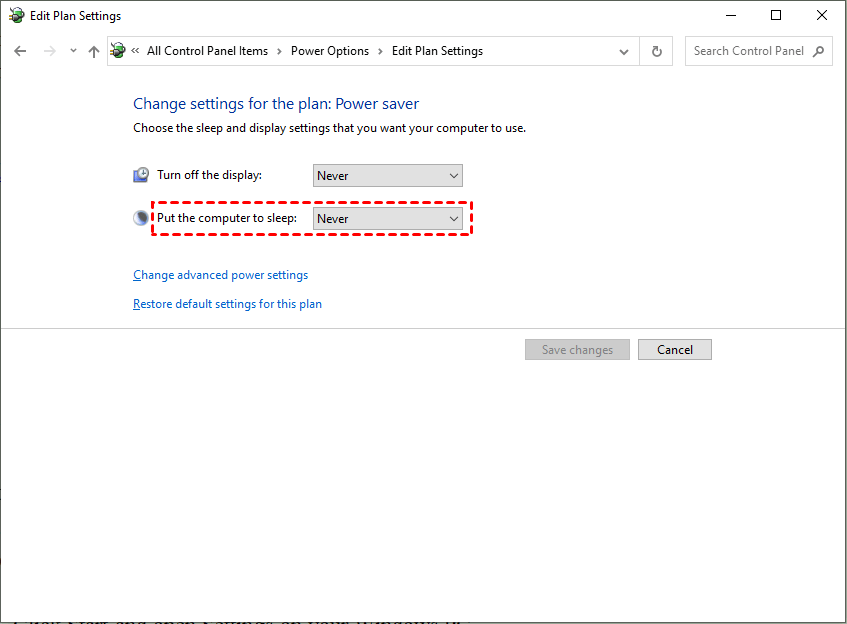
Step 4. Disable USB selective suspend
Step 5. Prevent network adapter power-saving mode
On macOS:
Step 1. Open System Settings > Battery
Step 2. Disable Put hard disks to sleep
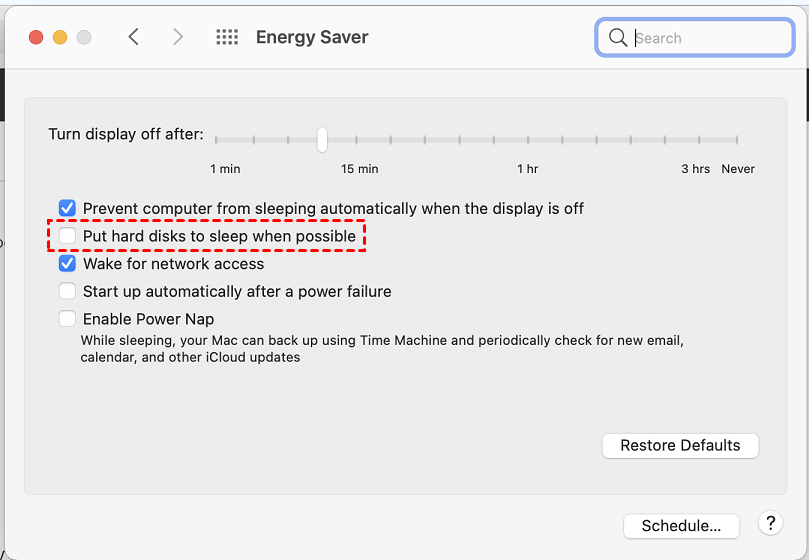
Step 3. Turn off Automatic graphics switching
These steps ensure your device stays awake during the remote session.
Solution 3. Update Chrome, extensions, and OS
Chrome Remote Desktop works best when everything is up-to-date:
- Update Chrome browser
- Remove unnecessary extensions
- Clear browser cache
- Update your operating system
- Update display and network drivers
Outdated software is one of the easiest issues to fix.
Solution 4. Disable background apps causing interference
Close apps that use heavy resources or network bandwidth:
- Steam
- OneDrive syncing
- Torrent apps
- Screen recorders
- Video streaming
- GPU-heavy tools
Chrome Remote Desktop needs system priority to remain stable.
Solution 5. Check VPN or proxy settings
VPNs significantly increase ping and reroute traffic through distant servers, causing massive connection instability. If possible:
- Turn off the VPN
- Disable any proxy
- Switch to a faster VPN server
- Use split tunneling (allow Chrome outside VPN)
Solution 6. Port forwarding and router-level fixes
Chrome Remote Desktop typically works without router adjustments, but on restricted or highly secured networks, ports may be blocked. When the necessary ports can’t communicate, disconnects occur frequently.
Key ports for Chrome Remote Desktop include:
- TCP 443 (HTTPS, main communication channel)
- UDP 443 (improves performance when available)
- TCP 5222 (used for real-time communication)
If your router or network blocks these, Chrome Remote Desktop will continuously drop. To fix this:
Step 1. Log in to your router’s admin panel
Step 2. Navigate to Port Forwarding / NAT
Step 3. Add rules allowing the ports above to pass through
Step 4. Disable features like SIP ALG, AP Isolation, or Client Isolation
Step 5. Check if QoS is throttling your device
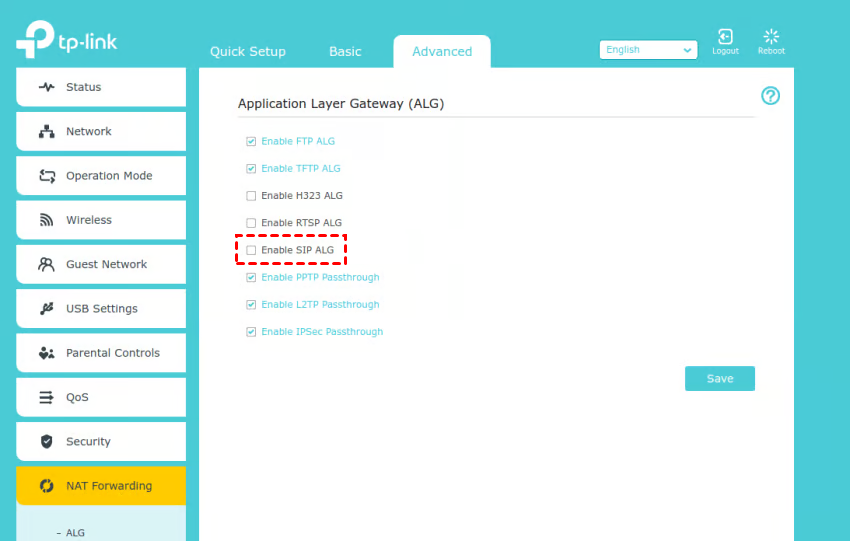
These adjustments ensure that your remote session receives uninterrupted data flow.
Solution 7. Flushing DNS and resetting network settings
DNS errors and corrupt network configurations can cause Chrome Remote Desktop authentication failures or disconnections. Resetting network settings helps restore stability.
On Windows, run the following commands in Command Prompt (Admin):
- ipconfig/flushdns
- ipconfig/registerdns
- netsh winsock reset
- netsh int ip reset
Restart your computer afterward. This clears dysfunctional network paths, making your remote connection cleaner and more stable.
On macOS:
Step 1. Open Terminal
Step 2. Run:
- sudo dscacheutil -flushcache
- sudo killall -HUP mDNSResponder
Step 3. Then reboot your Mac.
These commands rebuild your DNS and network structure, preventing random remote session drops.
Solution 8. Reinstalling Chrome Remote Desktop
If corrupted files or broken permissions are causing failures, a clean reinstall can resolve things instantly.
Steps:
Step 1. Remove the Chrome Remote Desktop extension
Step 2. Uninstall the Chrome Remote Desktop Host software
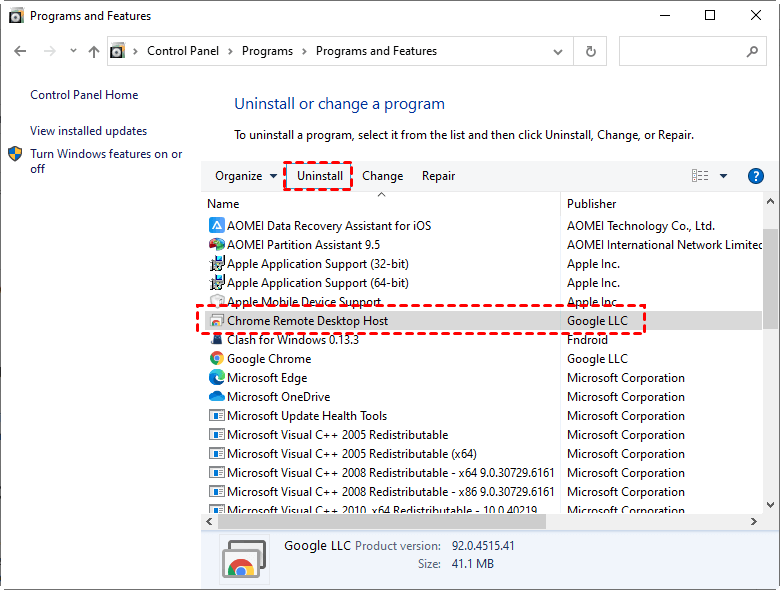
Step 3. Clear Chrome’s cached files
Step 4. Restart your device
Step 5. Reinstall both the extension and the host service
Fresh installation ensures your system is using clean configurations.
Solution 9. Using Chrome Remote Desktop webinstead of the app
Some users experience fewer disconnects using the web interface instead of the app. The web version receives updates faster and tends to be more stable. Try accessing remotely through: https://remotedesktop.google.com/.
If you notice improved stability, the issue may be with the installed host service or extension rather than your network.
Bonus tip: Best alternative to Chrome Remote Desktop

If you’ve tried every fix and Chrome Remote Desktop still disconnects, switching to a more stable remote access tool can save you a lot of frustration. Different apps are built with different connection technologies, and some simply perform better in real-world network conditions.
A standout option is AnyViewer, which is known for delivering a much smoother experience than Chrome Remote Desktop. Its key advantages include:
- More stable connections: AnyViewer maintains sessions even on weak or fluctuating networks, reducing random drop-offs.
- Faster performance: Low latency and optimized transmission make remote control more responsive.
- Easy unattended access: You can set up always-on remote access without needing someone at the device.
- Cross-platform remote desktop: Works well across Windows, iOS, Android, and macOS, making remote access more flexible.
- Secure and reliable: End-to-end encryption and professional-level security features ensure safe remote sessions.
- Built-in tools: File transfer, screen sharing, real-time chat, and multi-monitor support enhance productivity.
If Chrome Remote Desktop keeps interrupting your workflow, AnyViewer offers a more stable, faster, and easier remote access experience, making it an excellent upgrade for both personal and business users.
Conclusion
Chrome Remote Desktop disconnects are usually caused by network issues, power settings, outdated software, or other apps interfering with the connection. By checking your internet, updating Chrome and your OS, adjusting sleep settings, and managing background apps, you can reduce most disconnections.
If problems persist, using the web version or reinstalling the app may help. For a more stable and reliable experience, AnyViewer is a great alternative, offering fast performance, stable connections, cross-platform support, and easy unattended access. These steps and tools will help keep your remote sessions smooth and uninterrupted.



 as a preferred
source on Google
as a preferred
source on Google