

Can You Use QuickBooks on an iPad? 2026 Mobile Guide
You can use QuickBooks on an iPad via the official app, a web browser, or remote desktop software. For Desktop users, AnyViewer provides a secure way to access your full Windows software from your iPad.

By Ellie / Updated on April 15, 2026


In today’s fast-paced business world, the ability to manage your finances on the go isn’t just a luxury—it’s a necessity. If you are an entrepreneur, freelancer, or small business owner, you’ve likely wondered: "Can you use QuickBooks on an iPad or an iPhone?"
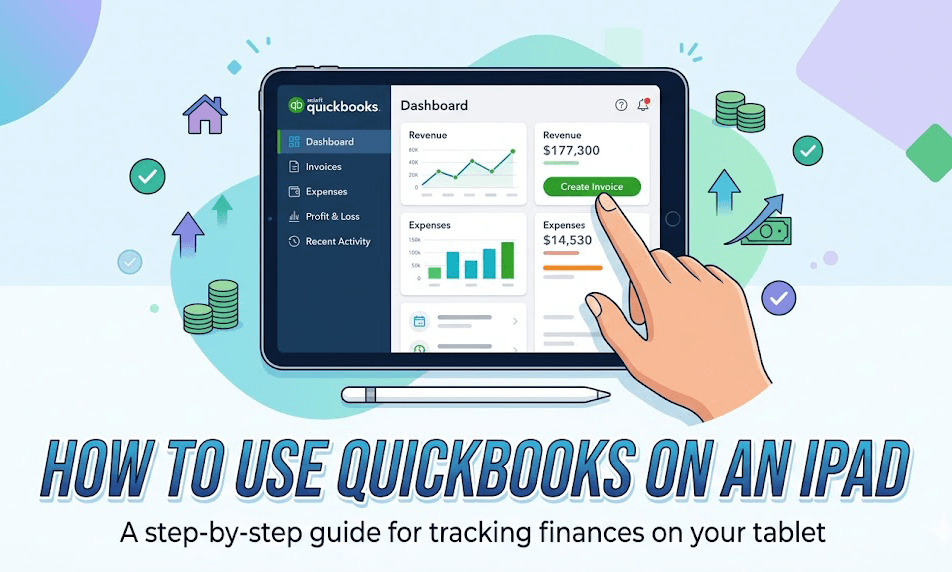
The short answer is yes, but how you use it depends entirely on which version of QuickBooks you own and what tasks you need to perform. In this comprehensive guide, we will break down everything you need to know about running QuickBooks on an iPad in 2026, from the native app experience to advanced workarounds for Desktop users.
Understanding the Two Paths: App vs. Browser
When it comes to using QuickBooks on an iPad, there are two primary ways to access your data. Each has its own set of pros and cons.
The QuickBooks Online (QBO) Mobile App
Intuit offers a dedicated QuickBooks Accounting app available on the Apple App Store. Many users ask, "Can you install QuickBooks on an iPad?" The answer is a resounding yes for the Online version. This app is designed specifically for touch interfaces.
- Best for: Quick tasks, capturing receipts, invoicing on-site, and tracking mileage.
- Pros: Optimized for touch, supports FaceID/TouchID, uses the iPad’s camera for receipt scanning, and works offline for certain features.
- Cons: Limited functionality compared to the full web version. You won’t find deep customization options or complex reporting here.
Using Safari or Chrome (Web Browser)
Since the iPad (especially the iPad Pro and Air) now uses "desktop-class" browsing in Safari, you can simply log into `qbo.intuit.com` just like you would on a laptop.
- Best for: Reconciling accounts, running detailed reports, and managing payroll.
- Pros: Access to 100% of QuickBooks Online features.
- Cons: Some buttons might be small for fingers, and the interface can occasionally feel "heavy" compared to the app.
Key Features: What Can You Actually Do on an iPad?
If you are worried that the iPad version is a "watered-down" experience, you'll be pleasantly surprised. As of 2026, the gap between the iPad and the Desktop has closed significantly.
- Invoicing and Payments: You can create, customize, and send invoices directly to clients while standing in their office. If you use QuickBooks Payments, you can even have a client sign the iPad screen to authorize a transaction.
- Expense Tracking & Receipt Capture: This is where the iPad shines. Instead of saving paper receipts, you can open the QuickBooks app, snap a photo, and the AI will automatically categorize the expense and attach the image to the transaction.
- Bank Reconciliation: Using the iPad's gesture controls (swiping), categorizing your bank feed becomes much faster than using a mouse. You can "Swipe Right" to match transactions, making your weekly bookkeeping feel more like a mobile game than a chore.
- Real-Time Reporting: Need to check your Profit & Loss statement before a meeting? The iPad app provides high-level dashboards that give you an instant snapshot of your business health.
QuickBooks Desktop on iPad: Is it Possible?
This is the most common point of confusion. QuickBooks Desktop (Pro, Premier, or Enterprise) does not have a native iPad app. It is Windows-based software, so you cannot technically install QuickBooks on an iPad if you are using the Desktop version files.
However, if you are a "Desktop die-hard," you can still use it on your iPad via these methods:
- Remote Desktop Apps: Use apps like Microsoft Remote Desktop, Splashtop, or TeamViewer. You leave your office PC running, and your iPad "remotes in" to control it.
- Cloud Hosting: You can pay a hosting provider (like Rightworks) to put your QuickBooks Desktop file on a secure server. You then access that server via a browser or remote app on your iPad.
Note: While possible, the interface of QuickBooks Desktop is not touch-friendly. You will almost certainly need a Magic Keyboard or a Bluetooth mouse to navigate effectively.
The Limitations: When Should You Put the iPad Away?
Despite its power, the iPad isn't perfect for everything. You might want to switch to a Mac or PC for:
- Massive Data Imports: If you are migrating years of data via Excel, a desktop browser is much more stable.
- Complex Inventory Management: Adjusting thousands of SKUs is tedious on a glass screen.
- Advanced Formatting: If you are designing highly custom templates for estimates or letters, the drag-and-drop precision of a mouse is superior.
Step-by-Step: How to Set Up QuickBooks on Your iPad
Ready to get started? If you want to install QuickBooks on an iPad, follow these steps:
Step 1. Download the App: Search for "QuickBooks Accounting" in the App Store.
Step 2. Log In: Use your existing QuickBooks Online credentials.
Step 3. Set a PIN: The app will ask you to set a 4-digit PIN for quick access.
Step 4. Sync Your Bank: If you haven't already, connect your bank accounts to see live data.
Step 5. Enable Notifications: This allows you to get alerts the second a customer opens an invoice or pays you.
Bonus Tip: Accessing QuickBooks Desktop via AnyViewer on Your iPad
If you prefer the advanced features of QuickBooks Desktop over the Online version, you don't have to be tethered to your office desk. Since the iPad cannot run Windows software natively, you can use AnyViewer to bridge the gap.
Note for iPad Users: Due to iOS system restrictions, remote software cannot be used to "control" an iPad from another device (it only allows screen viewing). However, you can use your iPad to remotely control your Windows PC. This allows you to run the full version of QuickBooks Desktop on your iPad as if you were sitting right in front of your office computer.
Why Choose AnyViewer for QuickBooks Remote Access?
- High-Level Security: When handling sensitive financial records, security is paramount. AnyViewer protects your session with ECC 256-bit encryption, keeping your books safe from unauthorized access.
- Zero-Lag Performance: AnyViewer’s optimized connection protocol ensures that scrolling through long ledgers or generating complex reports remains smooth and responsive on your iPad screen.
- Privacy Mode: Working in a coffee shop? You can enable "Privacy Mode" to black out your office monitor while you work, so no one at the office can see your financial data while you move through your QuickBooks files.
- Intuitive Gesture Support: AnyViewer translates iPad touch gestures into Windows mouse clicks, making it easy to navigate the traditional QuickBooks Desktop interface on a touch screen.
How to Set Up AnyViewer for Remote Accounting
Step 1. On your Windows PC: Download and install AnyViewer, then sign in to your account.
Step 2. On your iPad: Download the AnyViewer app from the App Store and log in with the same credentials.
Step 3. Establish Connection: In the iPad app, select your office PC from the device list and tap One-click Control.
Step 4. Open QuickBooks: Your entire Windows desktop will appear on your iPad. Simply launch QuickBooks Desktop and start managing your finances with 100% functionality on the go.
Conclusion
Can you use QuickBooks on an iPad? Absolutely. Whether you are using the dedicated app for QBO or remoting into a desktop setup, the iPad is a powerful tool for modern finance. And for those on smaller screens, remember that you can use QuickBooks on an iPhone for basic tasks like receipt capture and invoice tracking as well.



 as a preferred
source on Google
as a preferred
source on Google