

How to Fix "Access Denied Due to Bad Server Certificate"
A comprehensive guide explaining the causes and solutions for "Access denied due to bad server certificate," including client-side, server-side, Zscaler environments, and remote access scenarios.

By Ellie / Updated on April 21, 2026


In the modern digital landscape, security is not just a feature—it is a requirement. If you have ever encountered the frustrating message "Access denied due to bad server certificate," you are looking at a fundamental breakdown in the trust relationship between a client and a server.
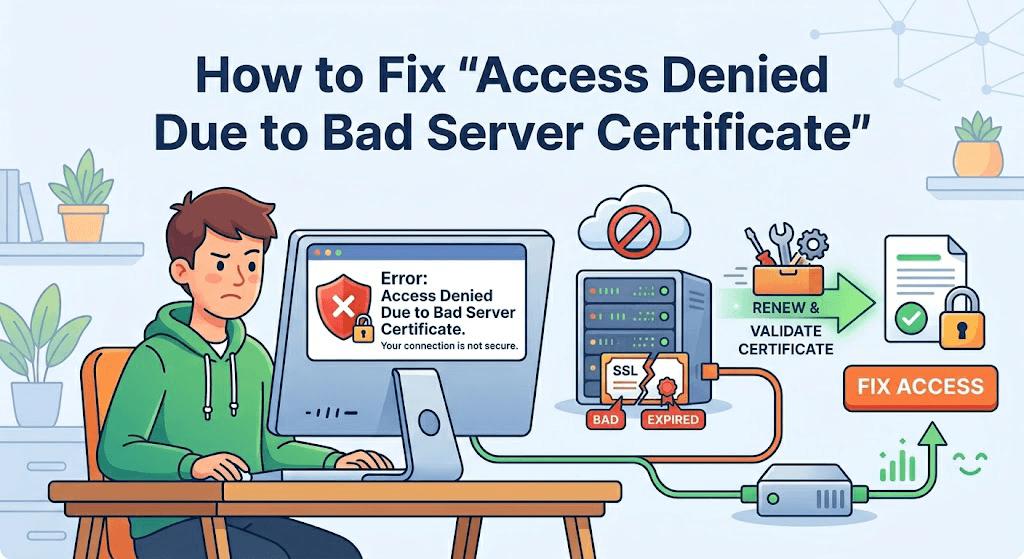
This error is more than a nuisance; for businesses, it represents lost traffic, and for developers, it indicates a configuration bottleneck. Whether you are seeing a website blocked access denied due to bad server certificate warning in your browser or a failed handshake in an API, this deep dive explores why this happens and how to resolve it.
Understanding the Anatomy of the Error
To fix a "bad server certificate," we must first understand what a "good" one looks like.
What is an SSL/TLS Certificate?
An SSL (Secure Sockets Layer) or its successor, TLS (Transport Layer Security), certificate is a digital file that binds a cryptographic key to an organization's details. When installed on a web server, it activates the padlock and the "https" protocol, allowing secure connections from a web server to a browser.
Why Does "Access Denied" Happen?
When you see the "Access denied" warning, the client has performed a "Handshake" with the server and found a discrepancy. The client’s logic is simple: *“I cannot verify that this server is who it claims to be, so to protect your data, I will block the connection.”*
Common Causes of "Bad Server Certificate"
There are several technical reasons why a certificate is flagged as "bad." Understanding these is the first step toward a solution.
- Expired Certificates: The most common cause. Certificates are issued with a specific lifespan (currently capped at 398 days for public CA certificates). If the administrator forgets to renew it, the browser will immediately reject the connection.
- Mismatched Common Name (CN): A certificate is issued to a specific domain (e.g., "www.example.com"). If you try to use that same certificate for "api.example.com" without a wildcard or Subject Alternative Name (SAN) entry, the "Bad Certificate" error triggers.
- Untrusted Certificate Authority (CA): Browsers maintain a "Root Store" of trusted CAs (like DigiCert, Let's Encrypt, or Sectigo). If you use a Self-Signed Certificate or a certificate from a CA not in the root store, the browser won't trust it.
- Incorrect Date and Time Settings: Your local device uses its clock to check if a certificate is currently valid. If your computer's year is set to 2015 or 2030, every certificate on the internet will appear "bad" because it falls outside its validity period.
- Revoked Certificates: If a private key is compromised, the owner can revoke the certificate via a CRL (Certificate Revocation List) or OCSP (Online Certificate Status Protocol). Modern browsers check these lists; if a certificate is revoked, access is denied.
Dealing with Enterprise Security: Zscaler Issues
In corporate environments, you may frequently encounter the specific error: access denied due to bad server certificate Zscaler. This typically occurs because of how Zscaler manages "SSL Inspection."
Why Zscaler Triggers This Error
Zscaler acts as a "Man-in-the-Middle" (a benevolent one) to scan encrypted traffic for threats. To do this, it intercepts the website's original certificate and replaces it with a Zscaler-generated certificate. If your device does not have the Zscaler Root CA installed in its trust store, your browser will flag the connection as a "bad server certificate."
How to Fix Zscaler Certificate Denials
Step 1. Install the Zscaler Root Certificate: Export the certificate from the Zscaler admin portal and import it into your OS "Trusted Root Certification Authorities" (for Windows) or "Keychain Access" (for macOS).
Step 2. Check SSL Inspection Policy: If you are an admin, ensure that the specific site isn't being broken by "SSL Inspection" for applications that use Certificate Pinning (like Dropbox or certain banking apps).
Step 3. Update Zscaler Client Connector: Ensure the Zscaler app on your machine is active and updated, as it often handles certificate injection automatically.
How to Fix the Error: Client-Side Solutions
Sometimes the server is fine, but the user's environment is causing the glitch.
Step 1: Check Your System Clock
Ensure your computer’s date and time are synchronized with an internet time server.
- Windows: Settings > Time & Language > Sync Now.
- macOS: System Settings > General > Date & Time.
Step 2: Clear the SSL State
Windows stores certificates in a cache. If an old, "bad" version of a certificate is stuck there, it can cause errors.
- Open Control Panel.
- Go to Internet Options.
- Click the Content tab.
- Click Clear SSL State.
Step 3: Browser Cache and Extensions
Faulty browser extensions (especially antivirus or "web shield" plugins) can intercept HTTPS traffic using their own local certificates. Try opening the site in Incognito/Private Mode. If the error disappears, a browser extension or your cache is the culprit.
How to Fix the Error: Server-Side Solutions
If you are a website owner or a DevOps engineer, the responsibility lies on you to ensure your server presents a valid certificate.
A. Verify the Certificate Chain
A common mistake is installing the "leaf" certificate but forgetting the Intermediate Certificates. Most browsers require a complete chain back to a Trusted Root.
Solution: Use a tool like the SSL Labs Server Test to see if your chain is "Incomplete." If it is, re-install your certificate along with the "ca-bundle" provided by your vendor.
B. Renewing with Let's Encrypt (Certbot)
If your certificate has expired and you use Let's Encrypt, your auto-renewal might have failed.
Run the following command to check:
- sudo certbot renew --dry-run
If it fails, check your port 80/443 configurations or your DNS records.
C. Fixing Hostname Mismatch
If you are hosting a site on "example.com" but the certificate is for "otherdomain.com", you must issue a new certificate.
Tip: Ensure you include both the "www" and non-www versions in the SAN (Subject Alternative Name) field during the CSR (Certificate Signing Request) generation.
Fixing the Error in Specific Environments
Depending on your development stack or infrastructure, the "bad server certificate" error manifests in different ways and requires specialized commands to resolve.
In Python (Requests Library)
Developers often see "SSLError: [SSL: CERTIFICATE_VERIFY_FAILED]"when running scripts.
- The Quick (Unsafe) Fix: "requests.get(url, verify=False)"— *Do not use this in production!*
- The Proper Fix: Update your local certifi bundle: "pip install --upgrade certifi".
In Java (KeyStore Issues)
Java uses its own "truststore" (cacerts). If you are connecting to a server with a private CA, you must import that CA:
- keytool -import -alias myprivateroot -keystore $JAVA_HOME/lib/security/cacerts -file root.crt
In Docker/Linux Containers
If your Docker container cannot access an external API due to a "Bad Certificate," your container's base image likely has outdated CA certificates.
Fix: Add "RUN apt-get update && apt-get install -y ca-certificates" to your Dockerfile.
Troubleshooting Checklist for Webmasters
If your users are reporting this error, follow this priority list:
1. Is it expired? Check the expiration date via your browser's "lock" icon.
2. Is the time correct? Check the server's system time.
3. Is the domain correct? Ensure the URL matches the certificate's CN or SAN.
4. Is the Intermediate Certificate missing? Check the certificate installation path.
5. Is the TLS version supported? Ensure your server isn't using deprecated versions like TLS 1.0 or 1.1, which modern browsers now reject as "bad."
Real-World Scenario: Remote Access & AnyViewer
The "bad server certificate" error isn't limited to web browsers; it frequently impacts professional software that requires high-security tunnels, such as remote desktop applications.
Take AnyViewer, for example—a leading free remote desktop tool. AnyViewer relies on ECC (Elliptic Curve Cryptography) to encrypt the connection between the local and remote PC. If the software encounters a "bad server certificate" during the login or connection phase, it will deny access to prevent potential Man-in-the-Middle (MITM) attacks.
Solving Certificate Blocks in AnyViewer:
- Software Updates: If you are using an older version of AnyViewer, its built-in list of trusted root CAs might be outdated. Updating to the latest version usually refreshes these security assets.
- Network Environment: If you are using AnyViewer within a corporate network, a proxy or firewall might be "inspecting" the traffic and replacing AnyViewer's legitimate certificate with a local one. Whitelisting AnyViewer's domains in your firewall settings can resolve this "Access Denied" trigger.
- Driver Integrity: Ensure your Windows "Root Certificates" are updated via Windows Update, as AnyViewer leverages the OS trust store to verify its secure relay servers.
Conclusion
The "Access denied due to bad server certificate" error is a vital security guardrail. While it can be a roadblock, it protects the integrity of your data. Whether you are fixing a system clock, configuring a web server, or troubleshooting a remote session in AnyViewer, the key is to ensure that the chain of trust remains unbroken.
By maintaining updated software and valid certificates, you can ensure a seamless, secure experience for users and developers alike.



 as a preferred
source on Google
as a preferred
source on Google