

Fixed: A Fatal Error Has Occurred, This Connection is Terminate
Learn to fix the "A fatal error has occurred, this connection is terminated" error. This guide offers quick solutions for mod mismatches and network timeouts for players and server hosts.

By Ellie / Updated on April 15, 2026


If you are a Minecraft player, particularly one who enjoys the vast world of Forge mods or multiplayer servers, you have likely encountered the dreaded message: "A fatal error has occurred, this connection is terminated." This error is notorious because of its vagueness. It doesn’t tell you what went wrong, only that the bridge between your computer and the server has collapsed.
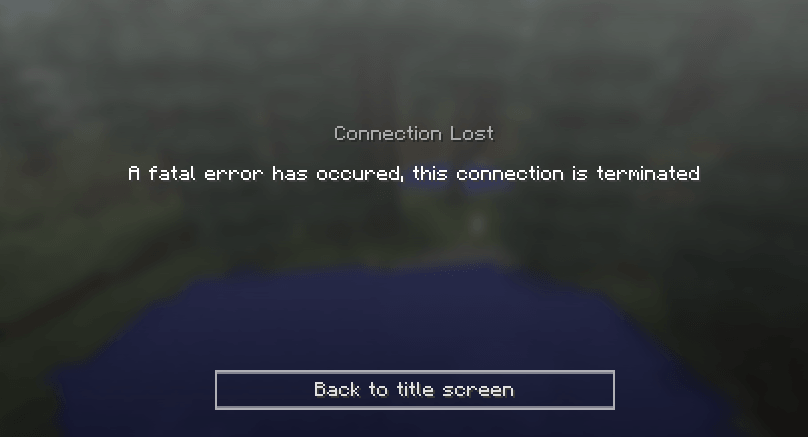
In this comprehensive guide, we will break down exactly why this error happens and show you how to fix "A fatal error has occurred, this connection is terminated", whether you are a player or a server administrator.
What Does "A Fatal Error Has Occurred" Actually Mean?
At its core, seeing "Connection Lost: A fatal error has occurred, this connection is terminated." represents a network handshake failure. When you connect to a server, your client (your computer) and the server engage in a constant "conversation." They exchange data about player positions, block updates, and modded items.
If the server sends a packet of data that the client doesn't understand, or if the client takes too long to respond to a server request, the "conversation" breaks. The software realizes it can no longer guarantee the game state is synchronized, so it "terminates" the connection to prevent data corruption.
Part 1: Common Causes of the Error
Before diving into fixes, it helps to identify why "A fatal error has occurred, this connection is terminated" happens in the first place. Generally, the causes fall into three categories:
- Mod Mismatches: You have a mod on your computer that the server doesn't have, or vice versa. Even a version difference (e.g., Mod v1.2 vs Mod v1.3) can trigger this.
- Network Timeouts: Your internet connection "jittered," causing a delay. The server expected a response in milliseconds, didn't get it, and closed the door.
- Config Conflicts: The configuration files for your mods don't match the server's settings, leading to a "Payload" error where the data packets are the wrong size.
Part 2: Troubleshooting for Players (Client-Side)
If you are trying to join a server and keep getting kicked, follow these steps to resolve the issue.
1. Check for Mod and Version Parity
This is the most common cause. Minecraft is very sensitive to versioning.
- The Golden Rule: Ensure your Minecraft version, Forge/Fabric version, and every single mod version match the server exactly.
- The Fix: Many servers provide a "Modpack" or a ".zip" file of their "mods" folder. Delete your current "mods" folder and replace it with the one provided by the server.
2. The "FML" (Forge Mod Loader) Reset
Sometimes the Forge configuration gets "stuck" or corrupted.
Step 1. Navigate to your ".minecraft" folder.
Step 2. Locate the "config" folder.
Step 3. Find the "forge-client.toml" (or "forge.cfg" in older versions).
Step 4. Rename it to "forge-client.toml.old". Minecraft will generate a fresh, clean config file the next time you launch.
3. Increase Memory Allocation (RAM)
If your computer runs out of memory while trying to process modded data packets, it will drop the connection.
Step 1. Open your Minecraft Launcher.
Step 2. Go to Installations > Click the three dots on your profile > Edit.
Step 3. Click More Options.
Step 4. In the JVM Arguments box, look for "-Xmx2G". Change it to "-Xmx4G" (if you have at least 8GB of RAM) or "-Xmx6G".
4. Refresh Your Network Identity
Sometimes the issue is a stale IP address or a DNS conflict.
Step 1. Open Command Prompt as Administrator.
Step 2. Type the following commands one by one, pressing Enter after each:
- "ipconfig /release"
- "ipconfig /flushdns"
- "ipconfig /renew"
- "netsh winsock reset"
Step 3. Restart your computer.
Part 3: Troubleshooting for Server Owners (Server-Side)
If multiple players are reporting this error, the problem likely lies in your server configuration or hardware.
1. The "Config Sync" Issue
In many mods (like Applied Energistics 2 or Twilight Forest), the server's config files dictate how items behave. If a player has a different config, the server will terminate the connection.
- The Solution: Use a mod like "Default Options" or simply host your server's "config" folder on a public link (Discord/Google Drive) and tell players they must use those specific files.
2. Adjusting the Network Timeout
By default, Minecraft is very impatient. If a player’s computer takes 30 seconds to load a heavily modded chunk, the server might think they've disconnected and kill the session.
- For Forge Servers: Install a mod called "RandomPatches" or "Connectivity."
These mods allow you to edit the "readTimeout" setting. Increasing this from 30 seconds to 300 seconds gives players with slower PCs or internet a chance to finish loading without being kicked.
3. Check for Entity Errors
Sometimes a specific "glitched" item or entity in the world causes the crash.
Step 1. Check your server console logs ("latest.log").
Step 2. Look for lines like "Unexpected packet" or "Entity type null".
Step 3. If a specific coordinate is mentioned, you may need to use a tool like MCASelector to delete that specific chunk and let it regenerate.
Part 4: Advanced Fixes – Analyzing Logs
If the basic fixes don't work, you need to look under the hood. Minecraft's log files are the only way to see the "hidden" error message.
How to read the log
Step 1. Go to ".minecraft/logs/latest.log".
Step 2. Scroll to the very bottom after the error occurs.
Step 3. Look for a Stack Trace (a long list of code starting with "at net.minecraft...").
Step 4. Search for keywords like "Payload too large" or "Registry Mismatch".
How to fix "Payload too large"
This happens when a mod tries to send too much data in a single packet (common in large modpacks with many items/recipes).
The Fix: Install the "XL Packets" or "Packet Fixer" mod. These mods increase the maximum allowed size of data packets, allowing the connection to stay alive during heavy data transfers.
Part 5: Connectivity and ISP Issues
Sometimes, the "Fatal Error" isn't software, it's hardware.
1. Firewall and Antivirus
Your Windows Firewall might see the sudden burst of modded data as a "packet flood" attack and shut it down.
Step 1. Add an exception for "javaw.exe"in your Firewall settings.
Step 2. Ensure port "25565"(the default Minecraft port) is open on your router if you are hosting.
2. The IPv6 Conflict
Minecraft sometimes struggles with IPv6 addresses.
You can force Minecraft to use IPv4 by adding this to your JVM Arguments:
- "-Djava.net.preferIPv4Stack=true"
Bonus Tip: Use AnyViewer for Seamless Remote Gaming
If you want to access and control your gaming PC from a different location, perhaps to keep your Minecraft farm running or to play on the go, AnyViewer is the perfect solution.
Instead of dealing with complex server setups or risking network disconnects on a secondary device, you can use AnyViewer to gain full remote access to your computer. Here is why it’s a game-changer for Minecraft players:
- Ultimate Remote Access: Effortlessly control your home PC from a laptop, tablet, or even a phone. You can manage your Minecraft server or continue your single-player journey from anywhere in the world.
- High-Performance Streaming: Optimized for speed, AnyViewer supports high frame rates (up to 60 FPS) and minimal latency, making remote gaming feel as responsive as sitting right in front of your monitor.
- One-Click Connection: Forget about complicated port forwarding or VPN configurations. AnyViewer offers a secure, streamlined way to link your devices instantly.
- Reliability: By controlling your main PC remotely, you benefit from its superior hardware and stable wired connection, helping you avoid many of the "Fatal Error" issues that plague less powerful mobile devices.
Conclusion
The "A fatal error has occurred, this connection is terminated" message is frustrating, but it is rarely a sign of a broken computer. It is almost always a communication breakdown caused by mismatched files, insufficient memory, or strict network timeouts.
By ensuring your mods match the server, increasing your RAM allocation, and using packet-fixing mods, you can eliminate 90% of these errors. If all else fails, always check the "latest.log" file; the answer is usually hidden in the code!



 as a preferred
source on Google
as a preferred
source on Google