What Is Remote Access Software?

Remote access software is a technology solution that enables users to connect to and control computers or devices from a different location over the internet. Unlike simple file-sharing tools, remote access software provides complete control of the remote computer's desktop, allowing you to run applications, access files, and perform tasks exactly as if you were physically present at that machine.

Key capabilities of remote access software include:

  • Full desktop control
    Full desktop controlSee and interact with the remote computer's screen in real time.
  • Unattended access
    Unattended accessConnect to computers even when no one is physically present.
  • File transfer
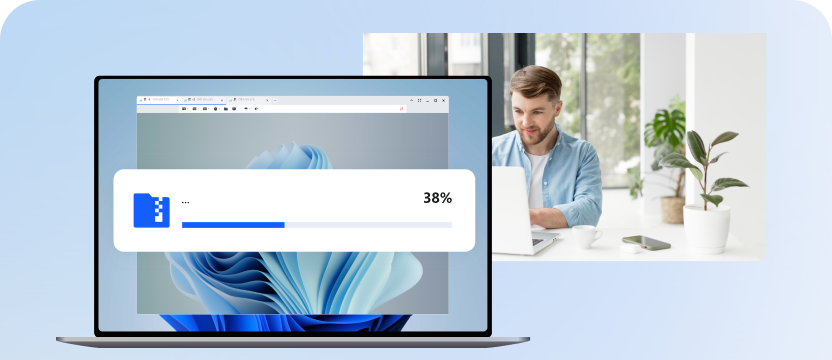
    File transferMove files between local and remote devices securely.
  • Multi-platform support
    Multi-platform supportAccess Windows, macOS, or mobile devices from any platform.
  • Security encryption
    Security encryptionProtect data transmission with enterprise-grade encryption.
Remote access software

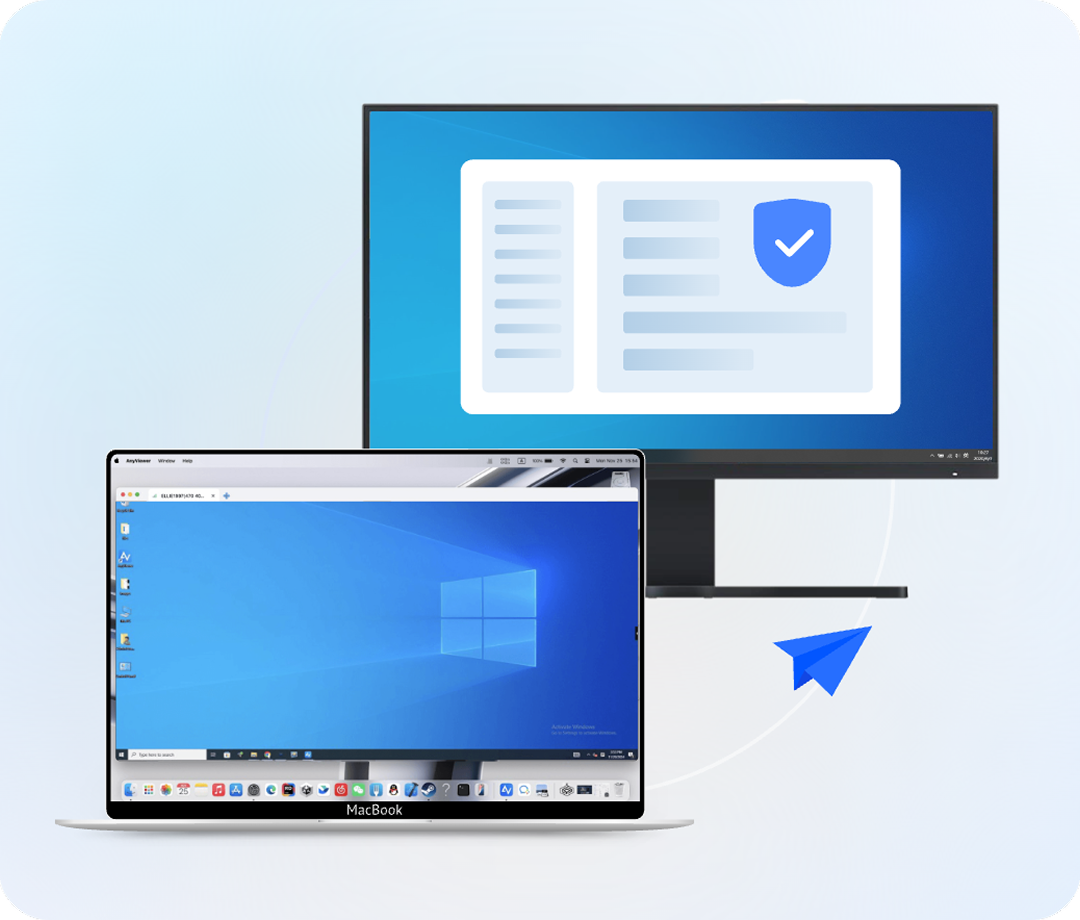
Remote access vs. remote desktop: These terms are often used interchangeably, but remote access software typically offers broader capabilities than traditional remote desktop protocols. Unlike Windows RDP, which may require port forwarding or VPN tunnels, AnyViewer uses advanced NAT traversal and cloud-mediated P2P technology to establish secure, encrypted direct tunnels automatically.

Top Use Cases for Remote Access

IT support and help desk

IT Support and Help Desk

Suitable crowd: IT support teams, help desk technicians, managed service providers (MSPs)

IT technicians use AnyViewer to provide instant remote support to employees and customers. Instead of guiding users through complex troubleshooting steps over the phone, technicians can directly access the problematic computer and resolve issues in minutes.

Key benefits:

  • One-click connection to any registered device
  • Real-time screen sharing for faster diagnosis
  • File transfer to deliver patches or tools instantly
  • Session logging for compliance and training
Remote Work and Telecommuting

Suitable crowd: Remote workers, telecommuters, hybrid workforce employees

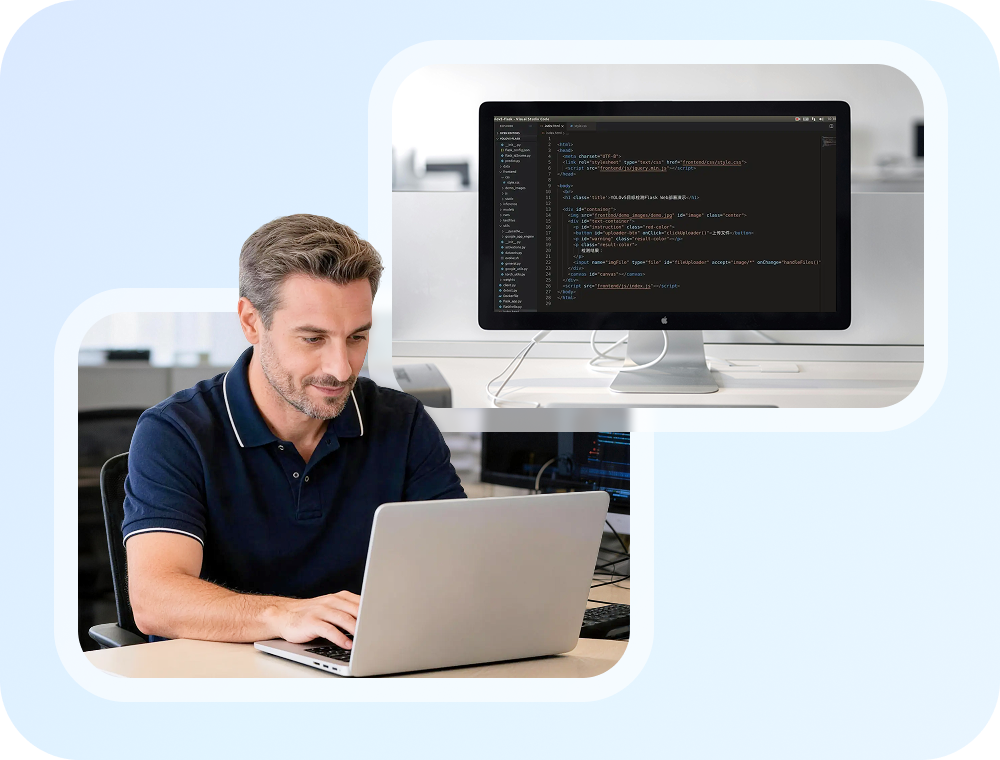
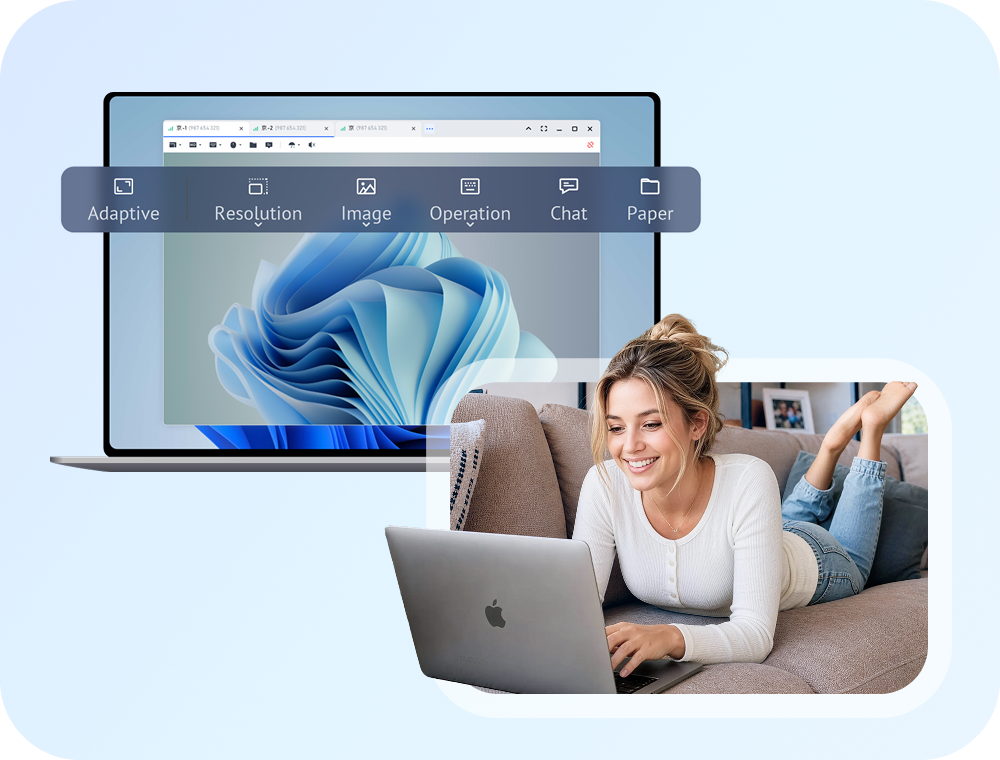
Employees working from home can access their office computers to use specialized software, access files, and maintain productivity without being physically present.

Key benefits:

  • Access office-only applications (AutoCAD, QuickBooks, Adobe Creative Suite)
  • No need to reinstall expensive software on home devices
  • Print documents remotely to home printers
  • Multi-monitor support for complete desktop experience
Remote work and telecommuting
System administration

System Administration

Suitable crowd: System administrators, network engineers, DevOps teams

System administrators use AnyViewer to manage servers and workstations across multiple locations without traveling to each site.

Key benefits:

  • Manage servers during off-hours
  • Perform software updates and maintenance remotely
  • Monitor system performance from anywhere
  • Access systems in different time zones

Personal Remote Access

Suitable crowd: Individual users, travelers, family tech support

Individuals use AnyViewer to access their home computer while traveling or to help family members with technical issues.

Key benefits:

  • Access personal files from any location
  • Help parents or friends with computer problems
  • Check on home security systems or smart home devices
  • Retrieve forgotten files without returning home
Personal remote access

AnyViewer vs. Competitors

Compare AnyViewer with TeamViewer, AnyDesk, and Splashtop across pricing, core remote access features, security, and performance.

AnyViewer Logo
AnyViewer
Full features
Affordable
Unlimited
Included
iOS & Android
Up to 4
256-bit ECC
Yes
Yes
Fast
Yes
Yes
FeatureTeamViewerAnyDeskSplashtop
Pricing
Free Version5 min limitLimitedTrial only
BusinessExpensiveModerateModerate
Core Features
Unattended AccessUnlimitedUnlimitedUnlimited
File TransferIncludedIncludedIncluded
Mobile AccessiOS & AndroidiOS & AndroidiOS & Android
Multi-MonitorUp to 4Up to 3Up to 4
Security
Encryption256-bit AES256-bit AESTLS/AES-256
Black ScreenYesYesNo
2FAYesYesYes
Performance
Connection SpeedFastFastVery Fast
Low Bandwidth ModeYesYesYes
4K SupportYesYesYes

Security Features for Safe Remote Access

When granting remote access to your computers, security is important. AnyViewer protects every connection with multiple layers of security.

256-bit ECC Icon

256-bit Elliptic Curve Cryptography (ECC)

All data transmitted during remote sessions is encrypted using ECC, which provides equivalent security to traditional AES encryption but with smaller key sizes and better performance.

End-to-End Encryption

End-to-End Encryption

Data is encrypted on the client device before transmission and only decrypted on the remote device. No third parties, including AnyViewer servers, can access your session data.

Dynamic Security Codes

Dynamic Security Codes

Connection codes automatically regenerate after each session, preventing unauthorized access through code reuse.

Two-Factor Authentication

Two-Factor Authentication (2FA)

Add an extra layer of account protection by requiring a second verification method in addition to your password.

Device Authorization

Device Authorization

Control which devices can access your computers through whitelist/blacklist settings.

Session Logging

Session Logging

All remote access sessions are logged for audit purposes, helping organizations maintain compliance requirements.

How to Set Up Remote Access

Getting started with AnyViewer is quick and straightforward. Follow these three simple steps to enable remote access.

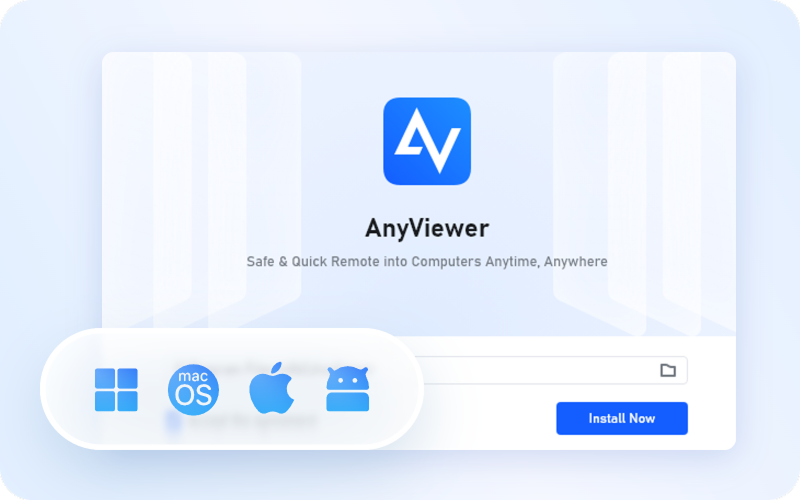
Step 1. Download and Install

Download AnyViewer from the official website and install it on both your local device and the computer you want to access. The installation process takes less than a minute.

Download and install AnyViewer

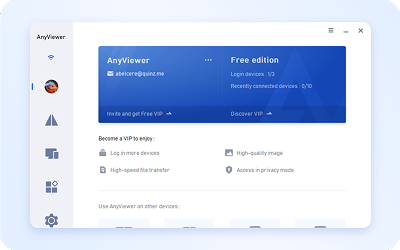
Step 2. Create Account and Log In

Create a free AnyViewer account using your email address. Log in with the same account on both devices. Your target computer will automatically be assigned to your account.

Create an AnyViewer account

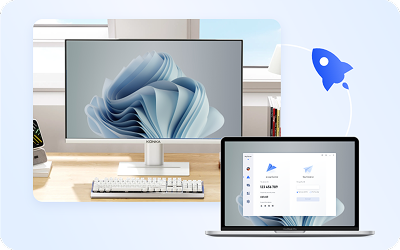
Step 3. Connect and Access

From your local device, open AnyViewer and find your target computer in the Device list. Click "Remote Control" to establish an instant connection. You now have full control of the remote computer.

Connect and access remotely
Pro-tipsPro-tips for Stable Unattended Access
  • To prevent the remote PC from dropping offline, remember to configure Windows Power Options to 'Never Sleep'.
  • Enable 'Start with Windows' inside AnyViewer settings to ensure persistence after remote system reboots.
Free Download

Frequently Asked Questions

  • What is remote access software?

    Remote access software enables users to connect to and control computers from different locations over the internet. It provides complete desktop control, allowing you to run applications, access files, and perform tasks as if you were physically present at the remote machine. Key features include unattended access, file transfer, multi-platform support, and security encryption.

  • Is remote access software safe?

    Yes, reputable remote access software like AnyViewer is safe when proper security measures are followed. AnyViewer uses 256-bit ECC encryption for all data transmission, supports two-factor authentication, and includes features like black screen mode and dynamic security codes. Always download software from official sources and keep it updated.

  • What is the best free remote access software?

    AnyViewer is one of the best free remote access software options, offering full unattended remote access, file transfer, multi-monitor support, and mobile access without session time limits. Unlike competitors that restrict free versions, AnyViewer provides complete functionality for both personal and commercial use at no cost.

  • How do I access my computer remotely?

    To access your computer remotely with AnyViewer: 1) Download and install AnyViewer on both devices, 2) Create a free account and log in on both computers, 3) Find your target computer in the Device list and click 'Remote Control'. Your work computer will be assigned to your account automatically for one-click access.

  • Can I use remote access software without a VPN?

    Yes, AnyViewer does not require VPN or complex network configuration. It uses peer-to-peer connection technology that works through standard internet connections and firewalls. Simply install the software, create an account, and connect - no IT setup needed.

  • What is unattended remote access?

    Unattended remote access allows you to connect to a computer even when no one is physically present at that location. With AnyViewer, you log in to your account once on the target computer, and it remains accessible for remote connections anytime. This is essential for IT support, remote work, and server management.

  • Can I transfer files during a remote access session?

    Yes, AnyViewer includes a built-in file transfer feature that allows you to move files between local and remote devices at speeds up to 12 MB/s. You can transfer individual files or entire folders with no size limits, making it easy to access documents or deliver software updates remotely.

  • Does remote access work on mobile devices?

    Yes, AnyViewer offers full-featured mobile apps for both iOS and Android. You can access and control computers from your smartphone or tablet, with support for touch gestures, keyboard input, and file transfer. This allows you to provide support or access files even when you only have your phone available.

  • How fast does remote access software work?

    Remote access speed depends on your internet connection. AnyViewer works well with connections as low as 2 Mbps, though 10 Mbps or higher is recommended for optimal performance. Features like adjustable image quality and low-bandwidth mode ensure smooth operation even on slower connections.

  • What is the difference between remote access and remote desktop?

    While often used interchangeably, remote access software typically offers broader capabilities than basic remote desktop protocols. Remote access solutions like AnyViewer work across different networks without VPN, support mobile devices, include file transfer, and offer unattended access - features not available in traditional Windows RDP or basic remote desktop tools.

  • Is AnyViewer free for business use?

    Yes, AnyViewer's free version can be used for both personal and commercial purposes. It includes essential features like unattended access, file transfer, and multi-monitor support. For advanced features like managing more devices, priority support, and custom branding, affordable paid plans are available.

  • How does AnyViewer compare to TeamViewer?

    AnyViewer and TeamViewer both offer remote access capabilities, but AnyViewer provides a true free version without session time limits, while TeamViewer restricts free use to 5-minute sessions. AnyViewer uses 256-bit ECC encryption for equivalent security with better performance, and offers more affordable pricing for business users while maintaining comparable core features.

Customer Reviews

M

AnyViewer is really easy to use. I've used several other programs before and this one is by far the best. Logging in is fast. I've been using it for several years and I have no complaints. I never have any issues with connecting remotely.

L

I have tested a lot of paid and free remote access software. AnyViewer is simply the best. I have not found any other software which would have these three qualities: high quality, reliability, and free. AnyViewer is the only one, in my opinion, that offers the three.

S

AnyViewer is free and easy to use. It takes about 5 minutes to set it up on the host computer and even the most computer illiterate have been able to understand and get it working. I love that it also has a security code that I get to create which allows me to achieve remote access without anyone's permission.

K

There are times when you are away from home, and you need something urgently that is unfortunately, saved on your laptop or desktop. And the desktop or laptop are at home! At such times, this app proves to be very useful. You can browse your entire laptop right from your computer!

M

I have got to say this is my favorite as far as remote access goes. It is super user friendly and easy to adapt to it. Although it takes some setup steps, its setup process is much easier that any other software.

F

We have used it to allow our team to get access back to our main office network. This was much more versatile, secure, and faster than using a VPN to access files and programs directly. We were able to have users work from home and simply remote into their workstations at their desks and work as usual.

More Than Remote Access

Remote Desktop

Remote Desktop

AnyViewer is the smooth remote desktop solution that connects you to any device, from anywhere. It's fast, secure, and free - with seamless support across all your platforms.

Remote Support

Remote Support

Need to assist clients or handle temporary help desk queries? AnyViewer for Remote Support offers instant, session-based connections via Device IDs with built-in chat and quick reboot shortcuts - no account binding required on the recipient side.

Global Remote Control

Global Remote Control

AnyViewer enables secure, high-speed, and low-latency remote access for international businesses, empowering global teams to collaborate seamlessly and manage devices across countries with confidence.

Start Accessing Computers Remotely Today

AnyViewer is free to download and use. Get started in minutes and experience the freedom of accessing any computer from anywhere.

No credit card required | No time limits | Full features included

Free Download
Available for:
Free Download
Available for: