Why Choose AnyViewer Professional?

Unmatched Flexibility

With support for multiple logins, unlimited sessions, and the ability to control up to 100 devices, AnyViewer Professional gives you the freedom to work, support, or collaborate without limits.

Superior Performance

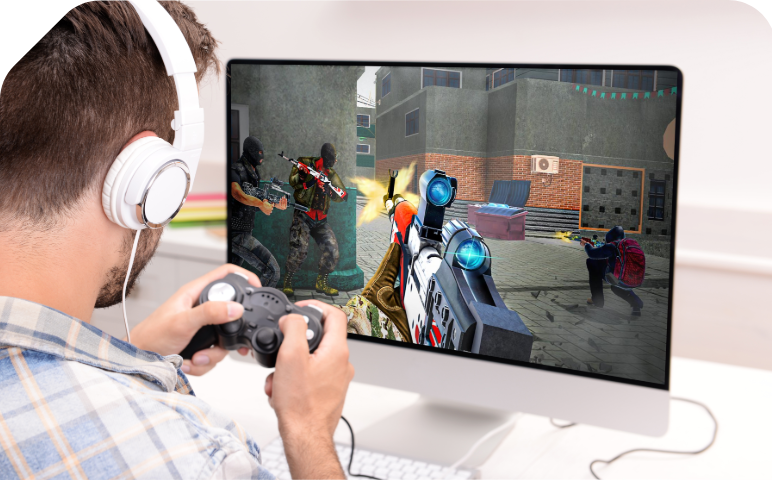
Whether transferring large files, running applications, or even playing games remotely, AnyViewer Professional ensures faster, smoother connections with low latency and high-quality image display.

Advanced Security

AnyViewer Professional provides robust security measures and control options to ensure that all remote sessions are protected and that sensitive data remains safe.

Top Features Tailor to All Your Needs

Unlock AnyViewer Professional’s powerful features designed for greater remote control, stronger privacy, and smoother performance.

  • Remote Access
  • File Transfer
  • Mobile Access
  • Administration Management
  • Others
Unattended Remote Access

One-click control to assigned devices or access unattended remote access via inputting security code.

Game Mouse
Game Mouse

Play 3D games remotely with the 3D rotation of the first-person view. Game Mouse is not currently supported on macOS.

Privacy Mode Access
Privacy Mode Access

Blacken the screen of the remote computer & disable remote input. Privacy mode access is not currently supported on macOS.

Multiple Simultaneous Sessions

Control multiple computers from one computer at the same time.

Multiple Monitor Support

Choose to display all remote monitors in a single window, in separate windows, or only display a specified one.

Screen Wall
Screen Wall

Add office PCs to Screen Wall for real-time monitoring. Then quickly start unattended remote access to one of these PCs. Screen Wall is not currently supported on macOS.

Adaptive
Adaptive

Enlarge or shrink the screen to fit the current window size automatically.

Ultra-High Quality Image

Experience crystal-clear visuals with ultra-high definition display.

True Color Display
True Color Display

Enjoy accurate, lossless colors with 4:4:4 chroma sampling for a lifelike visual experience.

Screen Recording
Screen Recording

Automatically record remote sessions in high quality for later review or documentation.

Screenshot
Screenshot

Take screenshots of the remote desktop instantly to save important information or share with team members.

Upgrade
Display in Separate Window

Display multiple remote screens using separate windows, and drag screen tabs in and out freely. Display in Separate Window is not currently supported on macOS.

File Transfer Manager

AnyViewer File Transfer Manager enables you to manage files on remote computers and complete fast file transfer.

Drag & Drop
Drag & Drop

Easily move large file from the local computer to the remote computer vis drag and drop.

Access PC from Mobile Devices

Access computer from Android or iOS device to operate the PC from anywhere and at time.

Mirror Screen
Mirror Screen

Mirror iOS and Android screens on the computer for remote presentation, remote IT guide, or remote game.

Customized Keyboard
Customized Keyboard

Custom shortcuts and key combination in mobile-to-windows access to conveniently perform complex operations from mobile devices.

Customize Desktop
Customize Desktop

Custom tools and shortcuts that can display on the controller desktop based on usage habits and scenarios.

Upgrade
Mass Deployment (MSI)

To use AnyViewer on multiple computers under a domain, you can batch deploy AnyViewer to remote computers using Group Policy (GP) with MSI file. Mass Deployment is not currently supported on macOS.

Upgrade
Create Groups for Computers

Create groups for enterprise devices to manage large numbers of devices conveniently.

Upgrade
Role Permission Management

Admins can create custom roles and modify permissions for each role.

Remote Sound
Remote Sound

Transmit sound from the remote device to the local device.

Chat
Chat

Chat with the one on the other end for convenient communication.

Lock Interface
Lock Interface

Lock AnyViewer to prevent its setting from being modified when you leave for a while or lend it to others.

One-click Unlock
One-click Unlock

Enter Windows login password (password only saved locally), can unlock with one click on the lock screen interface, greatly improving operational efficiency.

Blacklist and Whitelist

Set remote access permissions via account or device ID to improve device security further.

Proxy Support
Proxy Support

Allow AnyViewer to set up remote connections through a proxy server. Proxy Support is not currently supported on macOS.

Smart Frame Rate
Smart Frame Rate

Save bandwidth and enhance connection stability intelligently.

Unlock More Power with AnyViewer Professional

Free
$ 0 .00

  • 1 Your account can contain 1 user.

    Licensed User
  • 3 Up to 3 devices that your account can log in to. One-click control is only available among logged-in devices. All logged-in devices will be displayed on the "My devices" list.

    Login Devices
  • 10 Up to 10 devices that you can add (unattended access with security code, check last connected time, etc.) to the “Currently connected” list.

    Currently Connected Devices
  • 2 One computer can control 2 computers at the same time.

    Simultaneous Sessions
  • 2 Up to 2 devices can initiate remote sessions at the same time among multiple logged-in devices.

    Channels
  • 1 The number of screen walls that you can create for real-time monitoring multiple devices in a single screen. Free and Professional users can add 2 remote devices in the screen wall, while Enterprise users can add up to 24 remote devices in each screen wall.

    Screen Wall
  • File Transfer
  • Mobile Device Remote Control
Professional
$ 5 .99 /Month

Billed at $71.88 every year

  • 1 Your account can contain 1 user.

    Licensed User
  • 10 Up to 10 devices that your account can log in to. One-click control is only available among logged-in devices. All logged-in devices will be displayed on the "My devices" list.

    Login Devices
  • 100 Up to 100 devices that you can add (unattended access with security code, check last connected time, etc.) to the “Currently connected” list.

    Currently Connected Devices
  • Unlimited One computer can control unlimited computers at the same time.

    Simultaneous Sessions
  • Unlimited Unlimited devices can initiate remote sessions at the same time among multiple logged-in devices.

    Channels
  • 1 The number of screen walls that you can create for real-time monitoring multiple devices in a single screen. Free and Professional users can add 2 remote devices in the screen wall, while Enterprise users can add up to 24 remote devices in each screen wall.

    Screen Wall
  • High-Speed Max file transfer speed: 10 MB/s;
    5 threads of file transfer;
    Max number of files at one time: Unlimited;
    Max size of a single file: 1 TB.

    File Transfer
  • Mobile Device Remote Control
  • Game Mouse Supports 3D rotation of the first-person view when playing 3D games remotely.

  • Access in Privacy Mode Access the remote device by blacking out its physical screen and disabling the physical keyboard of the remote device to keep privacy and safety.

  • Ultra-High Quality Image
  • True Color Display

FAQs

  • What’s the difference between free and paid remote desktop software?

    Free versions often have limits on devices, concurrent sessions, or file transfer speeds, while paid versions provide more devices, unlimited sessions, higher speed, and enhanced features for professional or heavy users.

  • Can I run multiple sessions at the same time?

    Yes. AnyViewer allows you to run multiple sessions at the same time, making it easy to manage several remote devices simultaneously.

  • Can I use remote desktop software on mobile devices?

    Absolutely. AnyViewer offers apps for both Android and iOS, so you can connect to and control your computers anytime, anywhere, right from your smartphone or tablet.

  • Can I transfer files using remote desktop software?

    Yes. AnyViewer has a secure built-in file transfer feature, allowing you to send and receive files between local and remote devices quickly and reliably.

  • What are the benefits of using remote desktop software?

    Some key advantages of AnyViewer include:
    Remote access to files and applications from anywhere.
    Time and cost savings by eliminating travel.
    Easier IT troubleshooting and support.
    Secure collaboration and productivity on-the-go.

Get AnyViewer Professional for Better
Performance!

Buy Now