
How to Transfer Photoshop from One Computer to Another
Learn how to transfer Photoshop from one computer to another while preserving your projects, brushes, actions, and editing setup. This guide separates Adobe installation and activation from file migration, with practical steps for a new PC or Mac and checks before retiring the old computer.

By Ellie / Updated on November 4, 2026


To transfer Photoshop from one computer to another, install it through Adobe Creative Cloud on the new device, sign in with the account that holds your subscription, and move your documents and custom resources separately. Copying the Photoshop installation folder alone is not a dependable replacement for installation and activation.
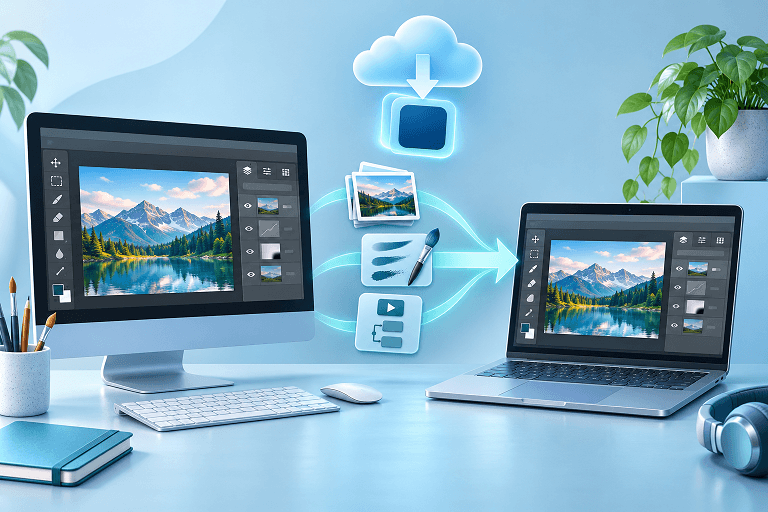
If the old computer is elsewhere, AnyViewer can help move authorized project files and exported presets between supported computers. It handles the file-transfer part of the move; Adobe still handles Photoshop installation and licensing.
What Actually Needs To Move?
Think of the migration as three separate jobs: getting the application running, collecting your creative assets, and restoring the tools you use every day. A successful launch only completes the first job.
| Item | Recommended approach | What to check |
| Photoshop application | Install through Creative Cloud | Account entitlement and system compatibility |
| PSD, PSB, and source images | Copy the project folders | Linked assets and the latest saved versions |
| Brushes and actions | Export sets, then import or load them | Custom groups and action dependencies |
| Fonts and plug-ins | Install from authorized sources | Licensing, OS, and version compatibility |
| Workspaces and preferences | Restore selectively using version-appropriate methods | Shortcuts, panels, scratch disks, and file paths |
Keep a separate backup until you have opened real projects on the new machine. A copied file that you have not checked is still an unverified backup.
How To Transfer Photoshop From One Computer To Another
1. Prepare The Old Computer Before Changing Anything
Save open documents and identify where your latest files live. Check local folders, external drives, and cloud documents separately. Signing in to Creative Cloud does not automatically upload every PSD stored on your hard drive.
Create a migration folder with subfolders for Projects, Brushes, Actions, and Setup Notes. Write down your Photoshop version and essential plug-ins. For work devices, confirm the move with your administrator before copying client assets.
- Gather linked images, textures, templates, and other project dependencies.
- Export custom resources rather than relying exclusively on automatic syncing.
- Record important preferences with notes or screenshots.
- Leave the old installation and backup intact during verification.
2. Install Photoshop On The New Computer
Download the Creative Cloud desktop app from Adobe, sign in, and install Photoshop. Check Adobe's current system requirements before choosing a version, especially when moving to an older Mac or a different processor architecture.
Adobe's device policy allows installation on multiple devices, sign-in on two devices, and active use on one device at a time. Your account is personal; a second activation is not a license for a second person. Follow Adobe's device sign-out prompts if you reach the activation limit.
An existing subscription that includes Photoshop generally does not require a new purchase simply because you replace your computer. If the application shows a trial instead, check the account, subscription, and personal or business profile before buying anything again.
3. Copy Documents And Their Dependencies
Move whole project folders to the new computer using an external drive, an approved cloud service, or a remote transfer tool. For a large local archive, an external drive may be more practical than uploading everything over a slow connection.
Keep PSD and PSB originals. A flattened JPEG is useful for comparison, but it does not preserve editable layers. Copy linked Smart Object sources too, and relink them if the folder location changes.
Cloud documents need a different check: sign in to the correct Adobe account and confirm that the newest saved versions appear. Do not assume a local file is a cloud document because you created it while signed in.
4. Restore Brushes, Actions, And Your Workspace
Export custom brush groups from the Brushes panel and import the saved brush files on the new machine. For actions, select the action set in the Actions panel and save it, then load that set in the new installation. Menu wording can vary with Photoshop version.
Use Adobe's current preset-migration guidance for other resources. Supported preset syncing can help when available and enabled, but retain exported copies for a one-time move. Some resources and settings require separate handling.
- Test a custom brush on a blank document.
- Run an action on a duplicate image, checking every external file reference.
- Restore shortcuts and panel arrangements selectively.
- Recheck scratch-disk and export-folder settings for the new computer.
Avoid copying an entire preferences folder blindly across operating systems or substantially different versions. If a menu named in an older tutorial is missing, use the relevant resource panel and current Adobe instructions instead of repeatedly searching for a universal migration button.
5. Reinstall Fonts And Plug-Ins
Download compatible plug-in installers from their developers or use the appropriate Creative Cloud installation route. Old plug-in files may not work with a new operating system, processor, or Photoshop version.
Restore fonts through your authorized font service or licensed font files. Then open a document with editable text and look for missing-font warnings. Keep a short list of unavailable fonts so you can resolve substitutions before delivering client work.
Use AnyViewer To Retrieve Photoshop Files From The Old PC
Suppose your old Windows desktop is at the office and your new laptop is at home. You installed Photoshop successfully, but an action set and the linked images for tomorrow's project are still on the desktop. A targeted remote transfer can fill that gap without moving the whole workstation again.
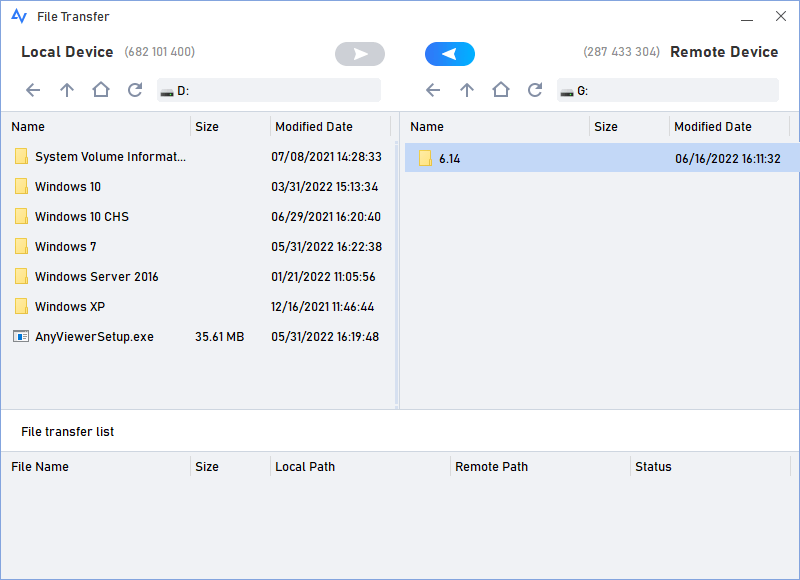
AnyViewer's file-transfer workflow lets you browse local and remote folders, retrieve exported resources, and move project files between supported computers. Remote Control can also help you inspect the old workspace or export a missing resource when an authorized connection is available.
- Install AnyViewer on both computers and prepare authorized access. For your own devices, its official direct-transfer workflow uses the same AnyViewer account on both.
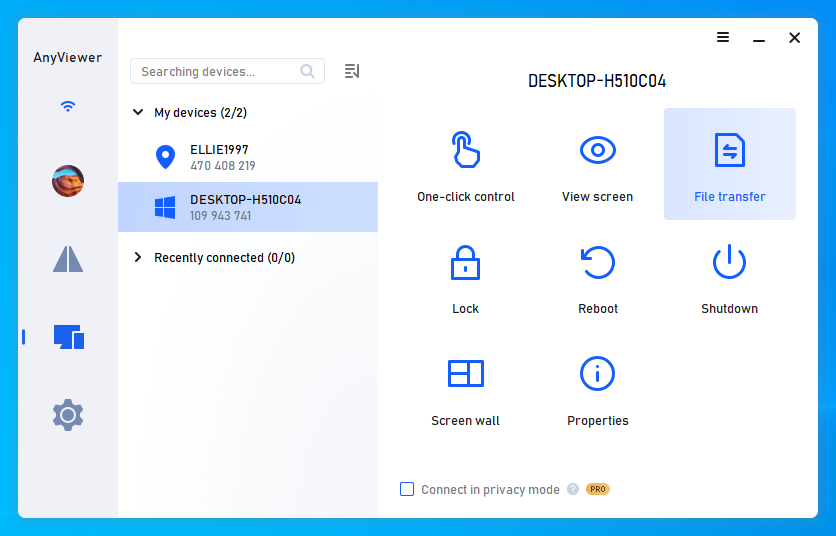
- Open Device, select the old computer, and choose File Transfer.

- In the two-pane file manager, locate your migration folder and select a destination on the new computer.
- Transfer the files, then import the presets inside Photoshop and open the copied documents.
If missing resources are delaying your move, use AnyViewer file transfer to retrieve the specific folders you need. Its in-session file-transfer option is useful when you discover an overlooked file while checking the old desktop.
Both computers must be reachable, and platform support and plan limits should be checked before a large transfer. The tool does not convert plug-ins, activate Photoshop, or import presets for you. Only access devices, accounts, and files that you own or are explicitly authorized to use.
For occasional retrieval, start with the relevant transfer workflow. If you also manage several work computers, compare AnyViewer plans against your access needs before committing to a team setup.
Verify Your New Setup Before Retiring The Old Computer
Use a representative project rather than a blank canvas as your final check. For example, choose a layered document with editable text, a linked image, and an action you use for exports. This is a suggested verification scenario, not a claimed hands-on benchmark.
| Symptom | Likely area to investigate | Next step |
| Photoshop opens as a trial | Account or subscription profile | Confirm the entitled Adobe account |
| Brushes or actions are absent | Resources were not imported | Load the exported sets |
| A linked image is missing | Source file or changed path | Copy the source and relink it |
| An action stops halfway | Missing dependency or outdated command | Inspect the failing action step |
| Colors look different | Display or color configuration | Review profiles and display settings |
Save a new copy, close it, and reopen it. Confirm that layers, text, links, and an exported sample behave as expected. Only then sign out of Adobe on the old device if retiring it, uninstall as needed, and follow your organization's data-removal process.
Conclusion
To transfer Photoshop from one computer to another, reinstall it through Adobe, move your projects and exported resources, and test the new workspace before removing the old one. Treat fonts, plug-ins, and linked files as separate migration tasks. If the remaining files are on a distant computer, retrieve them with AnyViewer, then finish importing and checking them in Photoshop.



 as a preferred
source on Google