

Transfer Files from Mac to iPhone: 5 Easy Ways
Looking for the best way to transfer files from Mac to iPhone? This guide covers 5 easy and effective methods, including USB, wireless, and remote transfer solutions, like AnyViewer.

By Ellie / Updated on January 19, 2026


How do I transfer files from Mac to iPhone?
System integration is one of the defining strengths of the Apple ecosystem. Moving files between a Mac and an iPhone has become a routine task for work, study, and everyday life. From documents and photos to videos and app data, knowing how to transfer files from Mac to iPhone efficiently can save you time and frustration.
The good news? You have multiple options. Depending on whether you prefer a USB cable, wireless transfer, cloud syncing, or external storage, Apple and third-party tools make the process straightforward. Below, we’ll walk you through 5 effective ways to transfer files from Mac to iPhone, covering both traditional and modern approaches.
How to transfer files from Mac to iPhone [5 effective ways]
Moving files from your Mac to your iPhone doesn’t have to be complicated. Whether you prefer cables, wireless tools, or cloud-based solutions, the following five methods will help you transfer files quickly and easily.
Way 1. Remotelytransfer files from Mac to iPhone with AnyViewer
If you’re looking for flexibility beyond local connections, AnyViewer offers a modern approach to remote file transfer. Unlike Apple’s native tools, AnyViewer allows you to access and manage your Mac remotely from your iPhone, making it ideal for users who need to transfer files from Mac to iPhone wirelessly when they are not in the same room.
With AnyViewer, you can:
- Access and control your Mac remotely from your iPhone
- Transfer files without relying on USB cables
- Work across different networks securely
- Manage files even when devices are far apart
This method is especially useful for professionals and remote workers who frequently need to transfer files from Mac to iPhone remotely without being physically near their Mac.
Step-by-Step: Transfer Files with AnyViewer
Step 1. Install AnyViewer on both Mac and iPhone.
Step 2. Sign in with the same account.
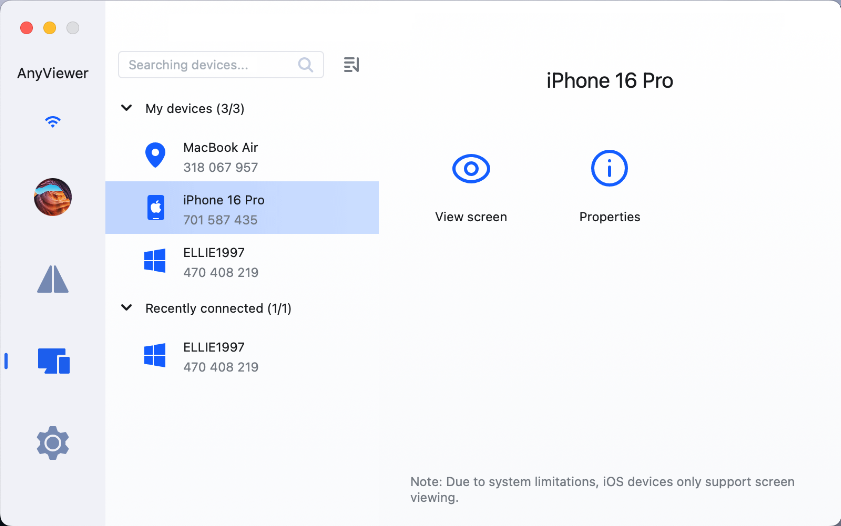
Step 3. Choose your Mac from your iPhone > Select File transfer > Select Download.
Step 4. Choose files and send them instantly.

Way 2. Sync files from Mac to iPhone using Finder with USB
Using Finder is one of the most traditional and reliable ways to transfer files from Mac to iPhone via usb. As a built-in macOS tool, Finder allows you to manage and sync supported content such as documents, photos, videos, music, and app files via a stable wired connection.
Steps to Transfer Files Using Finder:
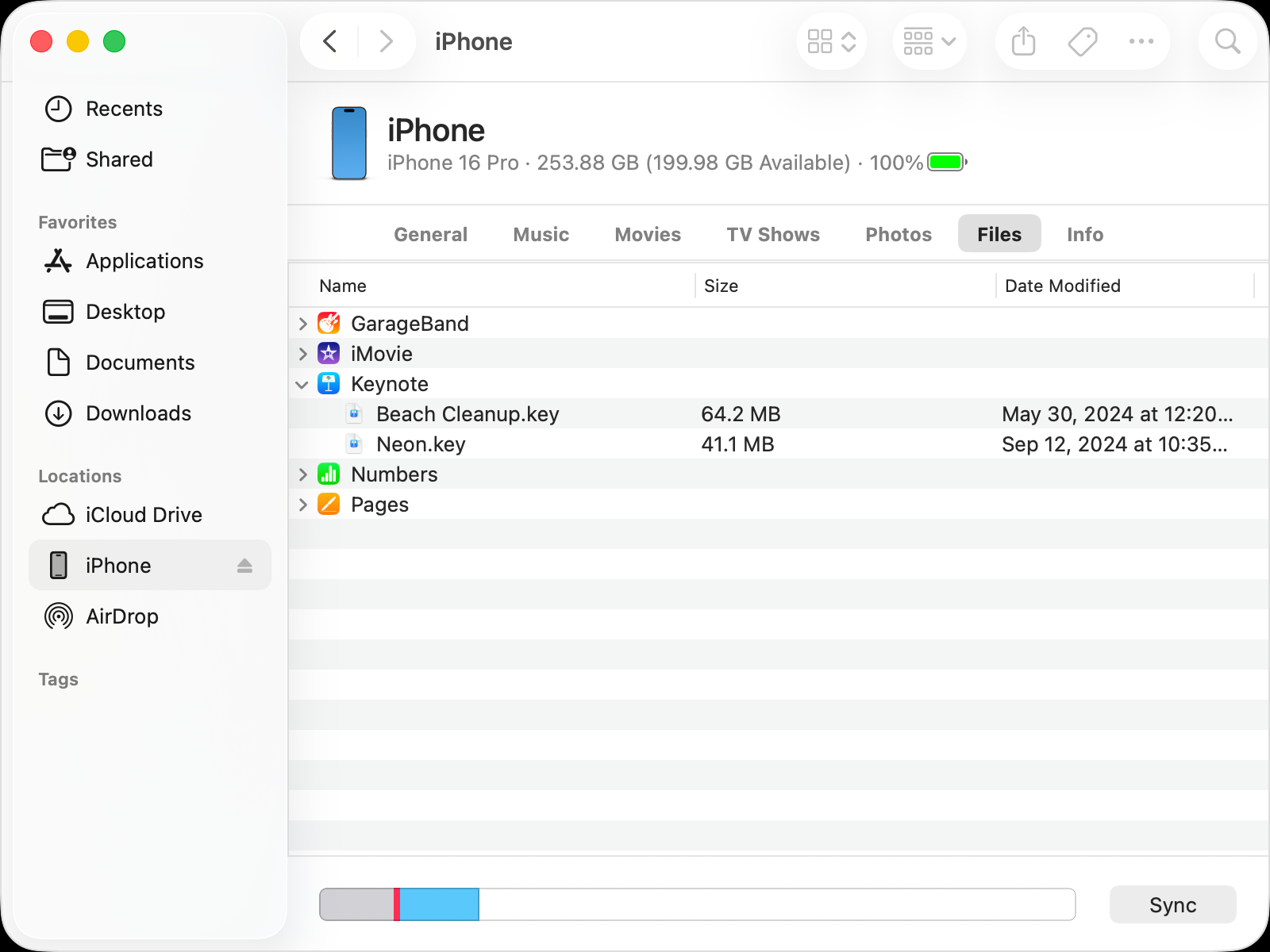
Step 1. Plug your iPhone into your Mac using a USB cable. If prompted, tap “Trust” on your iPhone.
Step 2. Open Finder on your Mac.
Step 3. Locate your iPhone under “Locations” in the left sidebar and click it.
Step 4. Go to the “Files” tab to view apps that support file sharing.
Step 5. Select the content you want to transfer and click “Sync”. Finder will then transfer files from Mac to iPhone automatically.
Note:
Finder does not support file preview before syncing. If previewing files is important to you, tools like FonePaw iOS Transfer can offer a more visual and controlled experience.
Way 3. Send files from Mac to iPhone via AirDrop
For quick, wireless transfers, AirDrop is one of the most convenient solutions Apple offers. It allows you to transfer files from Mac to iPhone wirelessly and instantly between nearby Apple devices without cables or cloud storage.
Requirements:
- iOS 7 / iPadOS 13 / macOS OS X 10.10 or later
- Wi-Fi, Bluetooth, and AirDrop enabled on both devices
How to Enable AirDrop:
- On iPhone: Open Control Center >Press and hold the network box > Enable AirDrop > Select “Contacts Only” or “Everyone”
- On Mac: Open Finder > Click AirDrop > Set visibility to “Contacts Only” or “Everyone”
Steps to Transfer Files:
Step 1. Select the files on your Mac.
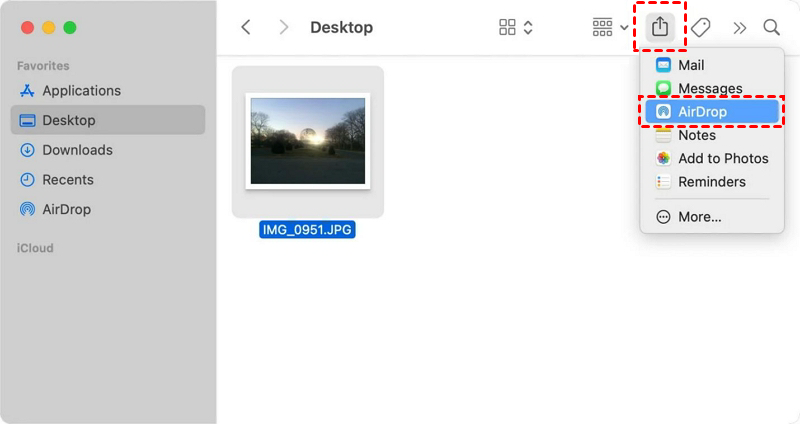
Step 2. Click the Share icon and choose your iPhone from AirDrop.
Step 3. Accept the transfer on your iPhone.
AirDrop works best for small to medium files and short-distance transfers.
Way 4. Download files from Mac to iPhone via iCloud Drive
iCloud Drive is Apple’s cloud-based solution for syncing. This is another excellent way to transfer files from Mac to iPhone wirelessly if you have a stable internet connection and enough cloud space.
Important: iCloud only provides 5GB of free storage, so large transfers may require a paid plan.
Steps to Transfer Files via iCloud Drive:
Step 1. Enable iCloud Drive on both devices:
- On iPhone: Settings > [Your Name] > iCloud >Turn on iCloud Drive
- On Mac: Apple menu > System Preferences > iCloud > Enable iCloud Drive
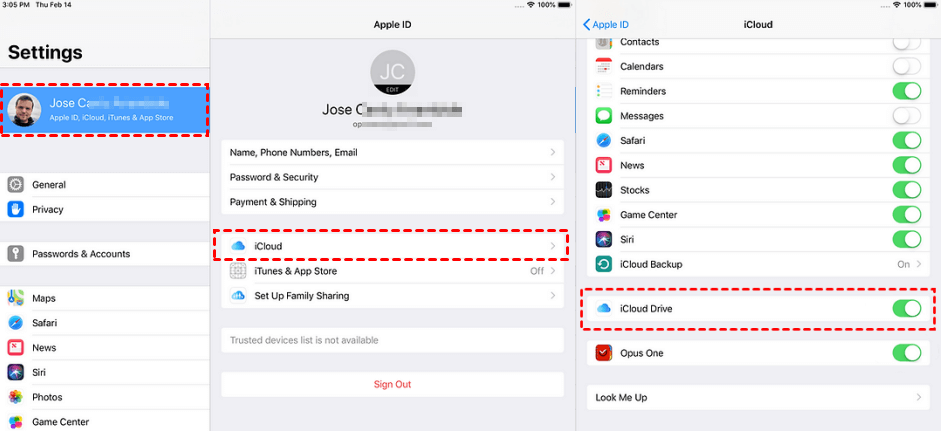
Step 2. Upload files from your Mac to iCloud Drive.
Step 3. Open the Files app on your iPhone and download the synced files.
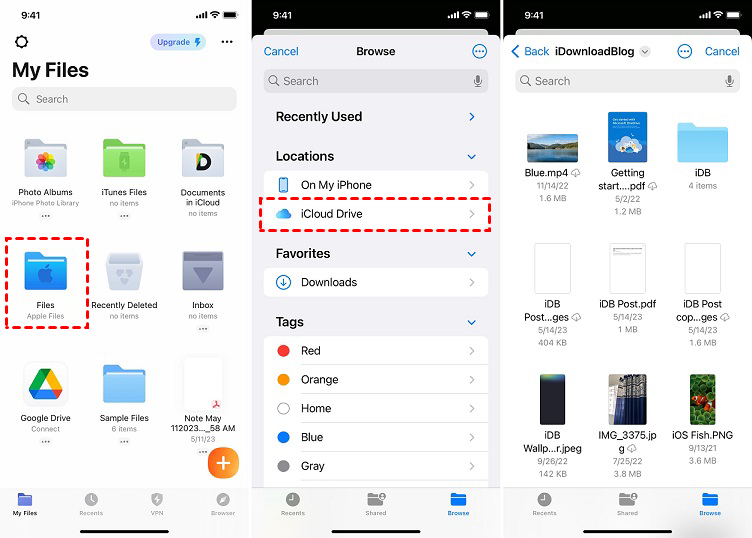
This method is ideal for ongoing synchronization rather than one-time transfers.
Way 5. Copy files from Mac to iPhone through external storage
With recent iOS updates, and especially with the iPhone 15 series featuring USB-C, using external storage is a practical way to transfer files from Mac to iPhone via USB or external drives.
Steps to Use External Storage:
Step 1. Connect the external drive (USB flash drive or SSD) to your Mac.
Step 2. Copy the desired files to the external storage.
Step 3. Disconnect it from your Mac and connect it to your iPhone.
Step 4. Open the Files app on your iPhone.
Step 5. Locate the external drive and copy files to “My iPhone.”
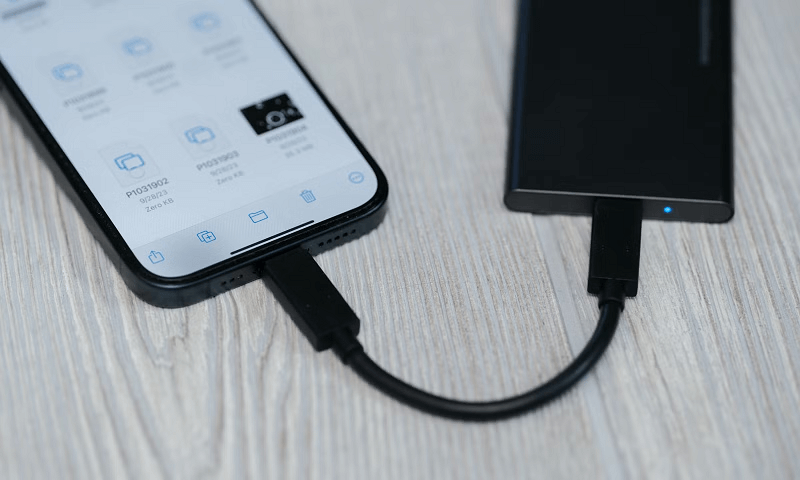
This method is excellent for transferring large files without relying on internet access.
Conclusion
Transferring files from Mac to iPhone is easier than ever, thanks to Apple’s ecosystem and powerful third-party tools. Whether you prefer a wired USB connection through Finder, wireless options like AirDrop and iCloud Drive, remote access with AnyViewer, or even external storage, each method has its own advantages. The best approach depends on your file size, location, and workflow. By choosing the right method, you can ensure fast, secure, and hassle-free file transfers every time.
FAQs
How do I transfer files from iPhone to Mac directly?
You can transfer files from iPhone to Mac using Finder with a USB cable, AirDrop for wireless transfer, or iCloud Drive to sync files automatically.
How do I AirDrop files from Mac to iPhone?
Turn on AirDrop on both devices, select the file on your Mac, click Share, choose your iPhone, and tap Accept on your iPhone.
How do I transfer files from Mac to Android phone?
You can use a USB cable, cloud storage, or remote tools like AnyViewer to send files from Mac to Android.
Can you drag and drop from Mac to iPhone?
Yes. Connect your iPhone to your Mac, open Finder, and drag files into supported apps. iCloud Drive also allows easy file movement.
Can iPhone USB-C transfer data?
Yes. USB-C iPhones can transfer data using USB-C cables or external drives, even without internet.



 as a preferred
source on Google
as a preferred
source on Google