

Fixed: TeamViewer Remote Control Is Currently Deactivated on the Device
If TeamViewer says “Remote control is currently deactivated on the device,” you're likely facing limitations caused by Wayland, misconfigurations, display issues, or security settings. This guide explains the causes and offers detailed fixes, including how to enable remote control on Ubuntu.

By Ellie / Updated on December 12, 2025


TeamViewer “Remote control is currently deactivated on the device”
Seeing the message TeamViewer “Remote control is currently deactivated on the device” on Windows and Ubuntu can be extremely frustrating—especially when you know both devices are connected, but remote control doesn’t work.
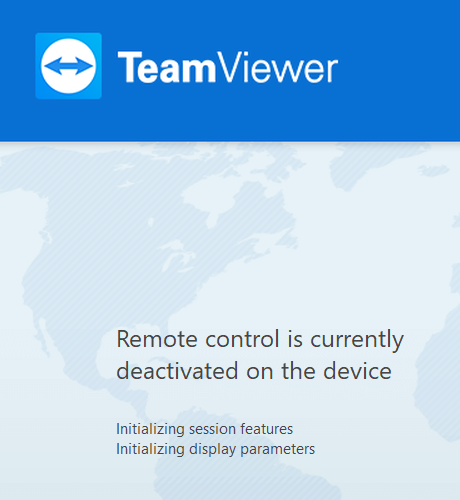
This issue is especially common among Ubuntu 22.04, Linux, and even Windows + Linux mixed environments, where compatibility limitations (such as Wayland) prevent remote control, even though TeamViewer shows an active connection.
This guide explains the key reasons behind the issue and walks you through reliable fixes. You’ll also find a top free TeamViewer alternative to try if TeamViewer still can’t gain full control. Let’s get this problem resolved for good.
Why TeamViewer says “Remote control is currently deactivated on the device”
This message appears when TeamViewer connects successfully, but the remote system blocks mouse and keyboard control. Common reasons include:
- Wayland on Ubuntu 22.04: Ubuntu 22.04 uses Wayland by default, and TeamViewer can’t control devices running Wayland. You can see the screen, but you can’t interact with it.
- No monitor connected (headless Linux): When a Linux device runs without a physical display, it may switch to a dummy or disabled display mode. TeamViewer can show the desktop, but control is blocked.
- Wrong permission settings: If the remote device is set to “view only,” TeamViewer won’t allow remote input.
- Missing drivers or graphics issues: Incomplete graphics drivers can cause TeamViewer to load with limited features.
- Outdated TeamViewer version: Older versions may not support the current OS setup or display mode.
6 fixes to TeamViewer “Remote control is currently deactivated on the device”
Below are all proven solutions, starting with the one confirmed by TeamViewer moderators for Ubuntu 22.04.
Fix 1: Disable Wayland and switch to Xorg (Required on Ubuntu 22.04)
The firstcause of this issue on Ubuntu 22.04 is Wayland. Although TeamViewer can display your screen under Wayland, it cannot send mouse or keyboard input, making remote control impossible. TeamViewer officially confirmed that unattended access is not supported on Wayland, so switching to Xorg is mandatory.
Steps to disable Wayland:
Step 1. Open terminal:
- sudo nano /etc/gdm3/custom.conf
Step 2. Find the line:
- #WaylandEnable=false
Step 3. Remove the “#” to enable Xorg:
- WaylandEnable=false
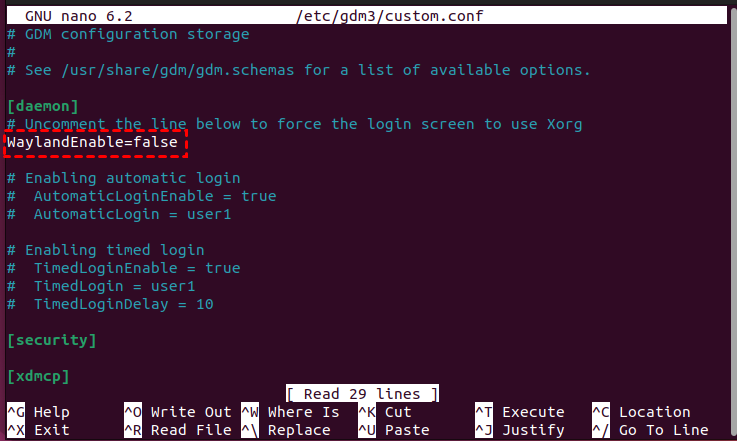
Step 4. Save (CTRL + O > ENTER > CTRL + X)
Step 5. Reboot the system:
- sudo reboot
Step 6. On login, ensure Xorg is selected.
After this, TeamViewer remote control should work normally.
Fix 2: Reconnect a monitor or use an HDMI dummy plug
Headless Linux systems (especially Intel NUCs) behave differently when no monitor is attached.
If you remove the monitor after setup, the OS may:
- disable GPU rendering
- revert to a low-resolution fallback mode
- block input injection
- create a “virtual display” that TeamViewer cannot fully control
This leads to situations where you can view the screen but not control it.
Fix options
- Reconnect a physical monitor — quickest test
- Use an HDMI dummy plug (simulates a connected monitor)
- Restart the NUC afterward so the display server reloads correctly
Fix 3: Check TeamViewer permissions onboth devices
Even if the OS is configured correctly, TeamViewer’s built-in permissions may block remote control. Sometimes the connection defaults to “view only,” which triggers the “remote control deactivated” warning.
Step 1. Open TeamViewer
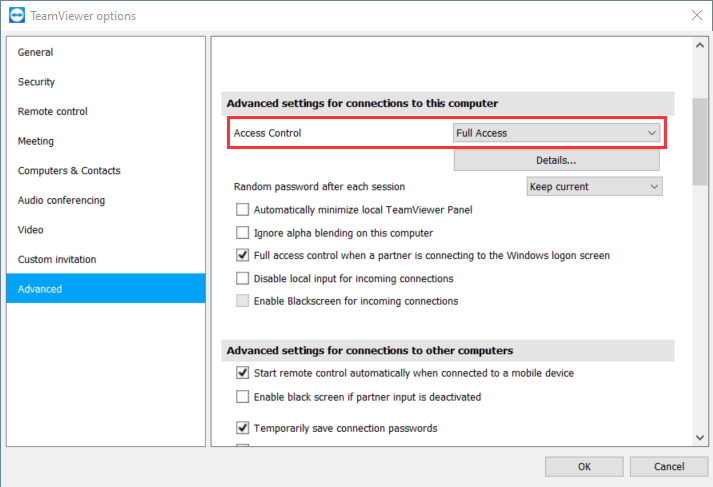
Step 2. Go to Extras > Options
Step 3. Select Advanced
Step 4. Expand Advanced settings for connections to this device
Step 5. Ensure Full Access is enabled
Also check:
- Incoming LAN connections: Accept
- Unattended access is configured
- Password is set
Fix 4: Update TeamViewer to the latest version
TeamViewer regularly updates its Linux compatibility, especially for Wayland/Xorg transitions and Ubuntu 22.04 support.
Update on Ubuntu:
- sudo apt update
- sudo apt install teamviewer
Update on Windows:
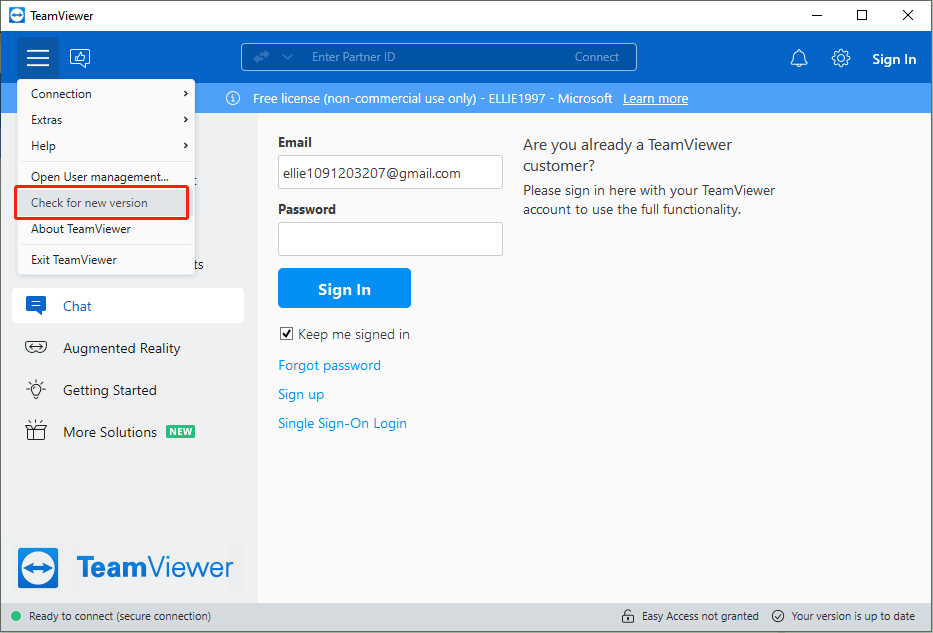
- Open TeamViewer > Help > Check for new version.
Fix 5: Reboot the remote session in Xorg mode
Even after disabling Wayland, you might accidentally still be logged in under a Wayland session. This results in the same input-blocking behavior.
Steps to ensure you’re using Xorg:
Step 1. Log out of Ubuntu (don’t restart the machine)
Step 2. On the login screen, click the gear icon in the bottom-right
Step 3. Select: Ubuntu on Xorg
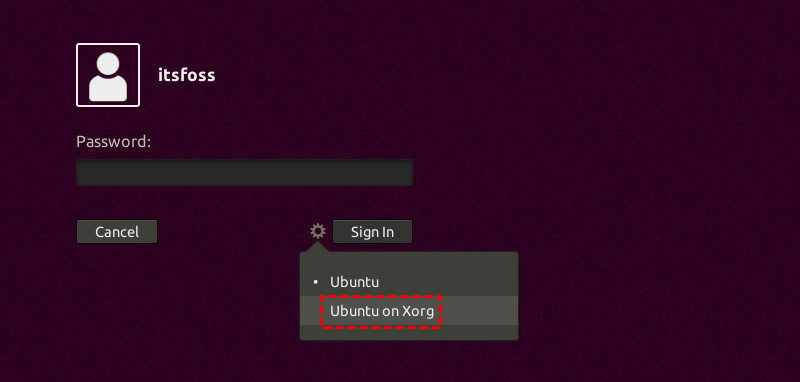
Step 4. Log in again.
Now reconnect through TeamViewer.
Fix 6: Ensure no securitysoftware blocks input
On both Windows and Linux, security tools or system policies may block:
- input emulation
- keyboard injection
- virtual display
How to fix
- Temporarily disable the security tool and test again
- Add TeamViewer to whitelist/allowed applications
- Reduce security restrictions on input control
- Reboot after applying changes
Bonus tip: Best free alternative to TeamViewer

If you keep encountering the “Remote control is currently deactivated on the device” issue—especially when working across different operating systems—or if you simply want a more stable, user-friendly remote desktop solution for Windows and macOS devices, then AnyViewer is an excellent free alternative to consider.
While AnyViewer currently does not support Linux, it provides exceptionally smooth performance on Windows, macOS, iOS, and Android, making it a strong choice for users who primarily manage non-Linux systems or want a reliable way to connect to their Windows or Mac machines remotely.
Why AnyViewer Is a Better Choice for Remote Access
- Rock-solid unattended access: AnyViewer provides stable, long-term unattended remote access for both Windows and macOS, making it ideal for remote work, IT support, and personal device management.
- Works flawlessly on headless Windows/macOS setups: Whether your Windows PC or Mac is running without a monitor attached, AnyViewer maintains full control access without display-server limitations.
- Fast connection speed & fewer compatibility issues: AnyViewer avoids connection problems entirely by offering smooth, optimized performance on supported platforms.
- Free for personal use with powerful features: The free edition includes full remote control, screen sharing, device management, and secure account-based connections.
- Beginner-friendly setup with one-click access: Install the app >sign in >assign the device > connect. No need for complex configuration or OS-level adjustments.
If your goal is simple, smooth, cross-platform remote access, AnyViewer offers a clean and hassle-free solution with better stability and fewer restrictions.
Conclusion
When TeamViewer displays “Remote control is currently deactivated on the device,” the problem usually stems from Wayland limitations, missing display output, or incorrect permissions—especially on Ubuntu 22.04 systems. Switching from Wayland to Xorg, adding a dummy HDMI plug, updating TeamViewer, or fixing permissions will resolve the issue in most cases. However, if you continue facing compatibility problems or need a more stable remote desktop solution, AnyViewer offers a fast, user-friendly, and reliable alternative for both personal and professional use. With the right configuration, remote control should work smoothly and consistently.



 as a preferred
source on Google
as a preferred
source on Google