

Fix Microsoft Remote Desktop for Mac Not Connecting
Struggling with Microsoft Remote Desktop for Mac not connecting? Learn how to fix the “0x300006xc – Unable to Connect” error with step-by-step methods and enjoy seamless remote access again.

By Ellie / Updated on September 8, 2025


"Unable To Connect" via Microsoft Remote Desktop Protocol on a Mac
If you've ever tried using Microsoft Remote Desktop on a Mac only to be met with the dreaded “0x300006xc – Unable to Connect” error, you're not alone. Many Mac users encounter this issue when attempting to remotely connect to a Windows PC. It can be frustrating, especially if you rely on RDP (Remote Desktop Protocol) for work or business.
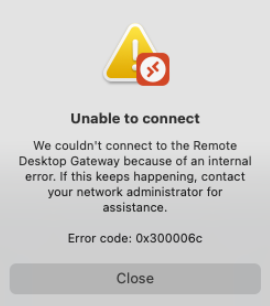
The good news? Fixing this error doesn't have to be complicated. In this guide, we'll walk you through the most effective solutions to resolve the issue with Microsoft Remote Desktop for Mac not connecting, so you can get back to work without interruptions.
Common causes of the error 0x300006xc
Before diving into fixes, it helps to know why the error occurs. Some of the most common reasons include:
- The Microsoft Remote Desktop app isn't properly closed.
- Network connectivity issues.
- Remote computer settings not configured for RDP.
- Firewall or security software blocking the connection.
- Outdated Remote Desktop app or macOS.
- Misconfigured Remote Desktop Gateway.
- Incorrect login credentials or IP/hostname.
- Temporary glitches on the remote computer.
These are also the typical causes when users report Windows Remote Desktop for Mac not working, preventing them from connecting to their PCs. Understanding the root cause will make troubleshooting much easier.
How to fix Microsoft Remote Desktop for Mac not connecting
If you're struggling to establish a stable RDP connection on your Mac, try the following proven solutions to fix the issue quickly.
Solution 1. Close and relaunch Microsoft Remote Desktop
Sometimes the app doesn't close properly, causing connectivity errors.
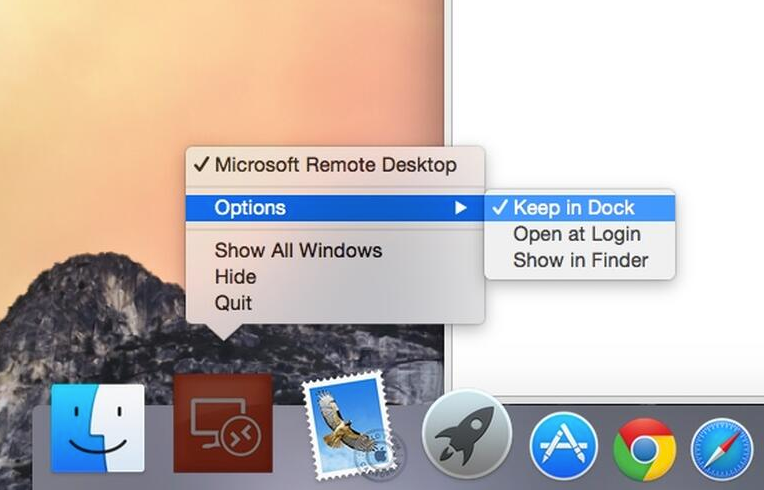
Step 1. Check your dock for the Remote Desktop app.
Step 2. Right-click the icon and select Quit.
Step 3. If it doesn't close, click the Apple menu > Force Quit and force Microsoft Remote Desktop to shut down.
Step 4. Relaunch the app and try connecting again.
Solution 2. Verify network connectivity
A weak or unstable internet connection is a common culprit for Microsoft Remote Desktop for Mac not working.
Step 1. Make sure your Mac is connected to Wi-Fi or Ethernet.
Step 2. Try opening a website or running a speed test to confirm internet stability.
Step 3. If needed, restart your router or switch to a wired connection for better performance.
Solution 3. Check remote computer settings
Ensure the Windows PC you're connecting to has Remote Desktop enabled.
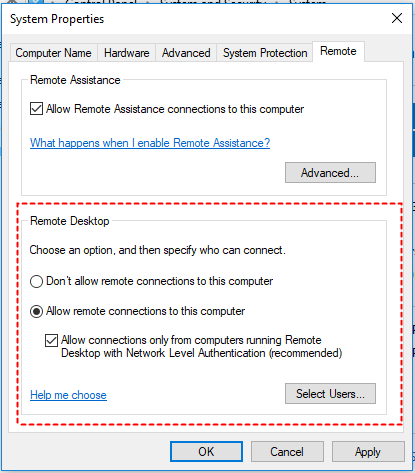
Step 1. Go to System Properties > Remote on the Windows computer.
Step 2. Make sure “Allow remote connections to this computer” is checked.
Step 3. Verify that your user account has permission to connect.
Solution 4. Adjust firewall and security software
Firewalls and antivirus software can block RDP traffic.
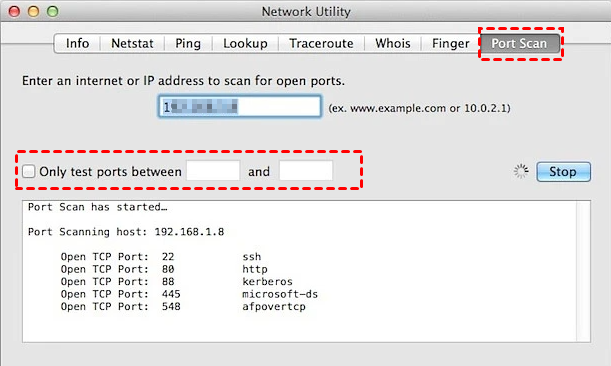
Step 1. On both Mac and Windows, check your firewall settings.
Step 2. Create an exception for Remote Desktop (TCP port 3389).
Step 3. Temporarily disable security software if necessary to test connectivity.
Solution 5. Update the Microsoft Remote Desktop app
Outdated versions may not be compatible with your current macOS or Windows setup.
Step 1. Open the Mac App Store.
Step 2. Search for Microsoft Remote Desktop.
Step 3. Install the latest updates.
Solution 6. Update macOS
Sometimes, system-level bugs interfere with remote connections.
Step 1. Go to System Settings > General > Software Update.
Step 2. Install any available macOS updates to ensure compatibility.
Solution 7. Check Remote Desktop Gateway
If you're connecting through a Remote Desktop Gateway:
Step 1. Verify the gateway server settings are correct.
Step 2. Ensure your account has permission to use the gateway.
Step 3. Test access on another device to confirm the issue isn't server-side.
Solution 8. Double-check connection settings
It's easy to make a small mistake.
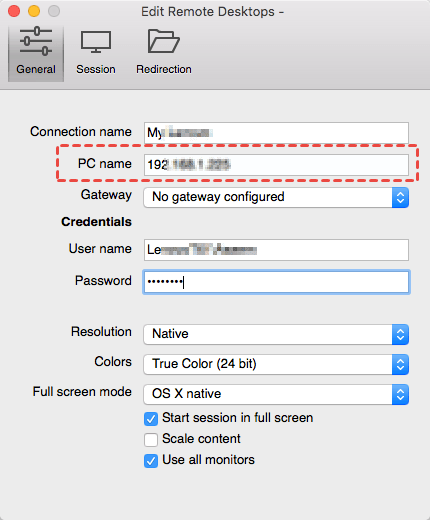
Step 1. Confirm you've entered the correct IP address or hostname.
Step 2. Verify your username and password are correct.
Step 3. If connecting via domain, include the domain name with your credentials.
Solution 9. Restart the remote computer
Sometimes the simplest fix is the most effective. A quick restart of the remote Windows PC can resolve temporary glitches, stuck processes, or background services that may interfere with Remote Desktop connections. Restarting refreshes the system, clears cached data, and reinitializes network adapters, which can often eliminate hidden issues causing the Microsoft Remote Desktop for Mac not connecting problem.
AnyViewer: Best RDP alternative for Mac
While Microsoft Remote Desktop is widely used, it's not always the most reliable solution for Mac users. Connection issues, compatibility problems, or complex setup requirements can leave you searching for a smoother option. This is where AnyViewer steps in as the best RDP alternative for Mac.

Why Choose AnyViewer?
AnyViewer is a powerful remote access tool designed with simplicity, security, and cross-platform compatibility in mind. Unlike Microsoft Remote Desktop, which often leaves users complaining about Microsoft Remote Desktop for Mac not working, AnyViewer provides a seamless experience with fewer errors and a more user-friendly interface.
Here's why it stands out:
- Cross-Platform Support: Works flawlessly on macOS, Windows, iOS, and Android, allowing you to control your devices from virtually anywhere.
- Stable and Fast Connections: Optimized servers ensure smooth remote sessions without frequent disconnections or lag.
- Easy Setup: No complicated configuration is required. Just install, log in, and connect instantly.
- Secure Access: Uses advanced encryption to protect your data during remote sessions.
- Multi-Session Support: Manage multiple remote devices simultaneously, making it ideal for IT support or business use.
- Free and Affordable Plans: Offers a generous free version and cost-effective paid options for advanced features.
Benefits of Using AnyViewer on Mac
By switching to AnyViewer, Mac users can:
- Avoid common Microsoft Remote Desktop for Mac not connecting errors.
- Enjoy a smoother, lag-free remote experience.
- Save time with quick connections that don't require VPN or complex firewall settings.
- Gain the flexibility to work from any device, not just a Windows PC.
Final Thoughts on AnyViewer
If you've tried multiple fixes and still struggle with Microsoft Remote Desktop on Mac, AnyViewer is the best alternative to consider. It offers a reliable, secure, and hassle-free way to access your Windows PC or other devices remotely, ensuring your work remains uninterrupted.
Conclusion
Running into the “0x300006xc – Unable to Connect” error on Microsoft Remote Desktop for Mac can be annoying, but it's usually easy to fix. By closing and restarting the app, checking your network, updating software, or adjusting settings, you can solve most problems and get connected again.
However, if you continue to face recurring issues, switching to a more reliable tool like AnyViewer can make a world of difference. With its fast, secure, and user-friendly design, AnyViewer eliminates many of the common obstacles Mac users encounter with RDP, giving you seamless access to your remote devices anytime, anywhere.



 as a preferred
source on Google
as a preferred
source on Google