
How to Transfer Spotify from Old PC to New PC
Learn what syncs through your Spotify account and what needs a separate transfer when you move to a new Windows PC.

By Ellie / Updated on November 4, 2026


To transfer Spotify from an old PC to a new PC, install Spotify on the new computer and sign in to the same account. Your saved playlists and Liked Songs should appear online. You do not need to copy the old Spotify installation folder.
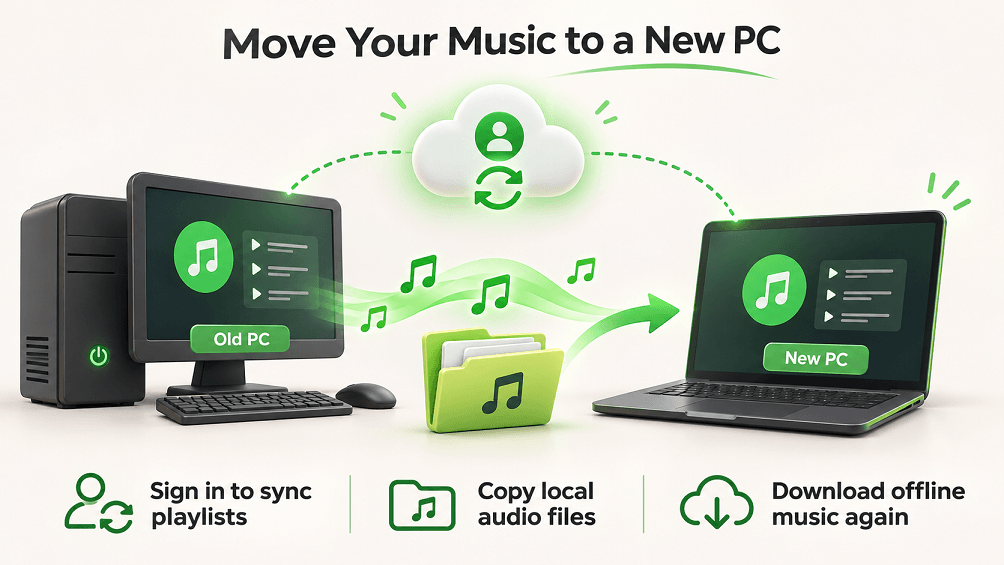
Offline downloads must be downloaded again. Personal audio files must be copied separately and added as a local source. If those originals are on a computer in another location, AnyViewer can help retrieve the music folder remotely.
Choose What You Need to Move
| What you want to keep | What to do | How to verify |
| Saved playlists and Liked Songs | Sign in to the original account | Open a familiar playlist and play a catalog track |
| Spotify offline music | Download again with Premium | Confirm completion and test offline playback |
| Personal audio files | Copy originals and add a local source | Test Local Files and existing playlists |
| Desktop preferences | Review settings on the new PC | Check audio output and source folders |
Keep the old PC and a backup of personal music until these checks are complete. A visible song title does not prove that its audio file is available on the new device.
Set Up Spotify and Access Your Playlists
- Install the Spotify desktop app from the official download page or the Microsoft Store on the new Windows PC.
- Choose Log in and use the account that holds your existing library. Compare account details with your old PC or phone if you are unsure.
- While online, open Your Library and find a familiar playlist. Check Liked Songs, then play a track from the Spotify catalog.
- If the library looks empty, remove library filters and search for a playlist by name. Try the Spotify web player with the same account to see whether the problem is limited to the desktop app.
Avoid creating another account during setup. Copying Spotify program files or the entire AppData folder will not fix a wrong-account problem. If music is missing on every device, investigate the original account before attempting file migration.
Download Spotify Music Again for Offline Listening
Downloading Spotify catalog music for offline playback requires Premium. Spotify downloads are managed by the app; copying its cache to a USB drive is not a supported way to move them to a new PC.
- Connect the new PC to the internet and check that the drive has enough free space.
- Open a playlist or album you want offline and turn on its download control. Wait until the app shows that downloading is complete.
- Repeat for the music you need. Start with a small playlist if your connection or storage is limited.
- Use Offline Mode, or temporarily disconnect from the internet, and test a downloaded track before relying on the computer while traveling.
Spotify currently allows up to 10,000 downloaded tracks per device on up to five devices. Go online at least once every 30 days to keep downloads active. If downloading fails, check your subscription, storage, and offline-device limit. See Spotify’s official guidance in the links below.
Copy Personal Music and Enable Local Files
Local Files are audio files already stored on your computer, such as purchased downloads or your own recordings. A playlist may appear through your account while its personal audio files remain on the old PC.
- On the old PC, open Spotify settings and check the folders enabled for local music. Locate the actual audio files in File Explorer.
- Copy the folders to a USB drive or cloud storage. For cloud storage, make sure the originals are fully downloaded rather than cloud-only placeholders. Copy files, not shortcuts.
- Save the copied files in a stable folder on the new PC, such as Personal Audio inside Music. Keep filenames and folder organization where practical.
- Open Spotify settings, enable Show Local Files, and select the destination folder with Add a source. Labels and placement can vary by app version; consult the official Local Files guide if needed.
- Open Local Files in your library and test tracks from several subfolders. Then check playlists that reference those files.
Compare file counts and total folder sizes on both PCs to help detect incomplete copies. This is a practical check, not proof that every file is identical. Keep the originals until playback is verified.
- Notes:
- Copying files does not guarantee that every old playlist entry will reconnect automatically. If a track plays in Local Files but its old playlist entry remains unavailable, add the playable local version to the playlist again. Confirm the replacement before removing the old entry.
Retrieve Music from a Remote PC with AnyViewer
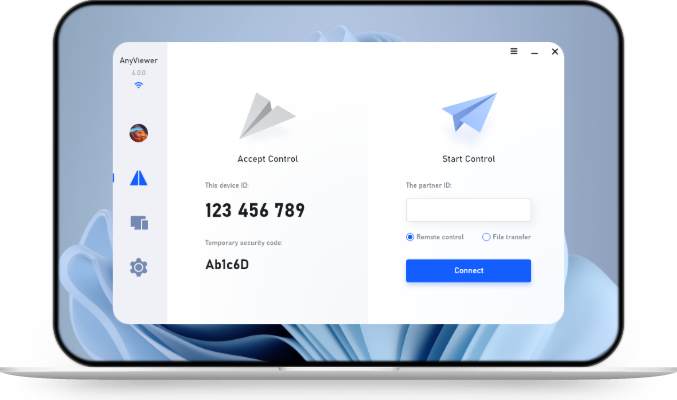
Use a USB drive when both PCs are nearby. If the old Windows PC is elsewhere, AnyViewer file transfer can copy your original audio files over the internet. It does not transfer your Spotify account or turn Spotify downloads into portable audio files.
Before starting, the old PC must be powered on, online, and available for access. Install and configure AnyViewer on both PCs in advance. For this same-account workflow, sign in on both devices and ensure the old PC appears among your account devices. Device and transfer limits vary depending on your AnyViewer plan.
- Install and run AnyViewer on both supported computers. Keep the source computer online and awake. Sign in to the same AnyViewer account on both computers.
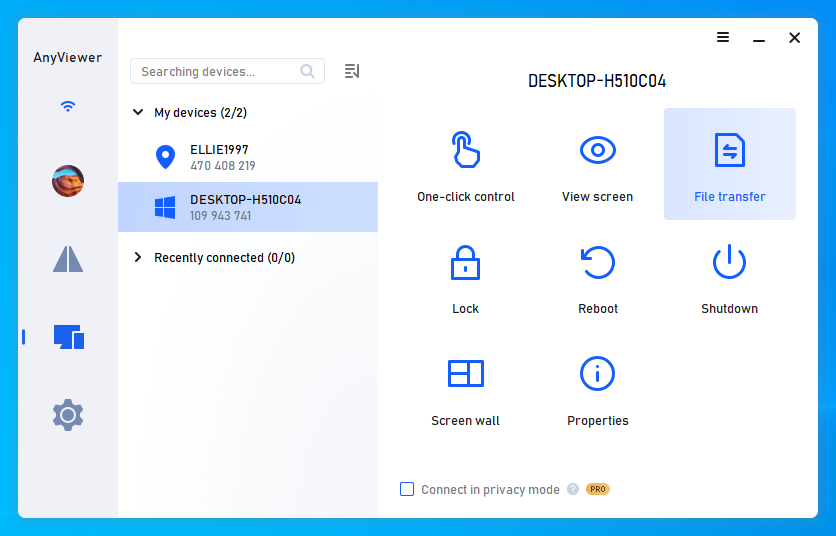
- On the new PC, go to Device, select the old PC, and click File Transfer to start the transfer directly without needing a partner request confirmation. If the device is unavailable, check its connection and account setup before proceeding.

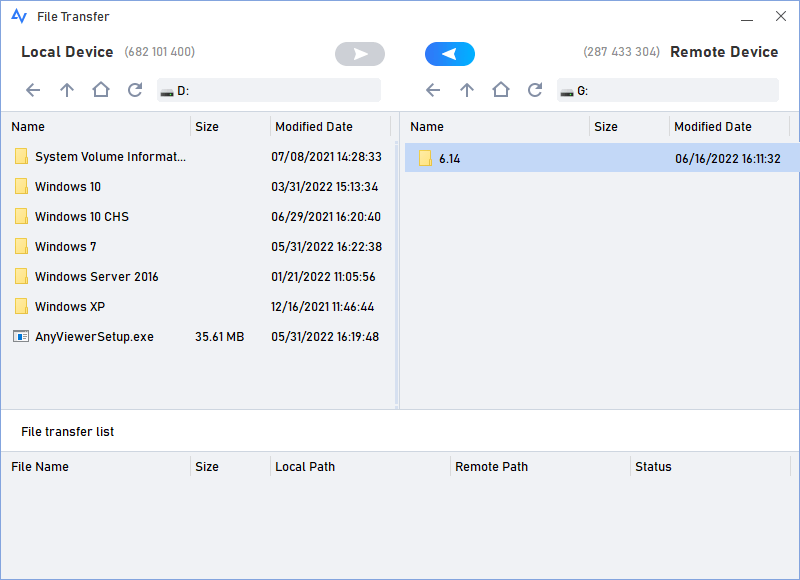
- In the file manager, identify the old PC as the source and select the personal music folder. Choose a destination on the new PC and verify the transfer direction.
- Transfer the original audio files. Compare the copied folders and test several tracks after the transfer finishes.
- Add the destination folder as a Spotify local source using the previous section. End the remote session and remove ongoing access if you no longer need it.
Only access devices and files you own or are authorized to use. Remote transfer cannot retrieve files from an offline computer or failed drive. In that situation, use a backup or address the source-device problem first.
Fix Missing Songs on the New PC
| Symptom | Next step |
| The entire library looks empty | Compare account details with the old device, clear filters, and check the web player. |
| Only personal tracks are unavailable | Confirm the original audio files exist on the new PC and the correct source folder is enabled. |
| Local Files works but an old playlist entry stays gray | Add the playable local version to that playlist and verify it before removing the old entry. |
| A file plays elsewhere but not in Spotify | Test another known-working local track and consult Spotify’s current local-file guidance. Do not assume every audio file is supported. |
| Downloaded music fails offline | Go online, confirm Premium and completed downloads, check storage and device limits, and try downloading the affected playlist again. |
| The old PC is unavailable | Restore personal music from a backup. Account sign-in cannot recover files stored only on the old drive. |
Check the Setup Before Retiring the Old PC
Play one Spotify catalog track online, one downloaded track offline, and several personal audio files. Check important local-music playlists and keep a separate backup of the originals. Once the setup is verified, sign out of accounts and remove personal data before selling or giving away the old PC.



 as a preferred
source on Google