

How to Transfer AutoCAD From One Computer to Another
Transitioning to a new PC? This guide explains how to transfer AutoCAD from one laptop to another seamlessly. Covering license activation, custom settings migration, and rapid file transfer methods to ensure zero downtime for your projects.

By Ellie / Updated on May 7, 2026


Moving your workstation to a new machine shouldn't mean losing days of productivity to software reinstallation and configuration. Whether you are upgrading your hardware or transitioning to a remote setup, knowing how to transfer AutoCAD from one computer to another efficiently is a vital skill for architects, engineers, and designers.
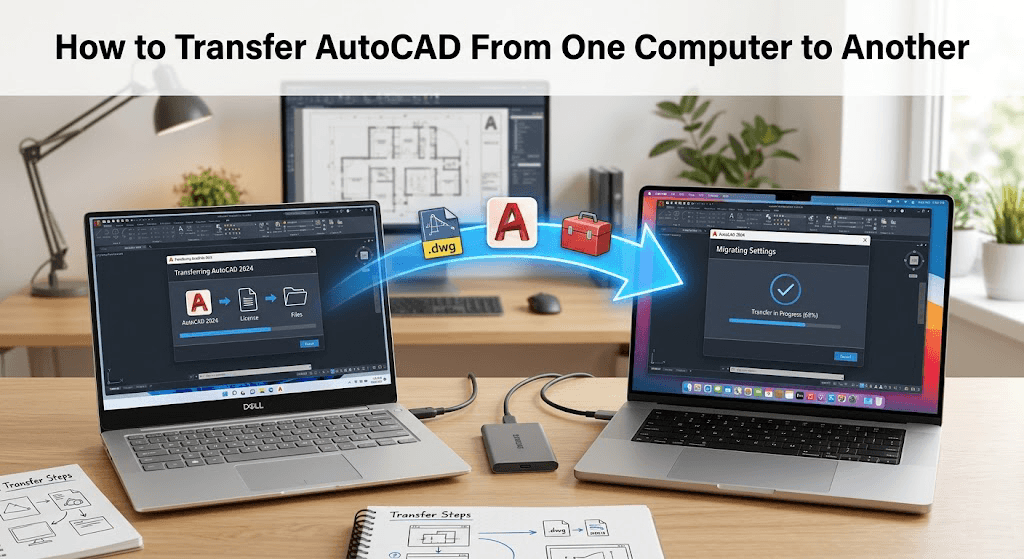
Transferring AutoCAD involves more than just moving a ".dwg" file; it requires migrating your license, custom settings, tool palettes, and support files to ensure your workflow remains uninterrupted.
What is AutoCAD Migration and Why Does It Matter?
When we talk about how to transfer AutoCAD from one computer to another, we are referring to the process of moving the software license and its customized environment.
Autodesk uses a subscription-based model that ties your software to an Autodesk Account. However, the "migration" part specifically refers to bringing over your user profiles, templates, and command shortcuts. Without a proper transfer, you’ll find yourself staring at a "vanilla" AutoCAD interface, wasting hours re-mapping your favorite shortcuts and re-linking external references.
Benefits of a Proper AutoCAD Transfer
- Zero Downtime: Avoid the trial-and-error of resetting your workspace.
- Consistency: Ensure your project standards and plot styles remain identical across devices.
- Asset Security: Learn how to transfer AutoCAD files from one computer to another safely to prevent data corruption.
- License Compliance: Avoid "limit exceeded" errors by properly managing your active seats.
How to Transfer AutoCAD From One Computer to Another[3 Methods]
Relocating your CAD workstation? This guide covers the most efficient ways to migrate your software, license, and custom settings without losing your progress.
Method 1: The Fastest Way (Recommended) – Using AnyViewer
If you want to bypass the manual export/import headache, the most efficient modern solution is using a robust remote access and file transfer tool like AnyViewer.
While Autodesk provides built-in tools, they can be finicky with different versions of Windows. AnyViewer allows you to bridge the gap between two PCs instantly.
Why Use AnyViewer for AutoCAD Transfers?
- High-Speed File Transfer: Easily handle massive ".dwg" files and project folders that are too large for email or slow cloud drives.
- Remote Installation: If you forgot to install a specific plugin on your new machine, you can remote into your old one and copy the installation directory directly.
- Unattended Access: You don't need someone sitting at the old office computer to initiate the move.
Steps to Transfer Files via AnyViewer:
Step 1. Install AnyViewer on both your old and new computers.
Step 2. Log in to the same account on both devices.
Step 3. On your new PC, go to Device, select your old PC, and click File Transfer.
Step 4. Drag and drop your AutoCAD project folders, ".ctb" files (plot styles), and ".cuix" (customization) files from the old source to the new destination.
Method 2: How to Transfer AutoCAD License (The Subscription Way)
Since 2020, Autodesk has moved away from the old "License Transfer Utility" for most users, favoring the Sign-In method.
How to Move Your Subscription:
Step 1. On the Old Computer: Open AutoCAD, click your user profile in the top-right, then select Sign Out and Quit.
Step 2. On the New Computer: Download the Autodesk Desktop App or log in to the Autodesk Account portal.
Step 3. Install AutoCAD.
Step 4. Launch the program and Sign In with your credentials.
Note: If you are using an older, perpetual license (e.g., AutoCAD 2016 or earlier), you must use the License Transfer Utility (LTU) found in the Start Menu under the Autodesk folder to "Export" the license to the cloud before "Importing" it on the new machine.
Method 3: Migrating Custom Settings and Toolbars
Learning how to transfer AutoCAD from one laptop to another usually involves moving your "soul" – your custom settings.
Using the "Export AutoCAD Settings" Tool
Step 1. On your old computer, go to the Start Menu.
Step 2. Navigate to AutoCAD [Version] - [Language].
Step 3. Click Export AutoCAD Settings. This creates a ".zip" package.
Step 4. Move this ".zip" file to your new laptop (using AnyViewer or a USB drive).
Step 5. On the new laptop, find the same folder in the Start Menu and select Import AutoCAD Settings.
Conclusion
Mastering "how to transfer AutoCAD from one computer to another"ensures that your transition to a new machine is defined by productivity rather than technical frustration. Whether you choose the streamlined efficiency of "AnyViewer" for rapid file migration, the official Autodesk sign-in method for licensing, or the built-in export utilities for your custom workspace, the goal is to maintain a consistent design environment.
Don't let a hardware upgrade reset your progress. By following the steps outlined above, especially the "eTransmit" protocol for your project files, you can move your entire workstation and continue your architectural or engineering projects with zero downtime.



 as a preferred
source on Google
as a preferred
source on Google