

How to Remotely Connect to a Raspberry Pi
This guide shows how to connect to your Raspberry Pi remotely. You'll learn how to use SSH for command-line access, VNC for full desktop control, and Raspberry Pi Connect for secure internet access. It also explains how to find your Pi's IP address and set up remote access easily.

By Ellie / Updated on October 13, 2025


Introduction
Looking to learn how to remotely connect to a Raspberry Pi board without physically plugging in a monitor or keyboard? This guide explores three practical methods for remotely connecting to and managing your Raspberry Pi from anywhere.
The Raspberry Pi is a remarkably versatile microcomputer that can power numerous creative and technical projects. Whether it's running as a personal web server, acting as an environmental sensor, or serving as a firewall to protect your network, the possibilities are nearly endless.
Unlike microcontrollers, however, microcomputers such as the Raspberry Pi typically rely on a display, keyboard, and mouse to operate. That's convenient when you're using it as a desktop system, but not ideal for headless applications like servers or automation tools where physical peripherals are unnecessary after setup.
You could, of course, connect your Raspberry Pi to a monitor for the initial configuration and disconnect afterward, but what happens when you need to update software, tweak settings, or troubleshoot an issue?
That's where remote access comes in. With remote access tools, you can remotely access Raspberry Pi outside network or connect to its command line or full desktop interface from another computer. This guide walks you through three reliable methods for achieving secure and efficient remote connectivity, including instructions for how to remotely connect to Raspberry Pi from PC.
Raspberry Pi Networking & Remote Access
In this guide, we'll focus on Raspberry Pi microcomputers, not microcontrollers like the Pico. Note that not every remote access method applies to every board model.
To establish a remote connection, your Raspberry Pi must be network-capable, either through an Ethernet cable or Wi-Fi. Some of the earliest Raspberry Pi models lack onboard networking and may require adapters.
Certain features we'll discuss also depend on having the latest Raspberry Pi OS version installed. Thankfully, all Raspberry Pi models are compatible with this operating system.
Your Raspberry Pi communicates over the network using TCP/IP (Transmission Control Protocol/Internet Protocol). It receives a unique IP address, its digital identifier within your local network. Most users allow their router to automatically assign an IP address using DHCP (Dynamic Host Configuration Protocol), though static IPs can also be configured manually.
Two of the remote access methods outlined later will require knowing this IP address, so we'll cover how to locate it shortly.
One important note: Raspberry Pi boards ship with default login credentials, commonly the username “pi” and the password “raspberry.” These should be changed immediately to improve security and protect against unauthorized access.
Pi Boards with Networking Capabilities
Below is an overview of Raspberry Pi boards that support network connectivity:
| Model | Wi-Fi | Ethernet |
| Raspberry Pi 5 | 802.11ac | Gigabit |
| Raspberry Pi 4 Model B | 802.11ac | Gigabit |
| Raspberry Pi 3 Model B+ | 802.11ac | 300 Mbps |
| Raspberry Pi 3 Model B | 802.11n | 10/100 Mbps |
| Raspberry Pi Zero W | 802.11n | USB Ethernet adapter required |
| Raspberry Pi Zero WH | 802.11n | USB Ethernet adapter required |
| Raspberry Pi 2 Model B | 10/100 Mbps | Wi-Fi via USB adapter |
| Raspberry Pi Model B+ | 10/100 Mbps | Wi-Fi via USB adapter |
The demonstrations accompanying this guide use the Raspberry Pi 5 model.
Finding Your IP Address
Before connecting remotely, you'll need your Raspberry Pi's IP address. There are several ways to find it.
Keep in mind that if your Pi is connected to both Wi-Fi and Ethernet, each adapter will have a separate IP address. For best performance, especially during heavy data transfers, it's recommended to use the wired Ethernet address.
- Using the GUI
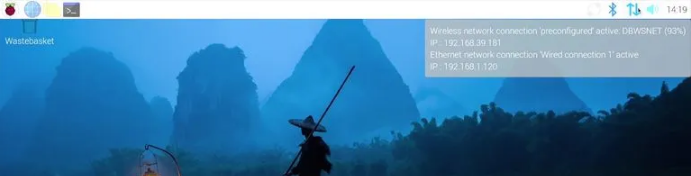
The easiest method is through the Raspberry Pi desktop interface. Simply hover over the network icon in the system tray. A tooltip will display the IP address associated with the connected network adapter(s).
- Using the Command Line
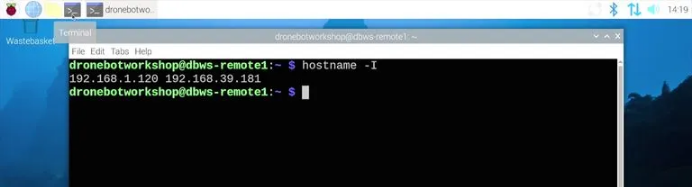
If you prefer the terminal, open it and run:
hostname -I
This command displays the active IP address or addresses assigned to the device.
- Checking Your Router
If your Raspberry Pi doesn't have a monitor or keyboard attached, you can still find its IP address by checking your router's configuration interface.
Log in to your router and look for a section labeled “Connected Devices” or “DHCP Clients.” You'll see a list of devices connected to your network; your Raspberry Pi should appear among them.
Once you've identified the correct IP address, you're ready to establish a remote connection.
Remote Access Method 1 – SSH
SSH (Secure Shell) is one of the most reliable and widely used ways to remotely control a Raspberry Pi. It provides encrypted command-line access over a network, allowing you to securely manage files, execute commands, and administer your device as if you were sitting in front of it.
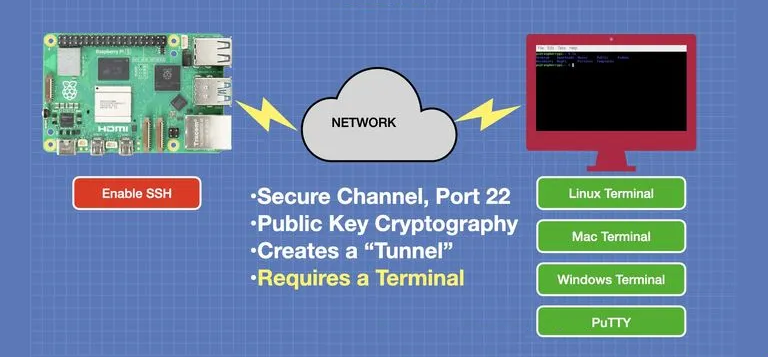
When you connect via SSH, a secure channel, or “tunnel”, is created between your computer and the Raspberry Pi. This channel encrypts all communication using public-key cryptography, ensuring that only authorized users can gain access. SSH connections are fast, lightweight, and ideal for headless (no monitor) setups.
Enabling SSH on Raspberry Pi
SSH is disabled by default on new Raspberry Pi installations, but you can easily turn it on using the graphical interface:
Step 1. Boot up your Raspberry Pi and log in.
Step 2. Click the Raspberry Pi icon on the desktop.
Step 3. Go to Preferences → Raspberry Pi Configuration.
Step 4. Open the Interfaces tab.
Step 5. Toggle SSH to Enabled.
Step 6. Click OK to apply the changes.
Alternatively, if you're preparing your Raspberry Pi OS using the Raspberry Pi Imager, you can enable SSH before the first boot. During the setup, open the OS Customization menu, go to the Services tab, and check the Enable SSH box.
Terminal Applications for SSH
To connect to your Raspberry Pi over SSH, you'll need a terminal application on your computer. Fortunately, SSH clients are available for every major operating system. Below are some commonly used options:
Windows
- PuTTY – A free, open-source terminal emulator supporting multiple protocols including SSH.
- MobaXterm – An advanced terminal suite offering SSH, SFTP, and network utilities.
- Bitvise SSH Client – A full-featured SSH client with built-in SFTP and tunneling support.
- Windows Terminal – Microsoft's modern terminal app with native SSH capabilities.
- Cmder – A user-friendly open-source console that supports SSH integration.
macOS
- Terminal – macOS includes a built-in terminal with SSH functionality.
- iTerm2 – A powerful upgrade to the default Terminal offering tabs, split panes, and extensive customization.
- Royal TSX – A management-oriented SSH client supporting automation and advanced session handling.
- Termius – A sleek, cross-platform SSH app that syncs settings across devices.
Linux
- GNOME Terminal – Default terminal for many Linux distributions, fully compatible with SSH.
- Konsole – KDE's terminal emulator with SSH support and session management.
- Tilix – A tiling terminal emulator allowing multiple split views and custom layouts.
- Terminator – Enables multiple terminal sessions in one window, with SSH integration.
- Alacritty – A GPU-accelerated terminal designed for performance and SSH access.
Connecting via SSH
After enabling SSH and choosing a terminal client, you can connect to your Raspberry Pi.
Open your terminal and enter the following command (replacing "your user name" and "your ip address" with your actual credentials):
- ssh "your user name"@"your ip address"
For example:
ssh [email protected] first time you connect, you'll receive a security prompt asking if you trust the host. Type yes and press Enter to continue.
You'll then be asked to enter your Raspberry Pi's password. Once authenticated, you'll see the Raspberry Pi command-line prompt.
You can now run commands, manage files, install software, and configure your system directly from your terminal, no monitor required.
Common Raspberry Pi Command-Line Tasks
Once connected, you can perform nearly any operation available through the graphical desktop. Here are some essential command categories:
Navigation
- `cd [directory]` – Change directory (e.g., `cd Documents`)
- `pwd` – Display the current directory path
- `ls` – List files and folders
File Management
- `mkdir [foldername]` – Create a new folder
- `rm [filename]` – Delete a file or directory
- `cp [source] [destination]` – Copy files or folders
- `mv [source] [destination]` – Move or rename files
System Information
- `uname -a` – Display detailed system info
- `cat /etc/os-release` – Show the operating system version
- `hostname -I` – View the current IP address
Process Management
- `ps` – List active processes
- `top` – Monitor running processes in real time
- `kill [PID]` – Stop a process using its process ID
Package Management
- `sudo apt-get update` – Update the package list
- `sudo apt-get install [package]` – Install a new package
- `sudo apt-get remove [package]` – Uninstall a package
Miscellaneous
- `man [command]` – Display the manual page for a command
- `echo "text"` – Print text to the screen
- `sudo [command]` – Execute commands with administrator privileges
SSH offers a secure, efficient way to manage your Raspberry Pi remotely, making it perfect for users who prefer command-line control or need quick remote maintenance.
Remote Access Method 2 – VNC
While SSH is perfect for managing your Raspberry Pi through the command line, sometimes you need access to its full graphical desktop. That's where VNC (Virtual Network Computing) comes in. VNC allows you to remotely view and interact with your Raspberry Pi's desktop environment as if you were physically using it, complete with mouse and keyboard control.
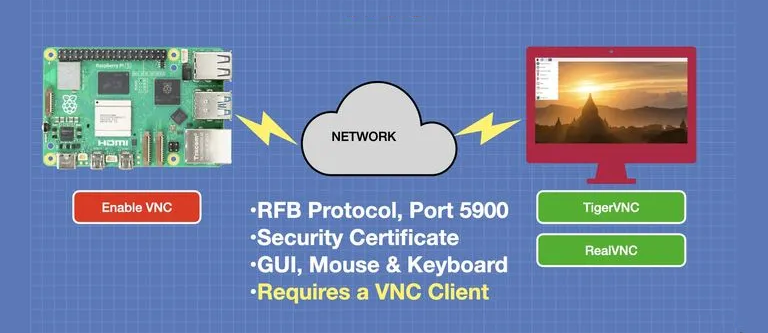
VNC operates using a client-server model. The Raspberry Pi runs the VNC server, while your local computer acts as the VNC client. When you move your mouse or press keys, those inputs are transmitted to the Raspberry Pi, and the display updates are sent back to your computer in real time. Essentially, you're viewing and controlling the Raspberry Pi's desktop remotely.
However, VNC's underlying Remote Framebuffer (RFB) protocol does not encrypt data by default. To ensure secure communication, a Transport Layer Security (TLS) layer is typically added for encryption.
Enabling VNC on Raspberry Pi
Like SSH, VNC is included in the Raspberry Pi OS but must be manually enabled. You can turn it on using the Raspberry Pi Configuration interface:
Step 1. Boot up and log in to your Raspberry Pi.
Step 2. Click the Raspberry Pi icon in the top-left corner.
Step 3. Go to Preferences > Raspberry Pi Configuration.
Step 4. Select the Interfaces tab.
Step 5. Next to VNC, click Enabled.
Step 6. Click OK to confirm and apply changes.
Once VNC is enabled, the Raspberry Pi will begin running the VNC Server service, ready to accept remote connections.
Choosing a VNC Client
To connect to your Raspberry Pi via VNC, you'll need a compatible client program installed on your computer. Not all VNC clients work seamlessly with the Raspberry Pi's implementation, so it's important to choose one that's supported.
The Raspberry Pi Foundation recommends TigerVNC, a free, open-source VNC client available for Windows, macOS (Intel-based), and Linux systems.
- Windows and macOS users can install TigerVNC by double-clicking the downloaded setup file.
- Linux users may need to install the Java Runtime Environment to run it.
For Apple Silicon (M1, M2, M3, or M4) devices, you can use RealVNC Viewer instead, although there are a few drawbacks:
- It's a paid application for some features.
- Users have reported slow or laggy performance.
- It requires minor configuration changes on the Raspberry Pi.
If you're using an Apple Silicon Mac, it's often more efficient to use Raspberry Pi Connect (covered later in this guide) rather than VNC.
Connecting to Raspberry Pi via VNC
Once both your Raspberry Pi (server) and your computer (client) are powered on and connected to the same network, follow these steps:
1. Open TigerVNC on your computer.
2. In the VNC Server field, enter your Raspberry Pi's IP address.
3. Click Options to adjust your connection settings. Under the Input tab, check “Show dot when no cursor”, then click OK.
4. Click Connect to start the connection process.
During the first connection, you may see a warning such as:
- “Hostname does not match the server certificate.”
- “Certificate has been signed by an unknown authority.”
In both cases, you can safely proceed by clicking Yes to trust the Raspberry Pi and continue.
Afterward, you'll reach the login screen. Enter your Raspberry Pi username and password, and once authenticated, you'll see the full Raspberry Pi desktop on your computer screen. From here, you can operate it exactly as if you were connected directly with a monitor, keyboard, and mouse.
Benefits of Using VNC
VNC is ideal for tasks that rely on a graphical user interface (GUI), such as:
- Editing files visually in a code editor or IDE.
- Using applications that require drag-and-drop operations.
- Managing system settings through graphical menus.
- Viewing dashboards or web interfaces running locally on the Pi.
It's especially useful for users who prefer a desktop-like experience but still want the convenience of remote access.
While VNC may be slower than SSH for heavy data tasks, it provides a more intuitive and visual way to interact with your Raspberry Pi, perfect for learning, testing, and general administration.
Remote Access Method 3 – Raspberry Pi Connect
While SSH and VNC are dependable for local network access, they require additional setup when you want to reach your Raspberry Pi over the internet. To simplify this, the Raspberry Pi Foundation introduced Raspberry Pi Connect, an official remote access service designed to securely connect to your device from anywhere, no port forwarding or VPN configuration needed.
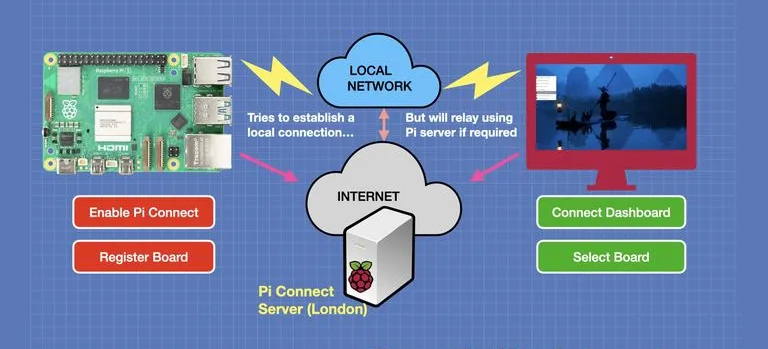
Raspberry Pi Connect establishes a cloud-based, encrypted connection between your Raspberry Pi and your browser, allowing you to control the desktop interface remotely. It's ideal for users who frequently travel or manage multiple Raspberry Pi units deployed in different locations.
How Raspberry Pi Connect Works
Raspberry Pi Connect operates through a browser interface. Your Raspberry Pi runs a background service that connects to the Raspberry Pi cloud network. When you sign in to the Raspberry Pi Connect web portal using the same account, your devices appear automatically. You can then initiate a connection directly from your browser.
Because all communication routes through Raspberry Pi's secure servers, there's no need to expose your device's IP address or open network ports, greatly reducing the risk of unauthorized access.
The platform uses end-to-end encryption, ensuring that your screen data, keystrokes, and file transfers remain private between you and your Raspberry Pi.
Setting Up Raspberry Pi Connect
To begin using Raspberry Pi Connect:
Step 1. Ensure you're running Raspberry Pi OS (Bookworm or later).
Older versions may not support Connect natively.
Step 2. Update your system.
Open a terminal and run:
sudo apt update && sudo apt upgrade
Step 3. Install Raspberry Pi Connect.
sudo apt install rpi-connect
Step 4. Log in with your Raspberry Pi ID.
During setup, you'll be prompted to sign in using your Raspberry Pi account credentials.
Step 5. Access your device remotely.
On any computer, open a web browser and visit [connect.raspberrypi.com](https://connect.raspberrypi.com).
Once logged in, you'll see your registered Raspberry Pi listed and ready for connection.
When you click “Connect,” the service will establish a secure session, giving you full access to your Raspberry Pi's desktop from within your browser, no additional software required.
Using Raspberry Pi Connect Lite
For users who only need command-line access rather than a full desktop, Raspberry Pi Connect Lite offers a lightweight alternative. This version enables secure terminal access through the same cloud infrastructure, letting you manage your Raspberry Pi's filesystem, execute commands, and handle updates remotely.
Connect Lite is perfect for developers, IT administrators, or anyone maintaining headless Raspberry Pi systems.
Benefits of Raspberry Pi Connect
Raspberry Pi Connect combines the best of both worlds:
- Ease of use: No manual network configuration is needed.
- Security: Encrypted communication and account-based authentication.
- Flexibility: Works across devices and operating systems.
- Accessibility: Access your Raspberry Pi's desktop or terminal from any browser.
It's an excellent choice for users who want to remotely manage their Raspberry Pi without dealing with complex networking steps.
Alternative Remote Access Tools – AnyViewer

While AnyViewer is a powerful, secure, and easy-to-use remote access solution for Windows, iOS, and Android devices, it currently does not support Raspberry Pi. If your workflow involves other computers alongside your Raspberry Pi, such as a Windows PC hosting development tools or managing files remotely, AnyViewer can provide seamless cross-device access with features like:
- High-speed remote desktop control with low latency.
- File transfer between devices.
- Multi-device management from a single account.
- Secure connections using advanced encryption and optional two-factor authentication.
Although AnyViewer cannot directly connect to Raspberry Pi, it remains a convenient solution for managing other computers in your network while using SSH, VNC, or Raspberry Pi Connect for Pi devices.
Conclusion
Remote access is one of the most powerful features of the Raspberry Pi, allowing you to manage, monitor, and control your system from virtually anywhere. Whether you prefer SSH for lightweight command-line access, VNC for full graphical control, or Raspberry Pi Connect for seamless cloud-based access, each method serves different needs.
For local network management, SSH and VNC remain efficient and flexible. However, for users who require reliable and secure access over the internet without complex setup, Raspberry Pi Connect stands out as the most convenient solution.
By understanding and utilizing these methods, you can transform your Raspberry Pi into a truly remote-capable device, perfect for personal projects, IoT monitoring, or professional development environments. This guide has shown you how to remotely connect to a Raspberry Pi, whether locally or for remote access Raspberry Pi outside network, and even how to remotely connect to Raspberry Pi from PC.



 as a preferred
source on Google
as a preferred
source on Google