

How to Configure a Proxy for Remote Desktop
To understand how to configure a proxy for remote desktop, first identify whether you need to route an RDP connection or change web access inside a remote session. This guide explains RD Gateway, application-level proxy configuration, and practical connection checks for Windows users and IT teams. If your goal is simply to control another computer without building gateway infrastructure, AnyViewer provides an alternative remote access workflow worth considering.

By Ellie / Updated on September 4, 2026


Choose the right remote desktop proxy method
Windows Remote Desktop Connection does not offer a general SOCKS5 proxy field. For native RDP, use an RD Gateway supplied by your organization or an approved application proxy tool. Changing Windows web proxy settings alone does not route every RDP connection through that proxy.
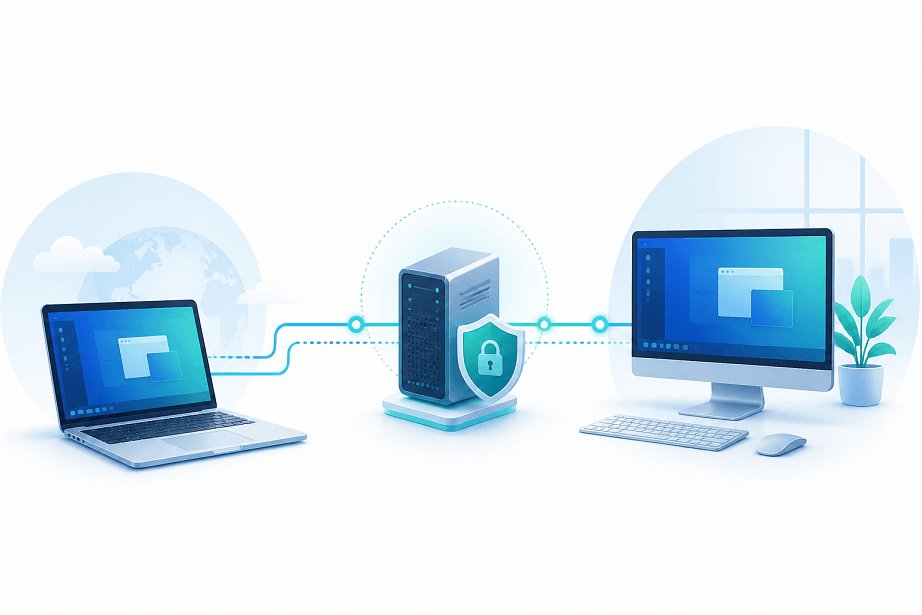
The word "proxy" can describe three different jobs. Choosing the wrong one often explains why web browsing works while a remote desktop connection fails.
|
Your goal |
Suitable approach |
Main requirement |
|
Reach an internal Windows desktop through a managed entry point |
RD Gateway |
Configured gateway, trusted certificate, access policies |
|
Route native RDP through an existing SOCKS5 or CONNECT proxy |
Application proxy tool |
Proxy permission and a route to the destination |
|
Change web traffic inside an existing remote session |
Proxy settings on the remote computer |
Browser or application support |
|
Control another computer with less network setup |
AnyViewer |
Software on both devices and permitted connectivity |
A proxy also needs a route to the destination. A public proxy cannot automatically reach an office computer with a private address such as 192.168.1.50. Ask IT which gateway or proxy can actually access that network before changing client settings.
How to configure a proxy for remote desktop using RD Gateway
RD Gateway is a practical choice when an organization already manages Windows remote desktop access. It carries connections through an encrypted gateway tunnel and applies access policies. The gateway address and the destination computer name are separate values. Microsoft explains the gateway connection flow.
Prepare the gateway and destination
Ask your administrator for the gateway hostname, destination PC name, login format, and any multifactor authentication instructions. If no gateway exists, a Windows Server administrator must first deploy the role, install a trusted certificate, and configure connection and resource authorization policies.
The usual external gateway connection uses TCP 443; UDP 3391 can support UDP transport. Internal RDP commonly uses port 3389. These are different parts of the route, as shown in Microsoft's RDS port reference.
On the destination computer, confirm:
- Windows supports RDP hosting; Home editions cannot host Microsoft's built-in Remote Desktop.
- Remote Desktop is enabled, your account has access, and the host stays awake.
- The host firewall permits the authorized connection, with Network Level Authentication enabled.
These prerequisites follow Microsoft's Remote Desktop setup guidance.
Enter the RD Gateway settings in Windows
- Press Windows + R, enter mstsc, and open Remote Desktop Connection.
- Select Show Options. Under General, enter the destination PC name supplied by IT.
- Open Advanced, then Settings under Connect from anywhere.
- Select Use these RD Gateway server settings and enter the gateway hostname.
- Use the required logon method. Reuse gateway credentials for the remote computer only if your administrator confirms they match.
- Save the settings, select Connect, and complete the required authentication prompts.
For example, the Computer field might contain workstation01.corp.example, while the gateway field contains gateway.example.com. Replace both examples with actual values. The gateway certificate must match its hostname and be trusted by your device.
The classic client's gateway controls are documented in Microsoft's gateway credential guide. If your organization provides a managed RDP file, use that configuration instead of replacing its settings.
Configure a SOCKS5 or HTTPS proxy for native RDP
If IT gives you an existing SOCKS5 proxy rather than an RD Gateway, an application proxy tool such as Proxifier can route selected TCP connections. Its documentation distinguishes SOCKS5 and HTTPS CONNECT support from ordinary HTTP-only proxying. An HTTP proxy that handles browser requests may reject an RDP tunnel. See supported proxy types.
Before starting, obtain the proxy address, port, authentication details, and permission to reach the specific RDP host and port. The following example uses Proxifier for Windows:
- Install the approved tool. Open Profile > Proxy Servers > Add.
- Enter the proxy address and port, select SOCKS Version 5 or the supported HTTPS option, and add credentials when required.
- Use Check to test the proxy. A successful check does not prove that the remote PC is reachable.
- Open Profile > Proxification Rules and add a rule for mstsc.exe.
- Limit the rule to the intended destination hostname or IP address and its RDP port, usually 3389. Select your proxy as the action.
- Place the rule above broader matching rules. Preserve the organization's routing policy for all other traffic.
- Open Remote Desktop Connection, connect to the destination, and inspect the proxy tool's log to confirm which rule handled the connection.
Proxifier evaluates rules from top to bottom and matches applications, destinations, and ports together. These controls are described in its rule configuration documentation.
If an internal hostname fails locally, investigate whether the proxy can resolve it. Proxifier supports name resolution through the proxy, but this changes how IP-based rules behave. Configure it deliberately rather than assuming it fixes every DNS problem.
This workflow handles TCP connections; it is not a guarantee that RDP's UDP traffic follows the same route. Do not use a browser IP-check page as proof that mstsc.exe is using the proxy.
Use AnyViewer when you want simpler remote access
Building a gateway or maintaining application proxy rules can be excessive when you only need to reach your own office PC or help a colleague. AnyViewer is a separate remote access application that usually avoids manual port forwarding in typical environments. It does not configure Microsoft's RDP proxy settings.
Its relevant capabilities include:
- Unattended Remote Access for returning to an assigned computer without someone accepting every session.
- Attended Remote Support for helping another user after they approve a connection request.
- Remote File Transfer for moving authorized files between supported devices during your workflow.
For recurring access to your own Windows computers, start with AnyViewer remote access:
Step 1. Download, install, and run AnyViewer on both computers.
Step 2. Create an account and sign in to that account on both devices.
Step 3. On the remote computer, open Settings > Recipient > Unattended settings and enable Allow logged-in devices to connect with one click.
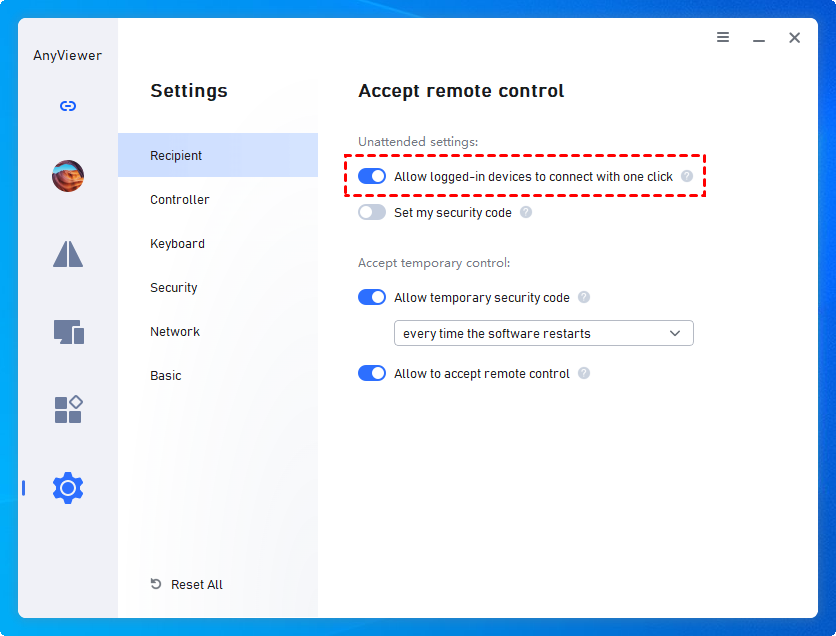
Step 4. On your local computer, open Device, select the remote PC, and choose One-click control.
Step 5. Keep the remote PC online and end the session when finished.
For helping someone else, use the request-and-approval workflow instead of sharing your account. The remote user must allow the request before assistance begins. Interface labels can vary between versions.
If your task also involves documents, check the supported file transfer options. Feature availability depends on the platform and plan.
AnyViewer still needs permitted network connectivity. In a proxy-only corporate network, have IT verify compatibility and the required access rules. Organizations that mandate RDS infrastructure, specific audit controls, or approved gateways should review those requirements before adopting another tool.
Troubleshoot a remote desktop proxy connection
Check the failed part of the route before changing unrelated settings:
- Proxy authentication fails: Verify the account, password, and supported authentication method.
- Proxy connects but RDP times out: Check destination reachability and permission for the target port.
- IP address works but hostname fails: Investigate DNS on the side resolving the name.
- Gateway login succeeds, but desktop access fails: Review resource authorization, host permissions, and the internal firewall.
- Certificate warning appears: Verify the hostname, certificate chain, and expiry; resolve the cause before proceeding.
- Connection works but feels slow: Check latency, proxy capacity, session timeouts, and transport limitations.
If you use Azure Virtual Desktop, follow its service-specific proxy guidance. Microsoft generally recommends avoiding proxies for that service's traffic because of performance and reliability concerns; its configuration differs from a direct mstsc connection.
Only access devices, accounts, and files that you own or are explicitly authorized to use.
Choose the setup that matches your network
Use your organization's RD Gateway for managed RDP access, or configure an approved SOCKS5/CONNECT route when that is the requirement. If you mainly want to reach an authorized computer with fewer configuration steps, explore AnyViewer's remote desktop solution and test it on your actual network.



 as a preferred
source on Google
as a preferred
source on Google