

How Do I Use Multiple Monitors with Chrome Remote Desktop?
A comprehensive walkthrough on configuring multi-screen setups in CRD, optimizing display performance, and using shortcuts for seamless navigation.

By Ellie / Updated on April 28, 2026


In today’s hybrid work environment, a single screen rarely suffices for the complex workflows we manage. Whether you are a software developer juggling multiple terminals, a creative professional editing high-res video, or a financial analyst tracking real-time market data, a multi-monitor setup is a productivity game-changer.
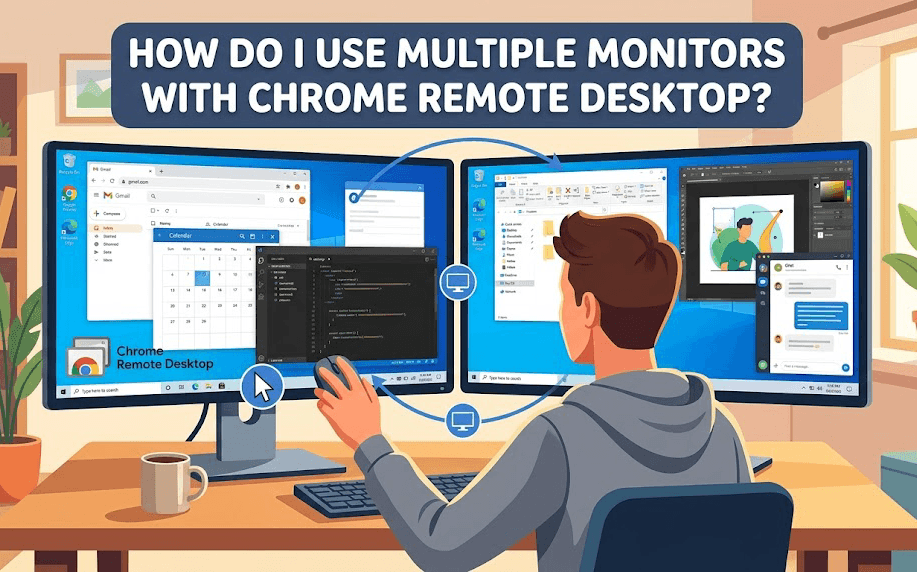
However, when you shift from your office desk to a remote setup, maintaining that multi-screen efficiency can be tricky. Chrome Remote Desktop (CRD) offers robust support for multi-monitor configurations that rival expensive enterprise solutions.
This comprehensive guide will walk you through everything you need to know about how do I use multiple monitors with Chrome Remote Desktop, from basic setup to advanced optimization and troubleshooting.
Step-by-Step Guide: How to Use Multiple Monitors
Follow these four essential steps to configure and optimize your multi-screen remote workspace for maximum productivity.
Step 1: Prepare the Host Computer
The remote computer must recognize its multiple displays before Chrome Remote Desktop can broadcast them.
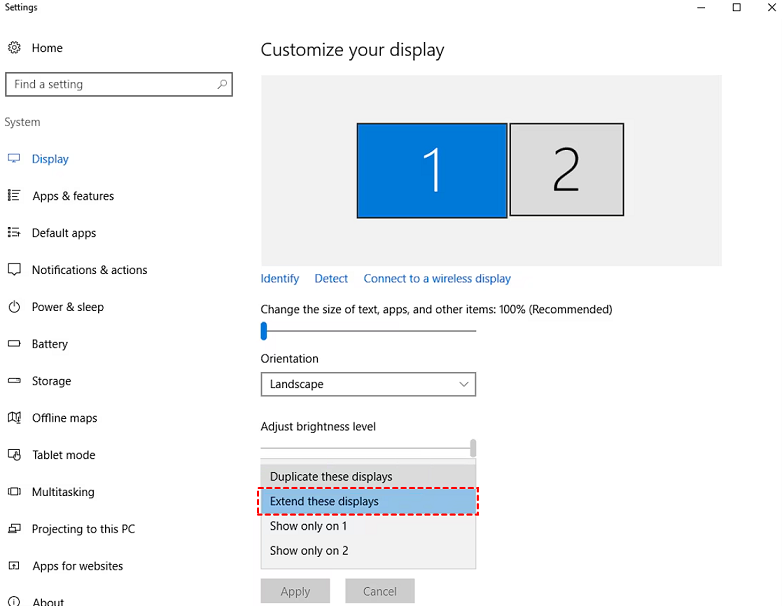
- Windows: Go to "Settings > System > Display". Ensure your monitors are detected and set to "Extend these displays."
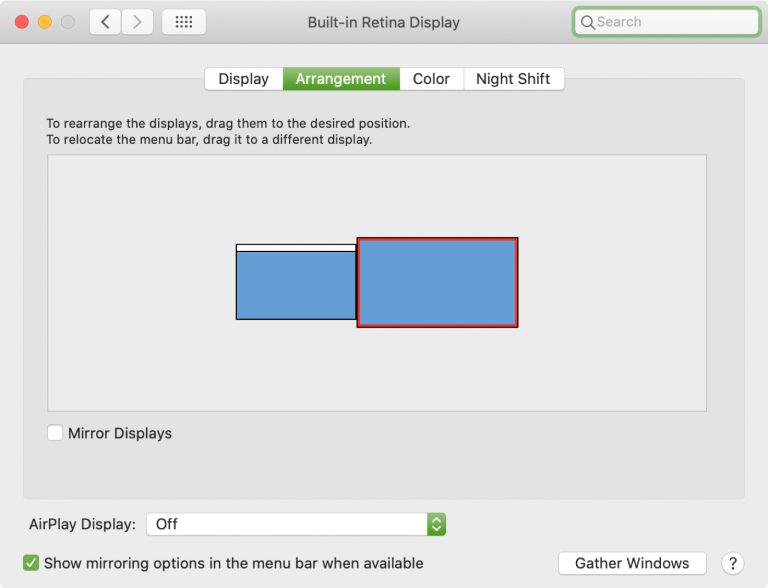
- macOS: Go to "System Settings > Displays". Ensure the arrangement is correct and "Mirror Displays" is unchecked.
Step 2: Establish the Remote Connection
- On your local machine, navigate to https://remotedesktop.google.com.
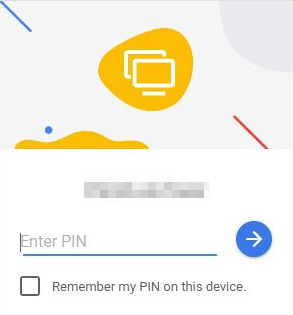
- Select the remote computer you wish to access and enter your PIN.
Step 3: Access the Multi-Monitor Menu
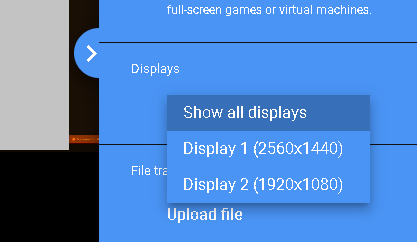
Once the session starts, look for the Sidebar Menu (usually a small arrow on the right side of the screen).
- Click the arrow icon to expand the options.
- Locate the "Displays" section.
- Here, you will see options like "Show All Displays," "Display 1," and "Display 2."
Step 4: Configuring for Multiple Local Monitors (The "Pro" Way)
If you have two physical monitors at home and want to achieve a true Chrome Remote Desktop dual monitor full screen experience:
- Open a New Window: In your browser, open a second tab and reconnect to the same remote computer.
- Separate the Windows: Drag the second tab out to create a new window and move it to your second physical monitor.
- Assign Displays: On Monitor 1, use the sidebar to select "Display 1." On Monitor 2, use the sidebar to select "Display 2."
- Go Fullscreen: Press "F11" (Windows) or "Cmd + Ctrl + F" (Mac) on both windows for a seamless, immersive experience.
Advanced Configuration: Keyboard Shortcuts and Tweaks
Efficiency is about more than just seeing your screens; it's about navigating them quickly.
Keyboard Shortcuts for Switching Displays
In 2026, CRD supports native shortcuts to jump between screens without clicking the sidebar. Using the Chrome Remote Desktop switch monitors shortcut can save you hours of clicking over time:
- Show All Displays: "Modifier Key + 0"
- Show Next Display: "Modifier Key + Right Arrow"
- Show Previous Display: "Modifier Key + Left Arrow"
- Show Specific Display (1, 2, etc.): "Modifier Key + [Number]"
Note: The "Modifier Key" is typically "Ctrl + Alt" on Windows or "Control + Command" on Mac.
Screen Scaling and Resolution
To prevent blurry text when using multiple monitors:
- Shrink to Fit: Ensure this is checked in the sidebar if your local monitors have a lower resolution than the remote ones.
- Smooth Scaling: Keep this enabled for better visual clarity during movement.
Troubleshooting Common Multi-Monitor Issues
Even with the advancements in 2026, remote display protocols can occasionally encounter glitches. If you are struggling to get your multi-screen setup working perfectly, here are the most common issues and their specific solutions.
Only One Monitor is Visible in the Selection Menu
Problem: The Chrome Remote Desktop is not showing both monitors; the menu only shows "Display 1" even though the remote PC has multiple monitors connected.
Fix:
Step 1: On the host PC, go to Display Settings.
Step 2: Ensure that multiple displays are detected and set to "Extend these displays" rather than "Duplicate."
Step 3: Refresh the remote session on your local browser.
Significant Input Lag Across Multiple Screens
Problem: There is a noticeable delay in mouse movement or window dragging when viewing multiple screens.
Fix:
Step 1: Open the CRD sidebar and uncheck "Smooth Scaling."
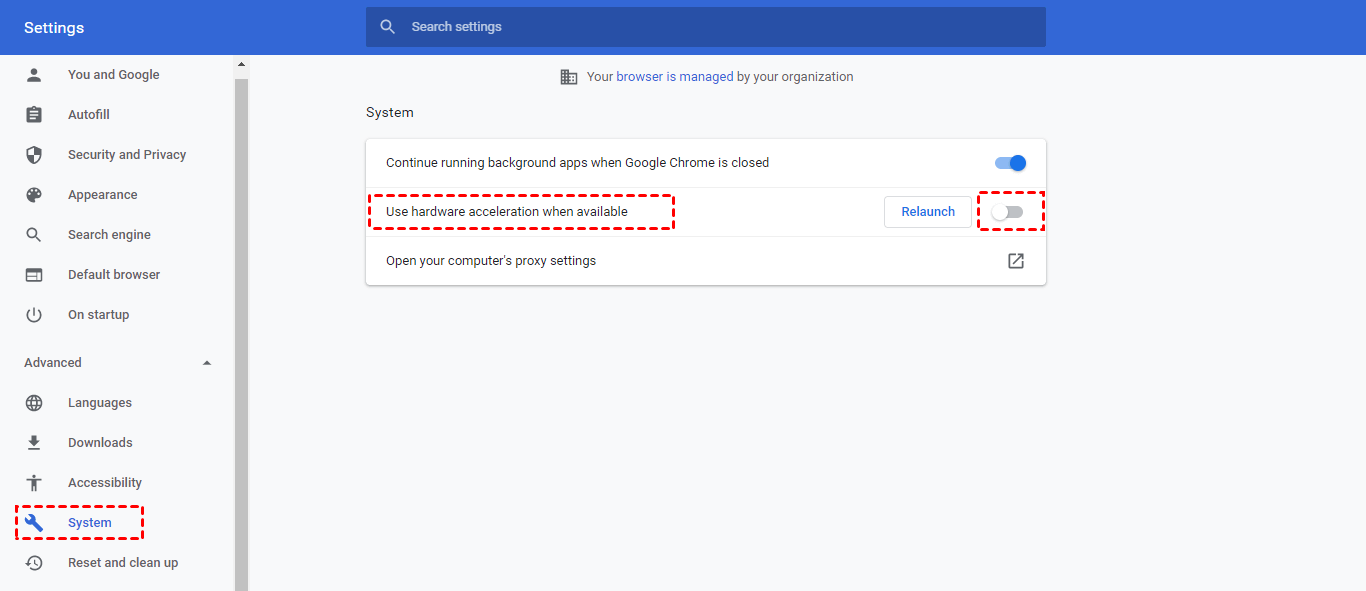
Step 2: Enable "Hardware Acceleration" in your Chrome browser settings.
Step 3: Use a wired Ethernet connection instead of Wi-Fi on both devices if possible.
The Second Monitor Displays a Persistent Black Screen
Problem: You can select the second monitor, but the window remains black or frozen.
Fix:
Step 1: On the host PC, open Task Manager (Ctrl+Shift+Esc).
Step 2: Find the "Chrome Remote Desktop Service" (chromoting) and click Restart.
Step 3: Reconnect to the session from your local computer.
Mouse Cursor Alignment and Offset Errors
Problem: The mouse clicks are landing in the wrong place, or the cursor is offset from the actual selection.
Fix:
Step 1: Set the DPI Scaling (e.g., 100% or 125%) to be the same on both the local and remote computers.
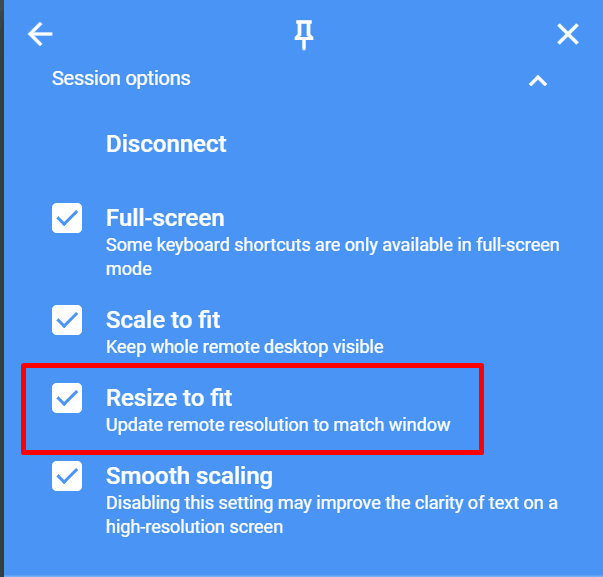
Step 2: Toggle the "Resize to fit" option in the CRD sidebar off and then back on.
Step 3: Ensure the browser zoom level is set to 100%.
Keyboard Shortcuts Only Work on One Screen
Problem: Shortcuts like "Alt+Tab" or "Win+D" affect your local computer instead of the remote one.
Fix:
Step 1: Enter Fullscreen Mode by pressing F11 (Windows) or Cmd+Ctrl+F (Mac).
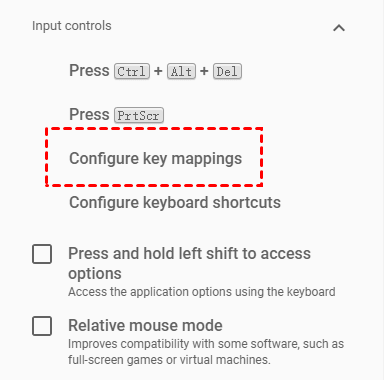
Step 2: In the CRD sidebar, check the box for "Configure Key Mappings" to ensure system keys are sent to the remote host.
Disconnected Session When Switching Monitors
Problem: The connection drops or "kicks you out" the moment you try to switch between monitors.
Fix:
Step 1: Update the Graphics Drivers on the host computer to the latest version.
Step 2: Check the host's power settings to ensure the GPU doesn't enter "Power Saving" mode during the session.
Step 3: Lower the remote resolution slightly to reduce the initial data load during the switch.
Best Chrome Remote Desktop Alternative to Access a Multi-Monitor Computer
While Chrome Remote Desktop is excellent for free, casual, or semi-professional use, it often falls short for power users who require high-performance rendering and seamless multi-monitor management without the hassle of opening multiple browser tabs. If you find CRD’s "multi-window" workaround cumbersome, AnyViewer offers a more robust, professional-grade Chrome Remote Desktop alternative designed specifically for complex remote desktop environments.
Why Choose AnyViewer for Multi-Monitor Setups?
AnyViewer is engineered to handle high-definition visual tasks with ease. Unlike browser-based tools, AnyViewer is a dedicated desktop application that provides:
- One-Click Multi-Monitor Switching: Transition between multiple remote screens instantly through a dedicated toolbar. You can view all monitors on one screen or split them across your local displays without needing to re-authenticate or open separate sessions.
- Innovative Virtual Screen Support: One of AnyViewer’s standout features is the ability to create Virtual Screens. If your host computer only has one physical monitor, you can generate additional virtual displays. This allows you to spread your workflow across multiple local monitors, even if the remote office setup is limited to a single screen.
- True Color Rendering: For creative professionals and engineers, AnyViewer supports "True Color" modes, ensuring that the color accuracy and clarity of your remote workstation are preserved, which is vital for 4:4:4 color space tasks.
- High Frame Rate Support: AnyViewer supports up to 60 FPS, making it ideal for remote gaming, 3D modeling in Unity, or video editing where low latency is non-negotiable.
- Built-in Productivity Tools: Beyond display management, AnyViewer includes integrated file transfer, text chat, and a "Privacy Mode" that blacks out the remote physical screen while you work, protecting your data from prying eyes in the office.
Whether you are managing a content cluster or troubleshooting complex software errors, AnyViewer provides the stability and feature set that professional SEO writers and technical editors need to stay productive in a 2026 hybrid world.
Conclusion
Mastering how do I use multiple monitors with Chrome Remote Desktop is a vital skill for maintaining a high-efficiency workflow outside the traditional office. While CRD is a solid free option, users requiring higher frame rates and "True Color" accuracy may prefer professional tools like AnyViewer. Keep your drivers updated and enjoy a seamless multi-screen experience anywhere.
Stay updated with your graphics drivers, keep your browser optimized, and enjoy the freedom of a multi-monitor setup wherever you go.



 as a preferred
source on Google
as a preferred
source on Google