

How to Add User to Remote Desktop Group via CMD
Managing Remote Desktop Users is essential for secure remote access. This article covers three ways to authorize users, Command Prompt (CMD), PowerShell, and the Windows GUI, while highlighting why AnyViewer is a more efficient and secure choice for modern remote desktop needs.

By Ellie / Updated on February 26, 2026


How Do I Add a User to a Remote User Group via CMD?
Configuring Remote Desktop Users is a fundamental task for IT professionals and system administrators. By defining who has permission to access a system remotely, you ensure that your network remains organized and secure. While Windows provides several ways to manage these permissions, knowing how to add user to remote desktop group via CMD is often the fastest method for power users and those managing systems at scale.

In this guide, we will walk you through the exact steps to add user to remote desktop group via command line, PowerShell, and the GUI, while also exploring a more modern, secure alternative for remote access.
Why Manage Remote Desktop User Groups?
Allowing remote access is essential for troubleshooting and remote work, but it also opens potential entry points for unauthorized users. Properly managing the "Remote Desktop Users" group ensures that:
- Security is maintained: Only specific, authorized individuals can initiate a connection.
- Administrative efficiency: Technicians can quickly grant access without navigating complex menus.
- Compliance: You maintain a clear audit trail of who has remote privileges on a specific machine.
How to Add User to Remote Desktop Group via CMD
Using the net localgroup command is the most direct way to modify group memberships. Follow these steps to add user to remote desktop group via CMD:
Step 1. Open Command Prompt as Administrator: Click the Start menu, type cmd, right-click it, and select Run as administrator.
Step 2. Execute the Command: Enter the following string, replacing with the actual username you wish to authorize:
- net localgroup "Remote Desktop Users" /add
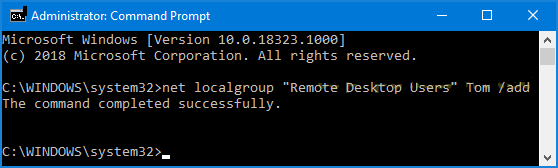
Step 3. Confirm: Press Enter. You should see a message stating, "The command completed successfully."
Alternative Methods to Manage Remote Users
If you prefer a visual interface or a more modern scripting environment than the add user to remote desktop group command line approach, Windows offers two other primary methods.
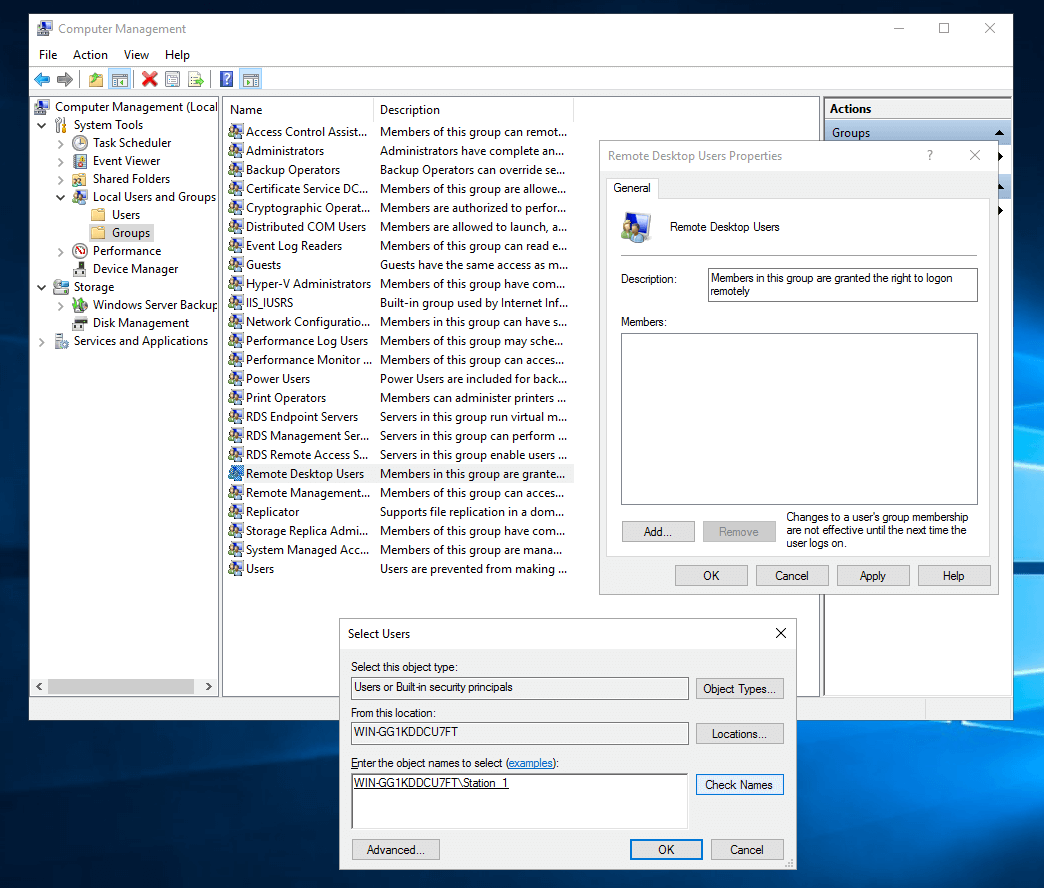
Method 1. Using the Windows GUI (Computer Management)
This is ideal for users who prefer a point-and-click interface.
Step 1. Press Win + R and type compmgmt.msc, then hit Enter.
Step 2. Navigate to Local Users and Groups > Groups.
Step 3. Double-click Remote Desktop Users in the right-hand pane.
Step 4. Click Add..., type the username, and click OK.
Method 2. Using PowerShell
PowerShell is the preferred tool for modern Windows automation and provides an alternative to the add user to remote desktop group via CMD method.
Step 1. Open PowerShell as an Administrator.
Step 2. Run the following command:
- Add-LocalGroupMember -Group "Remote Desktop Users" -Member

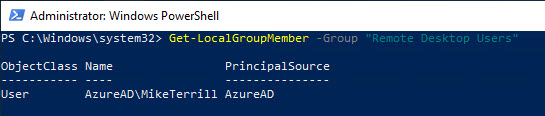
Step 3. To verify the user was added successfully, run:
- Get-LocalGroupMember -Group "Remote Desktop Users"
A Better Alternative for Secure Access: AnyViewer
While managing RDP via CMD is effective, Remote Desktop Protocol (RDP) often requires complex port forwarding or VPN setups to be used over the internet safely. For those seeking a more streamlined and secure solution, AnyViewer is an excellent RDP alternative.

AnyViewer is a professional-grade remote desktop software designed for ease of use and high security. Unlike standard RDP, AnyViewer offers:
- No Complex Configuration: RDP requires port forwarding or a VPN to work outside a local network. AnyViewer works out-of-the-box across different networks without any router tweaks.
- Enhanced Security: RDP is a frequent target for brute-force attacks. AnyViewer uses Elliptic Curve Cryptography (ECC) encryption, providing a highly secure tunnel for all remote sessions.
- Wider Compatibility: RDP is often restricted on Windows Home editions. AnyViewer supports all versions of Windows, allowing you to access any PC regardless of the OS version.
- Centralized Management: Instead of running CMD commands on every single machine, AnyViewer lets you manage a device list and user permissions through one simple, centralized account.
- Built-in Productivity Tools: AnyViewer includes integrated high-speed file transfer, remote chat, and one-click unattended access, features that RDP lacks or requires extra setup for.
Whether you are an IT technician providing remote support or an individual accessing your office PC from home, AnyViewer provides a robust, "set-it-and-forget-it" experience that bypasses the headaches of manual group management.
Conclusion
Mastering the command to add user to remote desktop group via CMD is a vital skill for any Windows admin. However, as remote work evolves, the security and complexity of RDP can become a burden. For a faster, more secure, and user-friendly experience, AnyViewer is the ideal alternative for both IT professionals and casual users.



 as a preferred
source on Google
as a preferred
source on Google