

4K Remote Desktop: High-Res Setup Guide
This guide details how to achieve a low-latency 4K remote desktop workflow. It highlights essential hardware requirements, compares Windows RDP with AnyViewer for 60 FPS performance, and provides quick tips to ensure crystal-clear visuals for professional use.

By Ellie / Updated on May 9, 2026


Laggy screens and blurry text are the enemies of productivity. If you are a graphic designer, video editor, or software developer, standard 1080p streams just don't cut it. To maintain a professional workflow from home or a satellite office, you need a 4K remote desktop setup that delivers high-fidelity visuals without compromising on speed.
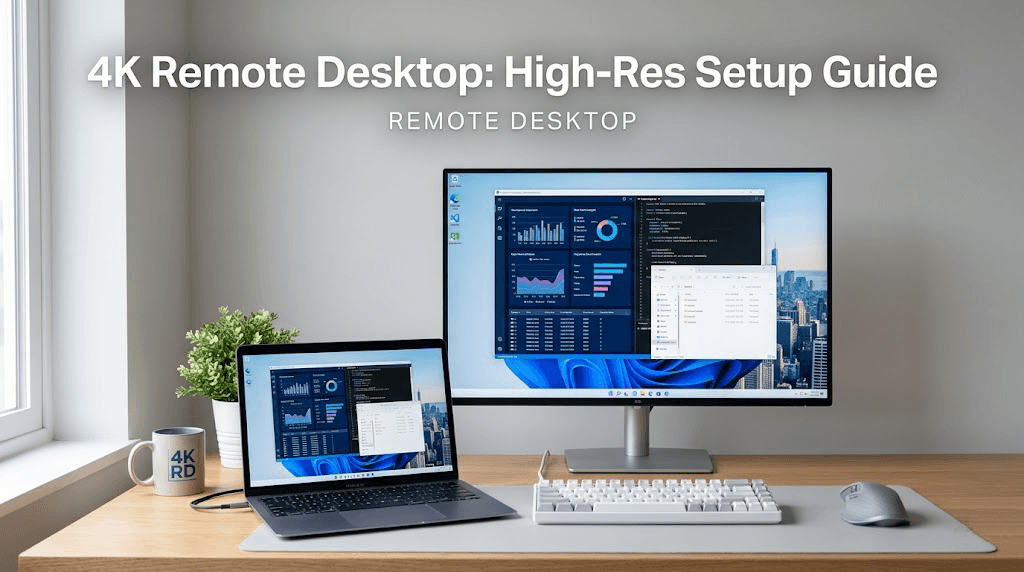
This guide explores how to optimize your remote connection for Ultra-HD resolution, the technical requirements for low-latency streaming, and the best tools to bridge the gap between your local workstation and remote hardware.
How to Set Up 4K Remote Desktop on Windows
Windows users often rely on built-in tools, but getting Windows Remote Desktop 4K to work perfectly requires some manual adjustment.
Using Microsoft Remote Desktop (RDP)
Step 1. Open the Remote Desktop Connection app.
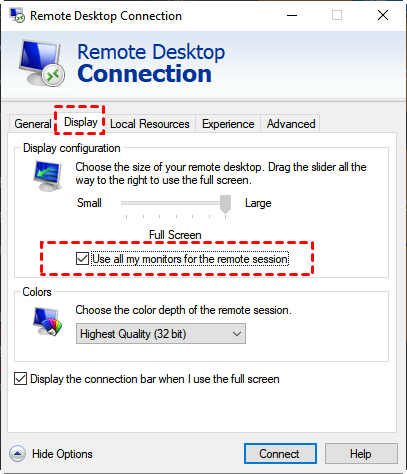
Step 2. Click Show Options > Display tab.
Step 3. Slide the "Display configuration" to Large (Full Screen).
Step 4. If you are using multiple monitors, check "Use all my monitors for the remote session."
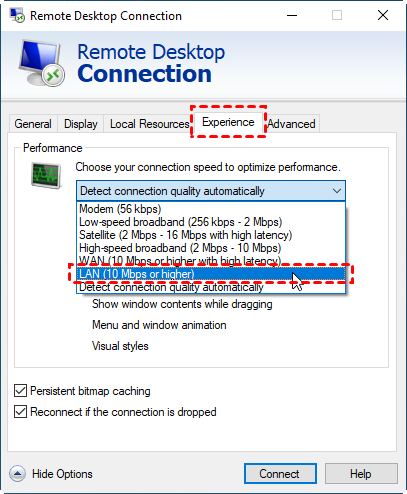
Step 5. Under the Experience tab, ensure the "Performance" is set to "LAN (10 Mbps or higher)" to allow higher quality.
The Limitations of RDP for 4K
While RDP is great for office work, it often struggles with 4K frame rates, making it unsuitable for video playback or gaming. This is where dedicated third-party software becomes necessary.
Recommended Solution: AnyViewer for Professional Ultra-HD Access
For users who need a balance between ease of use and high-performance visuals, AnyViewer is a top-tier remote desktop solution recommendation. It is specifically designed to handle Ultra-HD environments with minimal configuration.
Key Features of AnyViewer for High-Res Tasks:
- True Color Accuracy (4:4:4): AnyViewer supports 4:4:4 true color mode, ensuring that what you see on your local screen is identical to the remote source, essential for photographers and designers.
- High Frame Rate Support: Smooth 60 FPS performance ensures no "ghosting" during fast-motion tasks or video playback.
- Security First: Uses ECC 256-bit encryption to ensure that your high-res data stream remains private.
- Multi-Monitor Management: Easily toggle between multiple high-resolution displays or view them all on one screen using the "Screen Wall" feature.
How to Connect in Ultra-HD with AnyViewer:
Step 1. Install: Download AnyViewer on both your local and remote Windows PCs.
Step 2. Sign in: Log in to the same account on both devices for easy access.
Step 3. Initiate Connection: Go to "Device," select your remote PC, and click "One-click control."
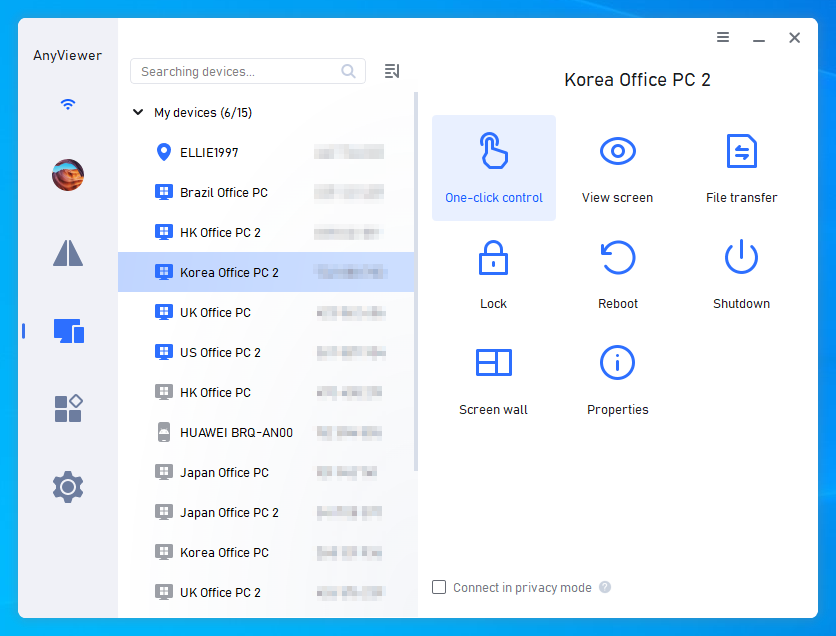
Step 4. Set Quality: Once connected, click the Image button in the top menu and select Ultra High Quality to enable the Ultra-HD experience.

Why You Need 4K Resolution for Remote Access
Working in 4K isn't just about "looking good"; it’s a functional requirement for specific industries.
- Precision Engineering and CAD: Viewing intricate blueprints or 3D models requires the sharpest lines possible to avoid errors.
- Video Editing and Color Grading: Professionals need to see the "True Color" and exact grain of their footage. Standard compression often introduces artifacts that obscure the video's true quality.
- Massive Screen Real Estate: A remote desktop 4k display allows you to open multiple windows side-by-side (like a code editor, a browser, and a terminal) without things feeling cramped.
- Reduced Eye Strain: Crisp text rendering makes long hours of reading or programming much easier on the eyes compared to the "fuzzy" scaling found in lower resolutions.
Essential Requirements for a Smooth 4K Remote Connection
You cannot simply flip a switch and get 4K performance. You need the right infrastructure to support the heavy data load.
- High-Speed Bandwidth: 4K streaming is data-intensive. For a stable 60 FPS (frames per second) experience, you generally need a stable upload speed of at least 25-50 Mbps on the host side and a matching download speed on the client side.
- Hardware Acceleration: Both the local and remote computers should support GPU-based hardware encoding and decoding. Using the GPU to process the video stream significantly reduces CPU usage and eliminates input lag.
- Monitor Compatibility: Ensure both the host and the client are connected to 4K-capable monitors. While some software can "virtualize" a 4K screen, the best experience comes from native hardware support.
Optimization Tips for Low-Latency 4K Streaming
If you experience "stuttering" or lag, try these technical tweaks:
- Use Ethernet: Wi-Fi is prone to interference. A wired Cat6 cable significantly reduces "jitter" in 4K streams.
- Enable HEVC (H.265): If your software supports it, use H.265. It compresses 4K data much more efficiently than the older H.264 standard.
- Disable Visual Themes: On the host computer, turn off "Aero" themes or desktop wallpapers to free up bandwidth for the actual application windows.
- Match DPI Scaling: Ensure the "Scaling" percentage (e.g., 150% or 200%) is consistent between your local and remote settings to prevent blurry text.
Conclusion
Transitioning to a 4K remote desktop workflow is the best way to bridge the gap between office workstations and home setups. By ensuring you have the right bandwidth, hardware acceleration, and professional software like AnyViewer, you can maintain the same level of precision and clarity you expect from a local machine. Stop settling for pixelated screens and upgrade your remote experience today.



 as a preferred
source on Google
as a preferred
source on Google