
Chrome Remote Desktop vs Microsoft Remote Desktop at a Glance
| Decision Point |  |  |
|---|---|---|
| Best For | Quick access & casual support | Native Windows performance |
| Host System | Windows, Mac, Linux | Windows Pro/Enterprise only (No Home) |
| Browser Access | Yes (Built-in) | No direct connection |
| Outside Network | Easy (Google handles routing) | Complex (Requires VPN or Gateway) |
| Screen Sharing | Yes (View screen together) | No (Locks the local screen) |
| Trade-off | Simple & free, but fewer features | Great performance, but harder setup |
Insight:
If the target PC runs Windows Home or you want easy remote access, use Chrome Remote Desktop. If you need top performance on Windows Pro, use Microsoft Remote Desktop.
Which Devices Can You Connect From and To?
| Workflow |  |  |
|---|---|---|
| Connect to a Windows Home PC | A supported Windows installation can use the Chrome Remote Desktop host. | Windows Home does not include the built-in Remote Desktop host. |
| Connect from a Windows Home PC | Use the supported browser access workflow. | Windows Home can be the client when the remote host is compatible. |
| Connect to a Mac | Supported after installing the host and granting required permissions. | A Mac is not a built-in Microsoft Windows RDP host. |
| Connect to Linux | Supported setup exists; the desktop-session configuration differs from Windows and macOS. | Linux hosting through third-party RDP servers is outside this comparison. |
| Connect from a Mac or mobile device | Use the supported web or mobile access option. | Use a compatible Microsoft client, such as Windows App, for that platform. |
| Control a phone as the remote host | Do not infer phone-host control from the availability of a mobile client. | A mobile client connects to a PC; it does not turn the phone into a Windows RDP host. |
Insight:
Check the operating system on the computer you will control, not just the device in your hand.
Compare Everyday Remote Desktop Features
A side-by-side look at core capabilities to help you pick the right remote tool.
| Detailed Feature / Capability | | |
|---|---|---|
| Unattended Access | ||
| Attended Support | ||
| Screen Mirroring | ||
| Console Locking (Locks local screen on connect) | ||
| Clipboard Copy/Paste | ||
| File Transfer via Browser / Panel | ||
| Native File Copy/Paste | ||
| Local Drive / Folder Mapping | ||
| Local Printer Redirection | ||
| Audio Redirection (Host to Client) | ||
| Microphone Redirection (Client to Host) | ||
| Multi-Monitor Display Support | ||
| Remote Resolution / Dynamic Scaling | ||
| Web Browser Client Access | ||
| Cross-Platform Host (Linux / macOS / Windows) | ||
| Windows Home Edition Host Support | ||
| Automatic NAT/Firewall Traversal (No Port Forwarding) | ||
| Custom Port / RD Gateway Config | ||
| Smart Card / Biometric Authentication | ||
| Full Help Desk Management (Ticketing/Queue) |
Insight:
Pick Chrome Remote Desktop for quick, hassle-free access across any platform. Pick Microsoft Remote Desktop if you need full Windows integration with drive mapping and printing.
Setup & Network Connectivity: Chrome Remote Desktop vs. Microsoft Remote Desktop
An architectural comparison of setup requirements, authentication methods, and network routing for secure remote connections.
| Focus Area | | |
|---|---|---|
| Host Prerequisites | Multi-platform app installation + web extension | Windows Pro/Enterprise tier + OS feature enablement |
| Identity & Auth | Google Account OAuth 2.0 + PIN / Temporary Code | Local/Domain Windows Accounts, NTLM, or Kerberos |
| Outside Network Access | Zero-Config Relay: Auto-negotiated via Google STUN/TURN servers | Enterprise Gateway: Requires VPN, RD Gateway, or SSH tunnel (avoid exposing Port 3389) |
| Client Options | Web browser on any device, Chrome app, or mobile app | Dedicated RDP clients (Windows, macOS, iOS, Android) |
| Power State Dependency | Host must stay awake (No native remote Wake-on-LAN) | Host must stay awake (Supports WoL if network configured) |
| Session Control & Cleanup | Revoke machine access via Google account dashboard | Manage active/disconnected sessions via Windows Task Manager or AD |
Insight:
Chrome Remote Desktop is ideal for quick, zero-config connections through any network using Google's secure relay. In contrast, Microsoft Remote Desktop requires a properly configured enterprise path (like a VPN or RD Gateway), but offers deeper OS-level control and centralized active directory management.
Real Cost of Chrome Remote Desktop and Microsoft Remote Desktop
An operational cost analysis focusing on OS license requirements, infrastructure overhead, and compliance scope instead of fixed subscription fees.
| Cost Factor | | |
|---|---|---|
| Client & App Licensing | Free client software provided by Google | Included client apps for Windows, macOS, iOS, and Android |
| Host Operating System | Works on supported Windows (Home/Pro), macOS, and Linux | Requires Windows Pro, Enterprise, or Server tier on host machine |
| Network & Security | Leverages Google relay services with zero network hardware overhead | May require VPN appliances or RD Gateway setup and maintenance |
| Administration Overhead | Account delegation, host registration, and basic end-user support | Active Directory user permissions, network policies, and security updates |
| Enterprise & Compliance | Governed by Google Workspace / TOS policies; no seat limits | Subject to Windows OS rights; multi-user setups require RDS CALs |
| Multi-User Scaling | Single-user 1-to-1 remote control; not built for concurrent multi-session | Single-user on Windows Desktop; multi-session requires Windows Server RDS |
Insight:
If host machines run Windows Home or non-Windows systems, Chrome Remote Desktop avoids OS upgrade fees and VPN overhead. If your organization already operates Windows Pro/Enterprise workstations and a managed corporate network, Microsoft Remote Desktop integrates directly into your current ecosystem.
Security & Privacy Comparison of CRD vs RDP
A comparison of identity controls, network exposure, session privacy, and data policies for secure remote access.
| Security Domain | | |
|---|---|---|
| Identity & Access | Google Account 2FA + PIN or temporary support PIN | Windows/Domain accounts; supports NLA & Smart Card auth |
| Session Encryption | WebRTC encrypted sessions managed via Google infrastructure | TLS/RDP encryption; depends on host system security policies |
| Network Exposure | Outbound relay via Google; no open incoming router ports needed | Inbound connection path; requires VPN/RD Gateway (never expose Port 3389 directly) |
| Screen Privacy | Local display stays active & visible during session (screen mirroring) | Local display locks automatically upon remote authentication |
| Data & Redirection Controls | Web-panel clipboard & basic file transfer limits | Granular admin policies for clipboard, local drive, and printer redirection |
| Access Lifecycle | Revoke machine access instantly via Google Account permissions | Centralized control via Active Directory user rights and GPO |
Insight:
Chrome Remote Desktop is safer out-of-the-box for casual setups since it avoids open ports. Microsoft Remote Desktop offers better screen privacy and enterprise governance, but requires a secure VPN or Gateway.
Performance & Display Quality Comparison of CRD vs RDP
A practical workload evaluation comparing responsiveness, display handling, peripheral routing, and high-frame-rate performance.
| Workload / Task | | |
|---|---|---|
| Documents & Spreadsheets | Smooth text rendering; lightweight for web-based daily tasks | Ultra-crisp native font rendering and fast UI typing response |
| Multi-Monitor & Scaling | Basic browser display switching & dynamic scaling | Full native multi-monitor layout, dynamic DPI, & custom resolutions |
| Peripherals & Audio | Standard host-to-client audio streaming; no printer/drive redirection | Low-latency audio & granular local drive/printer redirection |
| Video & Creative Work | WebRTC video compression; may show compression artifacts | Native RemoteFX/GPU acceleration; clear color rendering on stable LAN |
| Remote Gaming | Functional for casual/turn-based games; higher input lag | Lower latency on local networks; better raw input/controller passthrough |
Insight:
Microsoft Remote Desktop offers better local network latency, multi-monitor handling, and GPU acceleration for heavy workflows. Chrome Remote Desktop provides consistent, low-overhead performance across high-latency external networks without complex tuning.
Personal Travel and Cross-Platform Access Comparison
Bypassing OS edition barriers and complex router configurations when accessing home PCs or Macs on the go.
| Category | | |
|---|---|---|
| 5.05.0 out of 5 | 1.01.0 out of 5 | |
| 5.05.0 out of 5 | 2.02.0 out of 5 | |
| 5.05.0 out of 5 | 2.02.0 out of 5 | |
| 5.05.0 out of 5 | 4.04.0 out of 5 | |
| 5.05.0 out of 5 | 3.03.0 out of 5 |
Insight:
Chrome Remote Desktop is the clear winner for casual travel and personal access, eliminating OS licensing costs and complex home network configurations.
Corporate Work and Remote Office Access Comparison
Connecting securely to enterprise Windows Pro workstations through managed corporate networks and policy controls.
| Category | | |
|---|---|---|
| 2.02.0 out of 5 | 5.05.0 out of 5 | |
| 3.03.0 out of 5 | 5.05.0 out of 5 | |
| 2.02.0 out of 5 | 5.05.0 out of 5 | |
| 2.02.0 out of 5 | 5.05.0 out of 5 | |
| 2.02.0 out of 5 | 5.05.0 out of 5 |
Insight:
Microsoft Remote Desktop is the industry standard for enterprise office environments, offering robust security governance, native Windows integration, and complete session privacy.
Casual IT Support and Screen Sharing Comparison
Assisting family members, colleagues, or clients in real time while allowing them to observe on-screen troubleshooting.
| Category | | |
|---|---|---|
| 5.05.0 out of 5 | 1.01.0 out of 5 | |
| 5.05.0 out of 5 | 1.01.0 out of 5 | |
| 5.05.0 out of 5 | 2.02.0 out of 5 | |
| 5.05.0 out of 5 | 3.03.0 out of 5 | |
| 5.05.0 out of 5 | 3.03.0 out of 5 |
Insight:
Chrome Remote Desktop Support Mode is vastly superior for attended assistance, allowing live screen sharing and interactive guidance without disrupting the local user's login session.
Specialized Hardware and Peripheral Work Comparison
Handling workflows that depend heavily on local printer redirection, mapped network drives, and multi-monitor setups.
| Category | | |
|---|---|---|
| 2.02.0 out of 5 | 5.05.0 out of 5 | |
| 3.03.0 out of 5 | 5.05.0 out of 5 | |
| 3.03.0 out of 5 | 5.05.0 out of 5 | |
| 1.01.0 out of 5 | 4.04.0 out of 5 | |
| 3.03.0 out of 5 | 5.05.0 out of 5 |
Insight:
Microsoft Remote Desktop dominates hardware-intensive workflows, delivering seamless local drive mapping, native print redirection, and advanced multi-display scaling.
FAQs When Comparing Chrome Remote Desktop and Microsoft Remote Desktop
It depends on the task. Chrome Remote Desktop is a useful starting point for simple access and temporary support. Microsoft Remote Desktop fits compatible Windows hosts when you have a working network path and want an RDP session.
Windows Home can be the device you connect from. It cannot serve as the built-in Remote Desktop host. Check the Windows edition on the computer you want to control.
The names cover different parts of Microsoft’s client history. Windows App is the current client for several connection types, while the built-in Remote Desktop Connection app remains relevant for Windows-to-PC connections.
Not directly to an ordinary remote PC. Microsoft lists browser support for specified cloud services, not direct Remote PC connections. Choose the correct native client for the intended connection.
Yes, when their requirements are met. Chrome Remote Desktop needs service and network access. RDP needs the host to be reachable through a suitable network path, such as an approved VPN or gateway.
No. Chrome Remote Desktop mirrors the remote screen, leaving it visible to anyone physically present near the host machine. Microsoft Remote Desktop automatically locks the remote host console upon connection, ensuring session privacy in public or open workplaces.
Microsoft Remote Desktop offers superior multi-monitor handling with true screen spanning, independent monitor resolutions, and dynamic DPI scaling. Chrome Remote Desktop only provides basic display switching or scaled view within a browser window.
Microsoft Remote Desktop supports seamless file copy-pasting via clipboard and direct local drive mapping in File Explorer. Chrome Remote Desktop requires using a dedicated web panel to manually upload or download files one by one.
No. Chrome Remote Desktop automatically manages firewall and NAT traversal through Google relay servers without requiring a VPN or router port forwarding. Standard RDP typically requires a secure VPN or Remote Desktop Gateway for off-network access.
Yes, both solutions offer mobile apps. Chrome Remote Desktop runs via the mobile CRD app, while Microsoft Remote Desktop uses the official Microsoft Remote Desktop / Windows App for iOS and Android.
Chrome Remote Desktop streams host-to-client audio output but lacks microphone passthrough. Microsoft Remote Desktop supports bidirectional audio, allowing you to use your local microphone within the remote Windows environment.
Yes, provided the host is powered on and configured not to sleep. RDP connects directly to the login screen, while CRD reconnects as soon as its background service starts.
Which Tool Fits Your Needs? CRD or RDP?
Select the remote desktop tool that aligns best with your specific deployment needs and workflow.
Choose Chrome Remote Desktop for:
- Zero-config access to Windows Home, macOS, or Linux hosts
- Quick, temporary screen-sharing and attended family/peer support
- Web-browser-first access from any client without dedicated software
- Automatic firewall and NAT traversal without router adjustments
Choose Microsoft Remote Desktop for:
- Native Windows Pro, Enterprise, and Server workstation hosting
- Enterprise security via Active Directory, NLA, and corporate VPN/RD Gateways
- Seamless local printer redirection, drive mapping, and file copy-paste
- Automatic console screen locking for absolute physical workplace privacy
Consider AnyViewer to Bridge CRD and RDP Limitations
AnyViewer bridges the gap between Chrome Remote Desktop's limited features and Microsoft Remote Desktop's complex setup, offering a complete solution for remote access, support, and file management.
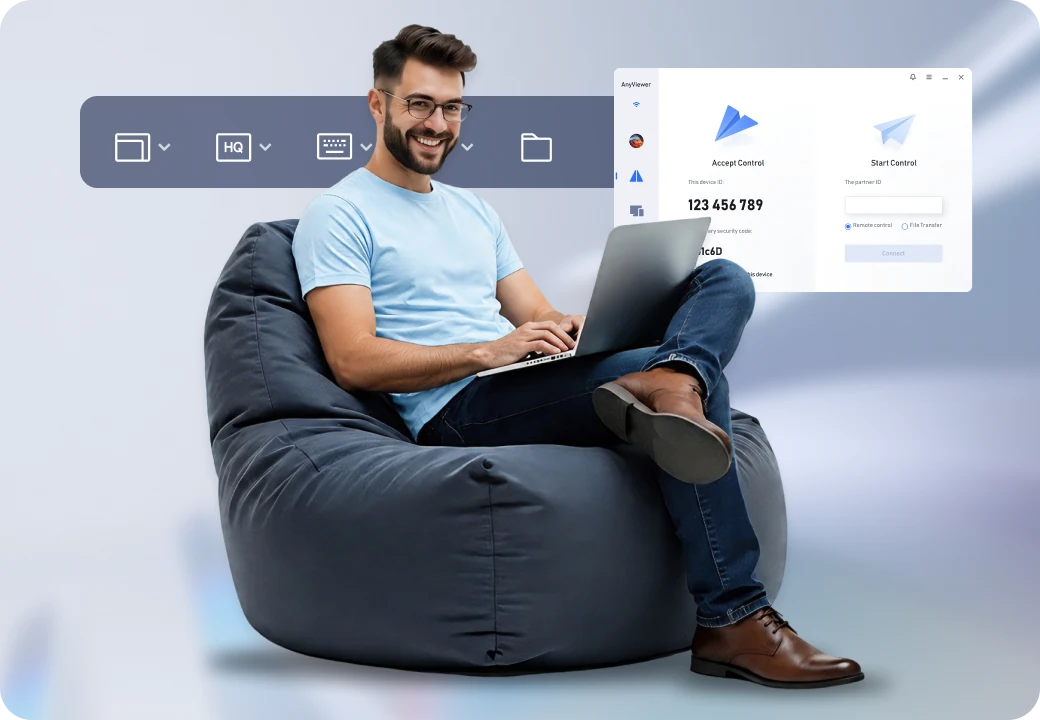
Choose AnyViewer for
- Full access to Windows Home, Pro, and Server without VPNs or port forwarding
- Direct, high-speed file transfers without opening a full remote session
- One-click unattended access plus code-based support with live chat
- Remote screen blackout and local input locking for session privacy
Choose a Remote Desktop Tool Around Your Daily Work
Start with the computer you need to reach and the task you need to finish. Assess these solutions based on your specific technical, workflow, and deployment criteria:
- Chrome Remote Desktop is best for simple, cross-platform access and quick browser-based screen sharing.
- Microsoft Remote Desktop is best for native Windows Pro/Enterprise integration, security, and hardware redirection.
- AnyViewer is best for everyday remote access, authorized support, and fast file transfers across all Windows editions.