

[5 Solutions] Fix You Do Not Have Permission to Access This Device Error
Experiencing the access denied you don't have permission to access message is frustrating. This text explains why you do not have permission to access this device and offers potential solutions.

By Irene / Updated on March 11, 2026


🧐Result-First Look
If you have already enabled USB debugging, switched to MTP mode, and swapped your cables but still see the "You don't have permission access to this device" error, the problem has moved beyond basic hardware and into your system’s security layer.
The definitive fix for this permission block usually requires manually forcing the MTP USB Driver via Device Manager or clearing restrictive UpperFilters in the Windows Registry. These steps bypass the internal Windows 11 policies that mistakenly flag your phone as a restricted storage device. For those who need an immediate workaround without troubleshooting system files, using a wireless tool like AnyViewer is the most reliable way to jump the permission hurdle entirely.
User case: Encounter error You don’t have permission access to this device
Encounter "You don’t have permission access to this device" when transfer files. How can I fix this issue?
I connected my phone to my Windows 11 laptop to transfer photos, but when I click on the connected device, it shows, 'You don’t have permission access to this device.' How can I fix this issue? Tapped the notification and select **File Transfer** or **Transfer files** (MTP mode). Used a different USB cable or port to rule out hardware issues. Updated USB Drivers on the system. In my phone settings in **Developer Options**, enabled **USB debugging**. Restarted my phone and laptop to refresh the connection. I have already followed the above troubleshooting steps but nothing's working.
- Question from learn.microsoft.com
Connecting your phone to a Windows 11 laptop to transfer photos should be simple, but seeing the "You don't have permission access to this device" error is highly frustrating. You might have already tried all the basic troubleshooting steps, such as selecting File Transfer or MTP mode from your phone notifications, swapping your USB cable, or trying a different port. Perhaps you even went into Developer Options to enable USB debugging, updated your system USB drivers, and restarted both your phone and laptop, yet nothing has worked. When these standard methods fail, the issue often lies deeper within Windows security permissions or registry settings, requiring more advanced solutions to finally restore your access.
However, if you want to bypass these frustrating physical connection errors entirely, utilizing professional remote support software like AnyViewer to transfer files wirelessly is often a much better choice than spending hours trying to fix the local system. We will walk you through the precise steps to permanently resolve this permission block and get your file transfers working again.
How to fix Windows You don’t have permission access to this device error
Method 1. Remove Registry Restrictions
Sometimes the “You do not have permission to access this device” error appears because Windows has registry policies that block removable storage access. These policies can deny read or write permissions when you connect a phone or external device for file transfer. Removing these restrictions can restore access to the device folders. This method checks the registry entries related to removable storage policies and deletes values that prevent Windows from reading or writing to the connected device.
Step 1. Press Win + R, type regedit, and press Enter to open the Registry Editor.
Step 2. Navigate to HKEY_LOCAL_MACHINE\SOFTWARE\Policies\Microsoft\Windows\RemovableStorageDevices.
Step 3. Look for the key {53f5630d-b6bf-11d0-94f2-00a0c91efb8b}. If you see values named Deny_Read or Deny_Write set to 1, right click them and choose Delete.
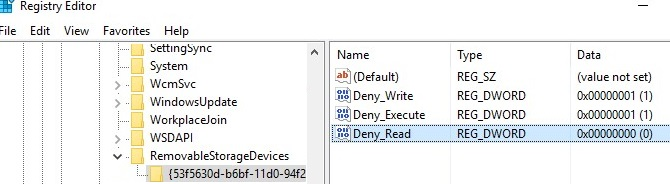
Step 4. Go to HKEY_CURRENT_USER\SOFTWARE\Policies\Microsoft\Windows\RemovableStorageDevices and repeat the same check.
Step 5. Restart your computer and reconnect the device to see if file transfer works normally.
If the problem continues after removing registry restrictions, the issue may come from an incorrect or limited device driver. In that case, reinstalling the proper MTP driver can often restore the connection.
Method 2. Force the Correct MTP Driver Manually
When you connect a phone to Windows for file transfer, the system usually installs an MTP driver automatically. However, Windows may install a generic driver that does not fully support file access permissions. This can lead to the “You do not have permission to access this device” message when opening the device storage. Manually selecting the correct MTP driver in Device Manager can help Windows recognize the device properly and restore file transfer functionality.
Step 1. Right click the Start button and select Device Manager.
Step 2. Expand Portable Devices, then right click your connected phone.
Step 3. Select Update driver from the menu.
Step 4. Choose Browse my computer for drivers, then click Let me pick from a list of available drivers.
Step 5. Select MTP USB Device from the list and click Next to install it.
Step 6. Wait for the installation to finish and reconnect your phone to test file transfer.
If the correct MTP driver does not solve the issue, the problem may be caused by a corrupted filter driver entry in the Windows registry that blocks communication with the device.
Method 3. Clear the UpperFilters Registry Entry
Sometimes file transfer errors occur because a corrupted filter driver interferes with how Windows communicates with portable devices. The UpperFilters registry entry controls certain device drivers that sit between the system and your hardware. If this entry becomes damaged or incompatible, Windows may block access to the device storage. Removing the problematic registry value can allow Windows to rebuild the connection and restore normal file transfer permissions.
Step 1. Press Win + R, type regedit, and press Enter to open the Registry Editor.
Step 2. Navigate to HKEY_LOCAL_MACHINE\SYSTEM\CurrentControlSet\Control\Class{EEC5AD98-8080-425F-922A-DABF3DE3F69A}.
Step 3. In the right pane, locate the value named UpperFilters.
Step 4. Right click UpperFilters and select Delete if it exists.
Step 5. Close the Registry Editor and restart your computer.
Step 6. Reconnect your phone or device and check whether you can access its files.
If the error still appears, the issue may be related to insufficient system service permissions. Adjusting the administrator group settings can help resolve this problem.
Method 4. Add Local Service to the Administrators Group
In some situations, the system service responsible for handling device connections does not have enough permission to communicate with your hardware. When this happens, Windows may block access to the connected device even if it appears in File Explorer. Adding the Local Service account to the Administrators group can grant the necessary permissions for device communication and file transfer operations.
Step 1. Right click the Start button and select Terminal (Admin) or Command Prompt (Admin).
Step 2. In the command window, type the following command:
net localgroup Administrators local service /add
Step 3. Press Enter to run the command.
Step 4. Wait until Windows confirms that the command completed successfully.
Step 5. Disconnect and reconnect your phone or external device to test the file transfer again.
If the connection problem continues, it may be related to missing media components, especially on certain Windows editions that do not include the required MTP features.
Method 5. Install the Media Feature Pack
Some versions of Windows, especially the N or KN editions, do not include built in media technologies. These components are required for certain device communication features, including MTP file transfers between phones and computers. Without them, Windows may detect the device but prevent you from opening its storage. Installing the Media Feature Pack adds the missing media frameworks and can resolve the permission error when transferring files.
Step 1. Open Settings and go to Apps.
Step 2. Click Optional features.
Step 3. Select View features next to Add an optional feature.
Step 4. Search for Media Feature Pack in the list.
Step 5. Select it and click Install.
Step 6. Restart your computer after the installation finishes and reconnect your device.
🔥The quick fix: Use AnyViewer to transfer files easily
If the error “You don’t have permission to access this device” keeps appearing when transferring files, using another transfer method can be a quick solution. AnyViewer provides a simple way to move files between devices without dealing with Windows permission restrictions. It connects two computers directly and allows you to send files quickly and securely. This makes it a practical option when normal USB or network transfers fail.
- ★Why choose AnyViewer for file transfer:
- No file size restrictions: You can transfer very large files without worrying about limits. Whether it is a large video folder or a database backup, the software can handle the transfer smoothly.
- Direct device to device transfer: Instead of uploading files to a cloud service and downloading them again, the software connects two computers directly. This reduces waiting time and simplifies the transfer process.
- Resume interrupted transfers: If the connection stops during a large transfer, the process can continue from the point where it stopped. This saves time and prevents restarting from the beginning.
- Strong data security: All file transfers are protected with advanced encryption. This helps ensure that private data stays safe while moving between devices.
- Remote and unattended access: You can access and transfer files from a remote computer even if no one is there to approve the connection. This is useful for retrieving files from an office computer while working at home.
Using AnyViewer is a quick and reliable way to bypass Windows permission problems during file transfers. Its direct connection, large file support, and secure transfer features make it a convenient solution when standard methods are complicated or do not fit your needs.
Step 1. Install the software on the both devices that you need to transfer files. On your local computer, navigate to the login section and select "Sign Up." Log in to the same account on the remote computer.

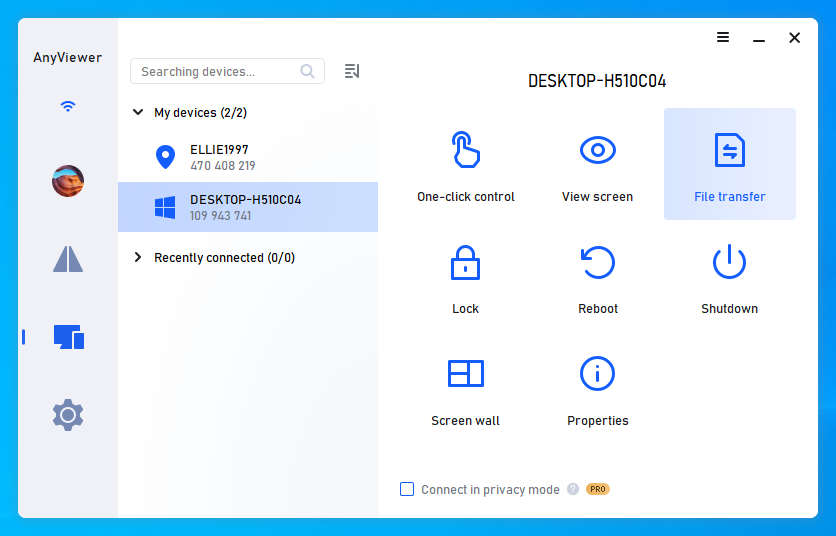
Step 2. On the local computer, select the remote computer you want to transfer files to, and click on "File Transfer."
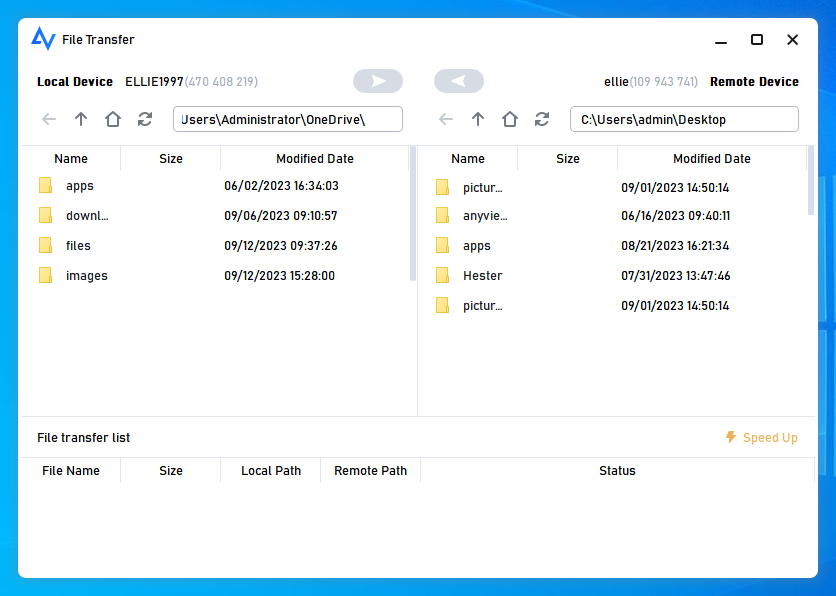
Step 3. A File Transfer dialog box will appear. You can transfer files between devices by clicking the arrows after selecting the files, or simply double-click the files you wish to transfer. To transfer large files at a fast speed, consider upgrading to a paid plan.
- Notes: Here are what a professional or enterprise plan can bring to you:
- Faster file transfer speed. Transfer speed for a free account is 500 KB/s, and for a paid account is up to 10 MB/s.
- Increasing numbers of files are being transferred at once. For a free account, 100 files can be transferred at a time; for a paid account, this number is unlimited.
- Larger size of a single file that can be transferred. The maximum size of a single file that can be transferred for the free account is 100 MB, and for a paid account is 1 TB.
Why do you encounter not have permission to access this device error?
When you connect a phone, USB drive, or other external device to a Windows computer, you may sometimes see the message “You don’t have permission to access this device.” This error usually appears when Windows cannot verify the user’s access rights or when system restrictions block the connection. It can also occur because of device settings, driver issues, or security policies that prevent file transfer between devices.
| Possible Cause | Explanation |
|---|---|
| Insufficient user permissions | The current Windows account may not have administrator rights or the required permissions to access the connected device. |
| USB debugging or device authorization not enabled | When connecting a mobile phone to a computer, required permissions such as USB debugging or file transfer authorization may not be enabled on the device. |
| Corrupted or outdated drivers | If the device driver is outdated, missing, or corrupted, Windows may fail to recognize the device correctly and block access. |
| Security policies or system restrictions | Some computers have security settings, group policies, or MDM controls that restrict access to external devices. |
| Faulty USB connection | A damaged USB cable, unstable port, or loose connection may interrupt communication between the device and the computer. |
The “You don’t have permission to access this device” error usually happens because of permission restrictions, incorrect device settings, driver problems, or connection issues. Identifying the exact cause can help you choose the right solution, such as adjusting permissions, updating drivers, or checking the device connection. Once the root problem is resolved, file transfer between devices should work normally again.
Conclusion
In conclusion, the “You don’t have permission to access this device” error in Windows usually occurs because of permission restrictions, driver problems, or system policies that block access to external devices. By carefully applying the methods above, such as adjusting registry settings, reinstalling the correct MTP driver, or installing the Media Feature Pack, most users can restore normal file transfer. If the problem continues or you prefer a faster solution, using a tool like AnyViewer can help you transfer files easily without dealing with complex connection or permission issues.
FAQs
🗨️ Why is my computer saying I don't have permission to access?
This usually happens when Windows blocks access due to limited user permissions, security policies, or driver problems. It can also occur if the device is not properly recognized by the system.
🗨️ How do I give permission to access a device?
You can give permission by using an administrator account, adjusting device permissions in system settings, or updating the device driver in Device Manager.
🗨️ How do I fix access denied you don't have permission to access?
You can try updating the device driver, checking registry restrictions, reconnecting the device, or restarting the computer to refresh the connection.
🗨️ How do I change the permissions of my USB?
Open the USB drive properties in File Explorer, go to the Security tab, and edit the permissions to allow your user account to read or write files.



 as a preferred
source on Google
as a preferred
source on Google