

[Fixed] You Already Have Active Remote Desktop Connections On This Computer
This post explores methods to resolve common Remote Desktop errors like "you already have active remote desktop connections”. It aims to help users successfully connect to existing sessions on their remote computers.

By Irene / Updated on February 5, 2026


🌟 Quick Summary: Fixing RDP Session Errors
The "You already have active remote desktop connections" error halts productivity when a target machine hits its simultaneous session limit—typically restricted to one user on Windows consumer editions or two on Servers. This blockage often stems from stuck "ghost" sessions, restrictive Group Policies, or licensing conflicts.
To restore access without rebooting, administrators can force-terminate sessions via Command Prompt or adjust Group Policy connection limits. However, to bypass these native Windows restrictions entirely, AnyViewer is the recommended alternative. This professional tool supports stable, multiple concurrent sessions and unattended access, effectively eliminating complex RDP configurations and ensuring seamless connectivity for IT teams.
RDP Error: You already have active remote desktop connections
Remote Desktop Protocol (RDP) is a critical utility for remote system administration, yet users frequently encounter access refusals due to inherent session concurrency limits. This specific error notification signifies that the target machine has reached its maximum capacity for simultaneous user sessions. Generally, standard Windows operating systems are restricted to a single active user interaction at any given time to uphold strict system security protocols and adhere to Microsoft's licensing compliance standards for non-server editions.
| Factor | Explanation |
|---|---|
| Operating System Restrictions | Consumer versions of Windows (Home, Pro) are hardcoded to allow only one simultaneous session. If a user is logged in locally or remotely, a new request triggers this error. |
| Server Licensing (CALs) | Windows Server editions default to two concurrent administrative sessions. Exceeding this without purchasing additional Client Access Licenses (CALs) blocks further connections. |
| Disconnected "Ghost" Sessions | Users often close the RDP window without formally logging off (Sign out). This leaves the session "active" in the background, consuming a slot and preventing new logins. |
| Group Policy Configuration | Corporate environments may have Group Policy Objects (GPOs) explicitly configured to limit the number of connections to a specific server for resource management. |
Encountering this restriction can be a significant operational bottleneck for IT administrators and remote teams who require immediate, simultaneous access to critical infrastructure. While these default Windows settings are implemented to ensure system stability and performance, there are established administrative methods to manage or bypass these constraints effectively. Let us now examine the practical procedures available to diagnose and resolve this connectivity issue.
How to fix Win 10 remote desktop connection error?
Fix 1. Force Disconnect via Command Line
When a Windows 10 Remote Desktop connection error is caused by a frozen or hung session, the system may still think the user is logged in. This prevents new connections from being established. Forcibly ending the inactive session through Command Prompt can immediately free up the connection and restore remote access without restarting the computer.
Step 1. Open Command Prompt as an administrator on another accessible machine or locally on the server.
Step 2. Type qwinsta /server:IPADDRESS and press Enter to list all active and disconnected sessions.
Step 3. Identify the session ID marked as disconnected or idle.
Step 4. Run rwinsta /server:IPADDRESS SESSIONID to terminate the problematic session.
If the error persists after clearing stuck sessions, the issue may be related to system connection limits, which can be adjusted through Group Policy settings.
Fix 2. Adjust Group Policy Settings
Remote Desktop connection errors can occur when Windows limits the number of allowed concurrent sessions. This is common in environments where multiple users access the same machine. By modifying Group Policy settings, you can increase or properly configure the maximum number of Remote Desktop connections and prevent users from being blocked unexpectedly.
Step 1. Press Win + R, type gpedit.msc, and press Enter to open the Group Policy Editor.
Step 2. Navigate to Computer Configuration > Administrative Templates > Windows Components > Remote Desktop Services > Remote Desktop Session Host > Connections.
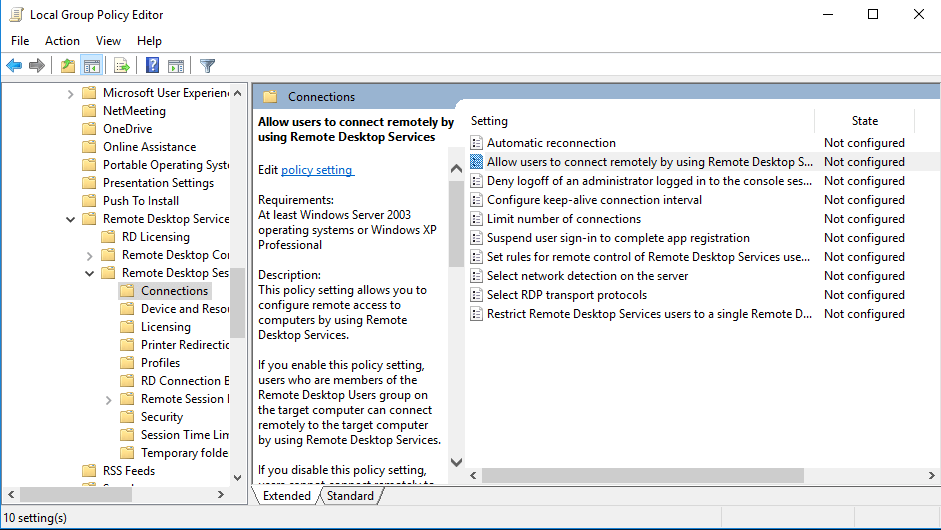
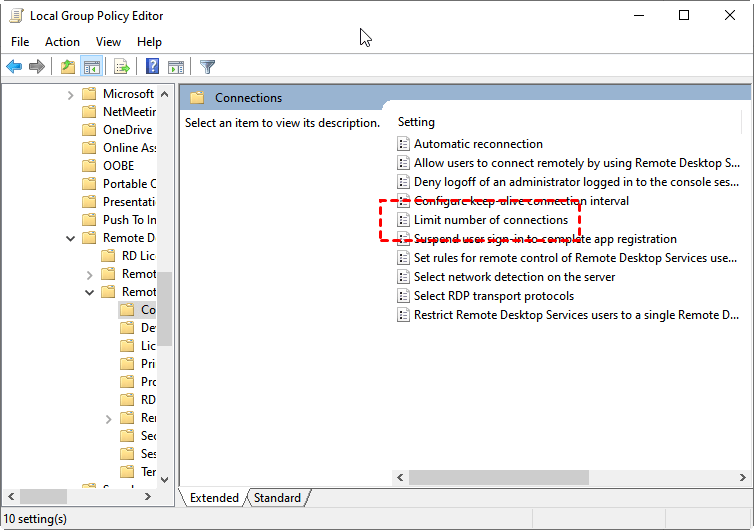
Step 3. Locate “Limit number of connections” and double-click it.
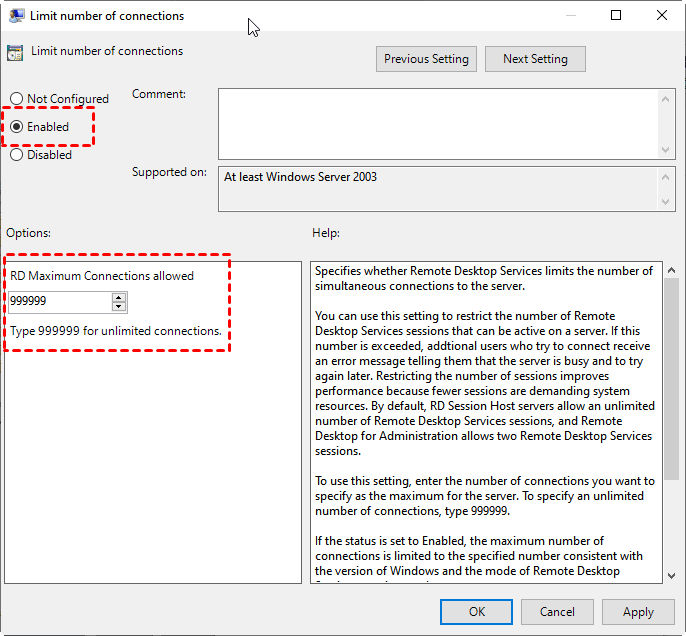
Step 4. Set the policy to Enabled and increase the connection limit, then apply the changes.
If adjusting policies does not resolve the issue, an existing user session may still be blocking access and should be signed out manually.
Fix 3. Sign Out Users via Task Manager
Sometimes Remote Desktop errors happen because another user session is still active but unresponsive. If you can log in locally or through a different account, Task Manager allows you to safely sign out the disconnected user. This method is quick and effective when the system itself is running normally.
Step 1. Log in to the computer using a different local or administrator account.
Step 2. Press Ctrl + Shift + Esc to open Task Manager.
Step 3. Switch to the Users tab to view all logged-in accounts.
Step 4. Right-click the disconnected user and select Sign off.
If the problem occurs on a Windows Server system rather than Windows 10, licensing configuration may be the underlying cause.
Fix 4. Modify Remote Desktop Licensing Mode (Windows Server)
On Windows Server systems, Remote Desktop connection errors often result from incorrect licensing settings. If the Remote Desktop Session Host role is installed but the licensing mode does not match your available CALs, users may be denied access. Correcting the licensing configuration ensures compliant and uninterrupted Remote Desktop connections.
Step 1. Open Server Manager and navigate to Remote Desktop Services.
Step 2. Verify that the Remote Desktop Session Host role is properly installed.
Step 3. Open Remote Desktop Licensing Manager and check the installed CALs.
Step 4. Configure the licensing mode to match your CAL type, either Per User or Per Device, and restart the service.
Once licensing is properly configured, Remote Desktop connections should function normally without recurring access errors.
Fix 5. Check the Status of the RDP Protocol on a Remote Computer
If Remote Desktop is not working, the RDP protocol may be disabled on the target computer. You can check and change its status remotely by connecting to the Windows registry over the network. This method is useful when you cannot access the remote machine’s desktop but still have administrative permissions and network access.
Step 1. Open the Start menu, select Run, type regedt32, and press Enter to launch the Registry Editor.
Step 2. In the Registry Editor, click File in the top menu and select Connect Network Registry.
Step 3. In the Select Computer dialog box, enter the remote computer’s name, click Check Names, and then click OK to connect.
Step 4. Navigate to the following registry paths: HKEY_LOCAL_MACHINE\SYSTEM\CurrentControlSet\Control\Terminal Server and HKEY_LOCAL_MACHINE\SOFTWARE\Policies\Microsoft\Windows NT\Terminal Services
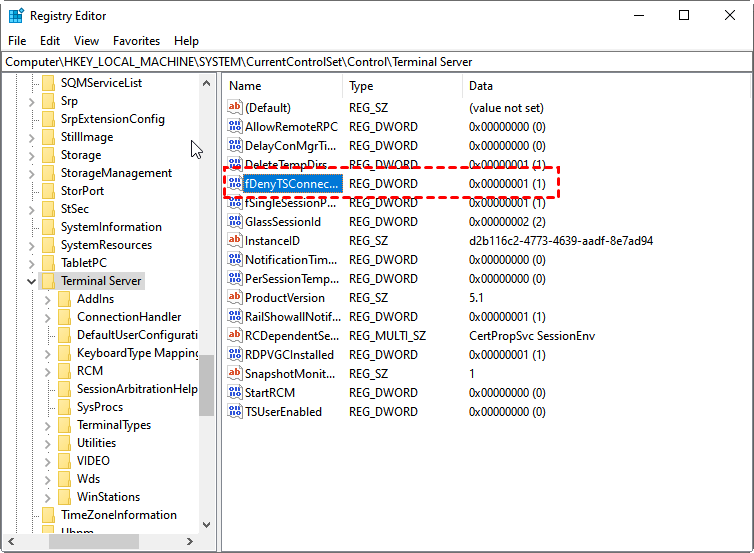
Step 5. Locate the fDenyTSConnections value.
-
If the value is 0, Remote Desktop is enabled.
-
If the value is 1, Remote Desktop is disabled.
Step 6. To enable RDP, double-click fDenyTSConnections, change the value from 1 to 0, and save the changes.
After enabling RDP through the registry, you should verify firewall and network settings to ensure Remote Desktop connections are not being blocked by system rules.
Fix 6. Configure Authentication and Encryption
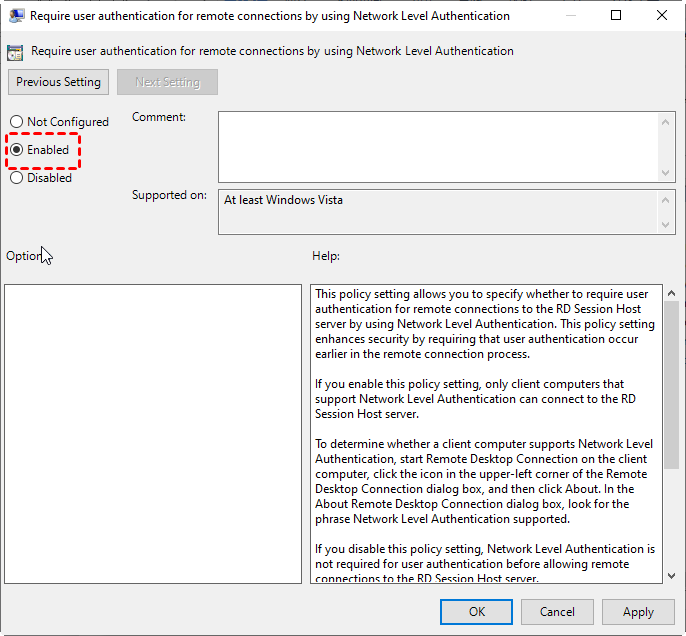
Incorrect authentication or encryption settings can prevent Remote Desktop from establishing a secure connection. If the client and host use incompatible security policies, Windows may block the session. Adjusting the Remote Desktop security, encryption level, and authentication requirements in Group Policy can help resolve RDP connection errors on Windows 10.
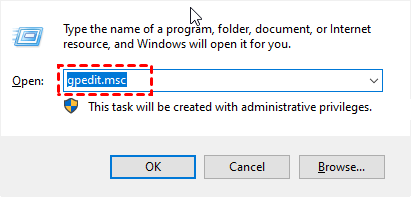
Step 1. Invoke the Run dialog box and then type in “gpedit.msc” and press OK to open the Local Group Policy Editor window.
Step 2. Navigate here: Computer Configuration > Administrative Templates > Windows Components > Remote Desktop Services > Remote Desktop Session Host > Security.
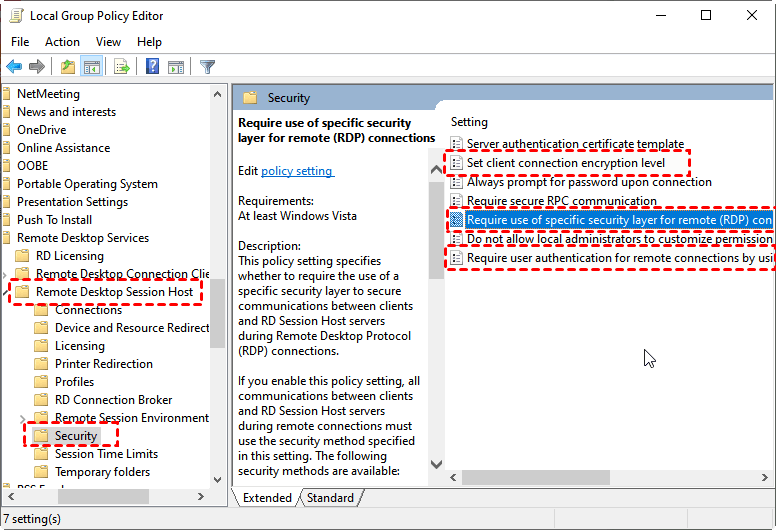
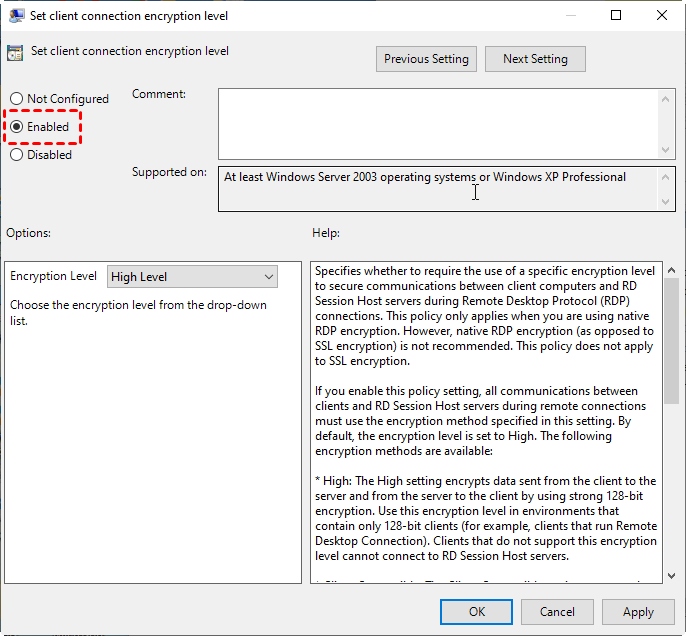
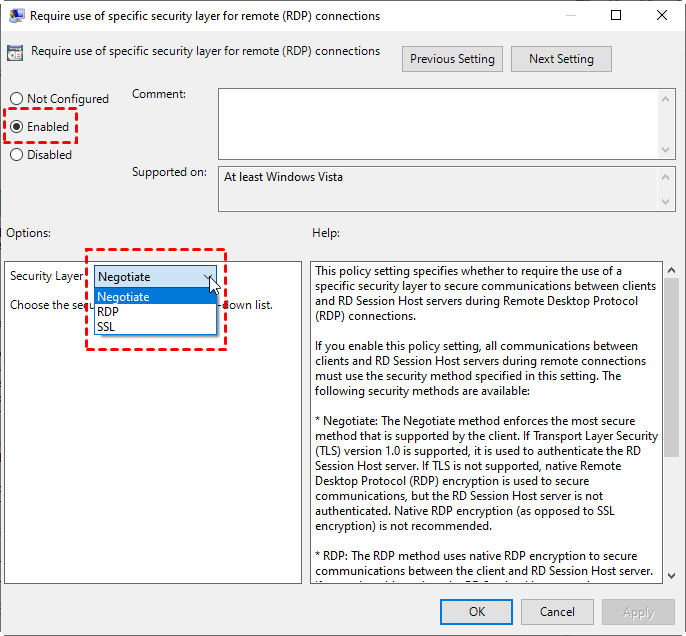
Step 3. Find and click Set client connection encryption level, Require use of a specific security layer for remote connections and Require user authentication for the remote connection by using Network Level Authentication. Change their status to Enabled respectively.
🔥The easiest method: Use AnyViewer as the RDP alternative
When you see the error “You already have active remote desktop connections,” it usually means RDP has reached its session limit. Windows Home or Pro usually allows only one active session, while Windows Server also has strict limits. In some cases, inactive or stuck sessions can block new connections and stop your work. If the fixes above still don’t work, or if you don’t want to spend time testing each one, switching to a Remote Desktop alternative like AnyViewer is often the simplest solution.
It removes Windows connection limits and allows stable remote access from anywhere. AnyViewer is simple to install, and it also supports unattended access, and allows multiple users to connect at the same time, making it suitable for both personal and business use.
Connection limits comparison
| Tool / Version | Licensed Users | Login Devices | Connected Devices | Channels | Simultaneous Sessions |
|---|---|---|---|---|---|
| RDP (Windows) | Depends on system | Depends on system | Limited | Limited | 1–2 |
| AnyViewer Free | 1 | 3 | 10 | 2 | 2 |
| AnyViewer Solo | 1 | 5 | 30 | Unlimited | Unlimited |
| AnyViewer Team | 10 | 30 | 200 | Unlimited | Unlimited |
| AnyViewer Enterprise | 30 | 100 | 500 | Unlimited | Unlimited |
If RDP errors continue, AnyViewer provides a simpler and more flexible way to maintain remote connections. With features like unattended remote access, file transfer, and smooth multi-session support, AnyViewer can meet most remote desktop needs.
Step 1. Download, install and launch AnyViewer on both computers.
Step 2. Go to Log in, and then click Sign up. (If you already have signed up on its official website, you can log in directly.)

Step 3. Fill in the signup information.

Step 4. Then you can see you successfully logged in to AnyViewer. Your device will automatically be assigned to the account you've logged in to.

Step 5. Log in to the same AnyViewer account on the two devices, then you can achieve a direct connection by clicking One-click control.

- Upgrading to a Professional or Enterprise plan can help resolve the issue by unlocking advanced features and higher connection limits that ensure more stable and reliable remote access.
- Faster file transfer speed. Transfer speed for a free account is 500 KB/s, and for a paid account is up to 10 MB/s.
- Increasing number of files transferred in bulk.
- Larger size of a single file that can be transferred.
- More devices can be assigned to the same account for unattended remote access.
- More Currently connected devices are displayed for management.
- Connect in privacy mode to protect privacy.
Conclusion
The error "you already have active remote desktop connections” stating that you already have active Remote Desktop connections is usually caused by session limits, licensing restrictions, or incorrect system settings. By identifying the root cause and applying the appropriate fix, most connection issues can be resolved quickly. If troubleshooting RDP becomes time consuming or unreliable, switching to a stable remote access tool can provide a smoother and more efficient way to stay connected and keep your work moving without interruptions.
FAQs
How do I know if someone has remote access to my PC?
Open Task Manager and check the Users tab to see if another user is currently logged in. You can also review active Remote Desktop sessions using system tools or security logs.
How to solve CredSSP Remote Desktop error?
Update Windows on both the client and remote PC to the latest version, then adjust the CredSSP settings through Group Policy if required.
How to remove Remote Desktop Connection from PC?
You can delete saved Remote Desktop connections by removing the related shortcut files or clearing saved credentials from Windows Credential Manager.
How to solve Remote Desktop Connection problem?
Check that Remote Desktop is enabled, verify network and firewall settings, confirm no sessions are blocking access, and ensure system policies allow connections.
Is it safe to delete a Remote Desktop Connection?
Yes, deleting a Remote Desktop Connection only removes the saved connection information and does not affect the system or user data.
How do I stop someone from accessing my computer remotely?
Disable Remote Desktop in system settings, change account passwords, and remove unknown users. You can also switch to a secure remote access tool like AnyViewer, which lets others stop remote access to your computer. With it, you can fully control permissions and monitor active connections.



 as a preferred
source on Google
as a preferred
source on Google