

Complete Guide to Turn Off Windows Firewall Remotely
Learn how to turn off Windows Firewall remotely using PowerShell, CMD, or WMI. Step-by-step methods with safety tips included. Keywords: turn off windows firewall remotely, turn off windows firewall remotely powershell, how to turn off windows defender firewall remotely.

By Ellie / Updated on September 22, 2025


Introduction
Windows Firewall is one of the most essential built-in security features in any Microsoft operating system. It helps protect your system against unauthorized access, malware attacks, and unwanted intrusions. However, there may be situations where you need to turn off Windows Firewall remotely; especially when managing multiple systems. For example, IT administrators often have to troubleshoot connectivity issues or install certain applications that require the firewall to be temporarily disabled.
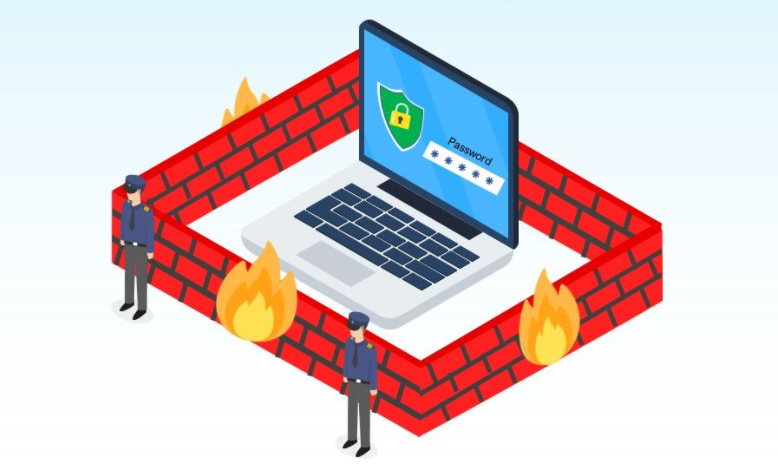
Turning off Windows Firewall remotely can save significant time and effort, particularly in enterprise environments where systems are spread across different locations. But doing this the wrong way may expose your computer or network to cyberattacks. That's why knowing the right methods, as well as the associated risks, is crucial.
In this guide, we'll walk through various approaches to disable Windows Firewall remotely, discuss when it's safe to do so, and explore the potential risks that come with this action. By the end, you'll have a complete understanding of how to carry out this task while keeping security in mind.
Understanding Windows Firewall
Before diving into the process of disabling Windows Firewall, it's important to understand what it actually does. Windows Firewall is a built-in software security system designed to monitor and control incoming and outgoing network traffic. Think of it as a gatekeeper for your system; it decides which connections are allowed and which ones should be blocked.
The firewall uses a set of predefined rules to allow safe traffic while blocking potentially harmful data. For example, if you're connected to a public Wi-Fi network, Windows Firewall automatically applies stricter rules to prevent unauthorized access. On the other hand, if you're on a trusted private network, the firewall may allow more connections.
In short, Windows Firewall:
- Prevents hackers from accessing your computer.
- Blocks malware from spreading across your network.
- Allows safe communication between trusted applications.
Disabling it removes this protective barrier. That's why remote administrators usually consider it as a last resort rather than a first step. But when done with caution and temporarily, it can be an effective troubleshooting method.
Reasons to Disable Windows Firewall Remotely
There are several scenarios where turning off Windows Firewall remotely makes sense. Let's go through some of the most common ones:
- Troubleshooting Network Issues
Sometimes, firewall rules interfere with normal network operations. For instance, if you can't connect to a shared folder, printer, or database server, the firewall may be blocking the connection. Temporarily disabling it can help confirm whether the firewall is the culprit.
- Software Installation and Configuration
Certain enterprise applications or third-party tools require open ports to function properly. If the firewall blocks those ports, installation or configuration may fail. In such cases, disabling the firewall during setup can prevent interruptions.
- Remote Administration Tasks
In large organizations, IT teams manage hundreds of computers remotely. Using Group Policy or PowerShell scripts to disable the firewall across multiple machines ensures smoother software deployment, patching, or system maintenance.
- Compatibility Testing
Developers sometimes need to test software in an environment without firewall restrictions. This helps them verify how applications behave when deployed in real-world networks with fewer security controls.
These are all valid reasons, but they should be handled with strict caution. Otherwise, the systems may become vulnerable to attacks during the period when the firewall is turned off.
Risks of Disabling Windows Firewall
While it may seem convenient, turning off the firewall; especially remotely; comes with serious risks. Here are some of the biggest concerns:
- Security Vulnerabilities: Without firewall protection, your computer is exposed to malicious attacks such as unauthorized access, ransomware, or spyware.
- Spread of Malware: In a corporate network, disabling firewalls on multiple machines at once could allow malware to spread rapidly.
- Data Theft: Hackers may gain access to sensitive files and exploit unprotected systems.
- Network Exploits: Attackers can take advantage of open ports, making the system a gateway for larger cyberattacks.
Best Practices Before Disabling:
- Only disable the firewall temporarily.
- Re-enable it immediately after completing the task.
- Use VPNs or secured connections when accessing systems remotely.
- Consider adjusting firewall rules instead of completely turning it off.
This way, you reduce the chance of exposing your system to unnecessary risks.
How to Turn Off Windows Firewall Remotely: A Complete Guide
Now, let's discuss the different ways to disable Windows Firewall remotely. Each method has its own pros and cons depending on your environment and level of access.
Using AnyViewer for Secure Remote Firewall Management
If you're looking for a safer and more convenient way to manage Windows Firewall remotely, AnyViewer is an excellent solution. AnyViewer is a professional remote desktop software designed for IT administrators, businesses, and individuals who need reliable remote access. Unlike traditional methods such as PowerShell or Group Policy, AnyViewer provides a secure and user-friendly platform to access, troubleshoot, and manage remote systems without complicated configurations.

Key benefits of using AnyViewer for firewall management include:
- Cross-platform support: Works seamlessly across Windows, iOS, and Android, allowing you to control systems from virtually anywhere.
- High-level security: Uses strong encryption to protect remote sessions, ensuring that even if the firewall is temporarily disabled, the connection remains secure.
- Ease of use: With its intuitive interface, you can quickly connect to a remote PC, open Control Panel, or run commands to adjust firewall settings.
- Scalability for enterprises: IT teams can manage multiple devices across different locations, making AnyViewer ideal for large organizations.
- Free and Pro versions: Offers a free version with essential features, plus advanced plans for businesses needing large-scale management.
By leveraging AnyViewer, you don't have to rely solely on complex scripting or risk exposing systems during troubleshooting. It provides a balance between accessibility and security, ensuring that remote firewall management is both efficient and safe.
Using Remote Desktop Connection (RDP)
One of the simplest approaches to disable Windows Firewall remotely is through Remote Desktop Connection. This method requires that RDP is already enabled on the target machine. Once connected, you can navigate through the Control Panel or use command-line tools to disable the firewall.
Steps to use RDP for disabling Windows Firewall:
Step 1. Open the Remote Desktop Connection client on your computer.
Step 2. Enter the IP address or hostname of the remote machine.
Step 3. Authenticate with the necessary admin credentials.
Step 4. Once logged in, open Control Panel > System and Security > Windows Defender Firewall.
Step 5. Select Turn Windows Defender Firewall on or off from the left panel.
Step 6. Choose Turn off Windows Firewall for both Private and Public network settings.
While this method is straightforward, it has one limitation: if the firewall is already blocking RDP connections, you won't be able to access the system this way. That's why many administrators prefer command-line methods such as PowerShell or Group Policy for better reliability.
Using Command Prompt (CMD)
Command Prompt is one of the most direct ways to manage Windows Firewall remotely. The "netsh"utility (Network Shell) has been part of Windows for years, giving administrators a command-line interface to configure network-related settings, including the firewall.
Steps to Disable Firewall via CMD:
Step 1. On your local machine, open Command Prompt with Administrator privileges.
Step 2. Use the following syntax to connect to a remote machine:
- psexec \\RemoteComputerName -u Domain\User -p Password cmd
Here, "psexec"is a Sysinternals tool that lets you execute commands remotely. Replace "RemoteComputerName", "Domain\User", and "Password"with the actual values.
Step 3. Once you're connected to the remote machine's command line, run:
- netsh advfirewall set allprofiles state off
This command disables the firewall for all three profiles: Domain, Private, and Public.
Why CMD is Useful:
- Fast execution: The "netsh"command is quick and effective.
- Lightweight: Requires minimal system resources.
- Legacy support: Works even on older Windows systems like Windows 7 and Windows Server 2008.
Limitations of CMD:
- It requires administrative rights.
- If the firewall is already blocking remote management tools like "psexec", this method may fail.
- It doesn't offer fine-grained control compared to PowerShell.
CMD is best for quick troubleshooting or when dealing with older systems where PowerShell might not be fully available.
Using PowerShell
PowerShell is the modern alternative to CMD, designed to give administrators more control and flexibility. If you’re wondering how to turn off Windows Defender Firewall remotely, PowerShell is one of the most reliable methods. It includes built-in firewall management cmdlets, making it more powerful and versatile than the "netsh" approach. This is why many admins prefer the turn off Windows Firewall remotely PowerShell method when managing enterprise systems.
Steps to Disable Firewall via PowerShell
Step 1. Ensure that PowerShell Remoting is enabled on the target machine. You can check this by running:
- Enable-PSRemoting -Force
(This must be done once on each machine you want to manage remotely.)
Step 2. From your local machine, establish a remote session:
- Enter-PSSession -ComputerName RemoteComputerName -Credential Domain\User
Step 3. Once inside the session, run:
- Set-NetFirewallProfile -Profile Domain,Public,Private -Enabled False
This disables the firewall across all network profiles.
Advantages of PowerShell
- Granular control: You can disable the firewall only for specific profiles (e.g., just Public).
- Automation-friendly: PowerShell scripts can manage multiple systems at once.
- Modern support: It's the recommended method for Windows 10, 11, and Windows Server environments.
- Integration: Works well with Group Policy and other enterprise tools.
Example of Fine-Tuned Command
To disable only the firewall for the Public profile, you can run:
- Set-NetFirewallProfile -Profile Public -Enabled False
This way, your Domain and Private profiles remain protected while allowing public access temporarily.
PowerShell is ideal for enterprise environments where you want flexibility, automation, and scalability.
Using Windows Management Instrumentation (WMI)
Windows Management Instrumentation (WMI) is a powerful framework that allows administrators to manage system configurations and monitor settings remotely. With WMI, you can query and update firewall configurations directly.
Steps to Disable Firewall via WMI
Step1. On your local machine, open PowerShell or Command Prompt.
Step2. Run the following PowerShell command to disable the firewall on a remote computer:
- Invoke-WmiMethod -Namespace root\cimv2 -Class Win32_Process -ComputerName RemoteComputerName -Credential Domain\User -Name Create -ArgumentList "netsh advfirewall set allprofiles state off"
This command connects to the remote computer and executes the "netsh" command through WMI.
Advantages of WMI
- Remote access without direct session: You don't need to log into the remote desktop.
- Integration with monitoring tools: WMI can be used in scripts for automated firewall management.
- Supports legacy and modern systems: Works across different Windows versions.
Limitations of WMI
- Requires proper permissions and WMI services to be running on the target machine.
- Can be blocked by existing firewall rules.
- Slightly more complex than PowerShell for new administrators.
WMI is particularly useful when you want to embed firewall management into scripts or monitoring workflows without needing a full remote session.
Remote Firewall Management through MMC Snap-in
Microsoft Management Console (MMC) offers another way to control the firewall remotely. With the Windows Firewall with Advanced Security snap-in, you can connect to a remote computer and adjust firewall settings.
How to manage remotely via MMC:
Step 1. Press Windows + R, type "mmc", and hit Enter.
Step 2. In the console, go to File > Add/Remove Snap-in.
Step 3. Select Windows Defender Firewall with Advanced Security, then click Add.
Step 4. Choose Another computer, enter the computer name or IP, and connect.
Step 5. Now you can manage inbound and outbound rules or even disable the firewall completely.
This approach is more controlled compared to completely turning off the firewall, as you can selectively disable only certain rules or ports rather than leaving the system entirely exposed.
Best Practices for Remote Firewall Management
While it can be convenient to turn off Windows Firewall remotely, you should always re-enable it immediately after completing your task. If possible, adjust rules instead of disabling the firewall completely. This way, you avoid unnecessary risks while still achieving your administrative goals.
- Use Temporary Disabling Only: Always re-enable the firewall after finishing your tasks.
- Adjust Rules Instead of Disabling: Instead of switching it off entirely, create exceptions or allow specific applications through.
- Enable Logging: Keep firewall logs enabled to track suspicious activities during the downtime.
- Restrict Access: Only allow trusted administrators to execute commands that can disable the firewall.
- Combine with Antivirus/Endpoint Security: If you must disable the firewall, ensure other security layers are active.
By applying these practices, you strike a balance between accessibility and protection, ensuring your systems remain safe.
Troubleshooting Common Issues
Even with the right commands, administrators sometimes face issues while trying to disable Windows Firewall remotely. Let's explore some common problems and their solutions:
Problem 1: Access Denied Error
This usually happens if you don't have administrative privileges on the target system. Always run CMD or PowerShell as an administrator.
Problem 2: Firewall Blocking Remote Commands
Ironically, the firewall itself might be preventing remote access commands. In such cases, you'll need to enable remote management services first through Group Policy.
Problem 3: Group Policy Not Updating
When using GPO, some computers may not apply changes immediately. Running "gpupdate /force"on the remote machine or waiting for the next scheduled policy refresh usually fixes this.
Problem 4: Remote Desktop Blocked
If RDP is blocked, you won't be able to use Remote Desktop to disable the firewall. Instead, rely on PowerShell remoting or WMI scripts.
By understanding these common errors, IT professionals can act faster and avoid unnecessary downtime.
Alternatives to Turning Off Windows Firewall
Completely disabling the firewall is often unnecessary. In many cases, alternatives are safer and more effective.
- Creating Inbound/Outbound Rules
Instead of disabling, you can create rules that allow certain applications or ports. For example, if SQL Server is blocked, create an inbound rule for port 1433 rather than turning off the entire firewall.
- Allowing Apps Through Firewall
Windows provides an option to whitelist specific applications. This ensures that trusted programs can communicate while keeping the firewall active against unknown threats.
- Using Network Profiles
Adjusting the firewall behavior per network profile (Domain, Private, Public) allows more flexibility. For instance, you can keep strict rules for public networks while relaxing restrictions on secure private networks.
- Remote Group Policy Adjustments
If you're managing multiple machines, using Group Policy to configure specific firewall exceptions is safer than turning it off.
Security Implications of Remote Firewall Management
Whenever you disable the Windows Firewall remotely, you're essentially leaving a door unlocked in your system's defense structure. For individuals and organizations alike, understanding the security implications is critical.
Firewalls are designed to prevent unauthorized access by blocking suspicious traffic. When they are disabled; even for a short period; the computer becomes a potential target. Hackers are constantly scanning IP addresses to find vulnerable systems. If your firewall is off, your system might quickly appear on their radar.
In enterprise networks, this risk is even greater. Imagine hundreds of computers temporarily unprotected; this creates a golden opportunity for attackers. Malware, ransomware, and data theft can spread like wildfire in such environments.
To mitigate these risks:
- Always use VPNs when managing systems remotely.
- Restrict firewall disabling commands to authorized admins only.
- Document every action taken during remote management for audit purposes.
- Implement Intrusion Detection and Prevention Systems (IDPS) to act as an additional shield.
Disabling a firewall should never be your first solution but your last resort, only after other troubleshooting methods have failed.
How Enterprises Handle Firewall Management
Large organizations rarely disable firewalls manually on individual computers. Instead, they rely on enterprise-level tools and policies.
Some common approaches include:
- Group Policy Objects (GPOs)
System administrators push firewall policies across an entire domain. This allows centralized management without having to visit each workstation.
- Endpoint Security Solutions
Enterprises often deploy advanced endpoint security tools like Symantec, McAfee, or Microsoft Defender for Endpoint. These solutions integrate firewall management with other security features, reducing the need to disable Windows Firewall at all.
- Remote Management Platforms
Tools like Microsoft Intune or System Center Configuration Manager (SCCM) provide fine-grained control. Admins can configure, update, or even override firewall settings from a single dashboard.
- Segregated Networks
Instead of disabling firewalls, enterprises create secure network zones where specific applications can communicate freely. This reduces reliance on firewall adjustments.
By relying on these structured approaches, companies minimize risks while still keeping their operations smooth and uninterrupted.
Step-by-Step Guide: Safely Re-Enabling Windows Firewall
If you've disabled the firewall remotely, re-enabling it quickly is just as important. Here's how to do it safely:
- Using Command Prompt (CMD):
netsh advfirewall set allprofiles state on
- Using PowerShell:
Set-NetFirewallProfile -Profile Domain,Public,Private -Enabled True
- Via Group Policy:
Step 1. Open Group Policy Management Console (GPMC).
Step 2. Navigate to Computer Configuration > Administrative Templates > Network > Network Connections > Windows Defender Firewall.
Step 3. Enable the firewall for all profiles.
Step 4. Run "gpupdate /force"on the remote machines.
- Through Control Panel:
If using RDP, just go back to Control Panel > System and Security > Windows Defender Firewall and select Turn on Windows Firewall.
Always confirm the firewall is active again by running:
netsh advfirewall show allprofiles
This ensures your system is no longer exposed.
Conclusion
Disabling Windows Firewall remotely is a powerful tool in an administrator's arsenal, but it comes with responsibilities. Firewalls act as the first line of defense against cyber threats, so turning them off should never be taken lightly.
Throughout this guide, we've covered:
- What Windows Firewall is and why it matters.
- Reasons administrators may need to disable it remotely.
- Multiple methods (CMD, PowerShell, GPO, RDP, MMC, WMI) to carry it out.
- The serious risks involved and best practices to mitigate them.
- Real-world use cases showing how IT teams use firewall management in practice.
The key takeaway? Disable firewalls remotely only when necessary, and always re-enable them quickly. In most cases, adjusting firewall rules is a safer and smarter alternative.
By applying the strategies in this guide, you can manage firewalls effectively while keeping security front and center.
FAQs
1. Can I turn off Windows Firewall remotely without admin rights?
No. Disabling the firewall requires administrative privileges. Without them, commands or policies won't work.
2. Is it safe to leave the firewall disabled permanently?
Absolutely not. Leaving the firewall off permanently exposes your system to severe risks, including hacking and malware attacks.
3. What's the best alternative to disabling Windows Firewall remotely?
The best approach is creating inbound/outbound rules or allowing apps through the firewall, instead of disabling it completely.
4. Can I disable the firewall remotely on multiple machines at once?
Yes. The most efficient way is through Group Policy in a Windows domain environment, which allows centralized management.
5. How do I check if Windows Firewall is active after re-enabling it?
Run the command:
netsh advfirewall show allprofiles
It will show the status of Domain, Private, and Public profiles.



 as a preferred
source on Google
as a preferred
source on Google