

Fixed: The Credentials Supplied to the Package Were Not Recognized
"The credentials supplied to the package were not recognized" RDP error occurs when a security mismatch prevents Windows from validating your login. This guide provides proven solutions to sync security settings between your client and host, from clearing saved credentials to simple registry fixes.

By Ellie / Updated on March 19, 2026


Remote Desktop Protocol (RDP) is a cornerstone of modern digital workflows, allowing professionals to access powerful workstations or servers from anywhere in the world. However, Windows security updates and tightening authentication protocols can sometimes trigger cryptic errors.
Among the most notorious is the message: "An authentication error has occurred. The credentials supplied to the package were not recognized."
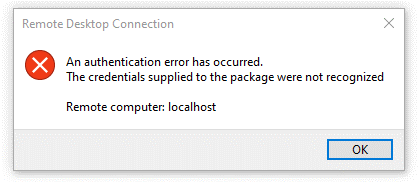
Unlike a simple "Wrong Password" error, this specific message indicates a failure in the communication "package" between the client and the server. It suggests that while the credentials might be correct, the security layer (usually the Security Support Provider) cannot validate them within the current environment. Whether you are using Windows 10, Windows 11, or Windows Server, this guide will walk you through the fixes.
Understanding the Root Causes
Before diving into the fixes, it helps to understand why this happens. The error is almost always tied to Security Support Provider (SSP) issues. Common triggers include:
- NLA (Network Level Authentication) Mismatches: The server requires a level of authentication that the client isn't providing correctly.
- Windows Updates: Recent patches (like those addressing the "CredSSP" vulnerability) can break connections between updated and non-updated machines.
- DNS or Domain Issues: The machine cannot verify the identity of the domain controller.
- Local Security Policy Restrictions: Policies preventing the storage or transmission of credentials.
Step-by-Step Solutions to Fix the RDP Credential Error
Solution 1. Clear Saved RDP Credentials
The most frequent culprit is a "ghost" credential saved in the RDP client that no longer matches the server's requirements, triggering the “The credentials supplied to the package were not recognized” RDP prompt.
Step 1. Open the Remote Desktop Connection app (mstsc).
Step 2. In the "Computer" field, type the IP or hostname of the remote PC.
Step 3. Look for the link that says "delete" next to the message "You can edit or delete these credentials."
Step 4. Click Delete and confirm.
Step 5. Try connecting again and manually type your username and password.
Solution 2. Disable Network Level Authentication (NLA)
NLA provides an extra layer of security by completing user authentication before a full RDP connection is established. However, it is often the source of "package not recognized" errors.
On the Host (Remote) PC:
Step 1. Press "Win + Pause/Break" or go to Settings > System > Remote Desktop.
Step 2. Click on Remote Desktop settings.
Step 3. Uncheck the box: "Allow connections only from computers running Remote Desktop with Network Level Authentication (Recommended)."
Step 4. Click Apply.
Note: Disabling NLA reduces security. Only use this as a troubleshooting step or within a secure, private network.
Solution 3. Change the Local Group Policy (GPO)
If you are on a Pro or Enterprise version of Windows, the Group Policy Editor is your best friend for fixing authentication packages.
Step 1. Press "Win + R", type "gpedit.msc", and hit Enter.
Step 2. Navigate to: Computer Configuration > Administrative Templates > System > Credentials Delegation.
Step 3. Find the policy: Encryption Oracle Remediation.
Step 4. Double-click it, set it to Enabled, and change the Protection Level to Vulnerable.
Step 5. Find another policy in the same folder: Allow delegating default credentials.
Step 6. Set it to Enabled and click Show... next to "Add servers to the list."
Step 7. Add "TERMSRV/" (this allows all servers) and click OK.
Step 8. Run "gpupdate /force" in a Command Prompt.
Solution 4. Tweak the Windows Registry
If the Group Policy method isn't available (common on Home editions), you can achieve the same result via the Registry Editor.
Step 1. Press "Win + R", type "regedit", and hit Enter.
Step 2. Navigate to: "HKEY_LOCAL_MACHINE> Software> Microsoft> Windows> CurrentVersion> Policies> System> CredSSP> Parameters"
Note: If the CredSSP or Parameters keys don't exist, right-click and create them.
Step 3. Create a new DWORD (32-bit) Value named "AllowEncryptionOracle".
Step 4. Set its Value data to "2".
Step 5. Restart your computer.
Solution 5. Add the RDP Endpoint to the Local "Hosts" File
Sometimes the authentication package fails because the client cannot resolve the hostname correctly, leading to a breakdown in the Kerberos or NTLM handshake.
Step 1. Open Notepad as an Administrator.
Step 2. Open the file: "C:> Windows> System32> drivers> etc> hosts".
Step 3. Add a line at the bottom: "[IP Address] [Computer Name]".
Example: "192.168.1.50 Work-PC"
Step 4. Save and try to connect using the Computer Name instead of the IP.
Solution 6. Flush DNS and Reset Socket Settings
Network glitches can cause the "package" to become corrupted during transit.
Step 1. Open Command Prompt (Admin) and run these commands in order:
- ipconfig /flushdns
- netsh interface ip delete arpcache
- netsh winsock reset
Step 2. Restart your PC after the final command.
Advanced Troubleshooting: CredSSP and Encryption Oracle
The "Credentials Supplied to the Package Were Not Recognized" error became widespread after a Microsoft security patch addressed a vulnerability in CredSSP (Credential Security Support Provider protocol).
The patch introduced "Encryption Oracle Remediation." If your client is patched but the server is not (or vice versa), the authentication package is rejected because one side is trying to use a secure "envelope" that the other doesn't understand.
The ultimate fix for long-term stability is to ensure both the client and the host machine have all the latest Windows Updates installed.
A Better Way: Bypass RDP Authentication Errors with AnyViewer
While fixing registry keys and group policies can solve the issue, it is time-consuming and technically demanding. For users who need a reliable, error-free connection without the headache of Windows credential packages, AnyViewer provides a professional-grade Remote Desktop alternative.
Why AnyViewer Avoids These Errors
The "credentials supplied to the package were not recognized" error is unique to the native Windows authentication stack (Kerberos/NTLM). AnyViewer uses a proprietary connection protocol that operates independently of these traditional Windows bottlenecks. By bypassing the native SSP (Security Support Provider) dependencies, AnyViewer eliminates these specific authentication failures.
Key Advantages of AnyViewer:
- Effortless Setup: Unlike RDP, which requires complex port forwarding or NLA configurations, AnyViewer offers a zero-configuration experience. It works seamlessly across different network environments.
- Stable Cross-Platform Performance: Connect between various Windows versions (Windows 11, Windows 10, or Windows Server) without worrying about TLS version mismatches or Schannel errors that often plague native RDP.
- High-Level Security Architecture: Simplicity does not compromise security. AnyViewer is protected by Elliptic Curve Cryptography (ECC). This industry-standard security ensures your remote session remains private even if your system’s native Windows security packages are currently misconfigured.
- Feature-Rich Connectivity: Beyond simple remote access, it supports essential productivity tools such as high-speed file transfer and multi-monitor support, making it an ideal choice for both personal use and professional support.
Conclusion
Dealing with RDP errors can be a tedious process of elimination. If you encounter the "The credentials supplied to the package were not recognized" RDP error, start by clearing your saved credentials. If that fails, move toward modifying your GPO settings or disabling NLA temporarily.
In most modern environments, the mismatch is caused by the CredSSP update. By aligning the security policies of your local and remote machines, you can restore a stable and secure connection.



 as a preferred
source on Google
as a preferred
source on Google