

Remote Desktop Connection Manager Change Global Password
This guide explains how to remote desktop connection manager change global password and manage saved credentials safely. It also highlights AnyViewer as a secure and simple alternative for remote access.

By Ellie / Updated on October 24, 2025


What is a global password in RDCMan?
In Remote Desktop Connection Manager (RDCMan), a global password is a universal credential used for all or multiple connections within the tool. Rather than entering usernames and passwords for each remote machine, you can configure a global credential profile that automatically fills in authentication details.
This approach is efficient for teams and users who frequently connect to systems sharing the same access credentials. However, it also introduces a single point of vulnerability. If the global password is compromised or outdated, every connection relying on it could fail. Therefore, learning how to change passwords in Remote Desktop Connection Manager regularly is essential to maintaining strong security.
Changing or updating your credentials not only protects your network but also ensures uninterrupted access. If you ever need to Remote Desktop Connection Manager change global password, the following methods will guide you step by step.
Why might you need to change the global password?
There are several reasons you might find yourself needing to change your RDCMan global password. For starters, corporate IT policies often require periodic password updates to reduce the risk of unauthorized access. If multiple team members share access to your RDCMan configuration, changing the global password when someone leaves the team is a smart move.
Additionally, if you suspect your credentials have been compromised, or if you’ve updated the corresponding password on the servers themselves, you’ll need to ensure that RDCMan reflects those updates. Keeping your credentials synchronized across systems prevents connection failures and strengthens your overall security posture.
If you’re wondering how to change a password in Remote Desktop Connection Manager, the following four methods will walk you through every possible approach.
Remote Desktop Connection Manager change the global password [4 methods]
Changing the global password in RDCMan is essential for maintaining security and ensuring seamless access across multiple connections. Whether you’re updating credentials for security reasons or standardizing passwords for easier management, there are several effective ways to do it.
Below, we’ll walk you through four practical methods to Remote Desktop Connection Manager change global password, ranging from simple built-in options to advanced configuration edits.
Method 1: Using the “Change Password” option
Before making any changes, ensure you’re logged in with administrative privileges or have the necessary access rights. Here’s how to change the password in Remote Desktop Connection Manager quickly using the built-in option:
Steps:
Step 1. Open Remote Desktop Connection Manager.
Step 2. Choose the specific connection you want to update.
Step 3. Right-click on it and select Change Password.
Step 4. Type your current password in the Old Password field.
Step 5. Enter your new password in the New Password box.
Step 6. Confirm it by re-entering it in the Confirm Password field.
Step 7. Hit OK to apply the changes.
Pros:
- Simple and intuitive process.
- Perfect for updating passwords on single connections.
- Quick and user-friendly.
Cons:
- You’ll need to repeat the process for each connection individually.
- Requires admin rights or special permissions.
Method 2: Via the “Properties” option
Another practical approach is updating your password through the connection’s properties menu. This method is ideal when managing multiple credentials.
Steps:
Step 1. Launch Remote Desktop Connection Manager.
Step 2. Select the target connection.
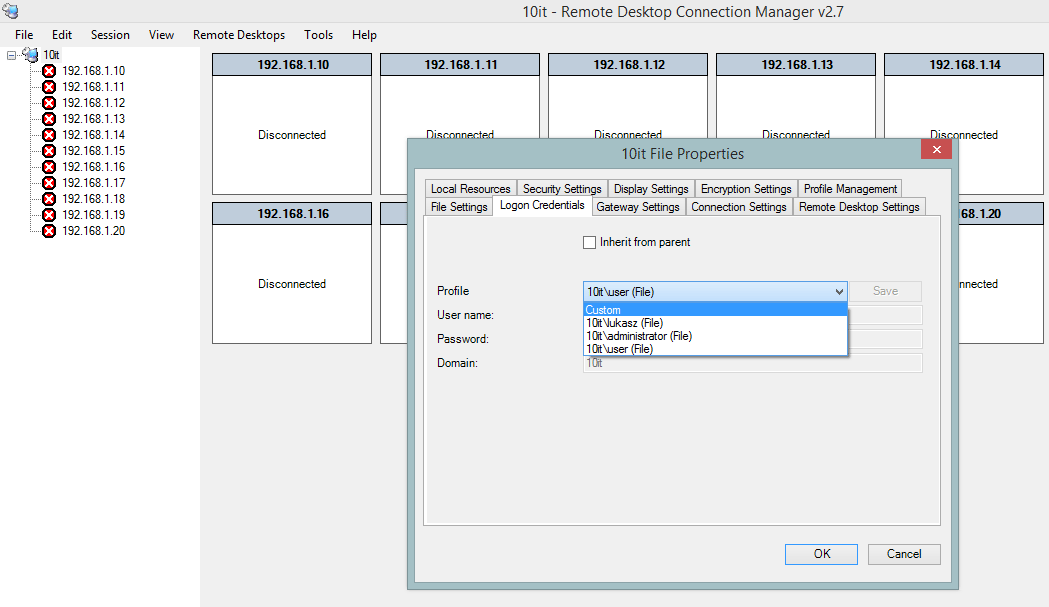
Step 3. Right-click and choose Properties.
Step 4. Go to the Logon Credentials tab.
Step 5. Enter your new password in the Password field.
Step 6. Re-enter it for confirmation.
Step 7. Click OK to save.
Pros:
- Enables bulk editing of connection settings, including passwords.
- Convenient for updating multiple credentials.
- Reduces repetitive manual work.
Cons:
- Must open each connection’s properties manually.
- Changes aren’t immediate until you save the file.
Method 3: Editing the configuration file
For advanced users, modifying the configuration file directly offers complete control. However, proceed carefully to avoid file corruption or errors.
Steps:
Step 1. Navigate to the RDCMan configuration folder:
`C:\Users\[Username]\AppData\Roaming\Microsoft\Remote Desktop Connection Manager`.
Step 2. Open the configuration file with a text editor like Notepad.
Step 3. Locate the section containing your connection settings.
Step 4. Find the line labeled password.
Step 5. Replace the old password with the new one.
Step 6. Save and close the file.
Pros:
- Direct control over password management.
- Update multiple connections simultaneously.
- Advanced customization capabilities.
Cons:
- Requires technical knowledge.
- Risk of errors if the file is edited incorrectly.
Method 4: Using Command Prompt
For those comfortable with command-line operations, the Command Prompt provides an efficient way to update passwords, especially useful for automation.
Steps:
Step 1. Open Command Prompt.
Step 2. Go to the RDCMan installation directory, usually:
`C:\Program Files (x86)\Microsoft\Remote Desktop Connection Manager`.
Step 3. Run the command:
RDMan.exe -u [username] -p [password]
Step 4. Replace `[username]` and `[password]` with your credentials.
Step 5. Press Enter to execute.
Pros:
- Ideal for automated or scripted password updates.
- Grants flexibility and control through command-line tools.
- Saves time for IT administrators managing multiple systems.
Cons:
- Requires command-line knowledge.
- Incorrect commands can lead to unintended configuration issues.
How to remove global credentials in RDCMan [2 methods]
At times, you may want to delete saved login details, especially if you’re updating or reconfiguring your connections. Here’s how to remote desktop connection manager remove global credentials safely.
Method 1: Remove file-scoped credentials manually
Credentials stored within a specific `.rdg` file can only be deleted manually. Follow these steps:
Step 1. Close RDCMan completely before making any changes.
Step 2. Navigate to the directory where your `.rdg` file is located. This file contains your saved connection details.
Step 3. Open the `.rdg` file using a text editor. While Notepad works, using Notepad++ is recommended for easier navigation since the file is written in XML format.
Step 4. Locate the section labeled `credentialsProfiles`.
Step 5. Inside this section, find and delete the specific `credentialProfile` entry you wish to remove.
Step 6. If certain connections have their own credentials (not inherited from the parent group), find and delete their corresponding entries under the `server` section as well.
Step 7. Save the file and reopen Remote Desktop Connection Manager.
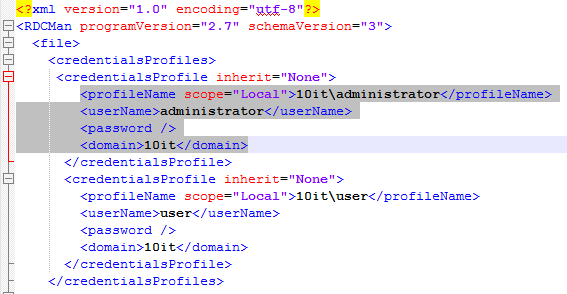
After reopening, the deleted credentials will no longer appear in your list of available profiles.
Method 2: Remove global credentials via Profile Management
For credentials stored globally (accessible to all connection files), you can remove them directly within the RDCMan interface:
Step 1. Launch Remote Desktop Connection Manager.
Step 2. Go to the top menu and select Tools > Options.
Step 3. Under the Default Group Settings, open the General tab.
Step 4. Click on Profile Management.
Step 5. From here, you can add, edit, or delete global credentials as needed.
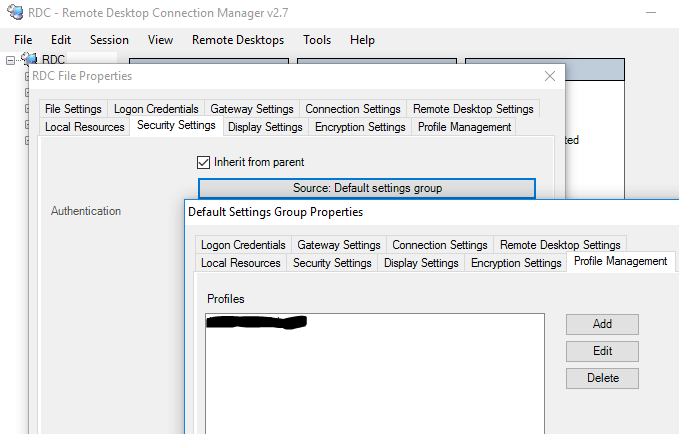
This method is faster and doesn’t require editing any files manually, making it ideal for general maintenance or quick cleanup.
AnyViewer: Best RDCMan alternative for secure and effortless remote management

While Remote Desktop Connection Manager (RDCMan) has long been a favorite for managing multiple remote connections, it’s no longer officially supported by Microsoft, which means potential compatibility and security concerns. That’s where AnyViewer comes in, a modern, secure, and user-friendly Remote Desktop Connection Manager alternative designed for both personal and business use.
Why Choose AnyViewer over RDCMan:
- Simple Setup: No need for complex configurations or manual credential management. Install AnyViewer on both devices and connect instantly with a secure code.
- Cross-Platform Compatibility: AnyViewer works seamlessly across Windows, macOS, iOS, and Android devices, allowing you to access and control computers remotely from anywhere.
- High-Level Security: It employs advanced ECC encryption and supports two-factor authentication (2FA) to ensure data safety and prevent unauthorized access.
- Unattended Access: Once set up, you can log in to remote devices anytime without requiring manual approval, perfect for IT maintenance or remote work.
- File Transfer & Multi-Session Support: AnyViewer enables fast, drag-and-drop file transfers and allows multiple sessions, making it an excellent solution for professionals managing numerous systems.
- Team & Enterprise Features: For organizations, AnyViewer offers account-based device management, remote monitoring, and permission settings, ensuring secure collaboration among team members.
In short, AnyViewer combines the convenience of RDCMan with modern cloud-based security and performance. It’s the ideal choice if you’re looking for an RDCMan alternative that’s fast, secure, and easy to use.
Conclusion
Changing the global password in Remote Desktop Connection Manager (RDCMan) is vital to maintaining the integrity of your remote connections. However, with Microsoft discontinuing RDCMan, users may face limitations and security risks. AnyViewer stands out as a powerful and reliable alternative, offering enhanced security, simplified management, and cross-platform access. Whether you’re an IT professional or a remote worker, AnyViewer ensures safe, smooth, and efficient remote control without the complexities of manual password management.



 as a preferred
source on Google
as a preferred
source on Google