

How to Allow Remote Desktop Connection from Outside the UK
This guide shows how to allow Remote Desktop Connection from outside the UK. It covers setting up Remote Desktop on Windows, securing your connection, and using AnyViewer for an easy and safe remote access solution.

By Ellie / Updated on October 29, 2025


How do I enable Remote Desktop Connection from outside the UK?
Remote desktop access has become a vital part of how businesses and individuals work today. Whether you’re a freelancer traveling abroad, an IT manager supporting servers from overseas, or simply someone wanting to access your home computer while visiting another country, knowing how to allow remote desktop connection from outside the UK can be a game-changer.

However, setting it up properly requires careful attention to security and configuration. If done incorrectly, it can expose your system to cyber threats or unauthorized access. This guide walks you through everything you need, from understanding RDP to configuring your network, router, and firewall, to safely allow remote access from any location worldwide.
Why you might need Remote Desktop access from outside the UK
There are several reasons you might want to access your desktop remotely from outside the UK:
- Remote Work and Business Travel: If your company’s systems or servers are based in the UK, you’ll need a reliable method to connect while abroad.
- Server and Network Management: IT administrators often require access to perform maintenance or monitor performance on UK-based servers.
- Personal Use: Perhaps you’re traveling for an extended period but still need access to your home PC, files, or software that’s only available there.
Having RDP enabled allows for seamless access, but keep in mind that this convenience comes with responsibility, particularly in ensuring a secure setup. This guide is especially useful if you are searching for how to allow remote desktop connection from outside UK Windows 10and Windows 11.
How to allow Remote Desktop Connection from outside the UK [Stepwise tutorial]
Setting up a connection from outside the UK involves more than just enabling Remote Desktop; it requires attention to security, network configuration, and device readiness. The following guide will walk you through these essentials to ensure your connection is both safe and stable.
Security considerations before enabling remote access
Before you jump into enabling RDP for external access, it’s crucial to consider the security implications. Leaving RDP open to the internet without proper safeguards can make your computer an easy target for hackers and brute-force attacks.
To secure your connection:
- Change the default RDP port (3389) to a custom one.
- Enable Network Level Authentication (NLA) to ensure only authorized users can connect.
- Use strong, complex passwords that combine letters, numbers, and symbols.
- Keep your Windows system updated to patch known vulnerabilities.
- Consider using a VPN or RDP Gateway for an added layer of encryption and authentication.
Treat remote access as a privilege, not a convenience. Proper preparation is the key to a secure connection versus a compromised one.
Prerequisites for allowing remote desktop access
Before enabling remote connections, ensure that your setup meets the following requirements:
- Operating System: RDP is available on Windows Professional, Enterprise, and Server editions. Home editions don’t include the RDP host feature by default. For guidance on how to allow remote desktop connections from outside the UK on Windows 10 or Windows 11, ensure your OS edition supports hosting RDP sessions.
- Network Access: You’ll need admin privileges to configure your router and firewall.
- Reliable Internet Connection: Both devices, the host (in the UK) and the client (abroad), should have stable connections.
- Public IP or Dynamic DNS (DDNS): To connect from outside the UK, you must know the external IP address of your UK network or set up DDNS for a consistent hostname.
Once these basics are covered, you’re ready to start enabling and configuring your system for external access.
Step-by-step guide to enable Remote Desktop on Windows
Here’s how to enable RDP on your host computer:
Step 1. Open Settings > System > Remote Desktop.
Step 2. Toggle "Enable Remote Desktop" to ON.
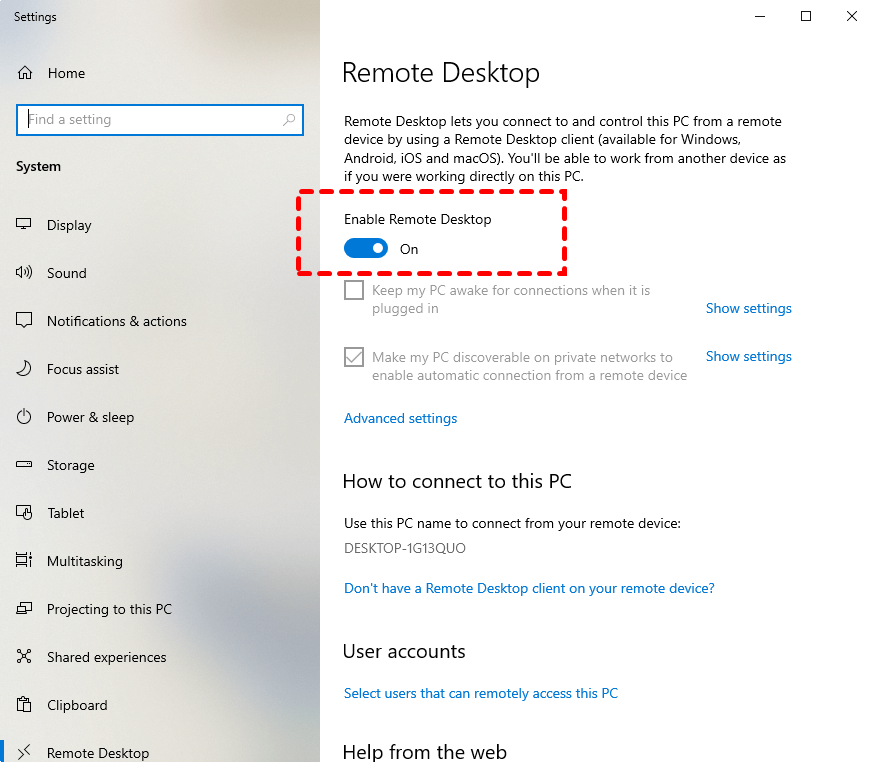
Step 3. Confirm by clicking "Confirm" when prompted.
Step 4. Take note of your PC name under "How to connect to this PC."
Step 5. Click "Select users that can remotely access this PC" to add or manage users.
For best results, use an account with strong credentials and avoid sharing access unnecessarily. Once enabled, your PC is ready for connections, but not yet accessible from outside the UK. You’ll need to configure your router and firewall next.
Finding your Public IP Address or Dynamic DNS
To connect to your remote desktop from outside the UK, you need to know how to locate your public IP address or set up a Dynamic DNS (DDNS) service.
Every device connected to the internet has an IP address, but most home or small business networks use dynamic IPs that change periodically. This can cause problems when trying to connect remotely, as your external IP may no longer match the one you saved earlier.
Here’s how to find and manage your IP address:
Step 1. Visit websites like https://www.whatismyip.com or simply type "What’s my IP" into Google.
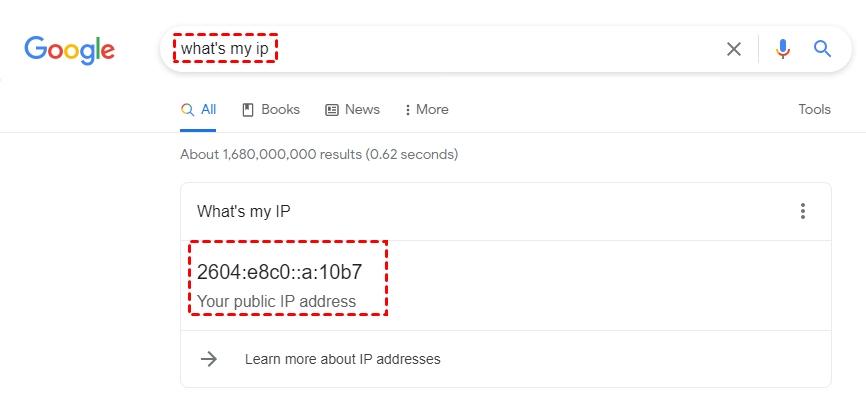
Step 2. Your router’s admin panel often lists the current public IP address under "Internet" or "WAN."
Step 3. DDNS services like No-IP, DynDNS, or DuckDNS give you a static domain name (like "myhomepc.ddns.net") that always points to your current IP, even if it changes.
By using DDNS, you won’t need to memorize or constantly check your IP; your remote desktop client will always connect using your chosen hostname.
Method 1. Enable port forwarding on your router
Before you can access your computer remotely over the internet, you’ll need to make sure your router knows where to send incoming connection requests. This process is called port forwarding, and it’s a crucial step in enabling Remote Desktop access outside your local network.
Configuring the router for port forwarding
Once RDP is enabled on your computer, you must configure your router to forward the RDP port (default is 3389) to your computer. Without this step, requests from outside your local network won’t reach your PC.
Here’s how to set it up:
Step 1. Access your router’s admin page, typically by entering "192.168.1.1" or "192.168.0.1" into your browser.
Step 2. Log in using the admin credentials.
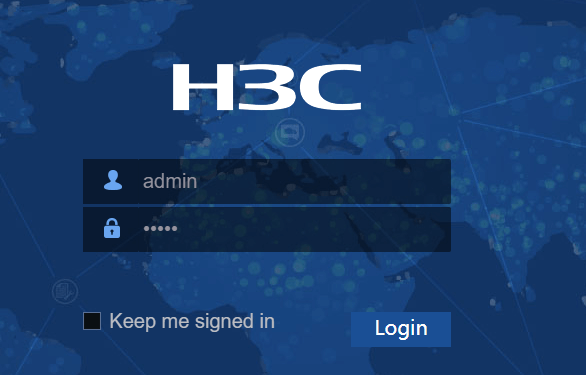
Step 3. Find the section labeled Port Forwarding, Virtual Server, or NAT Settings.
Step 4. Create a new rule:
- Service name: Remote Desktop
- Port range: 3389 (or your custom port)
- Protocol: TCP
- IP address: Local IP of your Windows PC (you can find this by running "ipconfig" in Command Prompt)
- Status: Enabled
Step 5. Save the changes and restart your router.
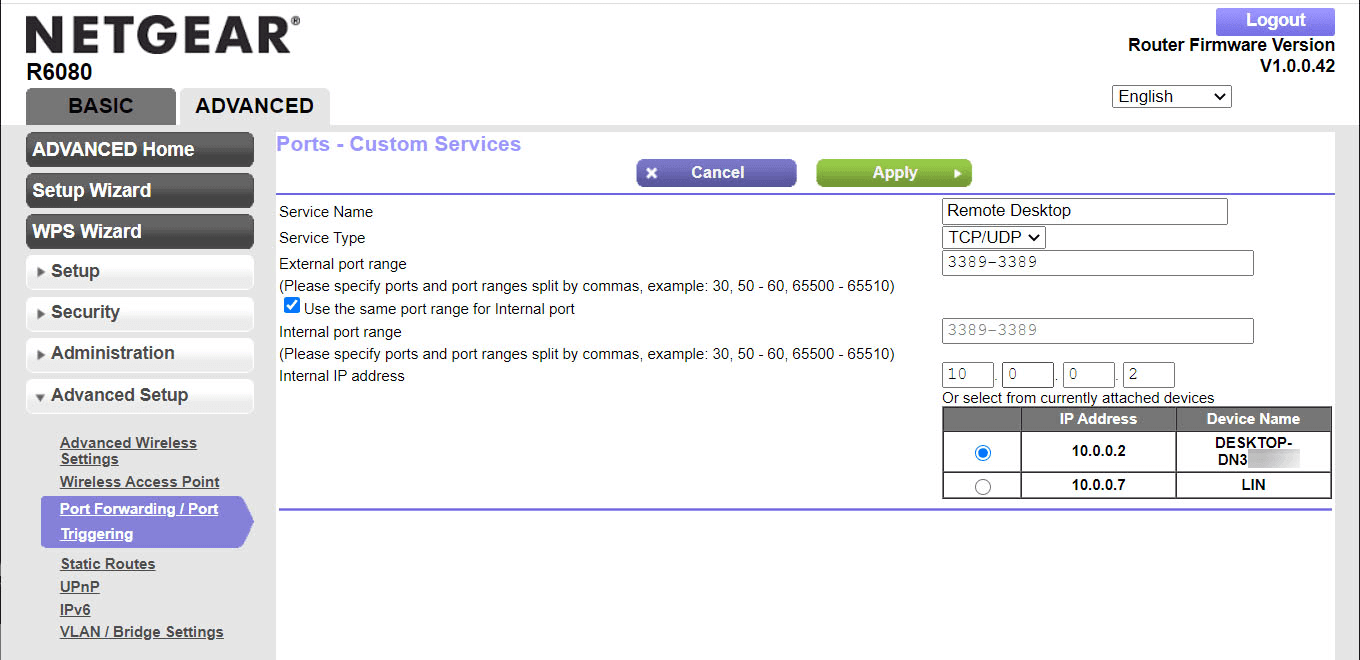
After configuration, your router will forward all incoming remote desktop traffic to your PC. To test the connection, try connecting from another network (like mobile data) using your public IP or DDNS hostname.
Setting up a static IP address on the host PC
A static IP address ensures your router always directs RDP traffic to the right device. Without it, your PC’s local IP might change after a reboot or DHCP lease renewal, breaking the connection.
How to set up a static IP on Windows:
Step 1. Open Control Panel > Network and Internet > Network and Sharing Center.
Step 2. Click Change adapter settings.
Step 3. Right-click your active network > Properties.
Step 4. Select Internet Protocol Version 4 (TCP/IPv4) > Properties.
Step 5. Choose Use the following IP address and enter:
- IP address: e.g., 192.168.1.100
- Subnet mask: 255.255.255.0
- Default gateway: your router’s IP (e.g., 192.168.1.1)
Step 6. Enter preferred DNS (Google DNS: 8.8.8.8, 8.8.4.4).
Step 7. Save settings and test your connection.
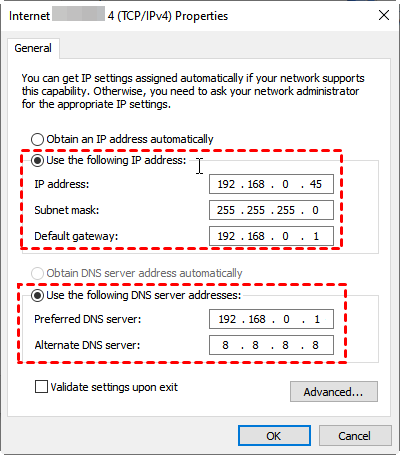
This static configuration guarantees your router’s port forwarding will always direct RDP traffic correctly.
Allowing Remote Desktop through Windows Firewall
Even if you’ve enabled RDP and set up port forwarding, Windows Firewall can still block incoming connections unless configured properly.
Follow these steps to allow RDP through the firewall:
Step 1. Open Windows Security > Firewall & network protection.
Step 2. Click Allow an app through firewall.
Step 3. Locate Remote Desktop and make sure both Private and Public boxes are checked.
Step 4. Click OK to save changes.

If you’ve changed the RDP port from 3389 to a custom one, you’ll also need to manually create a new inbound rule:
Step 1. Go to Advanced settings >Inbound Rules >New Rule.
Step 2. Choose Port, select TCP, and specify your custom port.
Step 3. Allow the connection and name the rule.
Now your Windows Firewall knows to permit RDP traffic, ensuring your computer is reachable from outside networks.
Method 2. Using VPN for secure remote desktop access
While opening RDP directly to the internet works, it’s not the safest option. Cybercriminals often scan IP ranges for open RDP ports to exploit. A VPN (Virtual Private Network) adds a protective layer by encrypting traffic and limiting access to trusted users only.
Why use a VPN for RDP?
- Encryption: All data between your device and the remote network is encrypted, preventing interception.
- Authentication: Only authorized users with VPN credentials can access the network.
- IP restriction: Your RDP port isn’t visible to the public internet.
How to set it up:
Step 1. Use a VPN-capable router or install VPN server software (like OpenVPN or WireGuard) on your UK network.
Step 2. Connect to the VPN from your device abroad using VPN credentials.
Step 3. Once connected, launch Remote Desktop and use the local IP of your host PC (e.g., 192.168.1.100).
This method is the most secure and recommended for accessing your system from outside the UK.
Alternative: Access your UK PC anywhere with AnyViewer
While traditional RDP setups work well, they can be complex to configure, require router changes, port forwarding, and constant security monitoring. For users seeking a simpler and more secure solution, AnyViewer is an excellent alternative for remote desktop access from outside the UK.

Why choose AnyViewer?
AnyViewer is designed for both personal and business use, offering seamless remote access without the technical hurdles of traditional RDP. Key advantages include:
- No Port Forwarding Required: Unlike RDP, AnyViewer works over the internet without requiring complicated router or firewall configurations.
- Cross-Platform Support: Access your Windows PC and Mac from any device, including other PCs, laptops, or even mobile devices.
- High Security: All connections are encrypted using industry-standard protocols, and you can enable device verification, one-click authorization, and strong password protection for added security.
- User-Friendly Interface: AnyViewer is designed to be intuitive, with a simple setup process that doesn’t require networking expertise. Even users without IT experience can quickly establish a secure remote connection.
- Enterprise Features: For businesses, AnyViewer offers centralized management, allowing administrators to monitor connected devices, assign access permissions, and track activity logs, ideal for managing multiple employees across different locations.
- Stable and Fast Performance: AnyViewer optimizes bandwidth usage to ensure smooth remote control, even over slower internet connections.
How to use AnyViewer from abroad
Step 1. Download and install AnyViewer on both your UK-based PC (host) and your device abroad (client).
Step 2. Sign in with the same AnyViewer account on both devices.

Step 3. From your client device abroad, select your PC from the device list and click One-click control. You can now control your desktop securely, as if you were sitting in front of it.

AnyViewer offers a hassle-free, secure, and versatile alternative to traditional RDP, especially for users who want remote desktop access from outside the UK without complex setup or extensive network configuration. Its combination of simplicity, security, and advanced management features makes it an ideal choice for both individuals and businesses.
Conclusion
If you’re wondering how to allow Remote Desktop Connection from outside the UK, this guide provides everything you need to connect efficiently and securely. Accessing your UK PC from abroad can make work and travel much easier. By carefully setting up RDP with proper security measures or using a simpler tool like AnyViewer, you can connect safely and reliably. Remember to secure your connection with strong passwords, VPNs, or firewalls to protect your data. Whether for business or personal use, following the right steps ensures seamless access.



 as a preferred
source on Google
as a preferred
source on Google