

Global Secure Access (GSA) Remote Network
Global Secure Access remote network helps organizations connect remote offices and workers safely. It uses Microsoft's network to enforce security, reduce delays, and simplify setup. Tools like AnyViewer add direct device access for easier IT management.

By Ellie / Updated on October 24, 2025


What is Global Secure Access?
The way people work has fundamentally changed. Work is no longer confined to traditional office spaces. Today, employees operate from homes, cafés, airports, and branch offices, often relying on cloud-based applications and data. This shift demands a modern security framework, one that is identity-aware, delivered from the cloud, and tailored to support hybrid and distributed work environments.
This framework is called Security Service Edge (SSE). Within Microsoft's ecosystem, SSE is implemented through two key services:
- Microsoft Entra Internet Access: Offers secure, identity-aware protection for internet and SaaS applications through a secure web gateway.
- Microsoft Entra Private Access: Enables secure, Zero Trust access to private enterprise resources, including apps, data, and legacy protocols, without the need for traditional VPNs.
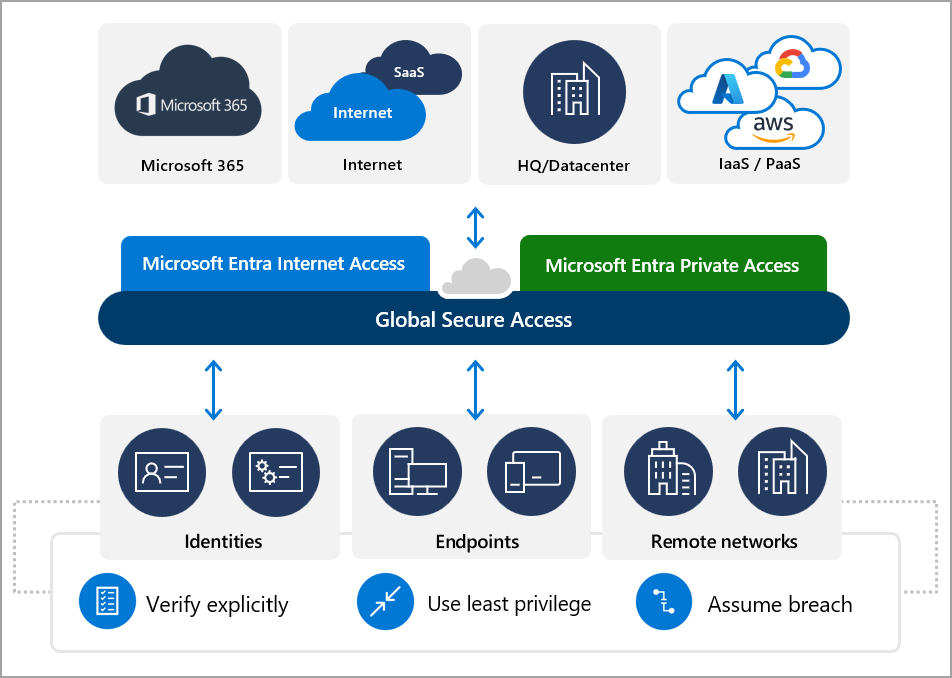
Global Secure Access (GSA) serves as the umbrella term for these services. It also provides a single, centralized interface in the Microsoft Entra admin center, allowing organizations to manage both Internet Access and Private Access seamlessly.
Built on Zero Trust principles, least privilege, explicit verification, and breach assumption, GSA integrates identity (via Microsoft Entra ID), device and contextual signals, and network traffic to enforce granular policies. With GSA, organizations can:
- Capture traffic from clients or remote networks and route it through Microsoft's global edge network (~70 regions and over 190 network edge locations) for policy evaluation.
- Apply identity-, device-, location-, and risk-based policies to control access to internet, SaaS, and private resources.
- Streamline deployment by unifying network, identity, and endpoint access controls, reducing the complexity of managing multiple, separate systems.
Why remote network connectivity with GSA matters
Modern enterprises are no longer confined to a single headquarters. Branch offices, satellite sites, home offices, and widely distributed teams have become the norm. These “remote networks” still require secure, reliable access to corporate resources, no matter where they are located.
What is a remote network?
A remote network refers to any corporate location outside the central office that needs internet connectivity, this could be a branch office, a satellite site, or a cluster of home offices. Such sites typically have on-premises equipment (CPE) and connect to the corporate network via WAN or VPN. Ensuring the security of these remote networks is critical to maintaining organizational integrity.
How GSA supports remote networks
Global Secure Access (GSA) allows organizations to securely link remote networks directly to Microsoft's Security Service Edge (SSE) infrastructure. Instead of backhauling all traffic to the corporate HQ, an IPSec tunnel can be established from the on-premises router at the branch to a GSA endpoint. Traffic routed through this tunnel enters Microsoft's global network, where identity-aware policies can be enforced at the edge.
Key benefits include:
- Reduced latency: Traffic is routed to the nearest GSA edge rather than traveling across the corporate backbone.
- Consistent policy enforcement: Identity-aware controls apply uniformly across users, devices, and networks.
- Simplified branch setup: Security and connectivity responsibilities are offloaded to the cloud edge, streamlining deployment.
- Zero Trust access for all locations: Least-privilege access is enforced even for remote networks.
It's important to note that GSA does not provide direct secure connectivity between two remote networks (e.g., branch-to-branch). For scenarios requiring remote network-to-network communication, alternative solutions such as Azure Virtual WAN should be considered.
How does Global Secure Access remote network connectivity work?
Connecting a remote network to Global Secure Access (GSA) is straightforward once you understand the steps involved. Here's a simplified overview:
Step 1. Prepare the remote site: Your remote location should have customer premises equipment (CPE), such as a router or firewall, capable of supporting IPSec, IKEv2, BGP, and related protocols.
Step 2. Define the remote network in Microsoft Entra: Specify details like the network name, region, and other relevant parameters.
Step 3. Create the device link or IPSec tunnel in GSA: Configure your CPE's public IP, BGP addresses, ASN, and other settings to establish the connection.
Step 4. Forward traffic to GSA: Traffic from the remote network is sent via a route-based VPN over the IPSec tunnel to Microsoft's GSA endpoint.
Step 5. Apply policies at the GSA edge: Once traffic reaches GSA, assigned policies, such as internet access, private resource access, and Microsoft traffic profiles, are enforced.
Step 6. Configure the partner endpoint on your CPE: Input Microsoft's endpoint details and establish the IPSec tunnel.
Step 7. Traffic flow begins: After the tunnel is active, traffic flows from the remote site to the GSA edge, then onward to its destination (Internet, SaaS, or private resources) with all applicable policies in effect.
Key Technical Details:
- Traffic selectors are generally configured as “any-to-any” (0.0.0.0/0) for outbound forwarding.
- Tunnel initiation is handled by the CPE (responder mode) to Microsoft's endpoint.
- Routing uses BGP, allowing Microsoft to advertise routes back to the remote network. Proper configuration of local and peer BGP IPs is essential, including reversing addresses where necessary.
- Firewall and port requirements: Ensure UDP ports 500 and 4500 (for IKE/IPSec) and TCP port 179 (for BGP) are open. If the ISP router is performing NAT, confirm that port forwarding is correctly handled.
By following these steps, organizations can securely connect remote networks to Microsoft's GSA infrastructure, ensuring low-latency, policy-driven access to corporate resources.
How to create a remote network with Global Secure Access
Setting up a remote network with Global Secure Access (GSA) involves several critical steps. The process ensures secure, policy-driven connectivity for your branch offices, satellite sites, or home-office clusters.
Prerequisites
Before creating a remote network, ensure the following:
- Administrator role: You must have the Global Secure Access Administrator role within your Microsoft Entra ID tenant.
- Licensing: Remote network connectivity requires Microsoft Entra ID P1 or P2 plus a Microsoft Entra Internet Access license, or an equivalent bundled plan.
- CPE requirements: Your on-premises router or firewall must support IPSec, IKEv2, strong encryption algorithms (GCMAES128/192/256), BGP, and route-based VPNs.
High-level steps
- Basics: In the Entra admin center, navigate to Global Secure Access >Connect >Remote Networks >Create. Enter a Name and Region, which determines the GSA edge endpoint.
- Connectivity: Add a device link by specifying your CPE's public IP, BGP addresses, ASN, traffic selectors, and related settings.
- Traffic Forwarding Profile: Assign the remote network to a traffic forwarding profile (internet access, Microsoft traffic, or private access) depending on the traffic type you intend to forward.
- View CPE Configuration: After creation, select the remote network >View Configuration. This displays Microsoft's endpoint details for your CPE setup.
- Set Up Your CPE: Configure the IPSec tunnel on your remote router or firewall using the provided Microsoft endpoint, encryption/IKE settings, and BGP peering. Once complete, traffic begins flowing.
Important checks & best practices
- Match the IKE crypto profile on your CPE with GSA's configuration; mismatched algorithms will prevent the tunnel from establishing.
- Ensure the Pre-Shared Key (PSK) is identical on both ends.
- Verify that local and peer BGP IPs are properly reversed (e.g., if CPE Local = IP1, Peer = IP2, then GSA Local = IP2, Peer = IP1).
- Ensure ASNs are unique between your network and Microsoft's.
- Confirm your CPE's public IP remains unchanged; a new IP will disrupt the tunnel until updated.
- Open necessary firewall ports: UDP 500 and 4500 for IPSec/NAT-Traversal, and TCP 179 for BGP.
- If your ISP router performs NAT, configure port forwarding to prevent UDP 500 from being altered, which could cause IKE Phase-1 failures.
- For added resilience, deploy dual WAN links in active-active or active-backup configurations. Some Microsoft SSE reference guides recommend two WAN links per edge site for redundancy.
Following these steps ensures your remote network is securely connected to Microsoft's GSA infrastructure, enabling low-latency, policy-driven access to the internet, SaaS, and private enterprise resources.
Key features & benefits of GSA
Global Secure Access (GSA) combines modern security principles with cloud-delivered connectivity, providing organizations with flexible, high-performance access to corporate resources.
Features
- Identity-Aware Secure Web Gateway (SWG): Protects internet and SaaS traffic through Microsoft Entra Internet Access, ensuring secure browsing and application use.
- Zero Trust Network Access (ZTNA): Delivered via Microsoft Entra Private Access, GSA removes the need for traditional VPNs, enforces per-app access, supports TCP/UDP traffic, and integrates deeply with Conditional Access policies.
- Global Backbone Integration: Leverages Microsoft's extensive private network (~70 regions, 190+ points-of-presence) to provide low-latency, high-visibility connectivity worldwide.
- Unified Administration: A single Microsoft Entra portal allows administrators to manage both internet and private access policies seamlessly.
- Flexible Traffic Acquisition: Supports both client-based traffic acquisition (via GSA Client on individual devices) and remote network forwarding, allowing branch offices to connect securely without installing software on every endpoint.
Benefits
- Support for Modern Work Environments: Users can securely access corporate resources from any location or device, supporting hybrid and distributed work models.
- Simplified Infrastructure: Converges identity, endpoint, and network controls, reducing the need to manage multiple systems.
- Enhanced Performance: Microsoft's global edge network reduces latency significantly, with some organizations reporting up to a 70–80% improvement compared to legacy VPNs.
- Stronger Security Posture: Zero Trust principles, least-privilege access, and continuous verification improve resilience against potential breaches.
- Cost Efficiency: Organizations can potentially retire legacy VPNs and SD-WAN backhaul architectures, reducing hardware requirements and operational costs.
- Granular Traffic Control: Traffic forwarding profiles allow administrators to precisely determine which traffic is routed through the SSE service, whether internet, SaaS, Microsoft apps, or private enterprise resources.
Known limitations and considerations of GSA
While Global Secure Access (GSA) provides robust remote network connectivity, there are important limitations and considerations organizations should be aware of:
- No Native Branch-to-Branch Connectivity: GSA does not inherently support secure, full-mesh connectivity between remote networks. For branch-to-branch traffic, solutions such as Azure Virtual WAN may still be required.
- Licensing Requirements: Ensure you have the proper Microsoft Entra ID licenses along with the necessary SSE (Security Service Edge) licenses, to enable full functionality.
- Feature Availability: Certain capabilities, particularly for macOS and iOS clients, may be in public preview and subject to updates or limitations as of specific release dates.
- Compatibility with Other SSE/SASE Vendors: When integrating GSA with other security vendors (e.g., Palo Alto Prisma Access, Cisco Secure Access), careful configuration of bypass rules, traffic steering, and compatibility checks is essential.
- IP and NAT Considerations: If public IP addresses change or NAT/port translation is not properly configured, IPSec tunnels can fail. Continuous monitoring and resilience planning are crucial.
- End-User Device Issues: Some users may experience device-level connectivity problems, such as mobile devices showing “connected but no access” or clients labeled as “disabled by your organization.” Thorough testing is recommended to mitigate these issues.
Understanding these limitations helps organizations plan effectively and ensure smooth, secure remote network operations when deploying GSA.
Complementing Global Secure Access with AnyViewer
While Global Secure Access (GSA) excels at providing secure, identity-aware access for remote networks and branch offices, many organizations also need direct remote desktop control for IT support services, troubleshooting, or managing off-site endpoints. This is where AnyViewer comes in.

What is AnyViewer?
AnyViewer is a secure, user-friendly remote desktop solution that allows IT teams or employees to access Windows, macOS, and mobile devices from anywhere. Unlike traditional VPNs, AnyViewer establishes a direct remote connection between devices without requiring complex network configurations.
Key benefits of AnyViewer
- Cross-platform support: Connect Windows, macOS, Android, and iOS devices seamlessly.
- Ultra-HD remote control: High-definition, low-latency access for real-time troubleshooting or monitoring.
- Secure access: Uses advanced encryption protocols, two-factor authentication, and privacy modes to protect data during remote sessions.
- No complex setup required: Users can quickly start a remote session without needing extensive network configuration.
- Ideal for hybrid workforces: Works in tandem with GSA's network-level security, giving IT teams both secure network access and endpoint-level control.
How AnyViewer complements GSA
- Secure endpoint management: While GSA ensures branch offices and remote networks are secure, AnyViewer allows administrators to directly access devices within those networks for maintenance, updates, or support.
- Reduced troubleshooting time: IT teams can instantly access remote endpoints without VPN tunnels or complex routing.
- Enhanced flexibility: Supports scenarios where remote network connectivity alone is insufficient, such as desktop-level interventions, software installations, or urgent problem-solving.
By combining Global Secure Access for secure network connectivity and AnyViewer for remote desktop control, organizations can achieve a fully secure, efficient, and flexible remote working environment.
Conclusion
In today's decentralized work environment, legacy security models simply don't cut it. The converged identity-and-network model embodied by Global Secure Access offers enterprises a modern, scalable way to enforce Zero Trust across users, devices, networks, and applications. By enabling secure remote networks (branches, hubs, remote worker clusters) with IPSec tunnels into Microsoft's edge infrastructure, organizations can apply consistent policy, ensure performance, and reduce architectural complexity.
Whether you're forwarding internet traffic from branch sites, providing private-app access without VPNs, or unifying policy across SaaS/internet/private resources, GSA is a compelling platform for the future of enterprise access. If you're planning a rollout, make sure you align roles, licensing, network equipment compatibility, and resilience plans from the start.



 as a preferred
source on Google
as a preferred
source on Google