

How to Remove Remote Management: 7 Effective Methods
This guide explains how to remove remote management from Windows, macOS, and mobile devices. It covers multiple methods; including settings, PowerShell, registry edits, MDM unenrollment, and third-party tools like AnyViewer; to ensure secure, private, and fully controlled devices.

By Ellie / Updated on September 22, 2025


Introduction
Remote management is a powerful tool that allows administrators to access, monitor, and control devices without physically being present. In corporate environments, it helps IT teams manage updates, troubleshoot problems, and maintain security. However, for individual users or personal devices, remote management can sometimes pose privacy risks, consume system resources, or give unwanted access to third parties.
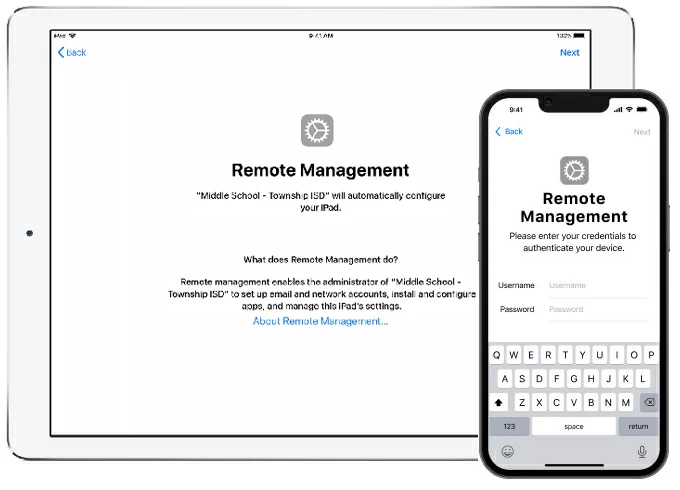
Knowing how to remove remote management is essential for maintaining security and performance. This article will walk you through multiple methods to safely disable or uninstall these features from Windows PCs, macOS devices, and mobile phones, ensuring your systems stay secure, private, and fully under your control.
We'll cover everything from simple settings adjustments to PowerShell commands, registry edits, MDM unenrollment, and professional IT support. By the end, you'll understand not only how to turn off remote management but also how to ensure complete remote management removal across different platforms.
Understanding Remote Management
Remote management is designed to give administrators control over devices. While useful in managed environments, it can sometimes be intrusive or unwanted on personal devices.
Remote Management in Windows
Windows PCs offer several remote management tools:
- Remote Desktop Protocol (RDP): Enables remote access to your PC from another device.
- Group Policy Editor: Allows centralized configuration management for multiple PCs.
- Microsoft Intune: Cloud-based enterprise management platform for Windows devices.
- Windows Remote Assistance: Lets trusted users access your system for support.
Each of these tools may require a different approach to removal, depending on whether it's a personal or corporate device.
Remote Management in macOS
Apple devices use Apple Remote Desktop (ARD) and MDM profiles:
- Apple Remote Desktop: Provides IT teams remote access for monitoring, updating, and troubleshooting.
- Mobile Device Management (MDM): Enables administrators to enforce policies, restrictions, and app installations.
If you're wondering how to turn off remote management on your Mac, identifying which tool is active is the first step before attempting removal.
Remote Management in Mobile Devices
Both Android and iOS devices support remote management:
- Android: Managed via Android Device Manager, Google Workspace, or third-party apps.
- iOS: Managed via MDM profiles installed on the device.
Removing these profiles ensures you know exactly how to remove remote management from mobile devices and regain full control.
Reasons to Remove Remote Management
There are multiple reasons why users might want to consider remote management removal:
- Privacy Concerns: Prevent administrators from monitoring activity.
- Security Risks: Reduce vulnerability to attacks that exploit remote management tools.
- Performance Issues: Background processes related to remote management can slow down devices.
- Unwanted Access: Devices inherited from work or purchased second-hand may still be enrolled in management systems.
- Device Ownership Change: Removing management ensures the new owner has full control.
By understanding these reasons, users can make informed decisions and choose the right removal method for their situation.
Preparing Before Removal
Before attempting to remove remote management, preparation is essential:
- Backup Data: Always back up your important files to an external drive or cloud storage.
- Verify Administrative Rights: Ensure you have admin privileges on the device.
- Identify Active Remote Management Tools: Check if your system uses RDP, Intune, ARD, or MDM profiles.
- Review Corporate Policies: If it's a work device, confirm you're allowed to unenroll it.
- Document Existing Settings: Note down any current configurations in case you need to restore them.
Preparation reduces the risk of data loss or system instability during the removal process.
Method 1: Disable via Windows Settings
Windows provides built-in tools to manage remote access. Here's how to remove remote management through settings:
Step 1. Open Settings > System > Remote Desktop.
Step 2. Toggle Enable Remote Desktop to Off.
Step 3. Click Confirm to save changes.
Step 4. Verify removal via Control Panel > System > Remote Settings.
Additional Tips:
- Disable Remote Assistance under System Properties > Remote.
- Check firewall settings to ensure RDP ports are closed.
- If your system is part of a network, consult your IT department to avoid policy conflicts.
This method is suitable for home users and small businesses who need to disable basic remote access features.
Method 2: Using PowerShell Commands
PowerShell allows advanced users to remove remote management efficiently:
- Disable Remote Desktop
Set-ItemProperty -Path "HKLM:\System\CurrentControlSet\Control\Terminal Server" -Name "fDenyTSConnections" -Value 1
- Remove MDM enrollment
Remove-Item -Path "HKLM:\SOFTWARE\Microsoft\Enrollments" -Recurse
Steps:
Step 1. Run PowerShell as Administrator.
Step 2. Execute commands carefully, ensuring syntax is correct.
Step 3. Restart the device to apply changes.
Why Use PowerShell:
- Automates multiple removals simultaneously.
- Useful for IT professionals managing multiple machines.
- Provides precise control over system configurations.
Always backup the registry before performing these commands.
Method 3: Remove via Group Policy Editor
The Group Policy Editor allows administrators to disable remote management policies:
Step 1. Press Win + R, type "gpedit.msc", and press Enter.
Step 2. Navigate to Computer Configuration > Administrative Templates > System > Remote Assistance.
Step 3. Disable policies like Allow Remote Assistance connections.
Step 4. Apply changes using "gpupdate /force" in CMD.
Benefits:
- Removes corporate-enforced settings on your machine.
- Provides a structured approach for multiple devices.
- Reduces chances of residual remote access after removal.
Method 4: Unenroll Devices from MDM
MDM profiles are common on Macs and mobile devices.
macOS:
Step 1. Open System Settings > Profiles.
Step 2. Select the management profile.
Step 3. Click Remove Profile and authenticate with admin credentials.
iOS:
Step 1. Navigate to Settings > General > Device Management.
Step 2. Select the MDM profile.
Step 3. Tap Remove Management.
Android:
Step 1. Open Settings > Security > Device Admin Apps.
Step 2. Disable admin access for the management app.
Step 3. Uninstall the app if allowed.
Tips:
- Ensure network connection is active when unenrolling.
- Reboot device after removal to ensure changes take effect.
- Some corporate devices may require IT approval for unenrollment.
Method 5: Editing Registry for Windows Devices
Advanced users can remove residual remote management references via registry edits:
Step 1. Press Win + R, type "regedit", and press Enter.
Step 2. Navigate to "HKEY_LOCAL_MACHINE\SOFTWARE\Microsoft\Enrollments".
Step 3. Delete unwanted entries.
Step 4. Restart the system.
Cautions:
- Incorrect edits can destabilize Windows.
- Backup the registry before changes.
- Use registry cleaner tools cautiously for automation.
Method 6: Using Third-Party Software
Third-party tools simplify the removal process:
- AnyViewer: Offers remote access management and safe removal of MDM profiles.
- CCleaner: Cleans registry remnants of management software.
- Advanced Uninstaller: Removes unwanted management apps and services.
Advantages:
- Reduces technical complexity.
- Ideal for non-technical users.
- Can be used for multiple devices simultaneously.
Method 7: Contacting IT or Support Services
For devices managed by corporate IT:
- Contact IT for proper unenrollment.
- Use official support channels, such as [Microsoft Support - Remove MDM](https://support.microsoft.com/).
- Avoid unauthorized removal that could void warranties or violate policies.
Using AnyViewer for Remote Management Removal and Control
If you're looking for an all-in-one remote desktop solution to manage or remove remote management, AnyViewer is one of the best options available. Unlike traditional tools that require technical knowledge, AnyViewer offers a simple, user-friendly interface while still being powerful enough for IT professionals.

Key Features of AnyViewer:
- Remote Access & Control: Securely connect to Windows PCs, iOS, or Android devices anytime, anywhere.
- MDM Profile Removal: Helps you remove unwanted mobile device management (MDM) profiles on Windows and mobile devices, restoring full control to the owner.
- Cross-Platform Compatibility: Supports Windows, iOS, and Android, making it ideal for personal use or small businesses with diverse devices.
- High Security Standards: End-to-end encryption and multi-factor authentication ensure safe remote sessions.
- Ease of Use: Designed for both beginners and advanced users, with quick setup and minimal configuration.
Why Choose AnyViewer for Remote Management Removal?
- Perfect for users who purchase second-hand devices still enrolled in MDM or corporate profiles.
- Offers a reliable way to remove remote access without complicated commands or registry edits.
- Provides ongoing remote support capabilities after removal, so you can still access devices securely when needed.
By combining ease of use with robust features, AnyViewer stands out as the best alternative for users who want both control and security when dealing with remote management.
Conclusion
Removing remote management ensures your devices remain private, secure, and fully under your control. With this guide, you now know how to remove remote management across different platforms using built-in settings, registry edits, or third-party software. Always back up data, verify permissions, and follow best practices to ensure safe remote management removal. Whether you're a home user or a small business owner, learning how to turn off remote management helps protect your privacy and improve overall device performance.
FAQs About Removing Remote Management
Q1: Can I remove remote management from a corporate device?
A: Only if permitted by your IT department; unauthorized removal may violate policies.
Q2: Will removing remote management affect my data?
A: Usually no, but back up important files to prevent accidental loss.
Q3: Is editing the registry safe to remove remote management?
A: It can be risky; always back up your registry before changes.
Q4: How can I tell if my device is under remote management?
A: Check settings such as Remote Desktop, Profiles, MDM enrollment, or management apps installed.
Q5: Can AnyViewer help remove remote management?
A: Yes, AnyViewer helps safely manage and remove remote management profiles on multiple platforms.
Q6: Does removing remote management improve device performance?
A: It can reduce background services, improving speed and responsiveness.



 as a preferred
source on Google
as a preferred
source on Google