

TOP 6 Free Commercial Remote Desktop Software
In search of commercial remote desktop software for your business needs? Look no further; this post presents the top six free commercial remote desktop software. Make your selection based on your specific requirements.

By Ellie / Updated on June 23, 2025


Free remote desktop for commercial use
I'm in search of software suitable for establishing remote desktop connections, compatible with both free and commercial purposes. It should offer the capability to connect with systems running Windows 7 and Windows 10. Moreover, having an iPhone application alongside this functionality would be highly advantageous. Any recommendations are much appreciated.”
- Question from Spiceworks

Free commercial remote desktop software [6 options]
Here are the top six free commercial remote desktop software. Assess their advantages and disadvantages meticulously to make an informed selection.
Option 1. AnyViewer: Professionally designed for seamless remote access

AnyViewer is a top-tier, free business remote desktop software solution that supports Windows, macOS, iOS, and Android. Unlike many third-party alternatives, AnyViewer offers full-featured access without any hidden costs, making it ideal for both personal and business use. Whether you're accessing your office computer from home, offering remote support, or managing devices on the go, AnyViewer ensures a smooth and secure connection every time.
Key Advantages:
- Cross-Platform Compatibility: Connect across major platforms, including Windows, macOS, iOS, and Android, offering flexibility no matter what device you’re using.
- Fast & Stable Performance: AnyViewer utilizes an optimized connection algorithm for ultra-low latency and up to 60 FPS, delivering a smooth and responsive remote experience.
- User-Friendly Interface: Designed with simplicity in mind, AnyViewer is easy to navigate for beginners, yet powerful enough for IT professionals.
- Robust Security: Sessions are protected with ECC encryption and two-factor authentication, ensuring your data and privacy are always safeguarded.
- Mobile Accessibility: With dedicated mobile apps for iOS and Android, you can remotely access your devices anytime, anywhere with just a few taps.
- Feature-Rich & Free: Enjoy a wide range of features such as file transfer, multi-session support, remote sound, screen sharing, real-time chat, and more — all at no cost.
- Affordable Plans for Businesses: AnyViewer offers budget-friendly plans with features designed for business use. Its flexibility makes it a great choice for teams of any size.
Option 2. Microsoft Remote Desktop: Built-in Windows feature
Microsoft Remote Desktop is free to use and is a popular choice, especially for accessing Windows-based systems. It's available for various platforms, including Windows, macOS, iOS, and Android.
Pros:
- Built-In Windows Feature: Microsoft Remote Desktop is built into the Windows operating system, which means you don't need to install third-party software to use it. It's also available for macOS, iOS, and Android.
- Security: It utilizes strong security features, including network-level authentication and encryption, to protect remote connections.
- Reliability: As a Microsoft product, it tends to be highly reliable and compatible with Windows-based systems.
- Performance: Microsoft Remote Desktop typically offers good performance for remote access to Windows machines, even over slower connections.
Cons:
- Complex Configuration: Configuring remote access can be complex, particularly if you need to set up your router and network for external access. It often requires port forwarding and firewall adjustments.
- Limited Features: It may lack some of the advanced features and collaboration tools found in dedicated remote desktop software solutions.
- Remote Access is Restricted to Windows Pro/Enterprise: On the host side, the full version of Microsoft Remote Desktop is typically available only on Windows Pro and Enterprise editions, which might limit compatibility.
Solution 3. Chrome Remote Desktop: Google Chrome extension
Chrome Remote Desktop is a free remote desktop solution generously offered by Google. It's easy to set up and use, and it's suitable for businesses on a budget. It works across different platforms, allowing you to access your desktop from various devices. It's especially useful if you use Google services like Google Chrome.

Pros:
- Easy Setup: Chrome Remote Desktop offers a remarkably straightforward setup process. All you need is a Google account, the Chrome browser, and the Chrome Remote Desktop extension to begin.
- Cross-Platform: Operating as a Chrome extension, it boasts cross-platform compatibility, enabling use on any device that supports the Chrome browser.
- Mobile Support: Chrome Remote Desktop extends its accessibility to iOS and Android users through a dedicated mobile version.
Cons:
- Google Account Requirement: The reliance on a Google account for remote access might be a drawback for those who prefer other browsers like Firefox.
- Lack of Chat Function: Users seeking to provide technical assistance may find it inconvenient as Chrome Remote Desktop lacks a chat function for communication during remote sessions.
Solution 4. Zoho Assist: Free plan for small businesses
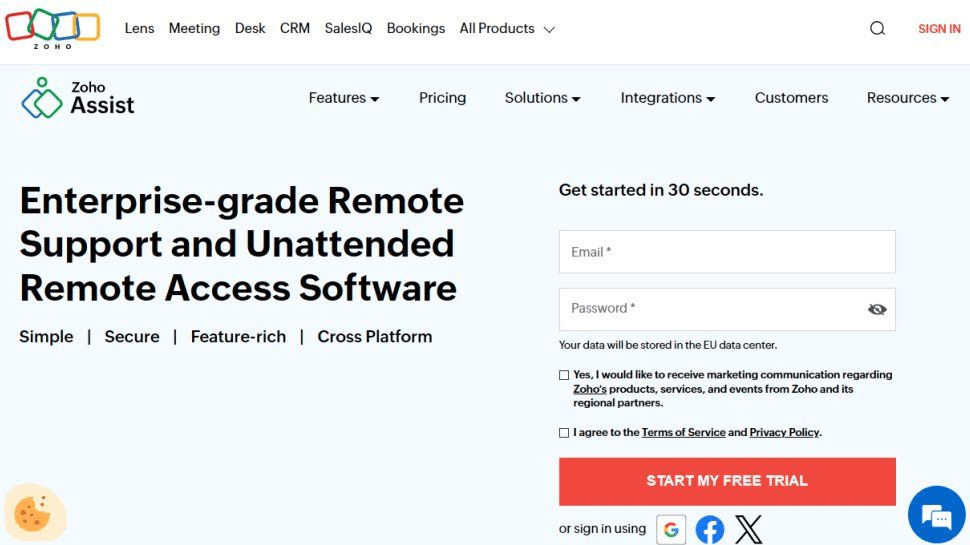
Zoho Assist offers a free plan for small businesses, providing remote support and unattended access solutions. This free version includes one technician and 5 computer licenses for unattended remote support, facilitating the management of overseas assets without any cost.
Pros:
- Swift Access: Users can initiate a session seamlessly without the need for installation, once they've logged into their Zoho Assist account.
- All-in-One: In addition to remote access, Zoho Assist provides a comprehensive set of features, including session recording, annotation, the execution of commands, and diagnostic tools.
Cons:
- Feature Limitations in Free Version: The free version of Zoho Assist offers limited functionality, with many advanced features only accessible through the purchase of higher-tier plans.
Solution 5. AeroAdmin: Easy-to-use option
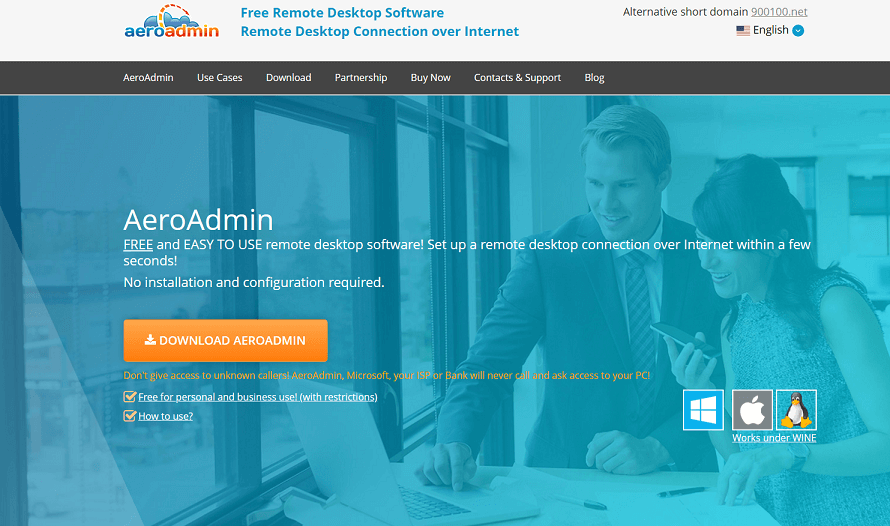
AeroAdmin is a user-friendly remote desktop software, offering a straightforward means to access and manage unattended remote computers. It stands out as a no-cost solution for both personal and business applications, earning acclaim for its simplicity and ease of use.
Pros:
- Quick and Easy Setup: AeroAdmin stands out for its swift and uncomplicated setup process. It dispenses with the need for intricate installations, making it notably user-friendly.
- Cross-Platform: Compatible with a range of operating systems, including Windows, macOS, and Linux, AeroAdmin ensures the ability to access and control various types of computers.
- No Router Configuration: Typically, AeroAdmin doesn't necessitate router or firewall configuration, streamlining the remote connection procedure in contrast to some other remote desktop solutions.
Cons:
- Limited Features: The free version of AeroAdmin often imposes limitations when compared to its paid counterparts. This can result in a lack of advanced features or integrations that businesses may require.
- Internet Dependence: Like many remote desktop solutions, the performance of AeroAdmin relies heavily on the quality and stability of the internet connection. Slow or unstable connections can significantly impact the remote desktop experience.
Solution 6. TightVNC: Lightweight & open-source choice
TightVNC is an open-source remote desktop software that is free for both personal and commercial use. It's lightweight and suitable for low-bandwidth connections. It's a good choice if you need a simple and free solution for remote access.

Pros:
- Cross-Platform Support: It is available for multiple operating systems, including Windows, Linux, and macOS, making it versatile for different users and devices.
- Lightweight: TightVNC is a lightweight application that consumes minimal system resources, making it suitable for older or less powerful computers.
- Simple Setup: The installation and configuration process is relatively straightforward, making it accessible to users with varying levels of technical expertise.
Cons:
- Limited Features: TightVNC offers only basic remote access and control features. It may lack some of the advanced functionalities provided by other remote desktop solutions.
- No Unattended Access: The free version typically lacks the ability to connect to a remote computer without someone at the other end granting permission.
- No Encryption: While TightVNC encrypts passwords, the remote desktop session itself may not be fully encrypted. This can be a concern for users requiring higher levels of security.
The bottom line
In conclusion, when it comes to choosing the best free commercial remote desktop software for your business needs, you have several strong options.
- AnyViewer: Offers a fast and secure connection with a user-friendly interface, making it an excellent choice for both personal and commercial use.
- Microsoft Remote Desktop: Built into Windows and available for various platforms, it's reliable but may require complex configuration.
- Chrome Remote Desktop: A simple setup, with cross-platform compatibility, but reliant on a Google account for access.
- Zoho Assist: Free for small businesses, it provides various features, though more advanced ones require higher-tier plans.
- AeroAdmin: Quick setup, cross-platform, and no need for router configuration, but may lack some advanced features.
- TightVNC: A lightweight, open-source option suitable for basic remote access, but with limited features.
Choose the one that aligns best with your specific needs and preferences.



 as a preferred
source on Google
as a preferred
source on Google