

5 Methods to Remote Reboot Unresponsive Computers (2026 Guide)
The article explains five ways to remotely reboot unresponsive computers. It covers using AnyViewer, command-line tools like PowerShell and CMD, Remote Desktop Protocol (RDP), and a graphical user interface (GUI). These methods help you manage remote systems even if you can’t access them physically.

By Ellie / Updated on March 24, 2026


Is your remote computer frozen or lagging? When a PC becomes unresponsive, a quick reboot is often the only way to restore performance. However, if you aren't physically near the machine, a simple power button press isn't an option.
In this guide, we’ll show you 5 tested methods to remote reboot an unresponsive computer, from professional software solutions to built-in Windows command-line tricks.
Quick Comparison: Which Method Should You Choose?
Before diving into the steps, use this table to find the fastest solution for your current situation.
| Scenario | Best Method | Difficulty | Success Rate |
| Across Different Networks | AnyViewer (Recommended) | Low | 100% |
| Local Network (LAN) | PowerShell | High | 85% |
| Already in RDP Session | Command Prompt (CMD) | Medium | 75% |
| Advanced Users | Alt + F4 Shortcut | Low | 80% |
| Visual/GUI Interface | Remote Shutdown Dialog | Medium | 70% |
How to Remote Reboot Unresponsive Computers
Explore the most dependable techniques for remotely rebooting a PC with efficiency. Here is a list of top software options tailored to meet your specific requirements.
Method 1: The Easiest Way via AnyViewer (Recommended)
Built-in Windows tools like CMD or RDP can fail due to “Access Denied” errors or firewall restrictions. AnyViewer offers a simple one-click solution to bypass these issues—no need for traditional remote access. It’s especially useful in emergencies where the system is unresponsive, but the network connection is still active.
Why AnyViewer is the Best Choice for Remote Reboot:
- No "Access Denied" Headaches: Unlike CMD/PowerShell, AnyViewer doesn't require matching administrator accounts or complex "Remote Registry" tweaks.
- Bypasses Firewall Restrictions: AnyViewer uses an optimized NAT traversal technology, meaning it works across different networks and routers without port forwarding.
- Full Windows Support: It works on Windows Home Edition, which natively lacks the Remote Desktop (RDP) feature.
- Auto-Reconnect Feature: The biggest fear of a remote reboot is losing the connection. AnyViewer can be set to "Start with Windows," allowing you to log back in the second the PC hits the lock screen.

How to Reboot an Unresponsive PC in 3 Clicks:
Step 1. Begin by downloading and installing AnyViewer on both your local and remote computers.
Step 2. Next, create an AnyViewer account and log in on both devices.

Step 3. From your local device, select the remote computer and click "Reboot" to initiate the restart process.
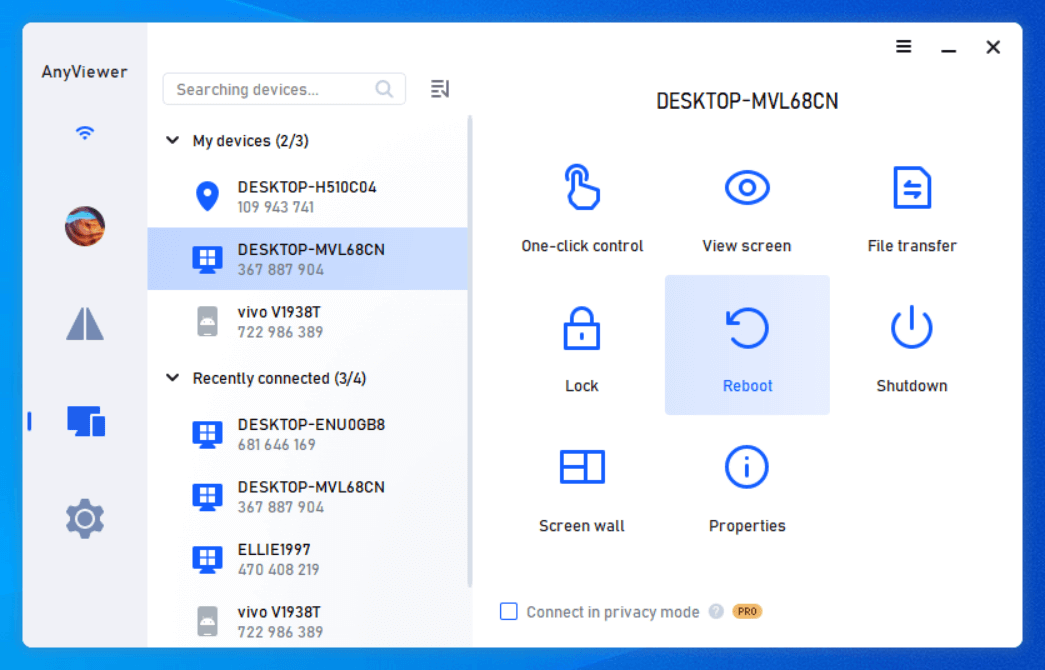
Go to Settings > Basics, then enable “Start AnyViewer with Windows” to keep remote access active after a restart.
Method 2: Remote Reboot via PowerShell
PowerShell is a robust command-line tool within the Windows environment, providing a versatile approach to managing remote computers. Using PowerShell to shut down or restart remote systems offers a straightforward and reliable method, especially for those familiar with command-line operations. Here’s a guide on how to use PowerShell for this purpose:
Step 1. Press Win + X to open the power menu and select Windows PowerShell (Admin). To start a remote session, run the command:
- Enter-PSSession -ComputerName "RemoteComputerName" -Credential (Get-Credential)
Step 2. Once connected, shut down the remote computer using:
- Stop-Computer -ComputerName "RemoteComputerName" -Force
Step 3. To restart the remote computer, use:
- Restart-Computer -ComputerName "RemoteComputerName" -Force

Method 3: Using the Command Prompt (For LAN Users)
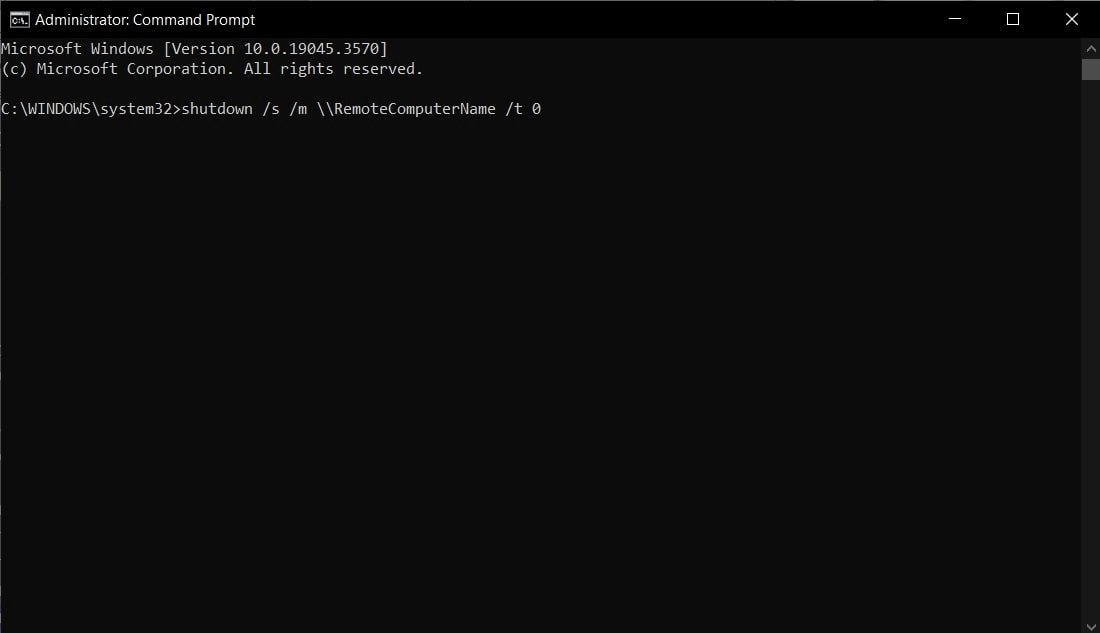
Using the Command Prompt (CMD) for remote reboots or shutdowns is a practical method for those familiar with command-line tools. With the right commands and proper access, CMD can effectively manage these tasks on a remote PC. Here’s a guide to reboot remote computer from Command Prompt:
Step 1. Search for "CMD" in the Windows Search bar, right-click on it, and select "Run as administrator." Once CMD is open with administrative privileges, use the following command to start a remote session:
- psexec \\RemoteComputerName cmd
Step 2. Within the remote session, shut down the remote computer by executing:
- shutdown /s /m \\RemoteComputerName /t 0
Step 3. To restart the remote computer, use:
- shutdown /r /m \\RemoteComputerName /t 0
Method 4: The "Alt + F4" Trick (For RDP Sessions)
If you are currently connected via Remote Desktop (RDP) but the Start Menu is frozen or the "Restart" button is missing, use this classic Windows shortcut.
How to do it:
Step 1. Minimize all open windows on the remote desktop.
Step 2. Click on any empty space on the Remote Desktop wallpaper.
Step 3. Press Alt + F4.
Step 4. In the dropdown menu, select Restart and click OK.
Method 5: Using the Remote Shutdown UI (GUI)
Using a Graphical User Interface (GUI) to remotely shut down or restart a computer provides an easy and intuitive method, ideal for those who prefer visual tools over command-line options. The "shutdown /i"command is key here; it opens a graphical dialog box where you can select or enter the name or IP address of the remote computer.
From this dialog, you can choose whether to shut down or restart the remote PC and add a comment if needed. Here’s a guide on how to use the GUI for remote shutdown or restart:
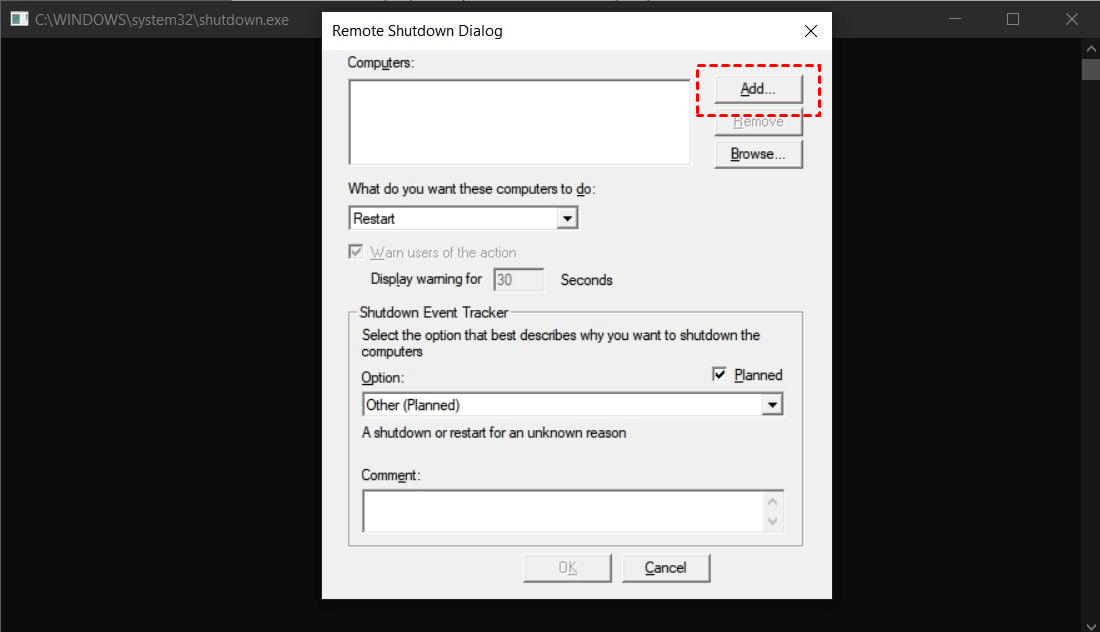
Step 1. Open the Run dialog by pressing Win + R, type "shutdown /i", and hit Enter. This will launch the Remote Shutdown Dialog where you can enter the name or IP address of the target PC by clicking "Add."
Step 2. Choose the desired action from the "What actions would you like to perform on these computers" options, such as "Shutdown," "Restart," or "Annotate Unexpected Shutdown." If you wish to notify users before the action, check the "Warn users of the action" box.
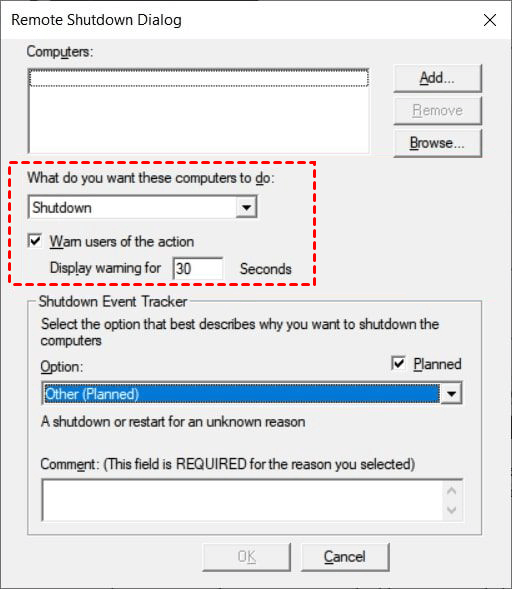
Step 3. You can select a reason and add a comment in the "Shutdown Event Tracker" section. After entering all necessary details, click "OK" to start the shutdown or restart process.

Conclusion
While Windows commands are powerful, they often require complex permissions that are difficult to manage when a machine is already frozen. To remote reboot unresponsive computers efficiently and without technical hurdles, AnyViewer stands out as the most reliable, one-click solution for modern remote work.
Download AnyViewer free and ensure you never lose access to your remote workstation again.



 as a preferred
source on Google
as a preferred
source on Google