

How to Use PowerShell to Get Monitor Information from Remote Computer
Audit remote monitors using PowerShell and WMI. This guide covers hardware data retrieval, troubleshooting common remote errors, and offers AnyViewer as a streamlined solution for managing remote displays.

By Ellie / Updated on May 9, 2026


Managing a fleet of workstations requires visibility. Whether you are auditing hardware assets or troubleshooting a user's dual-monitor setup, knowing how to use PowerShell to get monitor information from a remote computer is a vital skill for any system administrator. Manually checking every desk is inefficient; automating the process via the command line is the professional standard.
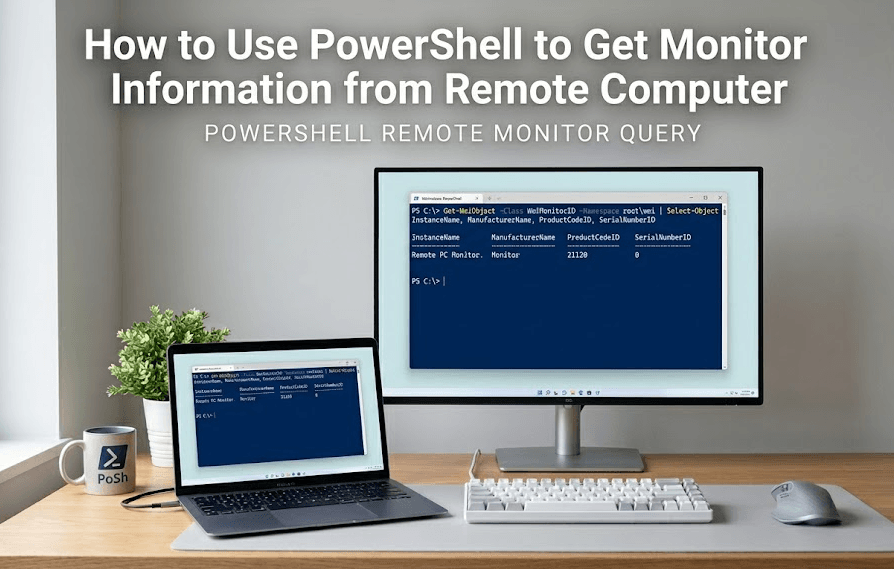
In this guide, we will break down the methods for retrieving display data, including screen resolution, manufacturer details, and connection types, all without leaving your terminal.
What is PowerShell Remote Monitor Auditing?
When we talk about using PowerShell to get monitor information from a remote computer, we are referring to the process of querying the Windows Management Instrumentation (WMI) or Windows Management Infrastructure (MI) framework on a secondary machine over the network.
Unlike basic system info, monitor data is often tucked away in deep WMI classes like "WmiMonitorBasicDisplayParams" or stored within the Registry. PowerShell acts as the bridge, allowing you to pull these hardware identifiers, such as Serial Numbers and Active Status, from dozens of machines simultaneously.
Benefits of Retrieving Monitor Data via PowerShell
Why use scripts instead of third-party GUI tools?
- Scalability: Query one computer or one thousand with the same three lines of code.
- No Cost: You are using native Windows tools already built into the OS.
- Automation: You can export the results directly to a CSV or a SQL database for inventory management.
- Zero User Interruption: You gather the data in the background while the employee continues their work.
How to Get Monitor Information from a Remote Computer Using PowerShell
To successfully run these commands, ensure you have Administrative privileges and that PSRemoting is enabled on the target machine ("Enable-PSRemoting -Force").
Method 1: Using WMI (The Standard Approach)
The most reliable way to pull monitor specifics is through the "WmiMonitorBasicDisplayParams"class located in the "root\wmi"namespace.
|
$ComputerName = "RemotePC01" Get-CimInstance -Namespace root\wmi -ClassName WmiMonitorBasicDisplayParams -ComputerName $ComputerName | Select-Object PSComputerName, InstanceName, Active, MaxHorizontalImageSize, MaxVerticalImageSize |
Method 2: Retrieving Serial Numbers and User-Friendly Names
The output from WMI is often encoded in VBScript-style arrays. To make it readable (e.g., converting ASCII codes to "Dell U2414H"), you need a more advanced script.
|
$ComputerName = "RemotePC01" $Monitors = Get-CimInstance -Namespace root\wmi -ClassName WmiMonitorID -ComputerName $ComputerName
foreach ($Monitor in $Monitors) { $Manufacturer = [System.Text.Encoding]::ASCII.GetString($Monitor.ManufacturerName -notmatch 0) $Name = [System.Text.Encoding]::ASCII.GetString($Monitor.UserFriendlyName -notmatch 0) $Serial = [System.Text.Encoding]::ASCII.GetString($Monitor.SerialNumberID -notmatch 0)
[PSCustomObject]@{ ComputerName = $ComputerName Manufacturer = $Manufacturer Model = $Name SerialNumber = $Serial } } |
Method 3: Checking Screen Resolution
If you specifically need the current resolution settings rather than hardware specs:
|
Get-CimInstance -ClassName Win32_VideoController -ComputerName "RemotePC01" | Select-Object CurrentHorizontalResolution, CurrentVerticalResolution, Caption |
Troubleshooting: PowerShell Get Monitor Information Remote Computer Not Working
It is common to run into hurdles. If you find PowerShell get monitor information from a remote computer not working, check these three primary culprits:
- Namespace Permissions: The "root\wmi" namespace is more restrictive than the standard "root\cimv2". Ensure your account has explicit permissions to access WMI remotely.
- Firewall Blocks: Ensure "Windows Management Instrumentation (WMI-In)" is allowed through the Windows Defender Firewall on the target machine.
- Empty Results: If a monitor is powered off or disconnected, WMI may return nothing. The monitor must be "Active" for the OS to report its EDID data.
A Faster Alternative: AnyViewer for Remote Management
While PowerShell is powerful, it has a steep learning curve and frequently runs into credential or WinRM issues. If you need to manage remote displays without writing complex scripts, AnyViewer is a robust alternative.
AnyViewer is a professional remote desktop solution that allows you to:
- View Multiple Monitors: Easily switch between or view all monitors of a remote PC in one window.
- Instant Diagnostics: See hardware configurations through a user-friendly GUI.
- Reliability: Unlike PowerShell, which can fail due to complex WMI permissions, AnyViewer connects seamlessly across different networks, making it ideal for remote support.
Whether you are an IT pro or a casual user, having AnyViewer in your toolkit ensures you aren't stuck when a script fails.
Summary
Learning to use PowerShell to get monitor information from a remote computer saves hours of manual labor and provides a clean, data-driven approach to hardware auditing. While WMI classes like "WmiMonitorID" provide the depth you need, remember that network configurations can sometimes cause scripts to fail. For those moments when you need an immediate, visual connection to a remote display, a tool like AnyViewer is the perfect companion to your PowerShell library.
FAQs
Why does my script return "Access Denied"?
Can I get the monitor's manufacture date?
Does this work for laptops with integrated screens?
How do I export this data for 50+ computers?
You can wrap your command in a "foreach" loop and pipe the results to "Export-Csv":
| $Computers = Get-Content "C:\scripts\pc_list.txt" $Computers | ForEach-Object { Get-MonitorInfo -ComputerName $_ } | Export-Csv "C:\Inventory.csv" -NoTypeInformation |



 as a preferred
source on Google
as a preferred
source on Google