

How to Run Android Apps on iOS [No Jailbreak Required!]
This post primarily introduces the top two ways to run Android apps on iPhone with or without jailbreak. Whether you prefer the simplicity of a straightforward process or seek more customization, these methods cater to your diverse needs.

By Ellie / Updated on January 23, 2026


Is it possible to run Android apps on iOS?
iOS and Android are distinct operating systems with different architectures and app ecosystems, and they have different security measures in place. Technically, it is generally not possible to directly run Android apps on iOS devices, and vice versa.
However, with some form of emulation or third-party solutions, it is possible to run Android apps on iPhone in some way. This post will explore how to make this happen.
How to run Android apps on iPhone [2 ways]
There exist two prevalent methods to run Android apps on iPhone: employing third-party mobile control solutions designed for both Android and iOS or utilizing emulators. The following introduces how to run Android apps on iPhone with or without jailbreak, providing examples and detailed steps for each approach.
Way 1. Use AnyViewer to run Android apps (No jailbreak required)
For a seamless and high-performance experience, the optimal approach is to use AnyViewer. This top-tier remote mobile control software allows you to remotely manage your Android device from your iPhone, essentially turning your iOS device into a portal for all your Android applications, and even play Android Games on your iPhone.
Why AnyViewer is the Best Choice:
- Zero Risk: Unlike emulators, AnyViewer requires no jailbreak, keeping your iPhone's warranty and security intact.
- Native Performance: Since the apps are running on your Android phone's hardware, you get 100% compatibility and smooth performance.
- Minimal Setup: No complex coding or technical knowledge is needed. You can be up and running in under 3 minutes.
Steps to Run Android Apps via AnyViewer
Follow these streamlined steps to mirror and control your Android apps on iOS effortlessly:
Step 1. Get AnyViewer from the Google Play Store on your Android and the Apple App Store on your iPhone.
Step 2. Open AnyViewer on your Android device and sign up for a free account to sync your devices.
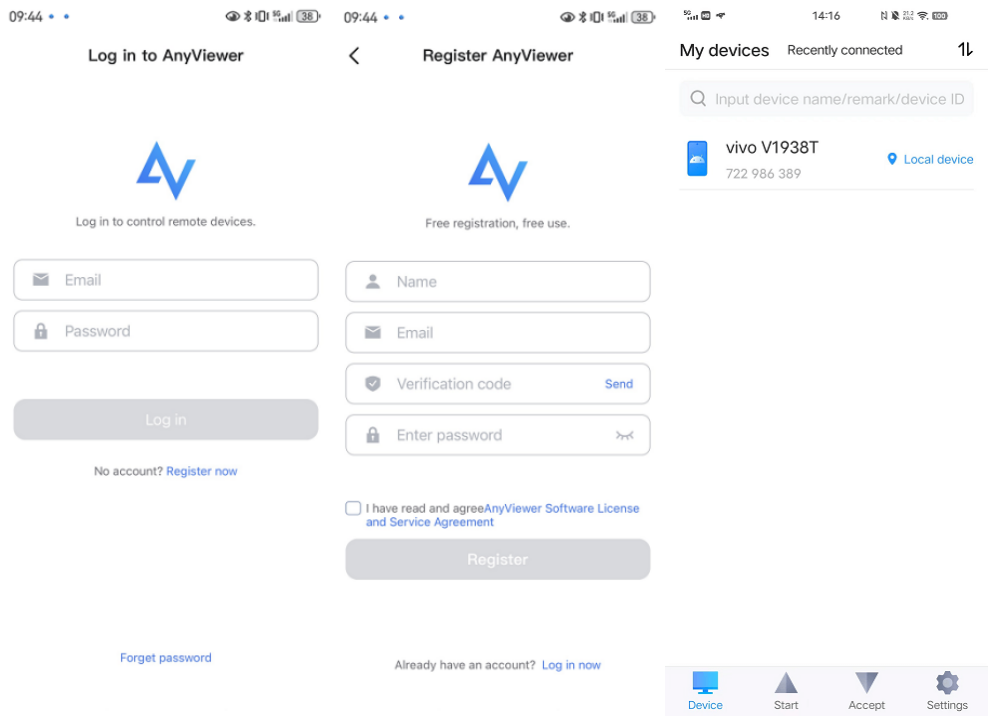
Step 3. Launch AnyViewer on your iPhone and log in using the same credentials you just created.
Step 4. Go to the "My Devices" tab on your iPhone. Locate your Android device in the list and tap "Remote control" to establish an instant connection.
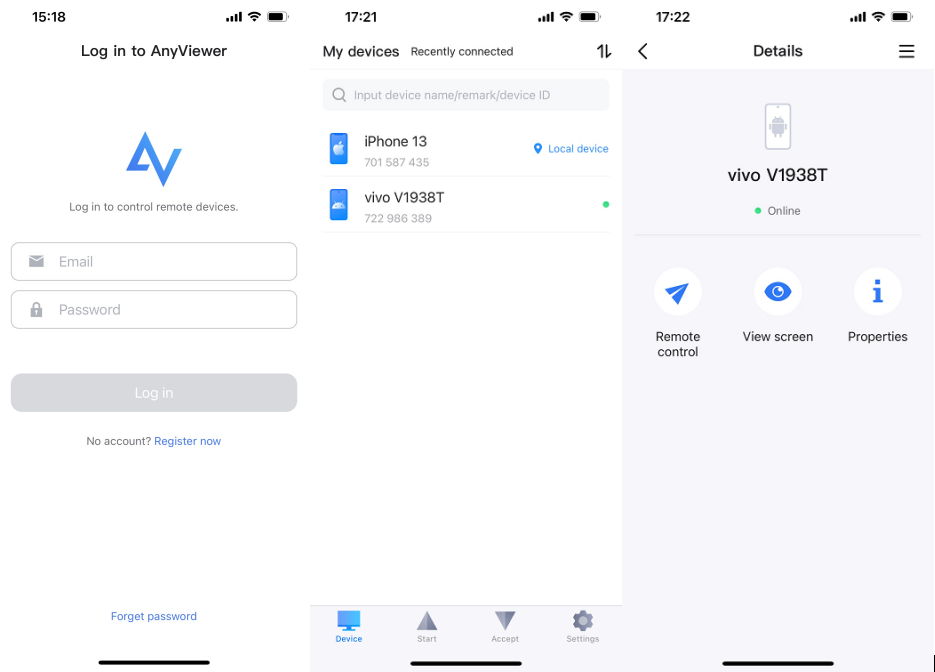
Step 5. On the Android device, accept the control request. For a truly hands-free experience, enable the AnyViewer Auxiliary Service in your Android’s Accessibility settings.

Step 6. Your Android screen will now appear on your iPhone. You can now open any app, from WhatsApp to Android-exclusive games, and control them with native-feeling touch gestures.
For a seamless experience in running Android applications on your iPhone, the optimal approach involves leveraging mobile control software designed for both Android and iOS. This category of software enables users to remotely manage their Android devices from their iPhones, effectively simulating the experience of using an Android phone directly on the iOS platform.
Way 2. Android Emulator for iOS (Jailbreak needed)
If you do not have access to a physical Android device, you can use an emulator. This practice "mimics" the Android OS within your iPhone's system. However, be aware that this often leads to lag, battery drain, and potential security risks.
One of the most well-known emulators is iAndroid. It is designed specifically for jailbroken devices, as it requires deep system access that Apple normally restricts.
Step 1. If you haven't installed Cydia on your device, begin by installing the "Cydia store." Skip this step if Cydia is already installed.
Step 2. Once Cydia is installed, tap and launch the app. Wait for the Cydia store Home Page to load.
Step 3. Click on the "Manage icon" located in the Bottom Bar. In the displayed options, tap "Sources."
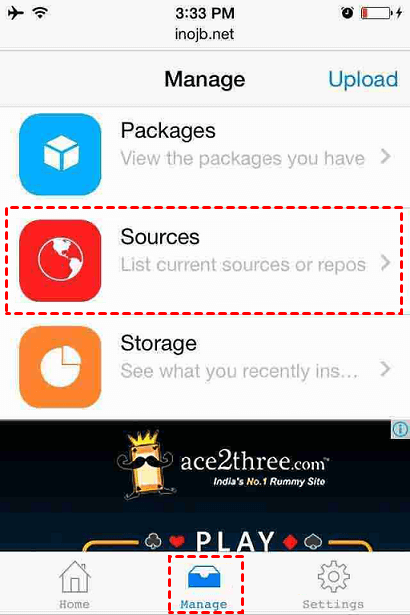
Step 4. Add the "iAndroid Repo source" by selecting "OK" and then choosing the "Add" option.
Step 5. A pop-up box for "Repo source" appears. Enter the provided source and click "OK."
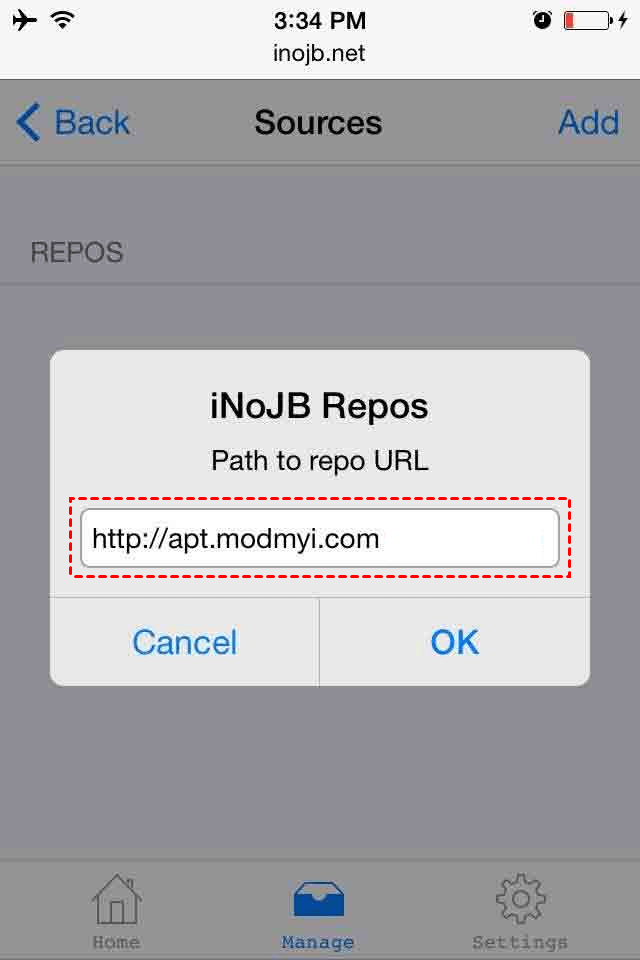
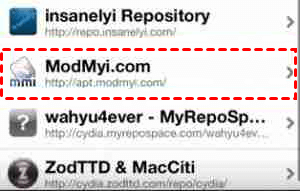
Step 6. Return to the packages icon and open "ModMyi.com." Look for the "iAndroid repo source" and select it.
Step 7. Find the "Install" option on the page (Top Right corner) and wait for a few seconds for the successful installation.
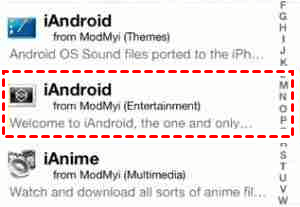
Step 8. Once the installation is error-free, the emulator is successfully installed. Launch the app.
Step 9. If you encounter an "Untrusted Enterprise Developer Error," trust the certificate to proceed.
Way 3. Cloud-based Android Virtual Machines (VMs)
If you don't own an Android device and don't want to jailbreak your iPhone, Cloud Android VMs (like Redfinger or VMOS) are a modern alternative. These services host a virtual Android system on a remote server that you access via an app or browser.
- Pros: Works 24/7 without consuming your iPhone's battery.
- Cons: Requires a paid subscription (usually expensive) and a high-speed internet connection to avoid input lag.
How it works:
Step 1. Download Redfinger iOS app on your iPhone.
Step 2. Select a server location (choose the one closest to you for less lag) and pay for a subscription.
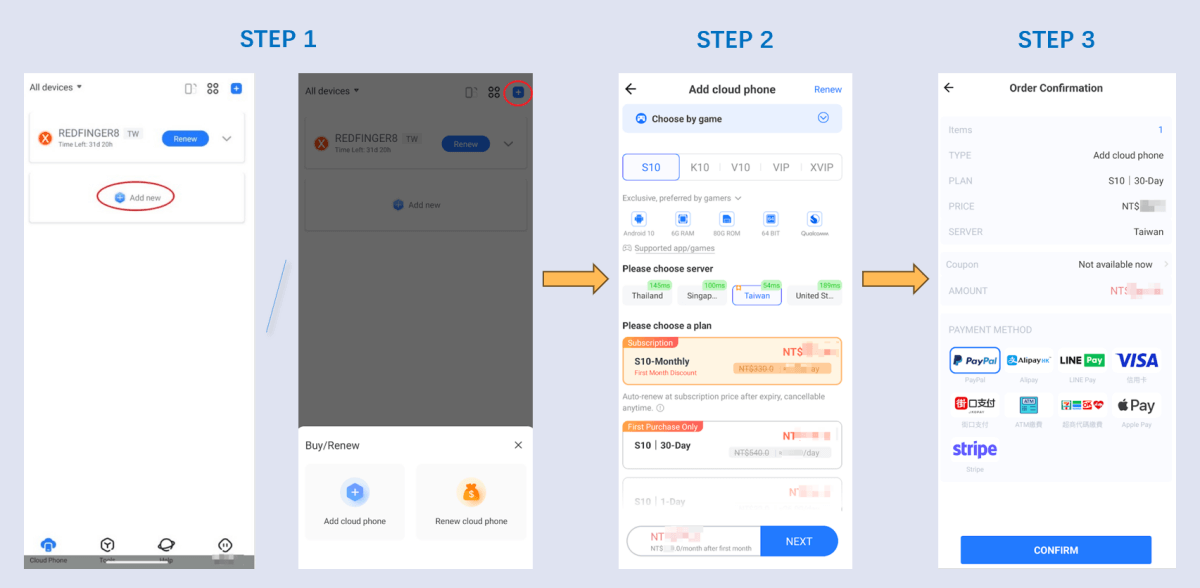
Step 3. Open the cloud phone.
Step 4. Open the Google Play Store within the virtual window, sign in to your Google account, and download the necessary apps.
Step 5. Go to the cloud phone settings and set the resolution to 720p if your connection is unstable to ensure smoother playback.
Way 4. Third-party app installers & web-based wrappers
Some third-party "stores" like AppValley or TweakBox claim to offer "Android-style" apps or tweaked versions of Android-exclusive software for iOS.
- Pros: No jailbreak required; easy to download.
- Cons: High security risk. Apple often revokes these apps, and downloading unverified profiles can expose your data to malware.
How it works:
Step 1. Open Safari and go to a site like AppValley or TweakBox.
Step 2. Click "Install" on the website. A popup will say "This website is trying to download a configuration profile." Tap Allow.
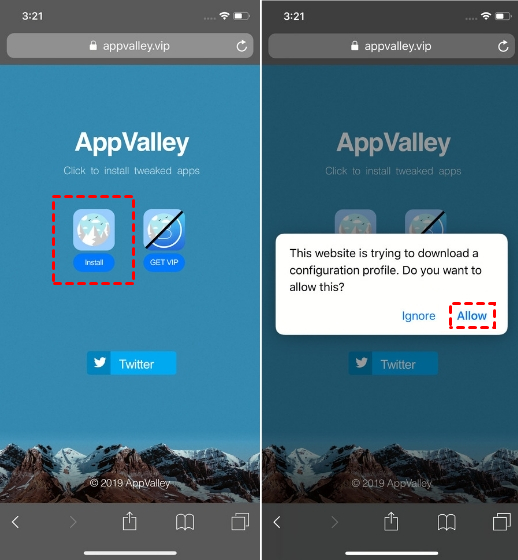
Step 3. Go to Settings > Profile Downloaded > Tap Install in the top right.
Step 4. Open the newly installed app store and search for "Android" or specific ported apps (e.g., "Android Camera for iOS").
Step 5. These apps are often "revoked" by Apple. If they stop working, you must delete the profile and reinstall the latest version.
Summary: Which method should you use?
| Feature | AnyViewer (Recommended) | Cloud VM | Emulator | App Installers |
| Ease of Use | ⭐⭐⭐⭐⭐ | ⭐⭐⭐⭐ | ⭐⭐ | ⭐⭐⭐⭐ |
| Safety | Safe & Official | Safe | Risk of Bricking | Malware Risk |
| App Performance | Native/Fast | Internet Dependent | Slow/Laggy | Unstable |
| Cost | Free Version Available | Monthly Fee | Free | Free |
Closing words
If you want the fastest, safest, and most professional way to run Android apps on your iPhone, AnyViewer is the superior choice. It offers the stability of a real Android device with the convenience of your iPhone's display.
Get started with AnyViewer for free today!
FAQs
Q1: Can I install APK files directly on an iPhone?
A: No. APK (Android Package Kit) files are designed for the Android architecture, while iOS uses IPA (iOS App Store Package). An iPhone cannot read or execute APK files. To access APK-based apps, you must use a workaround like AnyViewer to control an actual Android device or use a cloud-based VM.
Q2: Is it safe to use Android emulators on iOS?
A: Using emulators like iAndroid usually requires jailbreaking your iPhone. This can void your warranty, make your system unstable, and expose you to security vulnerabilities. If security is your priority, we recommend using AnyViewer, as it requires no system modifications and uses ECC end-to-end encryption to keep your data safe.
Q3: Do I need to be on the same Wi-Fi to use AnyViewer?
A: No! One of the best features of AnyViewer is that it works over the internet. As long as both your Android and iPhone have a stable internet connection (Wi-Fi or Mobile Data), you can run your Android apps on your iPhone from anywhere in the world.
Q4: Can I play Android games on my iPhone using these methods?
A: Yes. Method 1 (AnyViewer) is the best for gaming because it uses your Android phone's actual GPU and CPU, ensuring high compatibility. However, for fast-paced competitive games, ensure you have a low-latency internet connection for the best experience.
Q5: Are there any free ways to run Android apps on iOS?
A: Yes, AnyViewer offers a free version for personal use that is perfect for accessing Android apps remotely. While Cloud VMs usually require a monthly subscription, AnyViewer provides a cost-effective way to bridge the two ecosystems.
Q6: Can I use the Google Play Store on my iPhone?
A: Not directly. You cannot install the Play Store app on iOS. However, by using AnyViewer to remote into an Android phone, you can open the Play Store on that device and interact with it through your iPhone screen.



 as a preferred
source on Google
as a preferred
source on Google