

Remote Control Samsung Tablet from Phone [3 Ways]
This comprehensive guide explores how to remotely control your Samsung tablet from your mobile phone. Contents include recommended apps and their step-by-step instructions. Perfect for tech enthusiasts looking to improve their device management skills. If you are also interested, please keep reading.

By Ellie / Updated on October 13, 2025


Can I control my Samsung tablet with my phone?
Absolutely, you can remote control Samsung tablet from phone. Remote access has become an essential tool, offering convenience, boosting efficiency, and enhancing productivity. Picture this: you’re relaxing on the couch with your phone in hand, and your Samsung tablet sits across the room. You need to grab something from it, but don’t want to get up. Sounds ideal, right? Thanks to modern technology, this scenario is entirely possible. For Samsung users, the ability to control a tablet remotely simplifies tasks, whether for personal use, work, or creative projects.
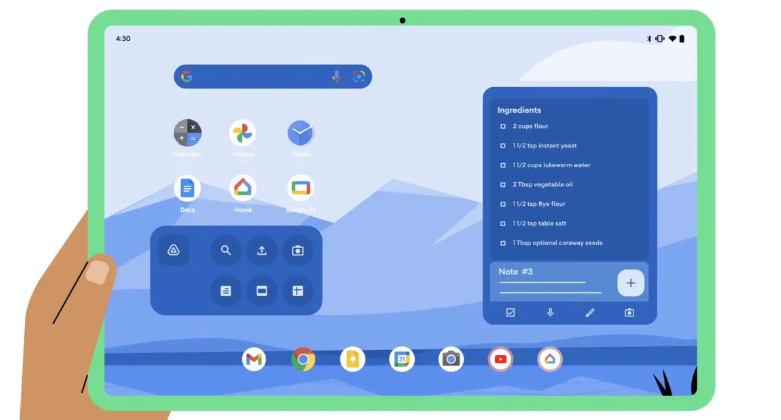
Interested? Many users are looking for how to control Samsung tablet with phone now. Let's dive into this ultimate guide that will walk you through the entire process step-by-step to ensure that you can seamlessly remote control Samsung tablet from phone.
How to remote control Samsung tablet from phone [3 options]
There are multiple ways to remote control Samsung tablet from phone. Let's explore the most effective methods:
Option 1. AnyViewer
AnyViewer stands out as one of the best remote desktop apps for controlling a Samsung tablet from a phone. This powerful yet easy-to-use tool allows you to manage your tablet anytime, anywhere, seamlessly. Whether you need to access files, open apps, or offer remote support, AnyViewer delivers smooth performance and high reliability.

What makes AnyViewer special is its cross-device compatibility; not only can you control your Samsung tablet from another phone, but also from a computer or other devices. It’s a flexible and efficient solution designed for both personal and professional use.
Thanks to its intuitive interface, low-latency connection, and bank-level encryption, AnyViewer ensures that your remote sessions are both secure and effortless.
Key Highlights:
- Free and easy to use: quick setup without complex configurations.
- Fast, stable connections: optimized for smooth remote control experiences.
- Advanced security: end-to-end encryption keeps your data safe.
- Cross-platform access: control your Samsung tablet from phones, PCs, or tablets.
- Reliable performance: ideal for work, study, or personal use.
Whether you’re in another room or on the other side of the world, AnyViewer gives you complete control over your Samsung tablet from your phone, anytime, anywhere.
Step 1. Start by downloading and installing AnyViewer on both your Samsung tablet and phone. Create an AnyViewer account on your Samsung tablet by signing up and logging in.
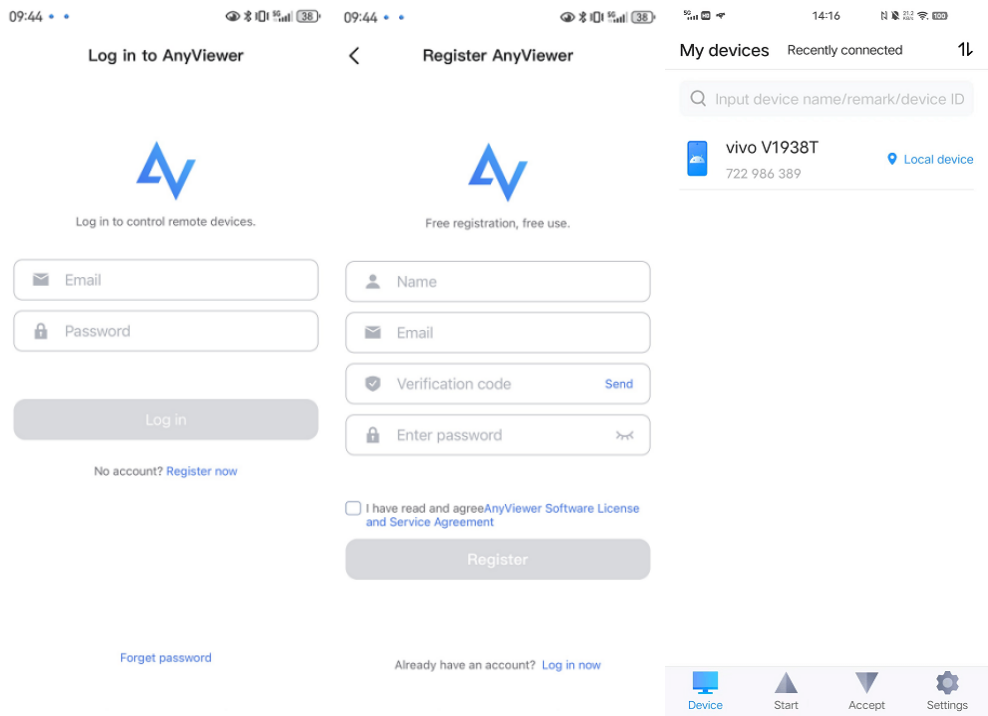
Step 2. Repeat this process on your phone.
Step 3. On your phone, select the Samsung tablet you wish to control and choose "Remote control".
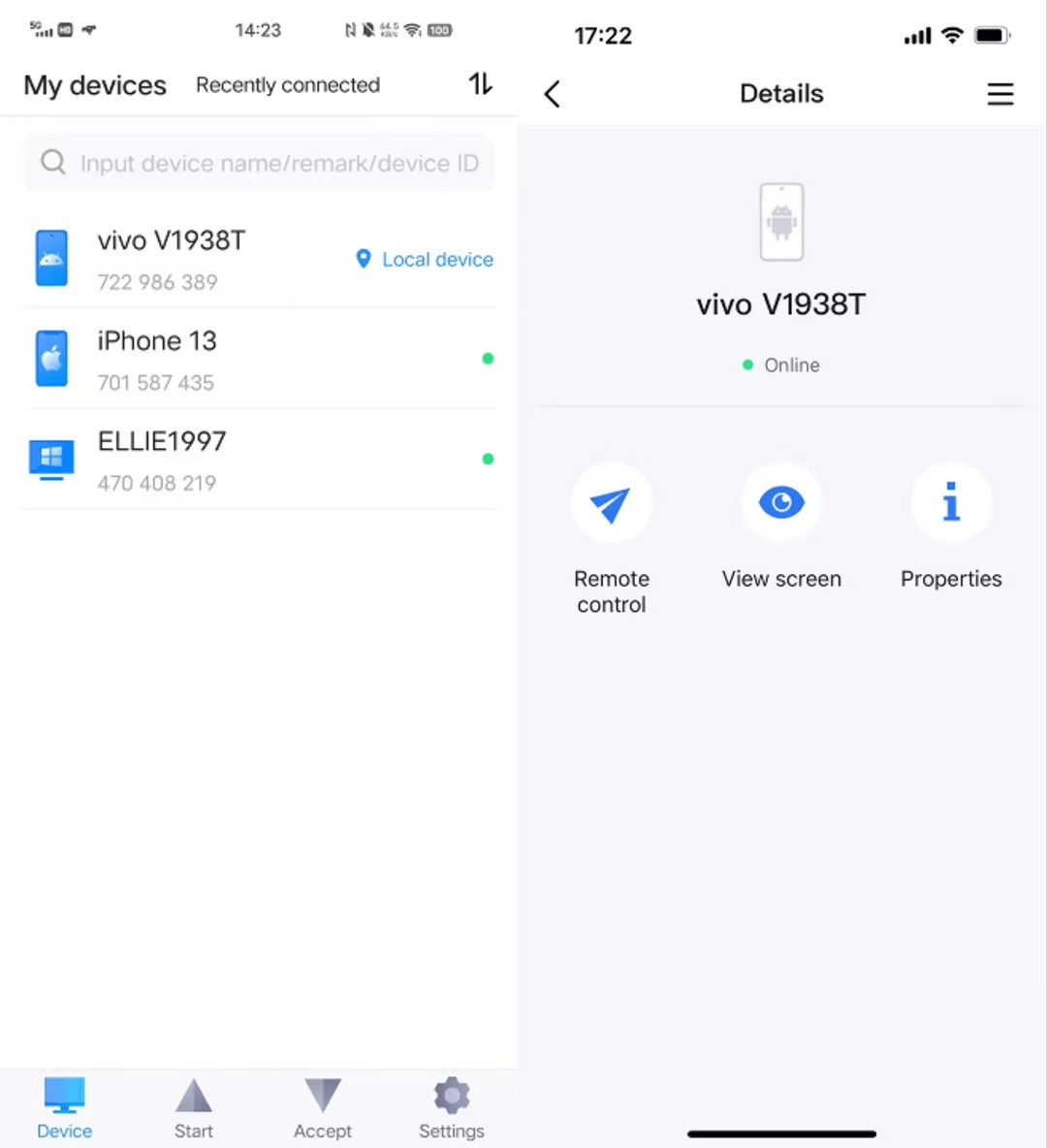
Step 4. Grant the necessary permissions for remote control on your Samsung tablet.
Step 5. Head to Accessibility settings and activate AnyViewer Auxiliary Service by tapping "Enable". Locate AnyViewer within the Installed Services and activate the AnyViewer Auxiliary Service.
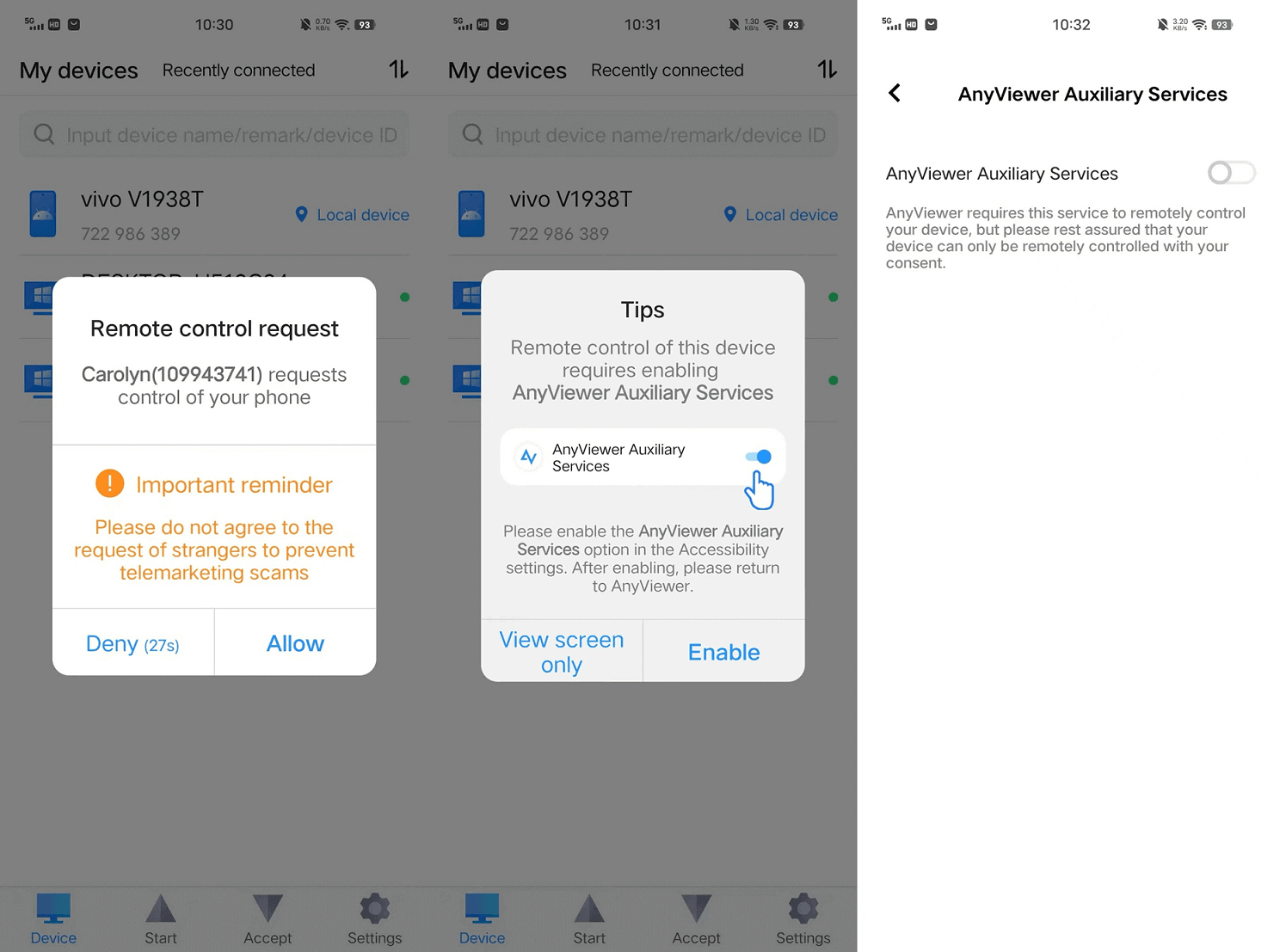
Step 6. With these steps done, you're ready to remotely control your Samsung tablet from your phone.
- ★Tips: Upgrade your remote screen control capabilities by opting for an advanced plan on AnyViewer. With these upgraded plans, you gain the ability to seamlessly manage multiple mobile devices at once, unlocking higher levels of efficiency and productivity.
Option 2. AirDroid
AirDroid stands out as a premier option for remote control between phones and tablets. With its intuitive interface and a range of features such as file transfers, remote access, and notification mirroring, it simplifies device management. With its emphasis on security and user-friendliness, AirDroid facilitates smooth control and effective connectivity between your phone and tablet.
However, it's important to note that AirDroid provides only 10 minutes of free remote control usage each day. If you need longer access, payment is required.
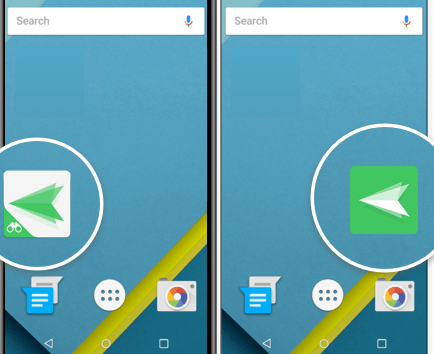
Step 1. Start by downloading and installing AirDroid Mobile on your Samsung tablet and AirMirror on your phone. Sign in to both applications using the same account credentials.
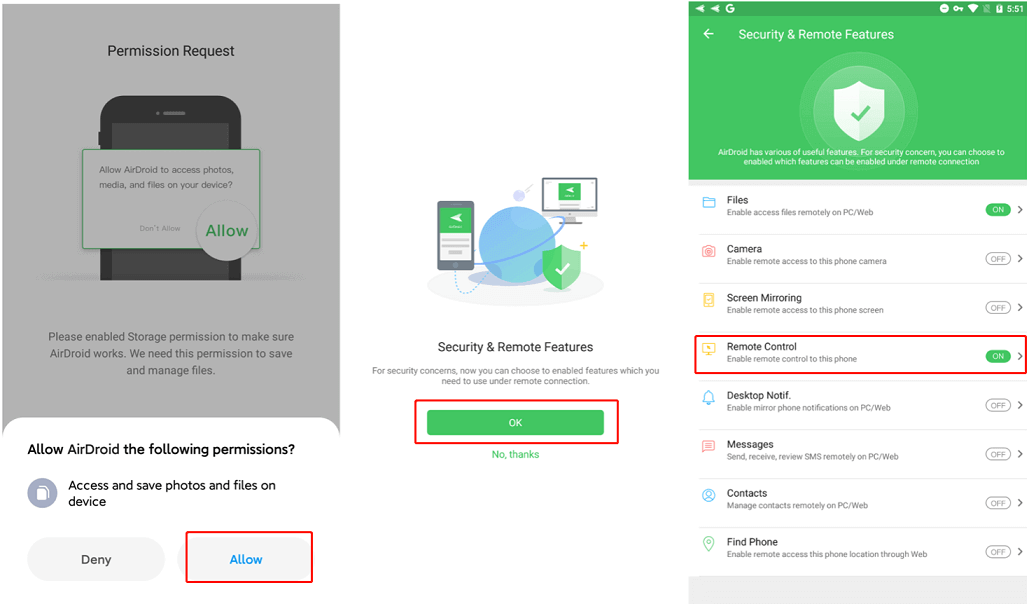
Step 2. On your Samsung tablet, navigate to "Me" > "Security & Remote Features," and toggle on "Remote Control."
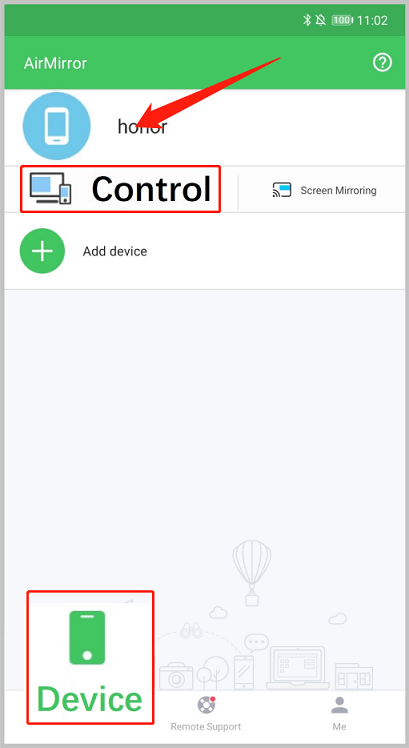
Step 3. Switch to your phone, access "Device," select your Samsung tablet, tap "Control," and voila! You're all set to take control remotely.
Option 3. TeamViewer
For remote control of your Samsung tablet, TeamViewer emerges as a strong contender. This widely used application enables control from a PC, Android, or iPhone. Featuring a user-friendly interface, swift functionality, and strong security measures, TeamViewer proves itself as a reliable tool for seamless tablet control from your phone.
However, it's crucial to note that TeamViewer is free only for personal use. For commercial purposes, payment is required.
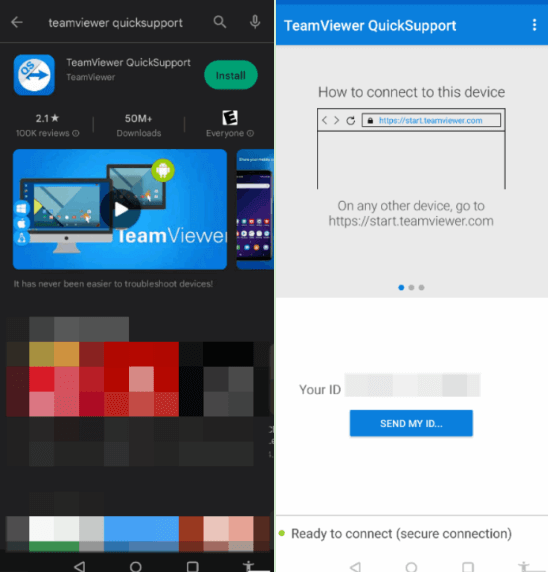
Step 1. Start by downloading and installing TeamViewer Remote Control on the Samsung tablet you intend to control.
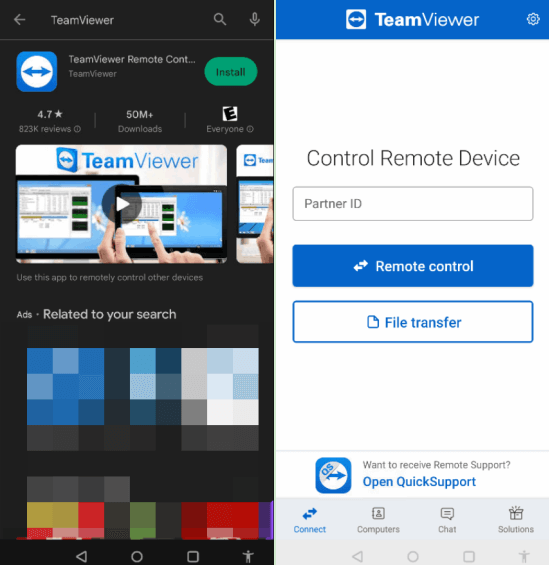
Step 2. Get TeamViewer QuickSupport on your Samsung tablet and share the provided ID with your phone.
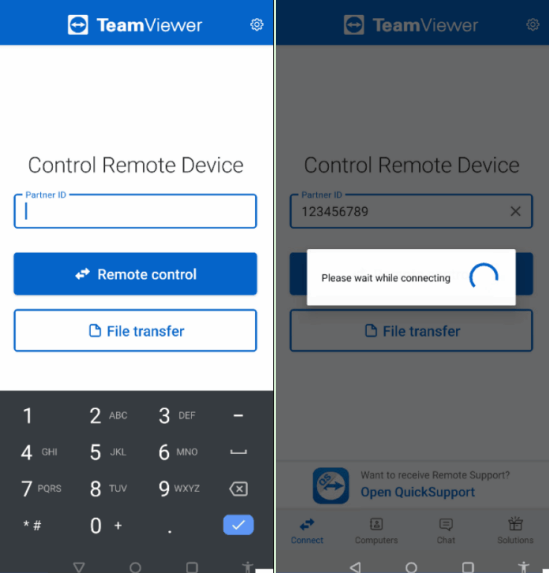
Step 3. On your phone, input the shared ID and select "Remote control."
Step 4. Allow the connection on the Samsung tablet and activate screen recording if needed.
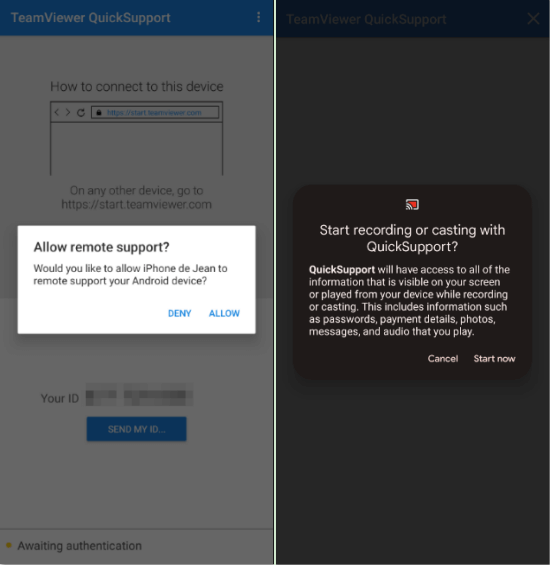
Step 5. Once these steps are done, you're connected and all set to remotely control the Samsung tablet.
Conclusion
In conclusion, remote control Samsung tablet from phone has never been easier, thanks to the top three options outlined in this guide. Whether you opt for AnyViewer's seamless connectivity, AirDroid's feature-rich interface, or TeamViewer's reliability, you're guaranteed a hassle-free experience. With step-by-step instructions and user-friendly interfaces, these apps empower you to manage your tablet effortlessly from anywhere in the world. So, why wait? Dive into the world of remote control today and take charge of your Samsung tablet with just a few taps on your phone!



 as a preferred
source on Google
as a preferred
source on Google