

Remote Desktop Error 0x904 & Extended Error 0x7: Fixes
Seeing Remote Desktop error 0x904 with extended error 0x7? Use the checks below to identify whether the block is caused by RDP settings, the firewall, VPN, DNS, or the network path—and verify the connection after each fix.

By Ellie / Updated on September 3, 2026


What Remote Desktop error 0x904 and extended error 0x7 mean
I recently switched from Windows 10 to Windows 11, and everything appears to work except RDP. I connect over a VPN and have tried several servers and PCs. I am prompted for credentials, but the connection then returns an error. Has anyone else had this problem after upgrading?
- Question from Spiceworks
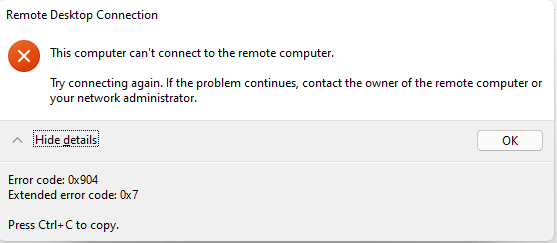
Error 0x904 with extended error 0x7 indicates that the RDP client started a connection but could not complete it. The code does not identify one specific fault. In practice, the cause is usually one of the following: Remote Desktop is disabled, Windows Firewall blocks RDP, the VPN or network path is unstable, the computer name does not resolve, or the Remote Desktop service is not listening.
Fix Remote Desktop error 0x904 by cause
Work through the checks in this order. Stop when RDP connects; changing several settings at once makes it harder to identify the cause.
Cause 1. Remote Desktop is disabled or the host is unavailable
Fix: On the remote PC, confirm that it is powered on and awake. Then open Settings > System > Remote Desktop and turn on Remote Desktop. If the option is unavailable, check whether the PC runs a Windows Home edition, which cannot act as an RDP host. See how to check whether remote access is enabled for more details.
Verify: On the remote PC, press Win + R, enter services.msc, and confirm that Remote Desktop Services is running. From the client, try connecting again using the remote PC's IP address.
Cause 2. Windows Firewall is blocking RDP
Fix: Allow the built-in Remote Desktop rules on the remote PC. Apply the same check to the client if outbound traffic is restricted.
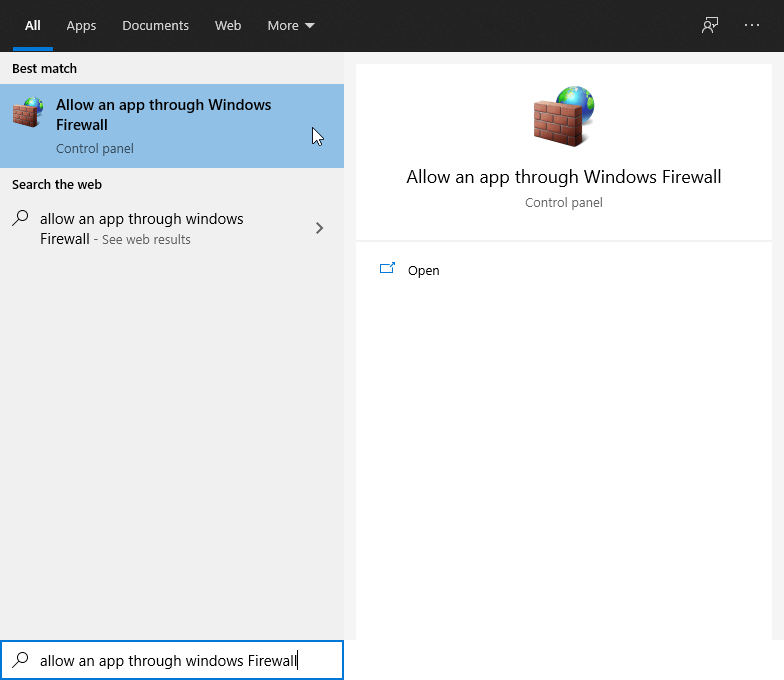
Step 1. Press Win + S, then enter “Allow an app through Windows Firewall”. Click Open.
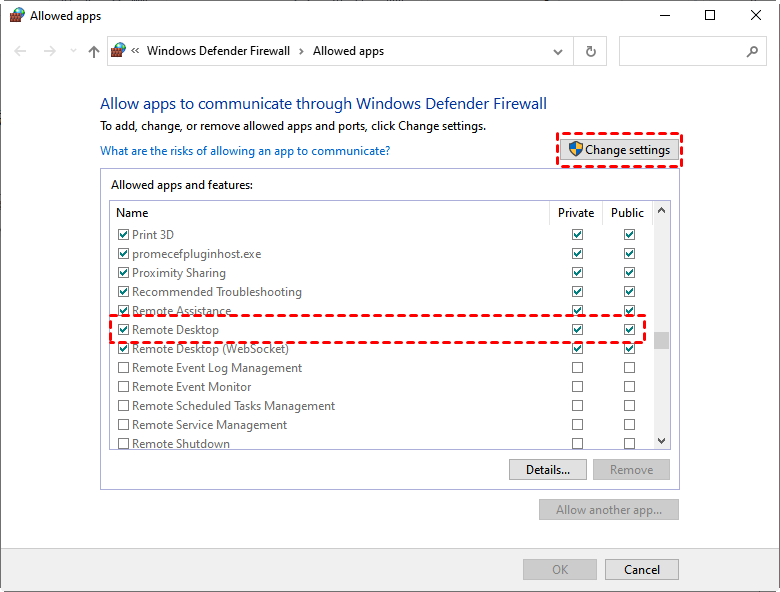
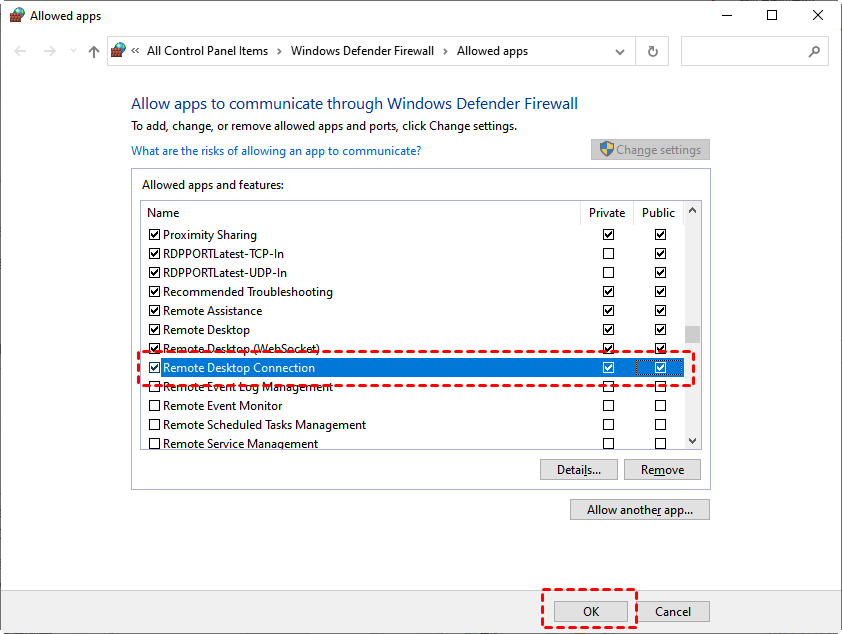
Step 2. Click Change settings and then check both Remote Desktop and Remote Desktop (WebSocket).
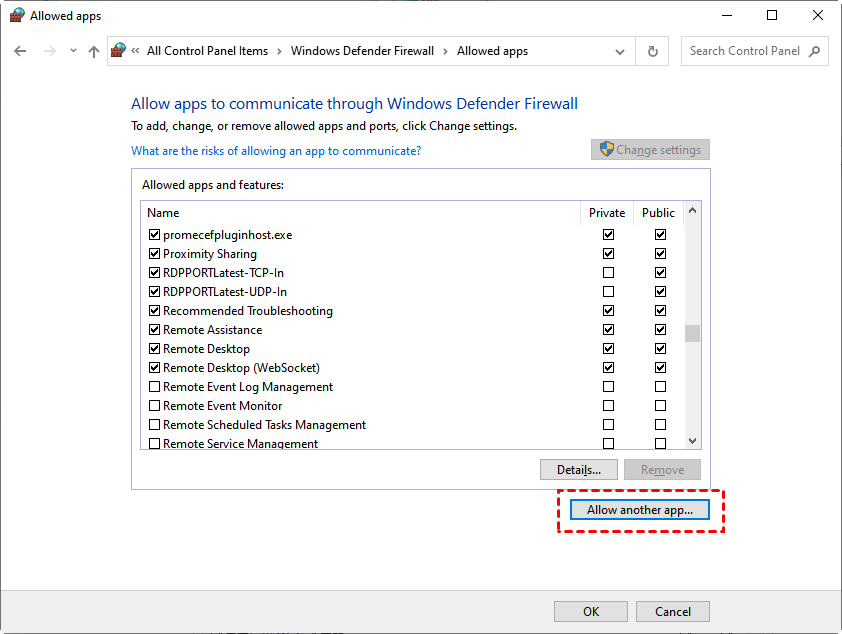
Step 3. Then click Allow another app.
Step 4. Click Browse, then go to C:\Windows\System32\mstsc.exe. Click Open.
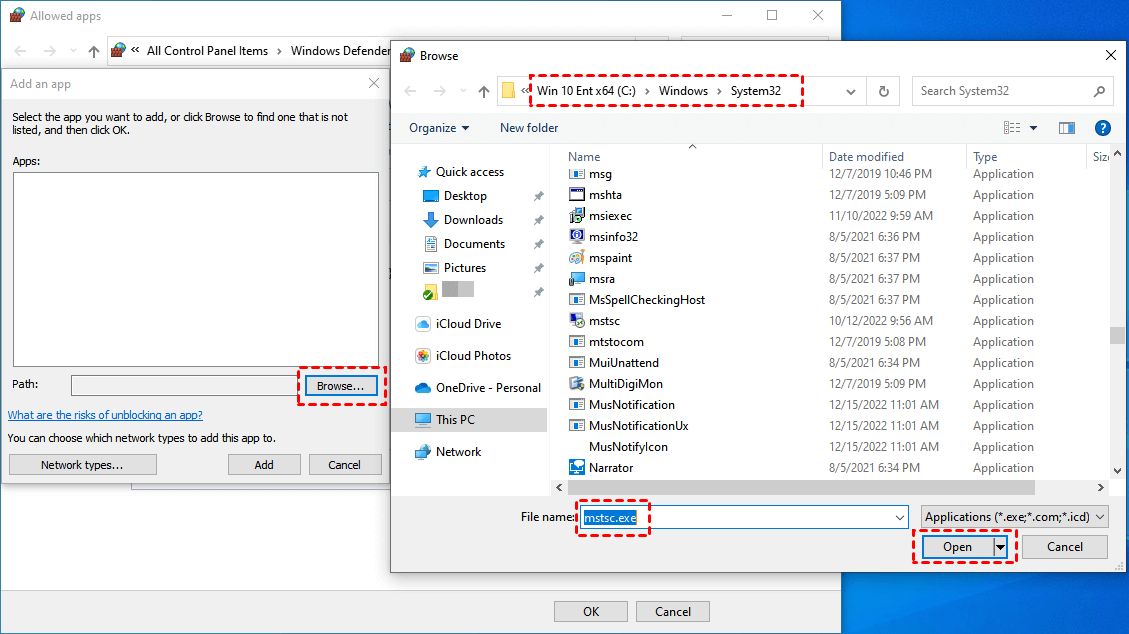
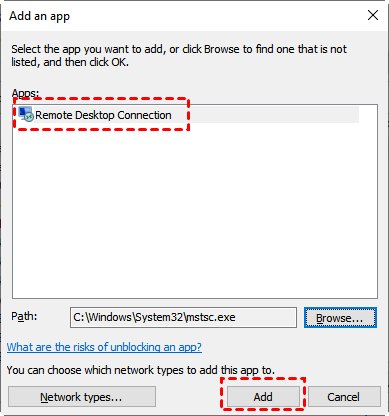
Step 5. Then you can see Remote Desktop Connection in the list, click Add.
Step 6. Remote Desktop Connection will be added to the app list, tick both Private and Public boxes. Then click OK.
Verify: On the client, open PowerShell and run Test-NetConnection
Cause 3. The VPN or network path is unstable
Fix: Disconnect and reconnect the VPN, then confirm that the assigned VPN address and route are valid. If possible, test from a wired connection or another trusted network. Avoid switching providers until a second network test shows that the original connection is the problem.
Verify: Run ping
Cause 4. The computer name does not resolve
Fix: Connect with the remote PC's IP address instead of its computer name. If that works, run ipconfig /flushdns on the client and check the DNS server assigned by the VPN or local network.
Verify: Run nslookup
Cause 5. RDP services or credentials are stuck
Fix: Restart Remote Desktop Services on the remote PC, install pending Windows updates on both devices, and remove the saved RDP credential in Control Panel > Credential Manager > Windows Credentials before signing in again. Restarting the service disconnects active RDP sessions, so do it only when it is safe.
Verify: Reopen Remote Desktop Connection and enter the credentials manually. If the client now reports a different authentication or internal error, use that message to continue troubleshooting; the guide to Remote Desktop internal errors covers those follow-up checks.
Best Remote Desktop alternative: Secure remote access without VPN
If error 0x904 persists after the port, VPN, DNS, and service checks, you can use AnyViewer to reach the remote PC without configuring RDP or a VPN. AnyViewer supports Windows, iOS, and Android.
- AnyViewer is simpler to use. AnyViewer does not require an IP address or a computer name to establish remote connections, but Remote Desktop does.
- AnyViewer has fewer constraints. Remote Desktop needs both machines to be on the same network, unless you use a VPN, whereas AnyViewer can be used over the internet.
- AnyViewer works well with more versions of Windows. Remote Desktop does not support connecting to PCs running Windows Home and Standard editions, while AnyViewer does.
Step 1. On both computers, download, install, and launch AnyViewer. Go to Log in on the Controller computer, and then click Sign up (if you have already signed up on its official website, you can log in directly).
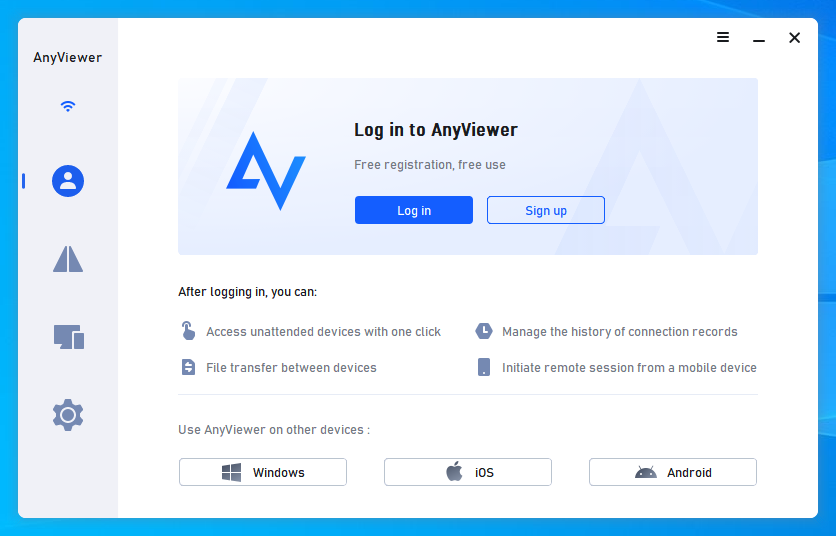
Step 2. Fill out the sign-up form. You should now see that you have successfully logged into AnyViewer. Your device will be assigned to the account to which you have logged in automatically.
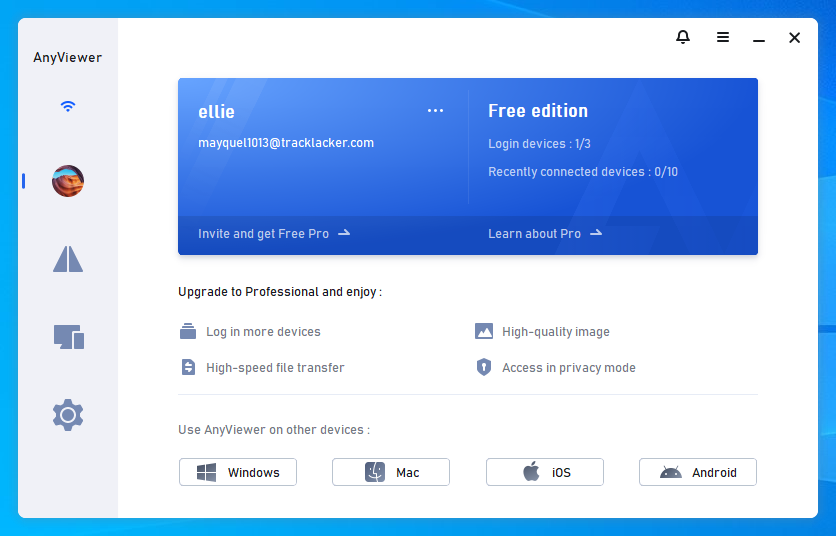
Step 3. Sign in with the same AnyViewer account on both computers, then click the One-click control for unattended remote access.
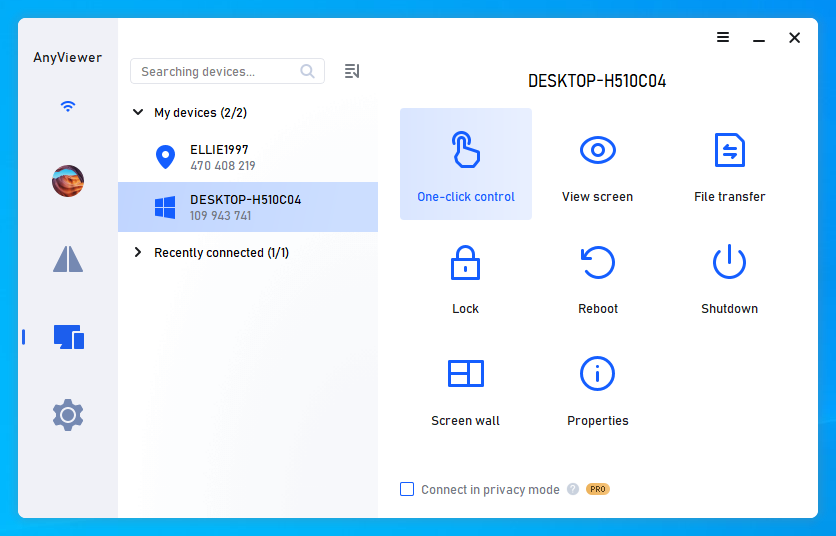
Step 4. The remote desktop will appear once the connection is established. After that, you have complete control over it.
✍ It is recommended to upgrade to VIP, which can bring you:
✔ More devices can be assigned to the same account for unattended remote support.
✔ Connect in privacy mode to protect your privacy. This means the Controller can black out the remote PC screen and disable the remote keyboard and mouse clicks.
✔ File transfer speed will be increased. Transfer speed is 500 KB/s for a free account and up to 10 MB/s for a paid account.
✔...
Conclusion
For Remote Desktop error 0x904 and extended error 0x7, first confirm that the host and RDP service are available. Then test firewall access, TCP port 3389, the VPN route, and DNS in that order. Retest after each change so you know which fault caused the connection failure. If the RDP path cannot be changed, AnyViewer provides a separate way to connect.



 as a preferred
source on Google
as a preferred
source on Google