

How to Use a Tablet as a Second Screen [Lag-Free Guide 2026]
On occasions demanding multitasking, the necessity to employ an Android tablet as an auxiliary display may arise. Don’t worry, you can learn how to use an Android tablet as a second screen with the seven apps introduced in this post.

By Ellie / Updated on February 2, 2026


Can you use a tablet as a second monitor?
Dual monitors can boost productivity by up to 42%, but you don't need to buy a portable display—your tablet is already the perfect candidate.
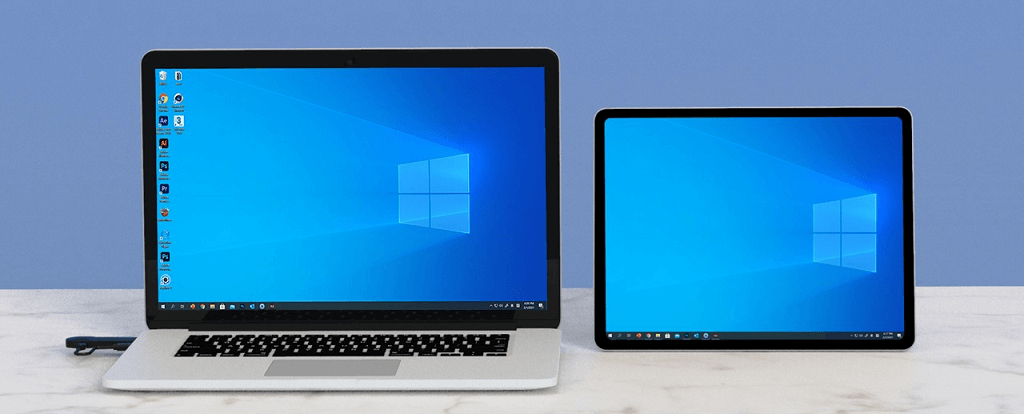
We tested 20+ solutions to find the 7 best apps based on latency, stability, and compatibility with 2026 hardware. Whether you need a lag-free USB connection for design or a remote wireless setup for travel, here is how to use a tablet as a second screen.
How to use a tablet as a second screen [7 apps recommended]
While there are many ways to connect your devices, choosing the right software depends on your specific needs—whether you prioritize zero-lag performance for creative work or wireless flexibility for a clean desk setup.
To help you decide quickly, here is a breakdown of the 7 best apps currently leading the market in 2026:
| Solution | Best For | Connection | Latency | Price |
| AnyViewer | Remote Productivity | Wireless / Remote | Low | Free / Pro |
| AirDroid Cast | Cross-Platform Mirroring | Wi-Fi / Remote / USB | Medium | Free / Premium |
| Duet Display | Pro Artists (Zero-Lag) | USB / Wi-Fi / LAN | Ultra-Low | Subscription |
| Splashtop Wired | Old Devices / Stability | USB (Wired Only) | Low | Free / Paid |
| Spacedesk | Budget Windows Users | Wi-Fi / LAN / USB | Medium | Free |
| iDisplay | Multiple Device Setup | Wi-Fi / USB | Medium | Free (Legacy) |
| Samsung Second Screen | Galaxy Ecosystem | Wireless (Native) | Low | Free (Built-in) |
Option 1. AnyViewer: Best for remote productivity
While most apps only work if your tablet and PC are in the same room, AnyViewer breaks those boundaries. It’s more than a simple screen mirroring solution—it’s a high-performance remote productivity tool with impressively low latency. In testing with a Wi-Fi 7 router, input lag stayed under 30 ms. Whether you are sitting at your desk or working from a café across town, AnyViewer transforms your tablet into a powerful window to your workstation.
- True Remote Extension: Most competitors (like Spacedesk or Samsung) require you to be on the same Wi-Fi. AnyViewer allows you to use your tablet as a second screen over the internet with bank-level encryption.
- Blazing Fast Performance: Powered by an optimized ECC algorithm, it delivers a high-frame-rate experience with minimal "ghosting," even on standard connections.
- Beyond Just a Monitor: While mirroring, you get full access to remote file transfer and one-click control. You can drag a file from your office desktop directly onto your tablet’s local storage.
- Zero-Config Setup: No need to mess with complex IP addresses or firewall port forwarding. Just log in and connect.
How to Unlock Your Productivity with AnyViewer:
Step 1. Download and install AnyViewer on your PC and sign up.

Step 2. Install AnyViewer on your Android/iOS tablet and log in.
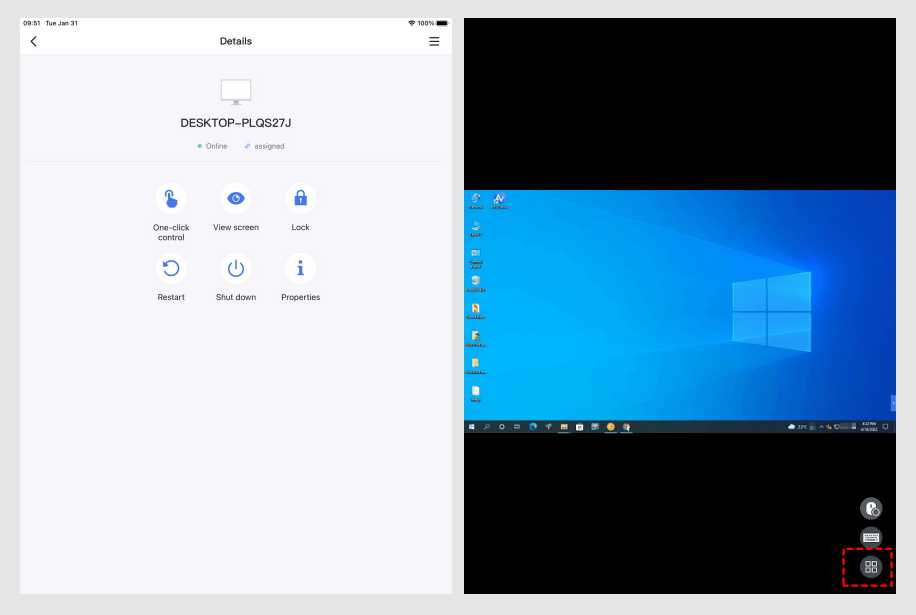
Step 3. Choose your PC on the tablet and tap the One-click control.
Step 4. Your PC screen is now mirrored on your tablet - it's your second screen!
Option 2. AirDroid Cast: Best for cross-platform flexibility
AirDroid Cast is another dependable app for screen mirroring, boasting user-friendly functionality and effectiveness. This tool facilitates the seamless duplication of your PC screen onto an Android tablet. AirDroid Cast's cross-platform compatibility simplifies screen mirroring, enhancing collaboration through features like remote control capabilities.
Currently, AirDroid Cast adequately fulfills screen mirroring needs, enabling users to mirror their Windows or Mac computer screens to an Android tablet. However, forthcoming updates will introduce the much-anticipated screen extension feature to AirDroid Cast.
✅Pros:
- No App Required (Web): You can cast to a browser on the tablet without installing a client app.
- Multi-Device: Supports casting up to 5 screens simultaneously to one PC.
- Low Entry Barrier: Very easy to set up via a simple QR code scan.
❌Cons:
- Aggressive Ads: The free version is frequently interrupted by "Pro" upgrade pop-ups.
- Audio Lag: Users occasionally report audio and video desync during high-definition streaming.
How to mirror PC to your tablet with AirDroid Cast:
Step 1. Download and install the AirDroid Cast app on both your sending and receiving devices.
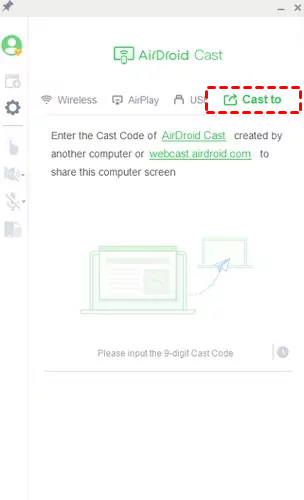
Step 2. Launch the AirDroid Cast software on your casting computer and choose "Cast To."
Step 3. Enter the provided code on the AirDroid Cast app on your Android tablet, or scan the QR code.
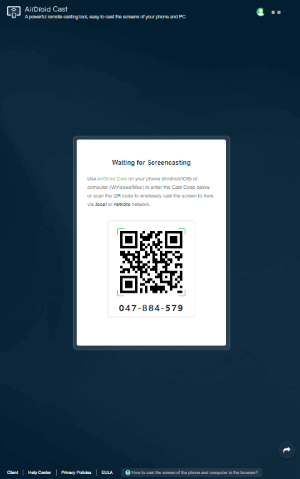
Step 4. Grant the necessary permissions and commence screen mirroring from your computer to your Android tablet.
Option 3. Duet Display: Best for professional creatives
Duet Display gained widespread acclaim as an iOS application enabling users to mirror their Mac's display onto their iPhones and iPads. Now, Duet Display extends its functionality to Android smartphones and tablets, offering similar features.
It's important to note that Duet Display operates on a subscription model, priced at $29.99 per year. Once subscribed, users can wirelessly connect their Android devices, including tablets, to Windows computers and utilize the tablet as a wireless monitor.
However, when connecting an Android tablet to a macOS device, a USB cable is required. Additionally, Duet Display does not support touchscreen functionality for the extended display. Nonetheless, users can employ the tablet as a touchpad to control their primary monitor.
✅Pros:
- Zero Latency: When used via USB, it offers the smoothest experience on the market.
- Pencil Support: Full pressure sensitivity for iPad Pro and high-end Android styluses.
- High Refresh Rate: Supports 60FPS/120FPS settings to match modern tablet displays.
❌Cons:
- Subscription Model: Unlike others, it requires an annual fee to unlock the best features.
- Heavy Resource Usage: Can drain your laptop battery faster due to high-quality encoding.
How to use an Android tablet as a second monitor via Duet Display:
Step 1. Get the Duet Display app on both your Android tablet and PC.
Step 2. Launch the applications on both devices.
Step 3. If you're using the app for the first time, create a Duet Display account. After creating the account, sign in with it on both devices.
Step 4. Click "Connect Devices" on your PC from the left menu bar, then follow the on-screen instructions to locate your Android tablet and establish the connection.
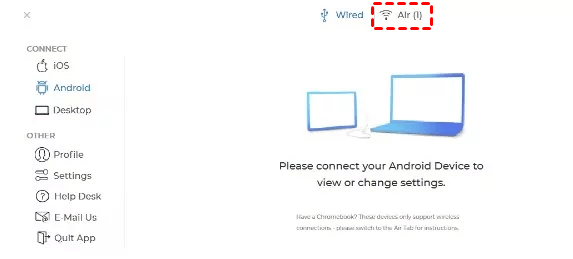
Option 4. Splashtop Wired XDisplay: Best for older hardware
As implied by its name, Splashtop Wired XDisplay enables you to utilize your Android tablet as a secondary monitor via a wired connection, necessitating a USB cable.
One notable advantage of utilizing a tool such as Splashtop Wired XDisplay is the potential for enhanced resolution and frame rate. Consequently, users can experience a full HD screen display with Splashtop Wired XDisplay, despite its lack of support for wireless connectivity. This app is available for free.
✅Pros:
- Stable Connection: Bypasses Wi-Fi interference entirely by using a wired USB link.
- Free Version: Offers a reliable free tier that gets the job done without bells and whistles.
- Simplicity: Very few settings to mess with; it’s plug-and-play.
❌Cons:
- Wired Only: You are physically tethered to your computer at all times.
- Limited Resolution: Doesn't always support the full native resolution of modern 2K/4K tablets.
How to extend a PC's screen to an Android tablet via Splashtop Wired XDisplay:
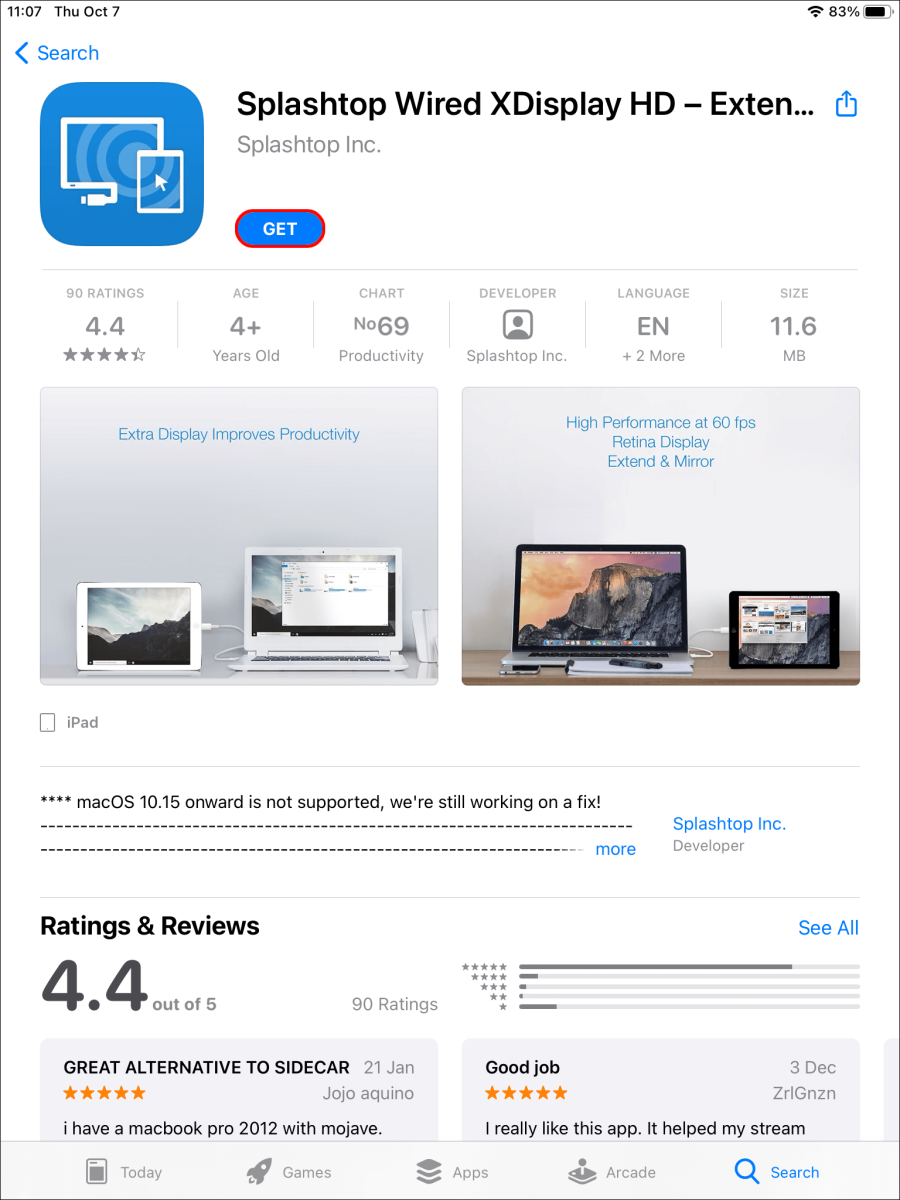
Step 1. Download the Splashtop app on your iPad or Android tablet.
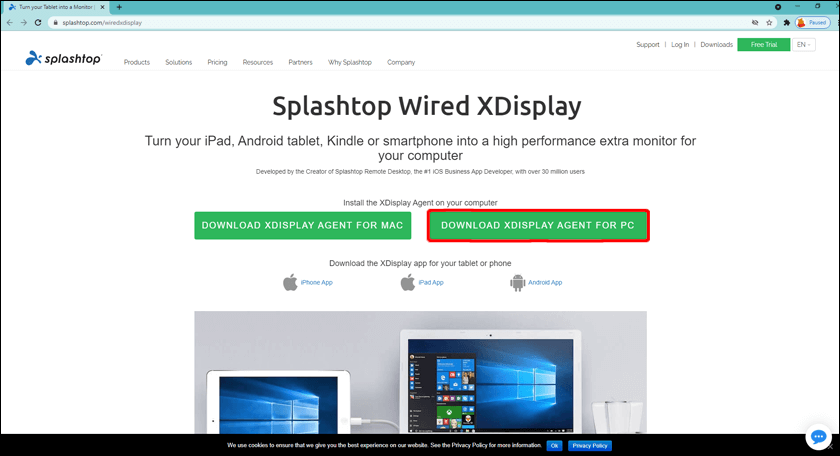
Step 2. Install the Splashtop XDisplay agent on your Windows desktop.
Step 3. Connect your iPad or tablet to the computer using a charging cable once the software is installed.
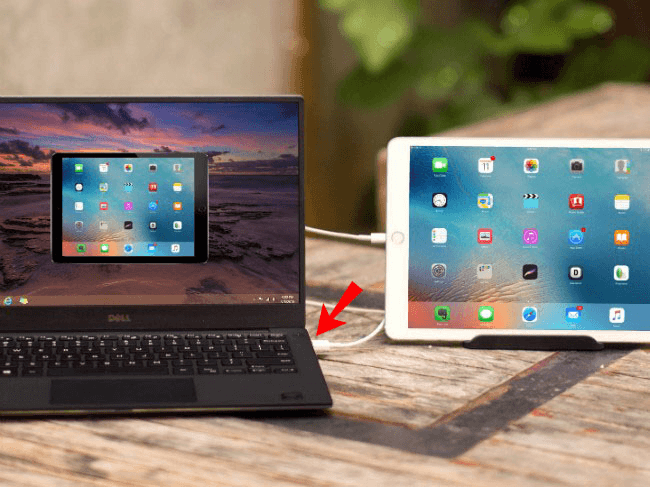
Step 4. Open the app on both devices. Your desktop should appear on your tablet, making it function as a second screen.
Step 5. For an optimal experience, customize the display settings. Open the XDisplay app on your Windows desktop to adjust the frame rate, screen quality, and resolution.
Option 5. Spacedesk: Best for budget-conscious power users
Spacedesk is a reliable software solution that transforms your Android tablet into a secondary monitor for your Windows PC. Offering various connectivity options, including USB, Wi-Fi, and LAN, it ensures versatile usage. Furthermore, Spacedesk delivers satisfactory screen quality when used as a second monitor, complemented by intuitive touch support.
While Spacedesk is available for free, its setup process can be challenging. The complexity of the setup remains a significant drawback, preventing it from emerging as the preferred solution for utilizing tablets as secondary monitors.
✅Pros:
- Truly Free: No hidden subscriptions or intrusive watermarks.
- Multiple Displays: Can connect multiple tablets/phones to a single PC at the same time.
- Versatile Links: Supports Wi-Fi, LAN (Ethernet), and USB.
❌Cons:
- Technical Setup: The driver installation on Windows can be finicky for non-tech users.
- Security: Lacks encryption or PIN protection on local network connections.
Steps to Use a Tablet as a Wireless Second Monitor:
Once you meet the basic requirements, you can turn your tablet into a second screen using Spacedesk.
Step 1. Download Spacedesk on your Android tablet from the Google Play Store.
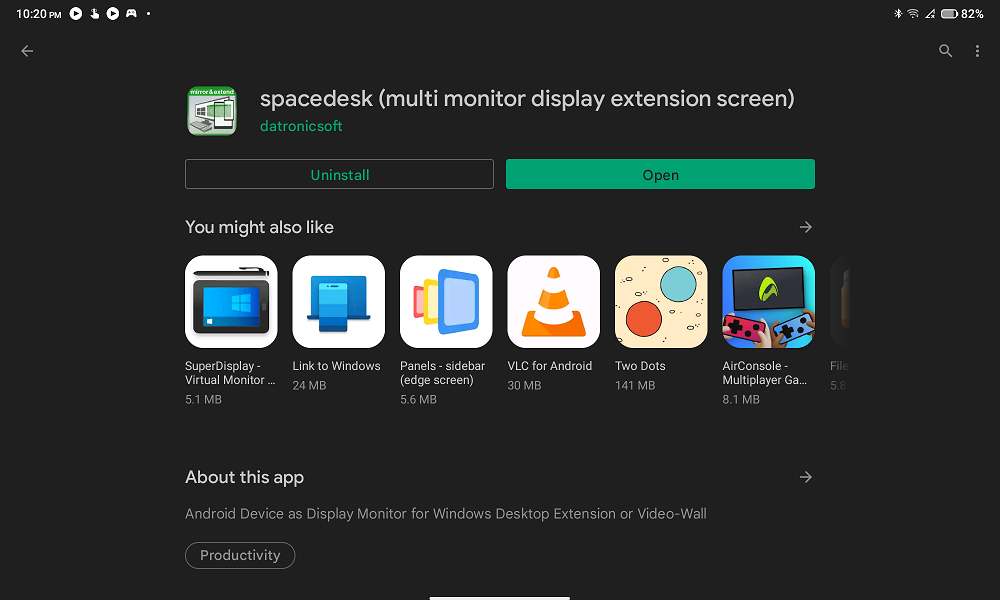
Step 2. Download Spacedesk for Windows on your PC and install the Spacedesk server.
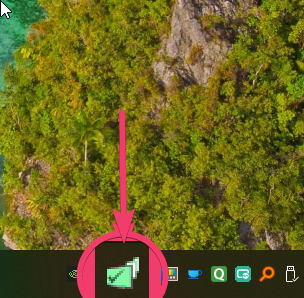
Step 3. Install the program like any other Windows application. After installation, Spacedesk will run in the background and appear in the system tray.
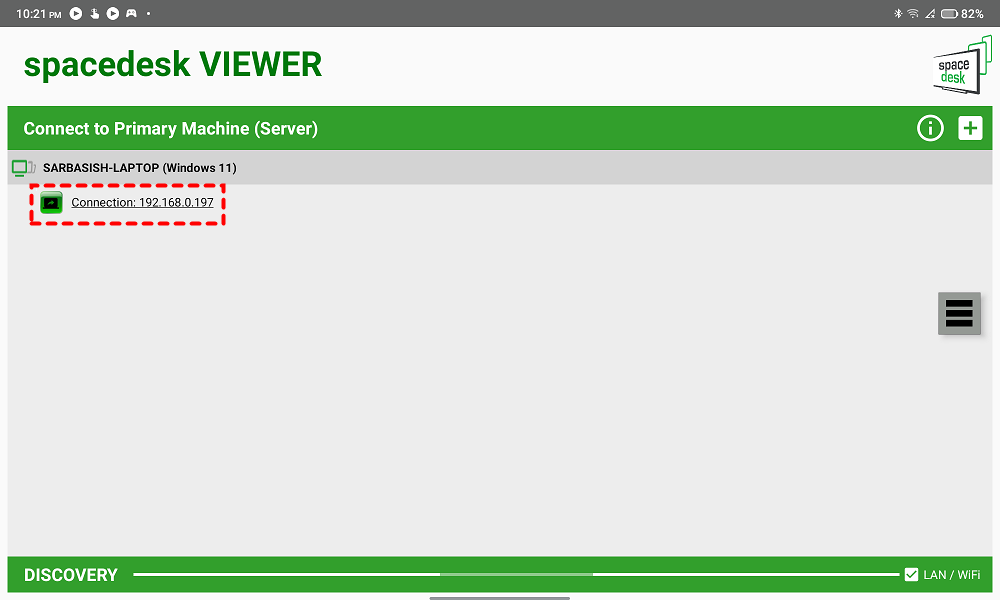
Step 4. Open the Spacedesk app on your tablet. It will automatically detect the Spacedesk server on your PC and display its local IP address.
Step 5. Tap the detected PC on your tablet. Your Windows computer will instantly recognize the tablet as a second monitor.
Option 6. iDisplay: Best for legacy support
iDisplay is a robust display mirroring application initially tailored for iOS and macOS users. However, it has expanded its availability to include Windows and Android users. This app facilitates the utilization of your Android tablet as a secondary monitor, offering smooth performance at 60 frames per second and incorporating multi-touch functionality once the screen is extended.
An unexpected aspect of iDisplay is its transition from a paid model, costing $18, to now being offered free of charge. It enables users to transform their Android tablets into second monitors through both wired and wireless connections, although USB support is currently unavailable for Android devices.
✅Pros:
- Long-term Compatibility: Works on almost any OS version from the last decade.
- One-Time Cost: (Where applicable) avoids the "subscription fatigue" of modern apps.
- Multi-Touch: Supports basic touch gestures even on older Android tablets.
❌Cons:
- Aging Software: Development has slowed down, meaning fewer updates for the latest Windows 11/12 versions.
- Android USB Limitations: Currently prioritizes wireless for Android, which may lead to lag.
How to use an Android tablet as second monitor via iDisplay:
Step 1. Download and install the iDisplay apps on your Android tablet and desktop.
Step 2. Ensure both your PC and Android tablet are connected to the same network.
Step 3. Launch the apps on both devices.
Step 4. On your PC, click the "Connect" button within the iDisplay software.
Step 5. On your Android tablet, select the "Extend Desktop" option in the iDisplay app.
Step 6. Adjust the display resolution and orientation using the iDisplay desktop software, and your Android tablet is now ready for use as a second monitor.
Option 7. Samsung Second Screen: Best for Galaxy ecosystem
Samsung users are in luck: Samsung is one of the most renowned brands globally, with a vast user base of Samsung tablet users. To cater to its users, Samsung offers a built-in feature known as "Second Screen," facilitating the use of Samsung tablets as secondary monitors.
Samsung Galaxy Tab S7 and S8 devices running One UI 3.1 and later versions are equipped with the built-in Second Screen feature. Additionally, PCs with Wireless Displays running Windows 10 can leverage the Second Screen feature to use a Samsung tablet as a second monitor.
✅Pros:
- Native Integration: No third-party software to install on the tablet; it’s built into the "Quick Panel."
- Low Latency: Uses Wi-Fi Direct to create a dedicated link between your PC and tablet.
- S-Pen Optimized: Perfect for using your Galaxy Tab as a drawing tablet for Windows apps.
❌Cons:
- Brand Locked: Only works with Samsung Galaxy tablets (Tab S7 and newer).
- Basic Features: Lacks advanced custom resolutions or remote-access capabilities.
How to use my Samsung tablet as a second screen via Second Screen:
Step 1. Access the Quick Settings on your Samsung Tablet.
Step 2. Select the Second Screen icon and choose your preferred connection mode.
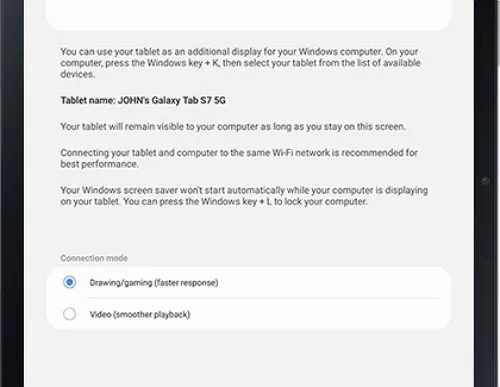
Step 3. Now, on your Windows computer, press the Win + K buttons to access the Connect options.
Step 4. From the list of available devices, select your tablet's name.
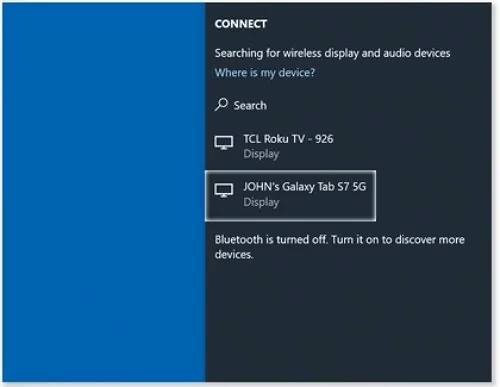
Step 5. Once you grant the necessary permissions, your computer's screen will begin displaying on your tablet's screen using the Second Screen feature.
The bottom line
In today's fast-paced world, multitasking has become essential for productivity. Utilizing a tablet as a second monitor has emerged as a popular strategy among professionals, students, and enthusiasts alike. Through the recommendations provided in this guide, users can explore a variety of applications tailored to facilitate this endeavor.
This post has introduced how to use a tablet as a second monitor. The mobile remote access app AnyViewer is highly recommended to enhance workflow efficiency. Whether you're extending your display for work or leisure, it empowers users to unlock the full potential of their devices, transforming tablets into valuable secondary monitors.



 as a preferred
source on Google
as a preferred
source on Google