Complete Privacy for Your Remote Sessions

Keep your activities invisible and secure with AnyViewer Privacy Mode.

Blackout screen

Blackout the remote screen

Don't let colleagues or passersby watch your every move. Enable Privacy Mode to instantly turn the remote PC’s monitor into a blank screen. This ensures that anyone physically near the computer cannot view your desktop, files, or ongoing activities. Whether you are handling sensitive data or private tasks, your remote session remains 100% confidential.

Lock keyboard and mouse

Lockdown the remote keyboard and mouse

Stop accidental keystrokes or malicious interference from ruining your work. By disabling the remote physical keyboard and mouse, you take absolute control. No one on-site can peek into your session, disrupt your mouse movements, or tamper with your files while you are connected.

Why AnyViewer Privacy Mode is Your Remote Essential

Work with Absolute Confidentiality

Work with Absolute Confidentiality

Feel as comfortable as if you were in a private room. Whether you are handling sensitive financial records or personal documents, you can work freely without the stress of "visual hacking" or prying eyes from passersby.

Enjoy a Distraction-Free Environment

Enjoy a Distraction-Free Environment

Take full ownership of your workspace. By eliminating the risk of accidental interference from the remote location, you can maintain your flow and finish tasks faster, knowing that no one on the other side can disrupt your progress.

Empower Remote Workforce

Empower Remote Workforce

Give your team the freedom to work remotely without compromising security. With our secure, invisible access solution, you can create a high-performance hybrid workspace where employees safely access the tools they need.

How to Remote Access in Privacy Mode

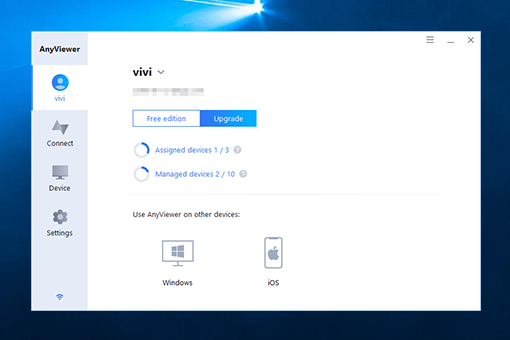
  • Step 1 Download & Install AnyViewer

    Download and install AnyViewer on all devices you want to include.

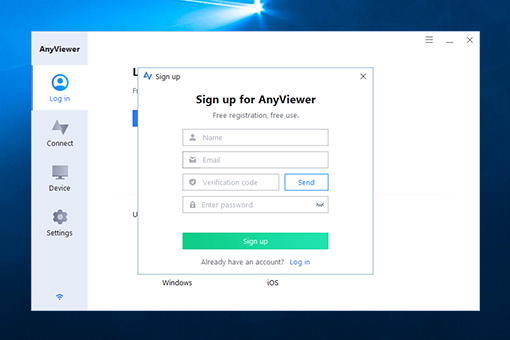
  • Step 2 Sign In to the Same Account

    Create an account and sign in with the same AnyViewer account on both the local and remote devices.

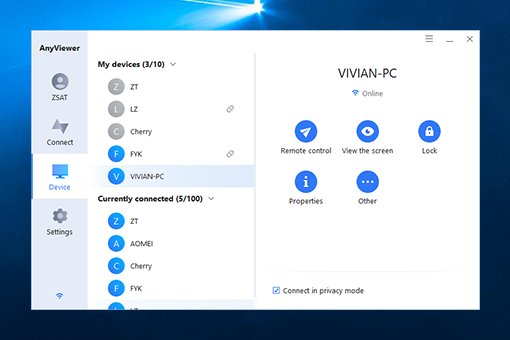
  • Step 3 Start One-Click Control in Privacy Mode

    Open the Device tab, locate the target computer, and select One-click control. Make sure to check the Connect in privacy mode box. (This option can also be enabled during a session)

Protect Your Remote Work in Every Scenario

Peace of Mind While Working from Home

Just because you're at home doesn't mean your office desk is private. If your computer sits in a busy, open-plan office, anyone walking by can see your sensitive work. With Privacy Mode, you can process payroll, review budgets, or sign legal contracts with total confidence. Your remote screen stays pitch black, so passing coworkers see nothing while you get things done.

Handle Urgent Tasks Securely on the Road

Sometimes work can't wait until you're back at your desk. Whether you're using your phone at a noisy airport or a crowded café, you can access your office PC instantly. Privacy Mode ensures that confidential files and internal data stay off-public displays. Even if someone is sitting right in front of your office computer miles away, they won't see a single click of your private session.

Pro-Level Protection for IT Support

When you're fixing a server or running security updates, your "how-to" is your secret. You don't want unauthorized people at the remote site watching your admin steps or seeing your system setup. Enabling Privacy Mode hides your professional logic and expert workflows. It's the ultimate way to perform high-level maintenance without being "live-streamed" to the local office.

Access in Privacy Mode vs. Standard Remote Access

Feature Access in Privacy Mode Standard Remote Access
Remote Screen Visibility Screen is completely blacked out. Screen is visible to anyone near the remote PC.
Physical Input Control Remote keyboard/mouse are disabled. Remote keyboard/mouse remain active.
Confidentiality Maximum - Protects against "visual hacking". Low - Risky for sensitive or private tasks.
Interruption Risk Zero - You have exclusive control. High - Local users might move the mouse.
Best For Handling payroll, legal files, or IT admin. Casual file transfer or collaborative support.
Security Level Enhanced Stealth & Security Layer. Standard Encrypted Connection.

Bank-Grade Security You Can Trust

Your privacy is our top priority. AnyViewer is built with multiple layers of protection to ensure your remote sessions are always safe and private.

Strong ECC End-to-End Encryption

AnyViewer utilizes Elliptic Curve Cryptography (ECC) to secure your data from end to end. This high-level encryption standard shields your connection against hacking and unauthorized interception, ensuring your information stays private.

Secure Peer-to-Peer (P2P) Transmission

All connections are established via P2P technology, meaning your data travels directly between devices and never passes through our servers. We cannot see your activities, providing you with 100% data sovereignty.

Two-Factor Authentication (2FA)

Strengthen your account security with an extra layer of defense. By requiring a second form of verification beyond just a password, 2FA makes it nearly impossible for unauthorized users to gain access to your devices.

Flexible Block & Allowlist

Take full control over who can connect to your PC. Use the Block and Allowlist feature to filter specific device IDs or accounts, ensuring only trusted users can initiate a remote session.

FAQs

  • Is Privacy Mode free to use?

    Privacy Mode is a premium feature available in AnyViewer's subscription plans. While our free version offers secure basic remote access, upgrading to a paid plan unlocks advanced privacy tools like screen blacking and keyboard locking for sensitive work.

  • Will the remote user see what I am doing when Privacy Mode is on?

    No. When Privacy Mode is enabled, the remote computer shows a blank privacy screen indicating that the device is currently under remote control. Anyone in front of that computer will only see this screen and will not be able to view your activities, ensuring your files and actions stay 100% private.

  • Can I turn Privacy Mode on or off during a session?

    Yes! You can easily toggle Privacy Mode at any time. Simply click the "Privacy" menu in the top toolbar during your remote session to enable or disable it instantly without disconnecting.

  • Does Privacy Mode support multiple monitors?

    Absolutely. If your remote computer has two or more monitors, AnyViewer will black out all of them simultaneously. This ensures no part of your workspace is accidentally exposed to others at the remote site.

  • Can the remote keyboard and mouse still be used while I'm connected?

    By default, Privacy Mode disables the remote keyboard and mouse to prevent accidental interruptions. This gives you exclusive control over the PC, so no one at the remote location can interfere with your urgent tasks.

What Our Users Say

Sarah L.

Finance Manager

"As a Finance Manager, I often handle sensitive payroll data from home. AnyViewer’s Privacy Mode is a lifesaver—knowing my office monitor is completely black gives me the confidence to work on confidential files without worrying about who’s walking by my desk."

David K.

IT Specialist

"I use AnyViewer to manage servers across different branches. The ability to hide my screen and lock the remote keyboard is essential. It prevents local staff from accidentally interrupting my work or seeing my admin configurations. Truly a pro-level tool."

James R.

Sales Director

"I travel a lot for business, and I often need to access my work PC from airports. Privacy Mode ensures that even if I'm opening private company documents, my office screen stays dark. It’s the most secure way to handle urgent tasks while I'm on the road."

Emily W.

Graphic Designer

"I’ve tried other remote desktop software, but AnyViewer makes it so easy to maintain a secure remote desktop. One click and the remote screen goes black. It’s fast, reliable, and gives me the privacy I need when working from my local coffee shop."

Michael T.

Software Developer

"The best part for me is the 'Disable Remote Input' feature. I used to have people at the office accidentally move my mouse while I was working remotely. Now, I just turn on Privacy Mode, and I’m the only one in control. Total game changer!"

Linda M.

Operations Manager

"We upgraded our whole team to the Professional plan specifically for this feature. In a modern open-office environment, you can’t always control who walks past your screen. AnyViewer solves that problem perfectly for our remote staff."

Secure Your Remote Workspace Today

Ready for complete privacy? Get started with Privacy Mode now to make your remote sessions invisible and protect your sensitive data.

Download Now