Key Benefits of AnyViewer File Transfer

Cross-Platform Compatibility

AnyViewer removes barriers between operating systems, allowing smooth file transfers across Windows, macOS, iOS, and Android. Whether you're moving files between computers or sending documents to a mobile device, the process is quick and effortless.

Large File Transfers Made Easy

Large file transfer is no longer a problem. AnyViewer is designed to handle high-volume transfers, including high-resolution videos, large folders, and complex databases—without the limitations of email attachments or slow cloud uploads.

Lightning-Fast Performance

Speed matters when initiating a remote file transfer. AnyViewer provides transfer speeds of up to 10 MB/s, ensuring your data moves quickly through a stable and dedicated connection.

Enterprise-Level Security

Your data stays protected during every transfer. AnyViewer is a secure file transfer software that uses ECC 256-bit end-to-end encryption to prevent unauthorized access and keep your files private.

No File Format Limits

AnyViewer supports almost all file formats, from documents and images to installers and professional design files. You can transfer the files you need without worrying about format limitations.

Flexible Transfer Methods

AnyViewer provides multiple ways to transfer files. You can use the built-in File Manager, transfer files during a remote session, or simply drag and drop files on Windows for quick and easy sharing.

How to Transfer Files Between Desktops and Mobile Devices

Easily sync data between Windows and macOS environments. AnyViewer supports three primary methods for desktop-to-desktop transfers.

  • Direct File Manager
  • In-Session Transfer
  • Drag and Drop

Direct File Manager (No Remote Session Required)

  • Step 1.

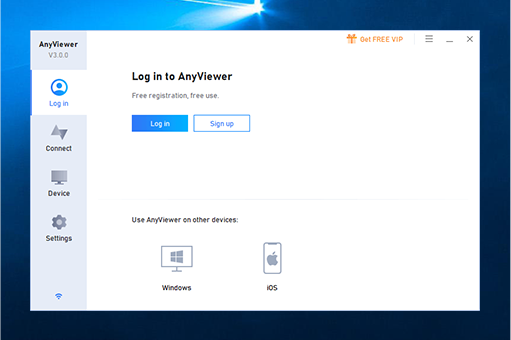
    Open AnyViewer on both computers and log in to the same account.

  • Step 2.

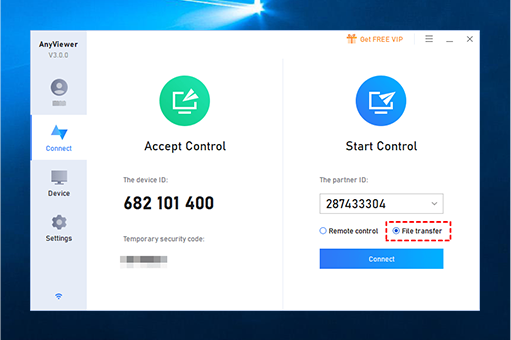
    Go to Device, select your target computer, and click File Transfer.

  • Step 3.

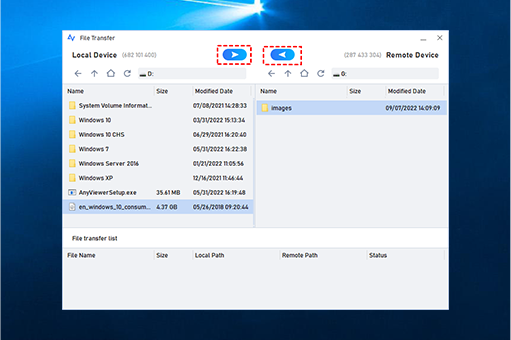
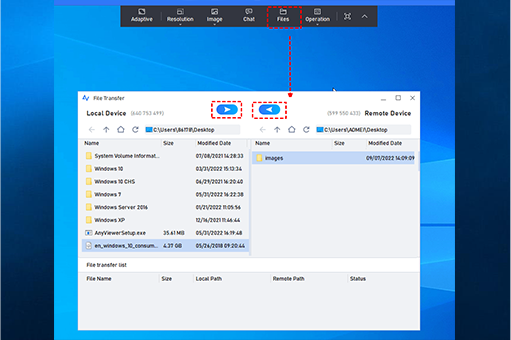
    A dual-pane window will appear. Simply select files from the local pane (left) and click the arrow to send them to the remote pane (right), or vice versa.

In-Session Transfer (During Remote Control)

  • Step 1.

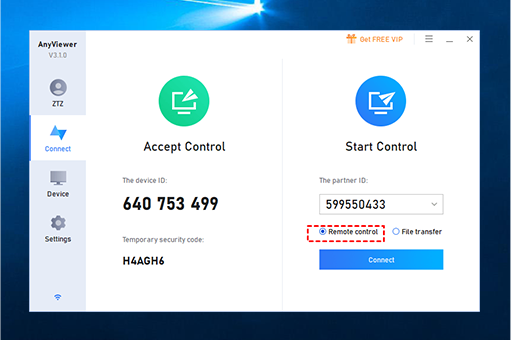
    Start a remote control session.

  • Step 2.

    In the top toolbar, click the Files button.

  • Step 3.

    Manage your transfers instantly while maintaining your remote connection.

Drag and Drop (Windows Only)

  • For Windows devices, it is possible to transfer files within a remote control session by dragging and dropping the files from the remote device to your device or vice versa.

How to Transfer Files Between Desktops and Mobile Devices

Access your computer files from your pocket, or backup mobile photos to your desktop without cables or cloud uploads.

Transfer Files From Mobile to Desktop

  • Step 1.

    Launch the AnyViewer app on your iPhone, iPad, or Android device.

  • Step 2.

    In the Device list, tap on your computer and select the File transfer icon.

  • Step 3.

    Browse photos, videos, or files on your mobile, select the items you wish to transfer, and send them directly to your computer's designated folder.

Transfer Files From Desktop to Mobile

  • Step 1.

    On your mobile device, select your computer and choose File transfer.

  • Step 2.

    Choose Donwload to navigate your computer's hard drive.

  • Step 3.

    Select the documents or media you need and download them directly to your mobile device for offline access.

Best Solution for Every File Transfer Need

Why AnyViewer is the Smarter Choice

AnyViewer Team*** ***Desk Splash*** Log*** Pro
File Transfer Full Support Personal Use Only Personal Use Only Paid Only Paid Only
File Size Limit Up to 2TB Per File 4 GB Per File Unlimited 64 GB Per File 2 GB Per File
"Commercial Use" Detection None (Work freely) High (Frequent blocks) Moderate (Usage limits) N/A (No Free Version) N/A (No Free Version)
Platforms Windows, Mac, iOS, and
Android
Windows, macOS, Linux, iOS, and Android Windows, macOS, Linux, Android, iOS, ChromeOS, and Raspberry Pi Windows, Mac, Linux, and Android Windows, Mac, iOS, and Android
Mobile-to-PC Transfer Supported Personal Use Only Personal Use Only Paid Only Paid Only
Unattended Transfer Supported (Free & Paid) Supported (Free & Paid) Supported (Paid Only) Supported (Paid Only) Supported (Paid Only)
Drag-and-Drop Yes (Win-to-Win) Yes (Win-to-Win) Yes Yes Yes
Security 256-bit ECC Encryption AES 256-bit Encryption RSA 2048 Asymmetric Encryption TLS & 256-bit AES Encryption 256-bit Encryption
Pricing Highly Affordable Very Expensive High Subscription Tiered Pricing Expensive

Frequently Asked Questions

  • Is there a limit on the file size I can transfer with AnyViewer?

    AnyViewer allows you to transfer files of almost any size. While the Free version has a per-file limit (up to 100MB per file), AnyViewer paid plans support a maximum file transfer size of 2TB. Whether you are sending a massive 1TB database or a single 4K video file, AnyViewer handles it without corruption or timeouts.

  • How fast is the file transfer speed?

    In a stable network environment, AnyViewer supports speeds up to 10MB/s. Unlike many competitors that throttle speeds for free users to a few hundred KB/s, we provide a high-speed dedicated channel to ensure your transfers are completed in minutes, not hours.

  • Can I transfer files if no one is at the remote computer?

    Yes. By enabling Unattended Access, you can securely transfer files to or from your remote office computer even if it is currently unmanned. As long as the remote PC is powered on and AnyViewer is running, you can manage your files from anywhere in the world.

  • How secure are my files during the transfer process?

    Security is our top priority. AnyViewer uses ECC (Elliptic Curve Cryptography) 256-bit end-to-end encryption for every transfer session. This is the same level of security used by global financial institutions, ensuring that your data is never intercepted, stored on our servers, or accessible by third parties.

  • Does AnyViewer support folder transfers and drag-and-drop?

    Absolutely. You can transfer individual files or entire folder structures while maintaining the original directory hierarchy. For Windows-to-Windows connections, we also support the intuitive Drag-and-Drop feature, allowing you to move files between local and remote screens as if you were working on a single machine.

What Our Users Say

Marcus T

Freelance Video Editor

I’ve tried almost every remote desktop tool out there, and AnyViewer’s file transfer speed is on another level. I regularly move 5GB+ video project files between my home Mac and office PC. While other tools throttle my speed, AnyViewer consistently hits that 10MB/s mark. It’s a lifesaver for my deadlines.

Sarah Jenkins

IT Consultant

The dual-pane File Manager is exactly what I needed. I can push software patches to my clients’ servers without even starting a full remote control session. It’s clean, professional, and the ECC encryption gives my corporate clients the peace of mind they demand.

David L.

Sales Manager

Being able to pull a PDF from my office computer directly to my iPhone while I’m on the train is incredible. The mobile app interface is intuitive, and unlike other apps, I don't have to deal with 'commercial use suspected' blocks just for grabbing a quick file.

Elena Rodriguez

Tech Startup Founder

We switched to an AnyViewer paid plan because we were tired of the 100MB file limits on other platforms. Now, our team transfers entire database backups (sometimes 200GB+) without a single hitch. It’s easily the best value-for-money solution on the market.

James Chen

Software Developer

I work on a MacBook at home but my office workstation is Windows. AnyViewer makes the cross-platform file transfer feel non-existent. The drag-and-drop feature on Windows is a nice touch, but even on my Mac, the process is just a few clicks. Highly recommended for hybrid setups.

Linda M.

Executive Assistant

I often forget to save files to the cloud before leaving the office. With AnyViewer, I just log in from home, use the unattended access feature, and grab what I need. It’s like having a 20-meter long USB cable that reaches across the city.

Ready to Experience Faster File Transfers?

Experience the speed and reliability of remote file transfers. Join millions of users who have simplified their remote workflow with AnyViewer.

Download Now